Web UI users, regardless of their role (e.g., admin or end user), must have Web UI access privileges. For more information on setting privileges up, see the Web UI Getting Started section of the Web User Interfaces documentation
Direct Browser Access
Privileged users can access a Web UI by opening a browser and entering the relevant URL. A Web UI URL is basically the URL that is used to access STEP Workbench but appended with /webui.
If the Web UI you are accessing is not enabled as the Default Web UI, the URL must also be appended to include the ID of the Web UI configuration.
| Default URL Format | Non-Default URL Format |
|---|---|
| http://[your system name]/webui | http://[your system name]/webui/[Web UI configuration ID]) |
As a basic example, this is what the URLs will look like for a Web UI configuration where the system name (server URL) is 'your-system' and the Web UI configuration ID is 'ANewWebUI.'
| Example Default URL Format | Example Non-Default URL Format |
|---|---|
| http://your-system/webui | http://your-system/webui/ANewWebUI |
Once the URL is entered into a browser address bar, a login screen displays.
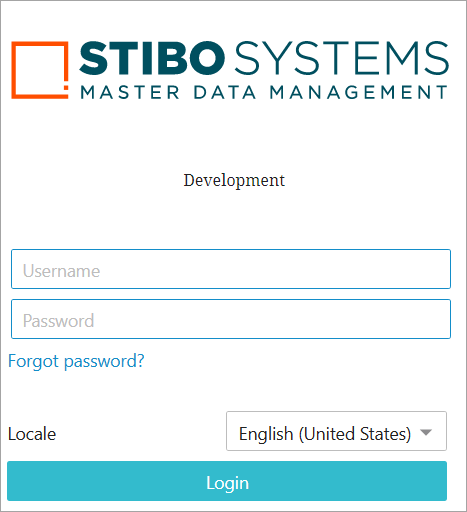
To access the Web UI homepage:
- Enter STEP Username.
- Enter STEP Password.
- Click Login.
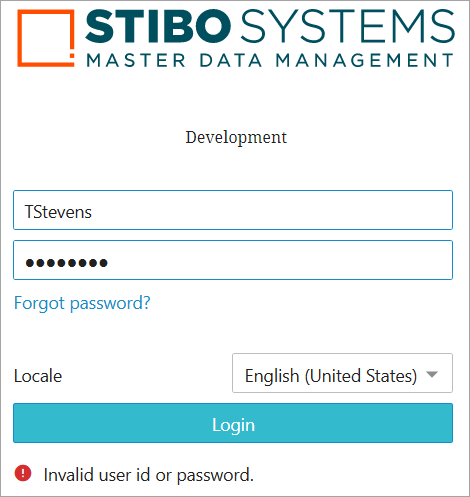
If you do not have authorization to use a particular Web UI instance, access will be denied and a 'You do not have privileges to access this Web UI' message will appear.
Users with the appropriate privileges can access multiple Web UIs under a single username by logging in just once. Once a user has logged into a single Web UI, additional Web UIs (for which a common username is valid) may be opened in the same browser, either in new browser windows or new browser tabs. The Web UI's name will display in the browser tab. During a browser session, logging in to each new Web UI is automatic, forgoing the login screen altogether.
To access a Web UI using a different username, users must first log out of one of the open Web UIs. This has the effect of logging the user out of all open Web UI sessions. The closed Web UIs will revert to the login screen and display a notification that states, 'You are now logged out of the Web UI.'
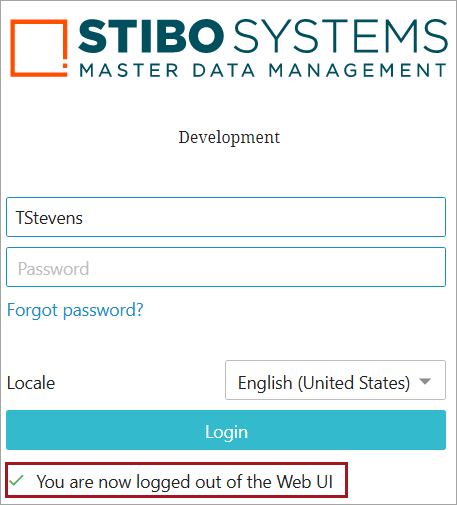
Once logged out, users are able to log into a Web UI using a different username.
Forgot Password
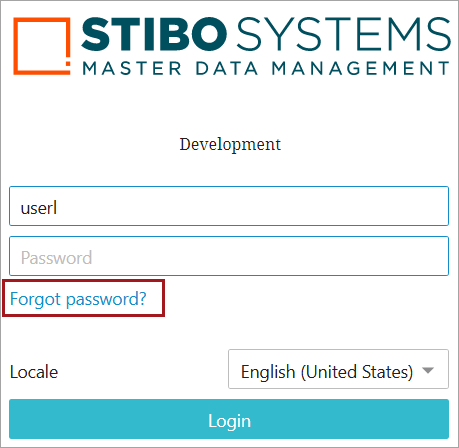
If a user forgets their password, or is otherwise unable to log in with the password they enter into the 'Password' field, that user can click the 'Forgot Password?' link, located just beneath the login fields. To reset a password, follow the directions below:
-
Click the Forgot password? link to be brought to the 'Forgot password?' screen.
-
Enter the Username and email address associated with the user's account.
Note: The email is evaluated on email correctness not case sensitivity.
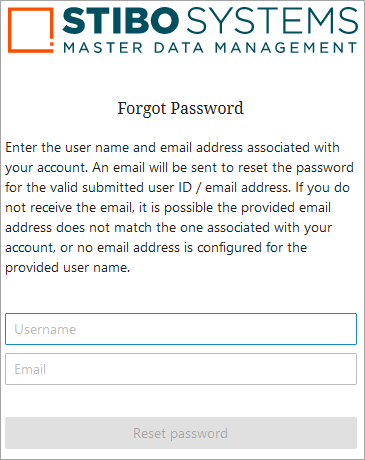
Note: For the 'Forgot password?' functionality to work, customers should ensure that an email address is associated with each user ID. The user ID and email address for the user can be accessed in the workbench under the 'Users & Groups' node under the 'System Setup' tab. If user information was configured by an admin, users can also verify the accuracy of their email address via the User Details Screen within Web UI prior to needing a password reset.
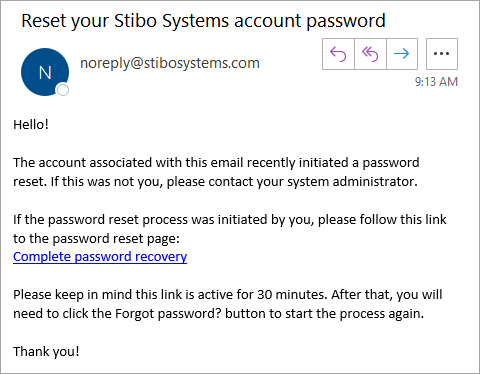
If the Username and email address match what is in the system, then an email containing a link called 'Complete password recovery' will be auto-generated and sent.
Important: If user information was configured without an email address, or if a user submits information that does not match what is saved in the system, or if an email address is associated with multiple user accounts, the user will receive no password reset email. Additionally, if an email is provided for a user in one user group, the email address will be associated with that user for all user groups in which that user is included.
-
Click the Complete password recovery link to be directed to a new page where a new password can be set.
-
Re-type the new password, and if both passwords match, the Save new password button becomes active.
-
Click the Save new password button to set the new password.
Note: If at any point the passwords do not match, a Passwords don't match warning will display.
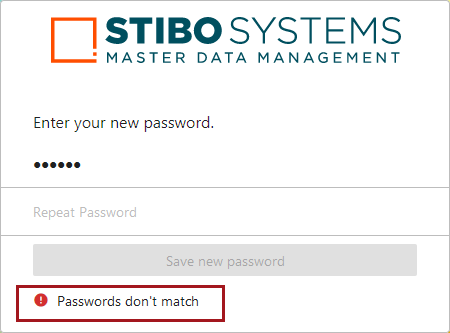
Clicking 'Save new password' prompts display of a window with a 'Sign in' button.

-
Click the Sign in button to be brought back to the original login page.
-
Enter the user ID and the new password to gain access to Web UI.
The new password created during this process is saved to the server.
Implementations of STEP that enable access to the Web UI via Single Sign-On (SSO) or via LDAP will not see the 'Forgot Password?' button, as access to the Web UI using these methods does not involve the standard login page.
It is important to note that two email-related properties must be configured on the sharedconfig.properties file for the 'Forgot Password' functionality to work. Those properties are:
- Mail.MailServerURL=[the host name of the mail server]
- Mail.DefaultFromMailAddress=[the email address used as a sender if no specific sender is available]
For information regarding changing your password from within the Web UI, see the Changing a User Password topic, in the System Setup / Super User Guide documentation here.
Launch Button Access
The Start Page can be configured to display a launch button for all Web UIs created in STEP. Web UIs will display in alphabetical order by name. Clicking the applicable launch button will open your default browser and navigate you directly to the Web UI URL.

In the config.properties file (or sharedconfig.properties file if running servers in cluster) the Webstart.Portal.ShowAll setting must be equal to true. If Webstart.Portal.ShowAll is equal to false, then users will not see any Web UI launch buttons and will need to use the Direct Browser Access directions outlined in the previous section.

Read more about Creating a New Web UI in the Web User Interfaces / Web UI Setup and User Guide documentation
For details about Managing Web UI Configurations (reverting to previous versions or removing a Web UI configuration revision from the revision history), see the Web User Interfaces / Web UI Setup and User Guide documentation
For information on how to use the Web UI Designer, see the following topics in the Web User Interfaces documentation: