A Reference Target Search can be configured to appear on the following Web UI components:
-
References component within a Node Details screen (configured via Node Picker Dialog here)
-
Globally Configured Data Container (configured via Global Reference Representations here)
-
Globally Configured References (configured via Global Reference Representations here)
-
Reference Value component within a Node Editor screen
-
Reference Header component within a Node List screen
- Referenced Asset Representation within a Node Editor screen (configured via Global Reference Representations here)
-
Classification Links within a Node Editor screen (configured via Node Picker Dialog here)
-
Classification Product Links within a Node Editor screen (configured via Node Picker Dialog here)
-
Add Reference Action within a Multi Reference Editor (configured via Global Reference Representations here)
-
Reference Header component within an Advanced Merge screen (Merge Golden Record Clerical Review Task List)
-
Parent Selector within a Node Details screen (configured via Node Picker Dialog here)
-
Run Business Action (configured via Node Picker Dialog here)
For more information, see the Custom Reference Target Search section of the Web User Interfaces / Web UI Setup and User Guide documentation here.
Configuration Example
For this example, users must access and configure the Node Picker on the References component. Set up a Web UI Reference component within a Node Editor screen. For detailed instructions on setting up the Node Picker, see the Node Picker Dialog in the Web User Interfaces / Web UI Setup and User Guide documentation here.
-
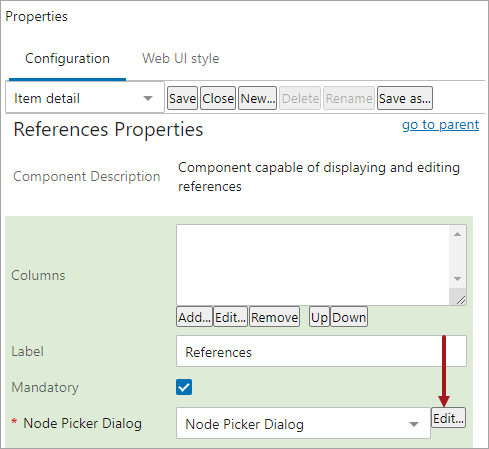
Enter the Web UI designer. On Reference Properties, click the Edit button to the right of the field on the 'Node Picker Dialog' parameter.
- On the 'Node Picker Dialog Properties' window, click the Add... button and add a 'Search Table Tab.' Alternatively, you can edit an existing Search Table.
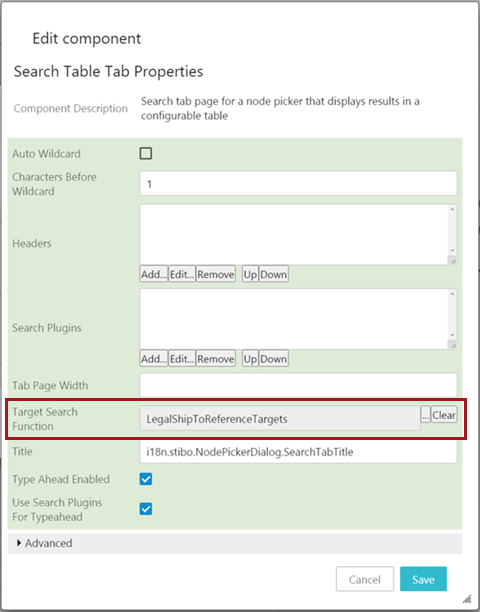
- On the 'Search Table Tab Properties' dialog, click the ellipsis button (
 ) beside the 'Target Search Function' parameter, and select your business function from the hierarchy. Click the OK button.
Note: When a Target Search Function is set, the 'Search Plugins' and 'Use Search Plugins For Typeahead' parameters are ignored. These fields are not always present wherever the 'Target Search Function' appears, however.
- Save all edits to each component and the screen before exiting the designer.