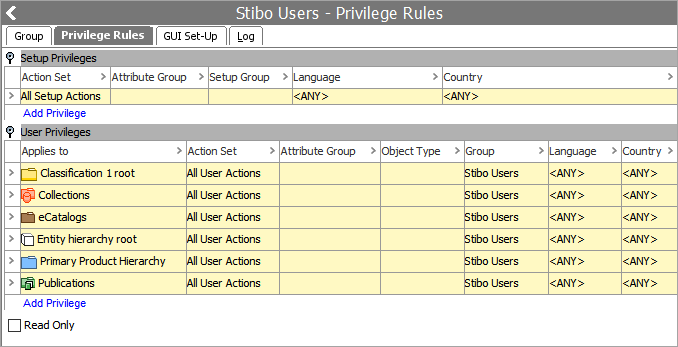
Privilege rules are maintained in System Setup within the Users & Groups node on individual Groups.
Privilege rules are rules that specify a set of permitted actions that members of a specific group can perform on a specified set of data. There is no limit to the number of privilege rules that can be applied to the same group.
Each privilege rule is defined by specifying:
- A group (of users)
- An action set
- A structure node (products, classifications, collections, publications, entities, and eCatalogs)
- A workflow state
- An attribute group (or one attribute).
- An object type
- Limitations to certain dimensions
Each group must be assigned privilege rules, defining which actions the members of that group are allowed to perform, and which data the members of the group is allowed to work with. Defining the privilege rules forms one part of the privilege control system settings. The second part, defining action sets, is performed in System Setup under Action Sets. For more information, see Action Sets topic
To prevent a group of users from making changes, see the Read-Only Access section below.
Important: Privilege Rules applied a User Group will be inherited to sub User Groups. This means it is possible to apply general Privilege Rules on a top level and only specify local Privilege Rules on sub User Groups. GUI setup applied a top User Group will not be inherited to any sub User Group. It is to be recommended to apply all general Privilege Rules as high as possible in the User Groups Hierarchy to simplify management of the Privilege Rules.
Privilege Rule Types
There are two types of Privilege rules:
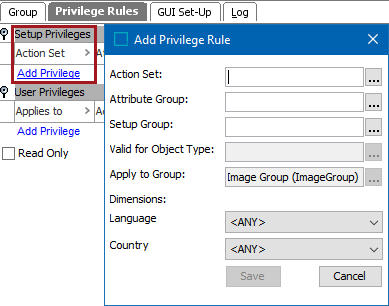
Setup Privileges: These are usually actions that are usually performed by a System administrator.
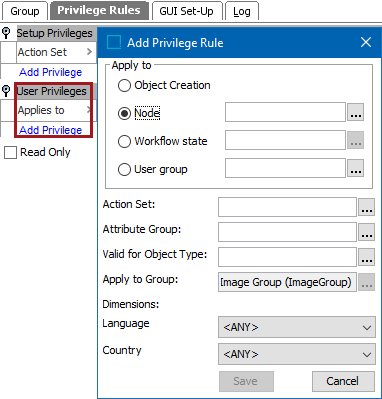
User Privileges: For actions that should be performed by the users of a specific group.
Restricting Actions
Actions can be restricted to:
- Objects that are linked to a specific node (or a node below) in the classification, product, publication, entity, or eCatalog hierarchy, in a specific node collection, or in a STEP Workflow in a specific state.
- Attributes within a specified attribute group (e.g., changing an attribute value). If an attribute group(s) is not specified, the action is permitted for all attributes.
- Workflows, integration endpoints, and business rules within a specified setup group.
- Specified dimension points. If no dimension point is specified for a dimension, the action is permitted for all dimension points within that dimension.
- Specified object type. If no object type is specified, the action is permitted for all object types.
Unlimited Number of Privilege Rules
Any number of rules may be set up for the same group, granting permissions for specific actions sets on a number of hierarchy nodes and dimension points.
Note: A user may be a member of multiple groups. The user will accumulate the privilege rules from all these groups, so a restriction from one group is ignored if the corresponding action is permitted via another group membership.
Editing Linked Objects
If a privilege rule permits the editing of a specific attribute value for products linked to a specific classification node, this attribute value can also be edited through other classification nodes that these products may be linked to.
Access to Classifications and Products
If a group has permission to work with a specific classification node, attribute values can be edited for all products linked to (or below) that node. However, access to the classification node does not grant the privilege to link new products in the product hierarchy. To do that, the group must have permission to work with the specific product node as well.
Read-Only Access
To prevent a group of users from making changes, create a group with the following privilege rules settings:
- Only 'View actions' rights are added
- The 'Read Only' checkbox is checked
For example:
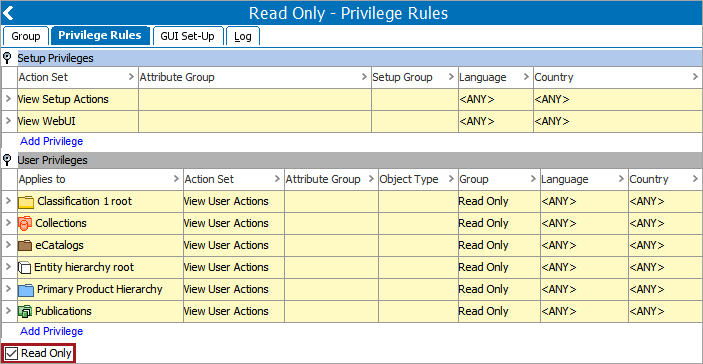
This example group provides the users with only view access; the group members are not able to make any changes while logged into the system.