The Execute Business Action processing plugin allows for an event processor to be configured with a predefined custom business action. The custom business action determines when and how to act upon the events from the event processor. This is useful when changes occur on objects and custom actions need to occur.
For example, when changes to relationships between objects occur, an email may be sent to a specific user or attribute values may be recalculated. Another example is when an email object is changed, the email object can then be sent to an external service for validation. By design, business actions are highly customizable.
The Parameters and Event Triggers sections below contain important information on settings that should be considered when creating an event processor using this processing plugin.
Prerequisites
This section of documentation describes configuration steps for this specific processor, but that is only one part of configuring an event processor. For the full set of instructions on configuring an event processor, see the Event Processors documentation here.
Before configuration of an event processor using the execute business action processor can occur, a business action must be created. For more information, see the Business Actions section within the Business Rules documentation here.
Parameters
Each of the relevant parameters for the Event Processor Wizard 'Configure Processing Plugin' step are described below. Any additional wizard parameters with importance for this plugin are also included in this topic.
To access the 'Configure Processing Plugin' parameters as shown below, the Execute Business Action processing plugin must be selected within the Select Processor parameter during the wizard step 'Configure Event Processor.'
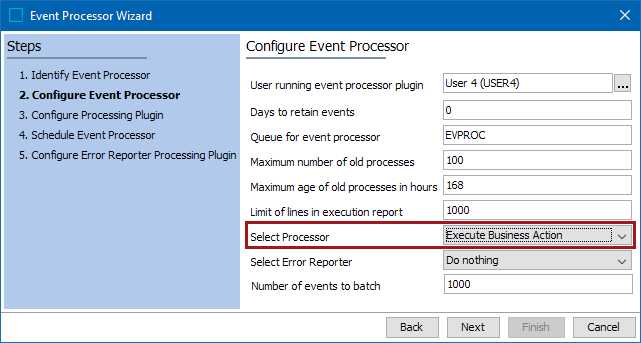
Once the Execute Business Action processing plugin has been selected, click the Next button, and the wizard step 'Configure Processing Plugin' will display.

- Business Action: Click the ellipsis button (
 ) to display the Select Action dialog, and select the necessary business action.
 - Context: Select a context from the dropdown. This will determine the context in which the business action will run.
- Workspace: Select a workspace from the dropdown. This will determine the workspace in which the business action will run.
Important: The Business Action will always read from the configured Context / Workspace independently of how the events are actually triggered.
Once any required configurations are made, click the Next button to display the wizard step 'Schedule Event Processor.'
See the EPW - Schedule Event Processor topic within the Creating an Event Processor section of the Event Processors documentation here.
Event Triggers
For the event processor to execute the business action, the Event Triggering Definitions tab must be correctly configured.
Select an event processor configured to use the Execute Business Action processor, and click on the Event Triggering Definitions tab. Use the various triggering flippers to configure the event processor to listen for changes on anything that should cause the event processor to execute. At a minimum, an object type must be selected.
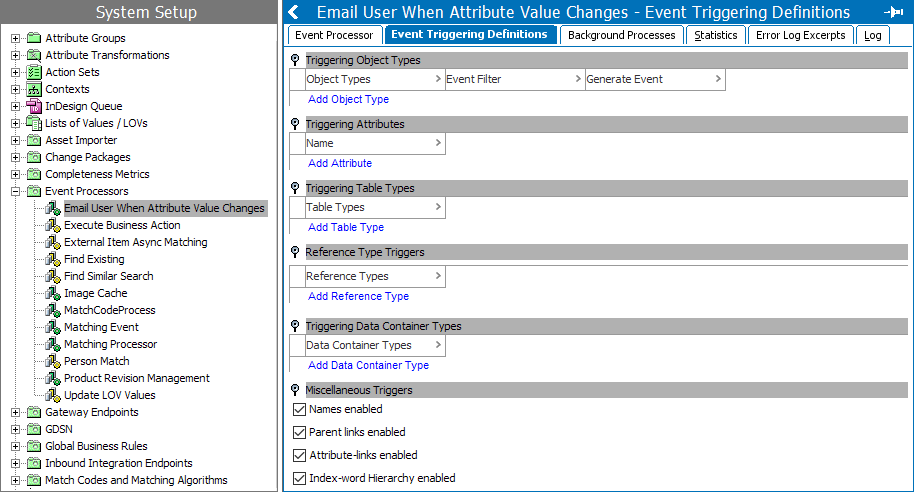
- Upon creation, the parameters within the Miscellaneous Triggers flipper are enabled.
- When a configured trigger causes an event to reach the event processor queue, the business action will execute.
- When an event batch is successfully processed, no message is written into the execution report of the corresponding background process (BGP).
- When JavaScript is used to write the business action, the originating object of the event will be available via the 'Current Object' bind.
- If the event processor encounters a problem processing a batch, the event processor will retry the business actions on each event in the batch until all events have been processed or the failing event is identified, in which case the event processor will enter the failed state and stop processing new events.
- There is no guarantee that actions will not run multiple times, even when batch size is equal to one. However, the likelihood is reduced by the having a batch size of one, but performance can then be affected.
Important: By default, events are discarded. For more information about the optional configuration to enable the Queue Status, see the Queue Status section of the EP - Event Processor Tab topic here.