The Asset Publisher event processor plugin can be configured to publish asset content to a specific location.
To access the 'Configure Processing Plugin' parameters as shown below, the Asset Publisher processor must be selected within the Select Processor parameter during the wizard step 'Configure Event Processor.'

The Parameters and Event Triggers sections below contain important information on settings that should be considered when creating an event processor using this processing plugin.
Prerequisites
This section of documentation describes configuration steps for this specific processor, but that is only one part of configuring an event processor. For the full set of instructions on configuring an event processor, see the Event Processors documentation here.
Additionally, if image conversion is required as part of the asset push, the image conversion configuration must be completed prior to the asset push configuration, so that the conversion can be selected as part of the configuration. See the Image Conversion Configuration topic for more information
Parameters
Each of the relevant parameters for the Event Processor Wizard 'Configure Processing Plugin' step are described below. Any additional wizard parameters with importance for this plugin are also included in this topic.
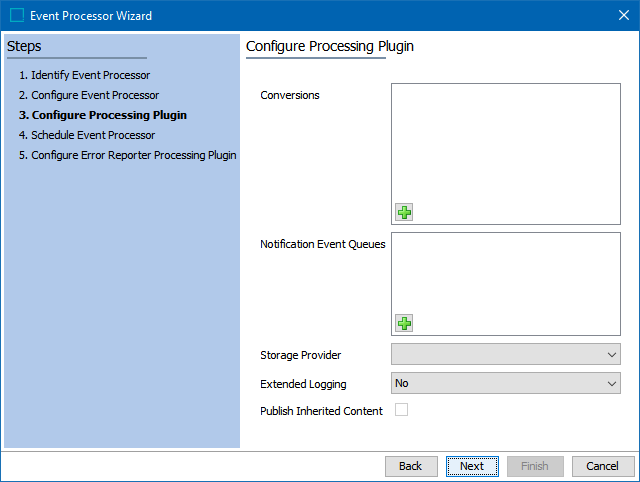
Note: You can hover over the parameter value fields within the wizard to access descriptive tool tip text.
Conversions: These are the image conversions to publish. Click the plus button in the left corner of the parameter field. A row will be added within the field; click the ellipsis button ( ) to display the Conversion Configuration dialog.
The Conversion Configuration dialog has the following fields with the properties listed below:
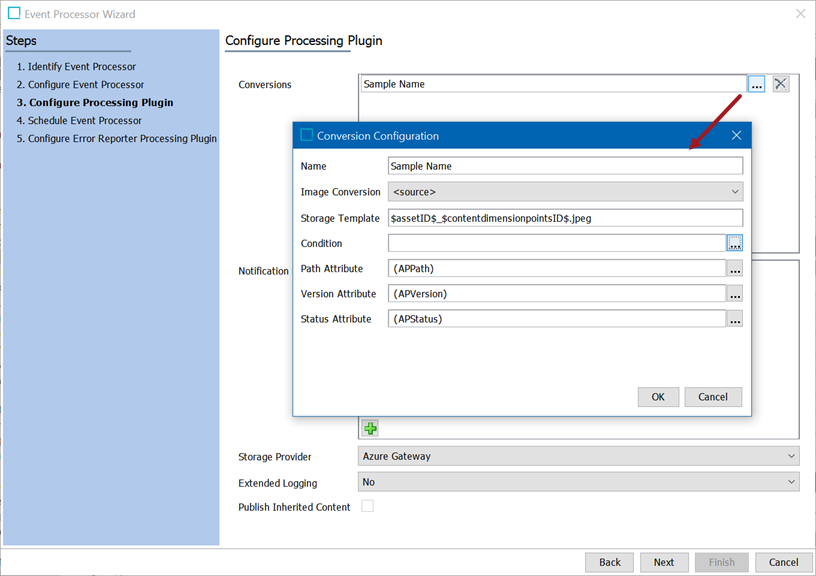
- Name: This is the name of the conversion.
- Mandatory field
- Must be unique within an Asset Publisher configuration
- Image Conversion: Select the image conversion to be used.
- Mandatory field
- If the assets need their format, size, or image color settings converted when pushed to the target system, select the relevant conversion configuration from the list. The <source> option is default and will produce no conversions. Using the dropdown, you will see a list that contains all of the conversions that are available in the system. Configurations that have (conversion) appended to their names are custom conversions and can be changed and/or edited. Those without (conversion) appended are standard conversions and cannot be changed and/or edited.
- Storage Template: Specify the path and file name to store the conversion on blob storage. This is a mandatory field. The following variables / macros are available:
- $assetID$ - ID of the asset being published
- $IDpath$ - Two path levels constructed from the last four (4) characters of the asset ID; use when folder structure for assets is needed
- $contentdimensionpointsID$ - ID(s) of the dimension point(s) for which the asset is being published
- $extension$ - The original extension for the asset. Will not include leading dot (.)
- $autodetected-extension$ - The extension produced by the asset conversion. Should only be used for the rate case where the conversion can produce files with different extensions. If a conversion always produces the same extension, the information should be hardcoded instead. Will not include leading dot (.)
Note: For the storage file path template, similar to Asset Push, the system lowercases and replaces characters that are illegal in a Windows file system with '_'). As an example: If assetid is 'ABC<> and storage template is '$IDpath$/$assetID$.jpg', then it will resolve to the storage path 'bc/__/ABC__.jpg'. Illegal Windows characters are: \ / : * ? < > |
Validation is done when saving the configuration. You can choose to fix the issue at that point (if one exists) or save the configuration as-is and update at a later time.
- Condition: If specified, then this condition has to be evaluated to be true for the given asset to be published by this conversion.
- Optional
- You have the ability to bind asset content to restrict that asset conversion only be done on, for example, specific MIME types by using the 'Current Asset Content Object' bind as described in the Other Binds topic in the Resource Materials documentation here. If you want to restrict conversion only on assets in specific classifications, then this should be a condition defined in the triggering condition on the queue (where it will be the asset itself that can be bound in the condition as opposed to asset-content).
- Path Attribute: The Path Attribute is used to store the actual published path of this asset (from the storage template).
- Optional
- Single-valued
- Externally maintained
- Must have same dimension-dependencies as asset content
- Must be valid for an object type used in triggering-object-types of event processor and the path attribute must not be used in any other enabled Asset Publisher event processor
- Version Attribute: This attribute is used to store the version of the published asset. The value is stored on the asset.
- Mandatory field
- Single-valued
- Externally maintained
- Must have same dimension-dependencies as asset content
- Must be valid for an object type used in triggering-object-types of event processor and the path attribute must not be used in any other enabled Asset Publisher event processor
- Status Attribute: If specified, then this attribute is used to store the status of the publish operation. The value is stored on the asset.
- Optional
- Single-valued
- Externally maintained
- Must have same dimension-dependencies as asset content
- Must be valid for an object type used in triggering-object-types of event processor and the path attribute must not be used in any other enabled Asset Publisher event processor
The constraints detailed above are checked when the event processor is processing events. If the constraints are not fulfilled, the event processor will stop and fail.
Notification Event Queues: Click the plus button in the left corner of the parameter field. A row will be added within the field; click the ellipsis button () to display the Select Processor for Events dialog. Select the processor using standard Browse / Search Node Picker functionality.
Storage Provider: Storage provider to push converted images to. If there are no dropdown options, then the Gateway Integration Endpoints either do not exist or have not been configured.
For specific information on how to set up Gateway Integration Endpoints for the Asset Publisher functionality, see the following topics located in the Data Exchange documentation:
- Configuring a Gateway Integration Endpoint - Amazon S3 Blob Storage (here)
- Configuring a Gateway Integration Endpoint - Microsoft Azure Blob Storage (here)
Extended Logging: Change to 'Yes' to enable extended logging in the execution report of the event processor. This will log information for each upload taking places. If you do not want this logging, set to 'No' (the default setting).
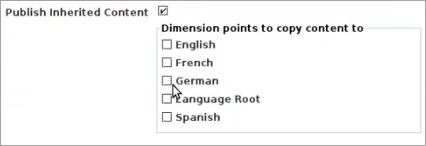
Publish Inherited Content: This option is available on systems where asset content is dimension dependent and the content depends on a single dimension. By default, asset content is only published for the dimension points it is local to. Using this option, it is possible to have content also exported for specific dimension points that the content can be inherited to.
Event Triggers
For the event processor to take effect, it must be configured to only listen for changes on asset type objects housed within the same previously-selected classification folder.
The recommended setup of the triggering definition of the Asset Publisher event processor is to:
- Click the Add Object Type link to display the Select Object Types dialog.
- Select one or more asset object types that will be monitored for changes. When business rules are not required in the Event Filter and Generate Event fields, multiple object types can be selected within the same triggering object types row.
Important: You must select at least one asset type for Triggering Object Types or nothing will be processed by the event processor.
- Click the OK button to add the selection to the Triggering Object Types table.
- Trigger on attribute ‘asset.uploaded.’
- Uncheck all the triggers at the end, e.g., name, parent links, etc.
- Verify that Approved is enabled under Triggering Workspace. Publishing can only be done from the Approved workspace.
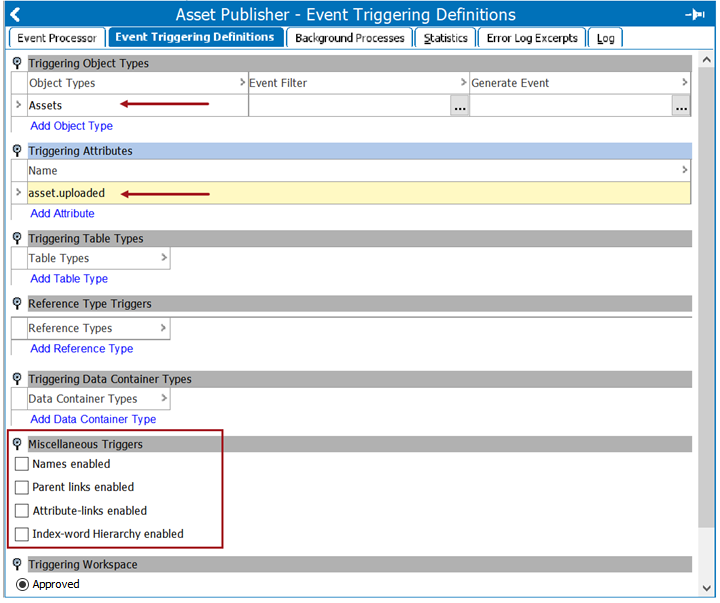
When the event processor runs, a configuration check is done. Also, the attributes that you set for path and version should have the same dimension dependencies as asset content. Upon validation, if anything is wrong, the event processor will stop. You will then need to reconfigure and run again.
Below is an example of an event processor that processed successfully. It processed two (2) assets and uploaded three (3) blobs.
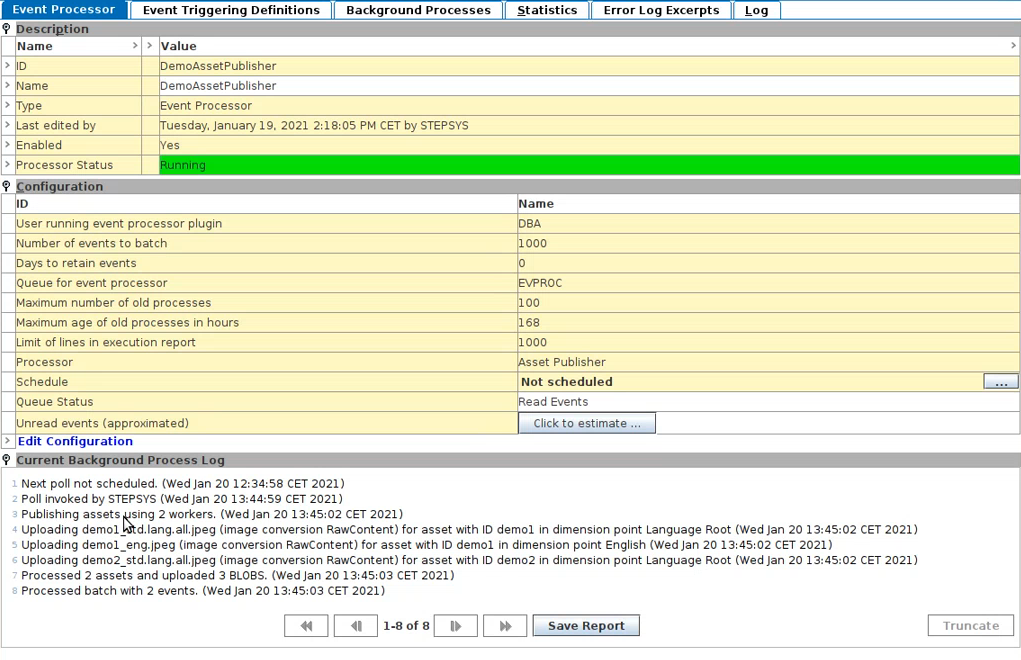
Continuing the example above, you will see the three blobs in blob storage:
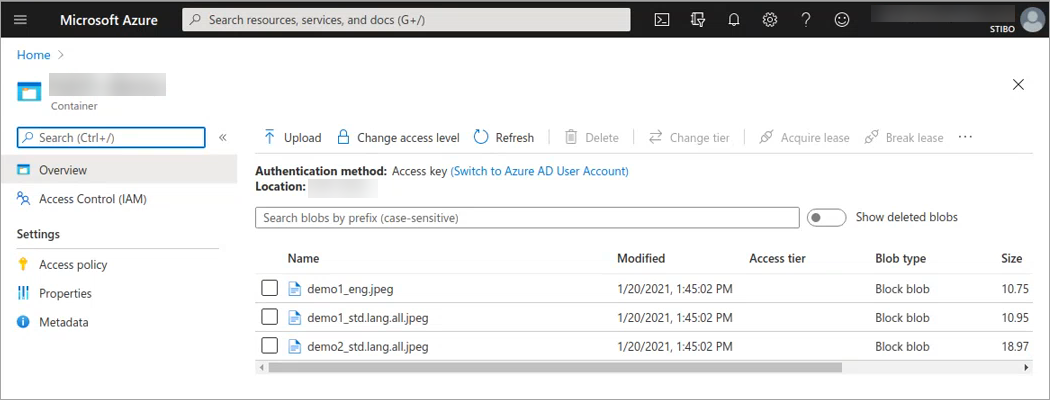
You can return to the asset(s) published and see the updates for the path, status, and version. Your results will depend on your own setup and upload time.

Republishing Assets
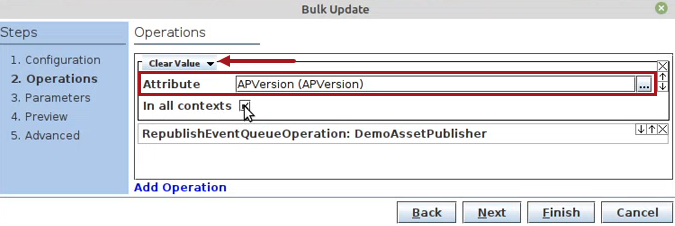
If you want to republish these assets (e.g., they were deleted from blob storage, they were resized, the path changed, etc.), then you will run a bulk update using the Clear Value operation to clear the value for a specific attribute. Or, you can run more than one Clear Value operation to clear the value for multiple attributes. See the Attribute Values: Clear Value Operations topic within the Bulk Updates section for how to use this operation.
You will then need to send a republish event to the asset(s). You can then reinvoke the event processor and republish the assets to blob storage.