Summary
Two enhancements to existing Smartsheet functionality have been made in the areas of usability and data standards / guidance, making it easier for vendors to onboard and maintain products. These are:
- New 'open format' Smartsheet to enable the use of Excel formulas, cell formatting, and text formatting
- Enhanced controls and copy / paste ability when working with multi-valued LOVs, multi-asset and multi-product references, and parent IDs
Details
New open format Smartsheet to enable formulas and formatting
A new option called 'open format' is now available for Smartsheets, which unlocks all cells in the 'working area' of the sheet, i.e., any cells where data can be entered. This expanded functionality provides users with the option to employ Excel formulas, number formatting (e.g., General, Currency), text formatting (e.g., bold, italic), and cell color (background shading). Wrap Text functionality is also supported in open format.
Enabling these features improves the product onboarding and maintenance process for suppliers by allowing more use of standard Excel functionality, as opposed to using non-open-format Smartsheets, which do not allow for formulas or visual enhancements like text formatting.
The open format option is available for both data export (product maintenance) and template export (product onboarding) sheets.
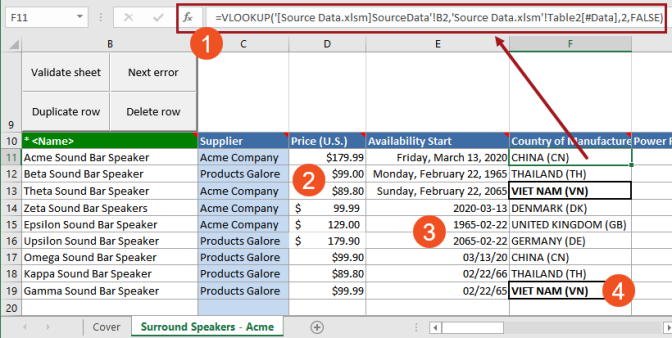
The following screenshot shows an open format Smartsheet that employs several features that are unavailable in non-open-format Smartsheets:
- Excel formulas. In this example, the formula uses a VLOOKUP function to pull data from an external spreadsheet.
- Currency and Accounting number formats.
- Various date formats.
- Text and cell formatting. This example uses bold text and a thick cell border.
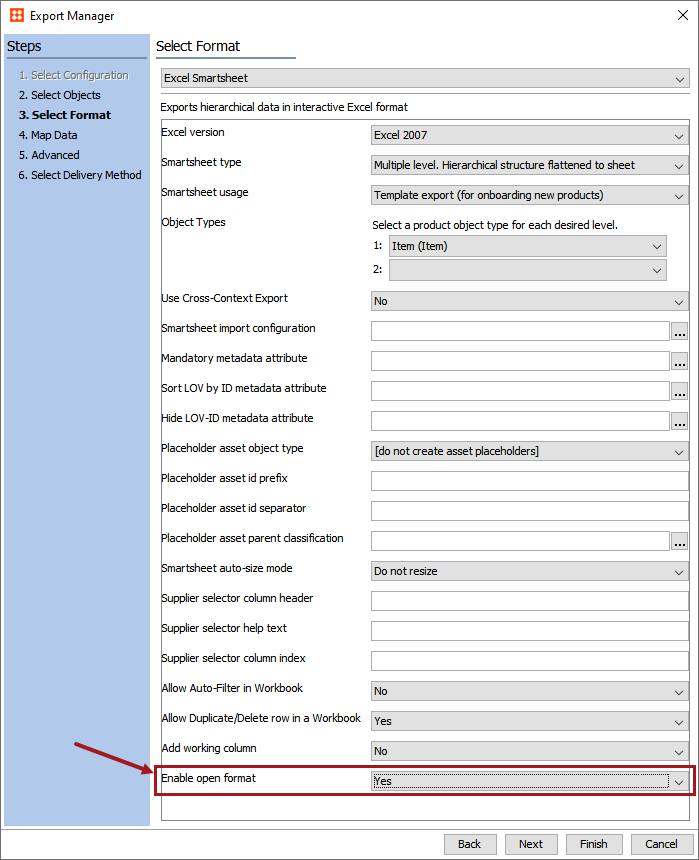
The open format Smartsheet is enabled by selecting 'Yes' for the new 'Enable open format' option in the Export Manager. The option is 'No' by default.
For more information, see the Open Format Smartsheet topic in the Excel Smartsheet Format section of the Data Exchange documentation here.
Enhanced controls for selecting, copying, and pasting multiple values
A new method for populating Smartsheet cells with values from multi-valued LOVs, multi-product reference types, multi-asset reference types, and parent IDs has been introduced to improve and simplify the data entry process. This has been accomplished by moving the selection controls for multi-value cells from the row level to the column level. This change allows for quicker data population and enables copy and paste across columns, which was not possible before.
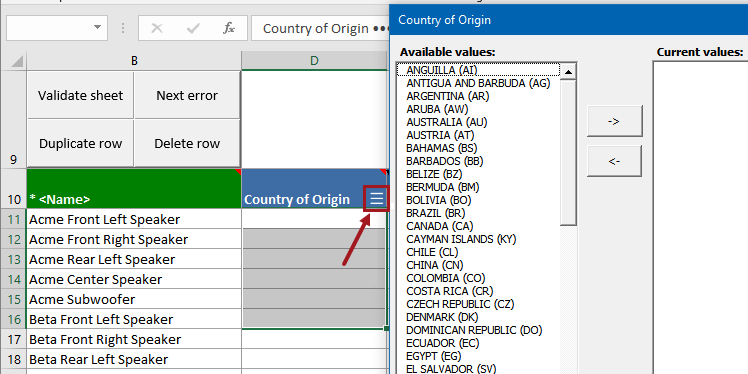
To enter values from a multi-value dialog, users will now select one or more cells in the column in which they want to add data, then click on the column header, which contains a new collapsed menu icon ('hamburger button'). Clicking the header displays the dialog from which the multiple LOV values, product references, asset references, or parent IDs are chosen.
In the screenshot below, several adjacent cells have been selected in the 'Country of Origin' column, and the LOV value selection dialog has been displayed by clicking on the column header. Users can populate values in all selected cells at once from the dialog. Previously, the initial value selection could only be made on one cell at a time, since the selection button was tied directly to the cell. The new selection feature also allows for values to be populated simultaneously in non-adjacent cells within the same column, which are selected by holding the Ctrl key while clicking the relevant cells.
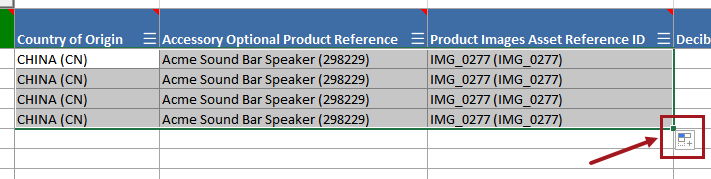
Moving the selection controls from the row level to the column header also adds the ability to drag values down in adjacent columns using the Excel fill handle, as shown in the below screenshot. This was previously not possible due to the selection buttons for multi-valued cells being in a dedicated column.
For more information, see the Using a Smartsheet topic in the Excel Smartsheet Format section of the Data Formats documentation here.