This functionality is used by a Match and Merge solution. For more information, see the Match and Merge topic (here) and the Configuring Match and Merge topic (here).
Note: As defined below, the Golden Record Clerical Review Task List must be configured as a result screen for a Status Selector Homepage widget and configured with a Node List and a Display Mode. This display mode should be configured with a specific set of table headers relevant to Golden Records.

Prerequisites
It is expected that anyone configuring the Golden Record Clerical Review Task List component is familiar with the Web UI Designer, as basic concepts for working with the designer are not covered in this section. In addition, the user must have appropriate privileges to access the designer. Additional information can be found in the Designer Access topic of the Web User Interfaces / Web UI Setup and User Guide documentation here.
A separate user group is recommended to be used for this task.
This topic includes details on Configuration and Using Action Buttons.
Configuration
The Golden Record Clerical Review Task List can be configured to present the most relevant headers to the reviewer. Additionally, attribute group display options and configurable action buttons are available.
Use the following steps to add and configure the screen.
-
Open the designer and click New....
-
Select 'Golden Record Clerical Review Task List', enter a Screen ID, and click Add.

-
For the Headers parameter, click Add... and select one of the listed header components. Once a selection is made and required configurations are complete, click the Add button.
-
Golden Record Attribute Value Group Header - Displays the values of the specified group's attributes on the golden records. Attributes added to a selected Attribute Group will automatically be included and displayed. Once selected, additional configuration is required:
-
Attribute Group - Specify the attribute group values to display.
-
Blacklist Attribute Group - Specify the attribute groups not to display, even if they also appear in the Attribute Group specified above.
-
Dimensions - Specify height / width of the of the header cell.
-
Included Nested Groups - When checked, attributes from nested parameter groups should be included.
-
Label - Specify a label for the header.
-
Read Only - When checked, the values listed under this header cannot be edited.
-
Show LOV IDs - When checked, relevant LOVs display their IDs next to the corresponding values.
-
Table Sorting - Select a method of sorting the values in the header.
-
Enable Locale Formatting - When checked, 'ISO Date' and 'ISO Date and Time' values are formatted according to locale.
-
Context Help - Enter help text to display for the component.
-
Display Context help - When checked, display context help text for attributes.
-
Golden Record Attribute Value Header - Displays the values of the specified attribute on the golden records. Once selected, specify an Attribute, Label, and Preferred Column Width in the configuration dialog. If potential duplicate references are set up for the matching algorithm, this header allows filtering on records, not tasks. Records filtering means that a task is displayed when at least one record in the task meets all filter criteria. For example, filtering on both a 'first name' and a 'last name' returns all tasks where both the selected first and last names are included.
-
Golden Record Data Container Attribute Value Header - Displays the values for the specified data container attribute on the golden records. Once selected, specify a Data Container, Attribute, Label, and Preferred Column Width in Pixels in the configuration dialog.
Note: The data container display attribute must be valid on the data container. Using a calculated attribute that is not valid as an attribute within the data container can cause the system to display the data container ID by default.
-
Golden Record ID Header - Displays the IDs of the golden records in the table. Once selected, double click the component and specify a Label and Preferred Column Width in the configuration dialog.
-
Golden Record Matching Agent Recommendation Header - Displays the merge and reject recommendations of the Machine Learning Matching Agent. Once selected, specify a Label and Preferred Column Width in the configuration dialog.
-
Golden Record Name Header - Displays the names of the golden records in the table. Once selected, double click the component and specify a Label and Preferred Column Width in the configuration dialog.
-
Golden Record Reference Type Header - Displays the object the golden record references via the specified reference type. Once selected, specify a Reference Type, Label, and Preferred Column Width in the configuration dialog.
-
Golden Record Source Information Header - Displays source system and record information for the golden records. Once selected, double click the component and specify a Label and Preferred Column Width in the configuration dialog.
Important: For maximum efficiency in reviewing content, you must configure the Dynamic Table Layout component. To optimize the view for object comparisons, uncheck the 'Allow Wrap Of Header Title' and 'Allow Wrap of Cell Content' parameters. This applies to both the Golden Record Clerical Review Task List and Advanced Merge Dialog. For more information, see the Dynamic Table Layout topic of the Web User Interfaces / Web UI Setup and User Guide documentation here.
-
For the Include Labels parameter, when checked, all toolbar actions on the screen display a label below the icon.
-
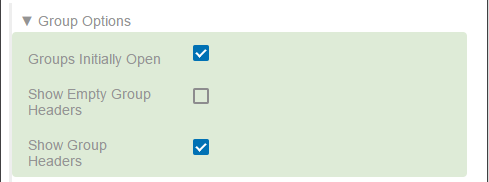
For the Group Options parameter, set the following options:
-
Groups Initially Open - When checked, the attribute groups are opened by default.
-
Show Empty Group Headers - When checked the header are visible if the group is empty.
-
Show Group Headers - When checked, a header displays for attribute groups.
-
For the Child Components parameter, click Add... and select the actions to add to the toolbar. The Submit, Reject, and Reassign buttons assigned in this step are inherited to the Advanced Merge dialog.

Note: Once an action is added, double click it to complete the required configuration.
-
Click Save.
-
Assign the Golden Record Clerical Review Task List to a Status Selector Homepage widget or a workflow Status Selector on the Stack Panel Item. For more information on configuring and using this widget, see the Status Selector Homepage Widget topic of the Web User Interfaces / Web UI Setup and User Guide documentation here.
Using Action Buttons
The Golden Record Clerical Review Task List allows a user to evaluate the potential duplicate tasks assigned to them and perform actions on them, including rejecting or merging the records.
Follow these steps to manage the task list.
- In Web UI, navigate to Golden Record Clerical Review Task List via a relevant Status Selector Homepage widget or workflow Status Selector. In these images, the Merge Individual status selector is configured for a 'Critical' high priority status flag.

-
Select the desired tasks using one of the following
:

-
Select an individual task via the checkbox. If multiple tasks are selected, all actions except the Advanced merge action are available.
-
Click Clear all (if configured) to remove all selections on the screen.
-
If configured, filter the list to show only High Priority tasks in the workflow state currently selected via filter at the top of the screen. Filtering is driven by the High Priority Status Flag configured in the match criteria of the relevant matching algorithm. The Match and Merge Clerical Review high priority filter does not respect the Default workflow flag as defined on the workflow. Tasks without high priority flag are not handled as having the workflow default. For information on displaying this filter, see the High Priority Status Flag Global Representation Type section of the Main Properties topic of the Web User Interface / Web UI Setup and User Guide documentation here.
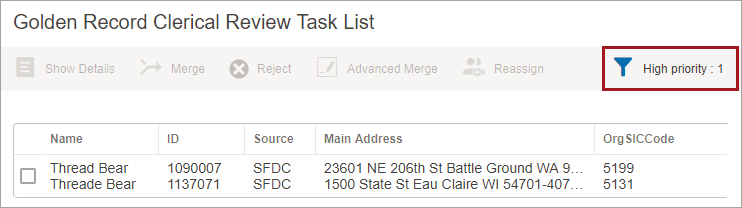
Note: The filter icon only displays when High Priority tasks exist for the current user based on assignees.
For information on configuring a status flag, see the Creating a Merge Golden Record Clerical Review Workflow topic here.
- Click an action button to perform the action on the golden records of the selected task(s):
- Reject - marks as 'Confirmed Non Duplicates' and removes from the workflow. For information on the 'Confirmed Non Duplicates' reference type, see the Configuring the Matching - Merge Golden Record Component Model topic here.
- Reassign - assigns to another user from the 'Select assignee' dialog.
- Submit - moves to another state in the workflow. Requires that the case sensitive 'Event ID' parameter is configured.
Note: This case sensitive Event ID must correspond with the ID of the relevant event in the workflow.
- Merge - for each task selected, merges into a single surviving golden record. The values that get promoted to the surviving golden record are determined by the survivorship rules specified on the corresponding matching algorithm. The non-surviving golden records in the task are set to deactivated and will not be matched again.
For information on survivorship rules, see the Golden Records Survivorship Rules topic here.
For information on deactivation, see the Configuring the Matching - Merge Golden Record Component Model topic here.
- Advanced Merge - allows manual inspection and after viewing the relevant details of each golden record and performing actions such as: rejecting specific golden records as duplicates, reassigning the task to another user, submitting the task to another state in the workflow, or merging the selected records.
For more information on configuring and using the advanced merge dialog, see the Golden Record Advanced Merge Dialog topic here.