The selected attribute will be linked to the collection of valid objects.
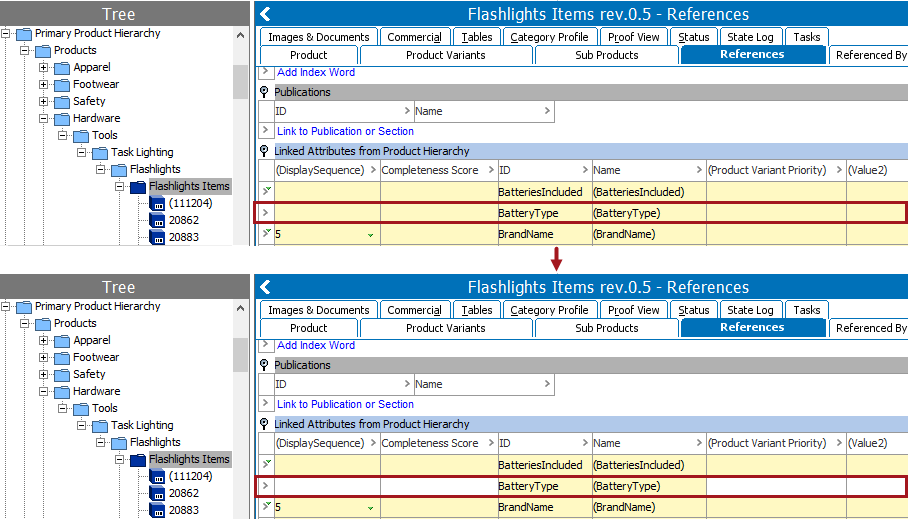
- If the attribute is on an object, it can be viewed on the References tab on the object, under the 'Linked Attributes from Product Hierarchy' flipper.
- If the attribute does not have an editable field (or link) to store data, this option adds a link and allows data to be stored.
For more information on linked attributes see the Attribute Links topic in the System Setup / Super User Guide documentation here.
For more information on the Bulk Update wizard, see the Creating a Bulk Update topic
This operation can also be run via the business rules functionality, as described in the Business Action: Add Attribute Link topic in the Business Rules documentation here.
Prerequisites
Before using this operation:
- Ensure the product attribute link type is set up. For more information, see the Product Attribute Link Type topic in the System Setup / Super User Guide documentation here.
- Ensure the selected attribute is valid on the product object type being linked.
Configuration
- Select Add Attribute Link from the dropdown.
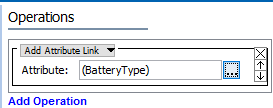
- In the Attribute parameter, click the ellipsis button (
 ) to display the Select Attribute dialog, select a reference type, and click the Select button.
Example
The following images show before and after the 'BatteryType' Add Attribute Link bulk update is run.