The Main Properties configuration determines the overall behavior of a Web UI. The Main Properties parameters are found within the three sections: Main, Advanced, and Child Components. Below is an overview and links to more details (when applicable) for each of the parameters listed in the order they appear on the Main Properties.
Prerequisites
All the steps provided in this topic assume the Web UI designer is in design mode and on Main Properties prior to starting the configuration process. For more information about getting started using a Web UI and details about design mode access / usage, see the Web User Interfaces / Web UI Getting Started documentation
Configuring the Parameters
Main Parameters
Configure the parameters as needed.
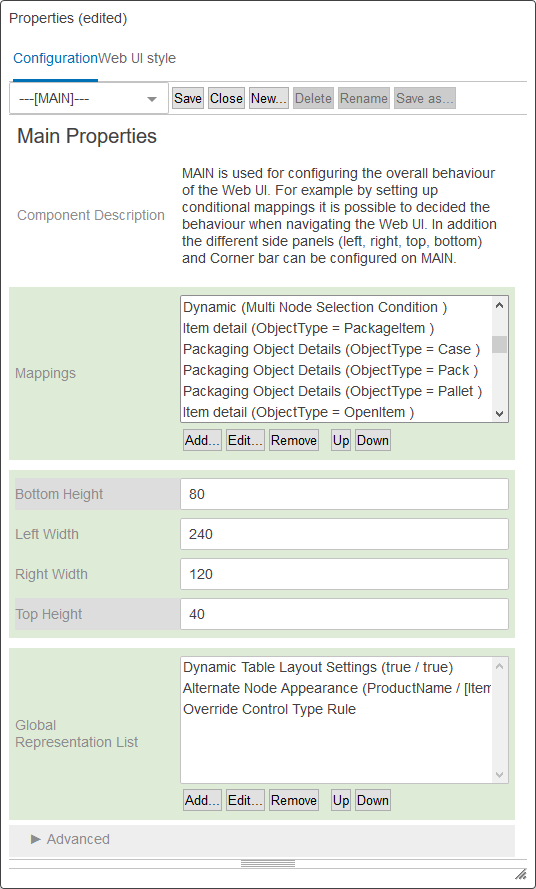
- Mappings: Screens display in Web UI based on the Mappings values. When a new screen is created, typically a mapping also needs to be set up. The mappings are shown as 'screen ID (condition)' for the Mappings parameter and are evaluated one-by-one in the order shown. When the first mapping condition is met, the evaluation stops, and the screen configured for that condition is displayed. If no mappings match, then the default target screen is the Homepage. For more information, see the Mappings topic here.
- Global Representation List: The Global Representation List parameter allows Web UI designers to add a global representation of specific functionality. Each global representation can only exist once in this list. Details for each of the available representations can be found below.
- Alternate Node Appearance: Alternate Node Appearance allows users to configure nodes in the Tree Navigator to display with a colored dot to indicate that objects in that node contain a specific attribute value on a particular attribute. Hover text can also be configured for each trigger value to quickly inform users about the meaning of each indicator. For full details on how to configure this component, see the Configuring Alternate Node Appearance section of the Tree Navigator Component documentation here.
- Context Global Representation: This component allows admin users to configure which contexts are available to appropriately privileged end users in the 'Select Context' menu, which is accessible via the 'Settings' menu. When the 'Context Global Representation' component is added to the Global Representation List, admin users can select from a list of all configured contexts (listed by name) which contexts will be accessible for viewing and editing by end users in the Web UI. If the component is added but no contexts are selected, only the first context (as determined by alphabetical order) will display.
- Data Visualization Representation: Data Visualization in Web UI allows users to see a visual representation of objects in STEP and how they relate to one another. If a Display Relations Screen type is not in use anywhere in the Web UI, then skip this parameter. For full details on how to configure this parameter and the subsequent component, see the Configuring Data Visualization section of Data Visualization within the Web User Interfaces / Using a Web UI documentation
- Dynamic Table Layout Settings: The Dynamic Table Layout Settings component is used to define behavioral rules for a table using the display modes Multi Editor or Compare View. By setting a minimum and maximum value for 'row height' and 'column width' a range is defined within which a table is allowed to increase the height of rows and width of columns to display the most cell content. A table will increase the width of a column before increasing the height of a row. When defined the settings apply globally for all tables in a Web UI configuration.
- Global Data Container Representations: This component provides a centralized configuration for data container displays in Web UI. Multiple configurations can be stored for any number of different data container types within this component. For more information, see the Global Data Container Representations section of the Web User Interfaces / Using a Web UI documentation here.
- Global Orphan Attribute Representation: The setting configured using this component determines how orphan attribute errors display globally in the Web UI. Users can select between 'Information,' which will notify users that a given attribute is orphaned, 'Warning,' which presents the notification that a given attribute is orphaned using the warning styling, and 'Error,' which presents the notification that an attribute is orphaned using the error styling, and prevents users from saving data until the value is either removed from the attribute field, or the attribute is relinked.
- Global Reference Representations: This component provides a centralized configuration for reference displays in Web UI. Multiple configurations can be stored for any number of different reference types within this component. For more information, see the Global Reference Representations section of the Web User Interfaces / Using a Web UI documentation here.
- Hierarchy Representation: This option is only displayed as part of the Company Data Visualization component and defines the representation of pairs of object types and reference types in the Hierarchy Screen. If a Hierarchy Screen type is not in use anywhere in the Web UI, then skip this parameter. For full details on how to configure this parameter and the subsequent component, see the Configuring a Company Data Hierarchy Screen section of Company Hierarchy Visualization and Maintenance within the Web User Interfaces / Using a Web UI documentation here.
- High Priority Status Flag Global Representation Type: Configuring this component activates priority triggering in the Global Navigation Panel. When high priority tasks exist in a clerical review workflow, a high priority alert will appear beside the task list name in the Tasks child component. For more information, see the Global Navigation Panel Component section of the Web UI documentation here.
In addition, this component activates High Priority filtering in the Golden Record Clerical Review Task List. For more information, see the Golden Record Clerical Review Task List section of the Web UI documentation here.
To configure this component, navigate to the Priority Triggering Status Flag parameter and use the dropdown to select the desired workflow / status flag combination, then click Add. When added to the list, any tasks flagged as such in the workflow will display an alert next to the task list name in the Global Navigation Panel component. Likewise, when those tasks are present in the currently selected workflow state, a High Priority filter will be displayed.

- Override Control Type Rule: Add the Override Control Type Rule component to globally change the appearance and behavior of attribute values that use the validation base types: LOV, Numeric Text, Numeric Text (exclude tags), Text, and Text (exclude tags). For added flexibility, the Override Control Type Rule component can be overwritten when a local control type is set for the attribute definition on the Attribute Management screen type or on the Attribute Value component when configured on a Node Details screen.
- Workspace Global Representation: This component allows admin users to configure which workspaces are available to appropriately privileged end users in the 'Select Workspace' menu, which is accessible via the 'Settings' menu. When the 'Workspace Global Representation' component is added to the Global Representation List, admin users can select from a list of all configured workspaces (listed by name) which workspaces will be accessible for viewing and editing by end users in the Web UI. If the component is added but no workspaces are selected, only the first workspace (as determined by alphabetical order) will display.
Note: The Primary Navigation Panel has been replaced by the Global Navigation Panel. Users who upgrade to 10.0 with the Primary Navigation Panel configured on their Web UI will see their left navigation component switched automatically to the Global Navigation Panel. The 'High Priority Status Flag Global Representation Type' component is also available for the Global Navigation Panel, and will be carried over following a conversion.
Advanced Parameters
Click the arrowhead next to the Advanced heading to see the parameters available. A description of each parameter follows. Configure the parameters as needed.
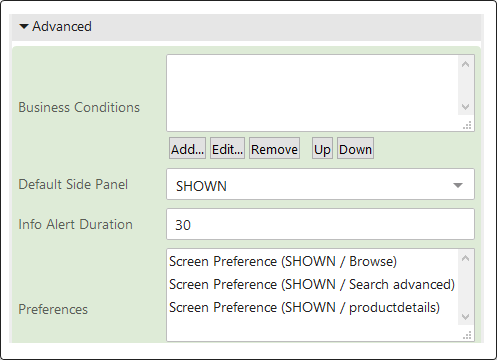
- Business Conditions: Any business conditions added become global conditions. This means that the conditions will be evaluated together, as applicable, with any additional business conditions configured for a screen, component, or parameter that you may be working with. For more information about business conditions, see Business Conditions in the Business Rules documentation here.
- To add a business condition to the Business Conditions parameter:
- Click Add... and then configure the Business Condition Properties that display.
- Click Add to apply the condition.
- Repeat steps 1 and 2 to add multiple conditions.
- Default Side Panel: Determines the behavior of the Left child component on all the pages within Web UI. Make a selection using the dropdown. An explanation of each option follows.
- HIDDEN: (Default) The component will not automatically display on the screen.
- SHOWN: The component remains static on the left side of the screen as you navigate through Web UI.
- COLLAPSED: The component does not automatically display on the screen but is accessible by clicking on a show / hide button (
 ) shown on the left side of the screen.
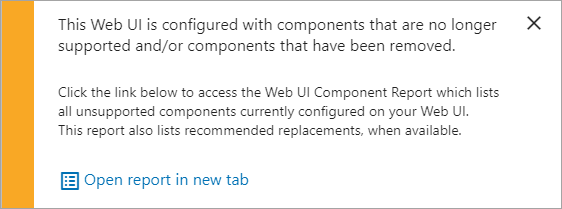
 - Info Alert Duration: Info alert boxes, like the acknowledgment and information notifications shown below, will automatically close after the specified time (seconds). Respectively, these display when a user-prompted action has completed or when a system action or process has begun or when it is completed. The default value is 3 seconds. If you remove the 3 (or any value) from this field and save the designer changes without a value, a 3 automatically populates upon save. To set the alert box to remain on the screen until the user manually clicks the close button on the message box, set the value to 0 or a negative number.


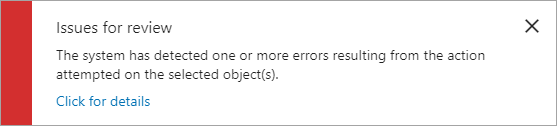
- If an alert requires a user action such as clicking a button to make a decision or acknowledge a message, then the alert duration value does not apply. These alerts include warning notifications that display when a user-attempted action can proceed but aspects of the request may require additional caution, and error notificaitons that display when a user-attempted action cannot be completed. Examples of these alert types are below:
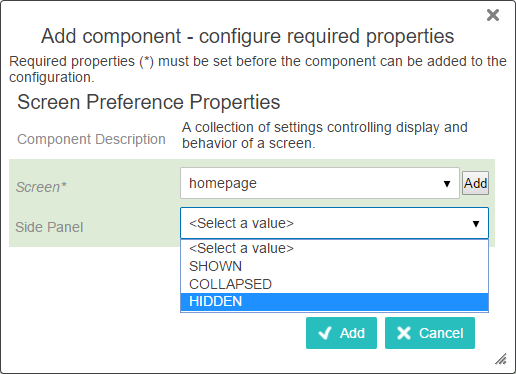
- Preferences: Use the Preferences parameter to overwrite the Default Side Panel settings for screens. As an example, you may decide that it is best to display the Left child component on some screens (e.g., Homepage) although the Side Panel default is HIDDEN.
- To add a screen to the Preferences parameter:
- Click Add... and make or select a Screen and Side Panel setting on Screen Preference Properties.
- Repeat to add additional screen preferences.
- Optionally, use the Edit... or Remove buttons to modify the selected screen preferences.
- Optionally, use the Up and Down buttons to alter the order of the screen preferences.
Child Components
Add components to all screens using the Child Components section of Main Properties. Once added, components can be reorganized and removed.
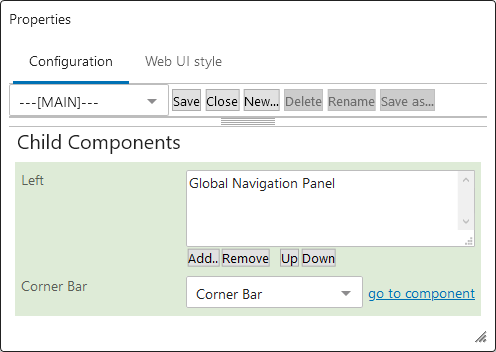
- Left: Allows designers to add components designed to display on the left side of a Web UI screen. The default display width of the component is determined by the settings configured using the Left Width parameter (described in the Main parameters section above). Most of the same add component options are available for the Right child component, allowing designers to configure screen layouts to best fit the needs of their users. Common setup is to add a Tree Navigator component to a Global Navigation Panel.
For step-by-step instructions on how to add the Tree Navigator Component to display in the Web UI, see the Tree Navigator Component document in the Web User Interfaces / Using a Web UI documentation
- Corner Bar: The Corner Bar allows for quick navigation options that will display in the top right of all screens. For information on how to configure this parameter, see the Corner Bar Component documentation here. The Corner Bar has been superseded with the addition of the Global Navigation Panel which incorporates most of the Corner Bar functionality. It is recommended that users configure a Global Navigation Panel before the Corner Bar is withdrawn.