This documentation section / user guide provides general information about the Publisher component (also referred to as STEP’n’design) and how it is used in connection with Adobe InDesign, the STEP Workbench, Flatplanner, and AutoPage.
Note: Supported versions of Adobe InDesign are CC 2019 (CC14), CC 2020 (CC15), and CC 2021 (CC16).
Businesses producing printed collateral—including catalogs, brochures, and sales flyers—face a rapidly changing set of challenges in producing frequent publications, often for multiple brands. In addition, complexity has increased with the requirement for marketing in multiple languages, price versions, and to specific customer segments. The final challenge—creativity in page design, even for the most unadventurous product ranges—is a must if a promotion is to catch the attention of the customer.
Using STEP Publisher allows you to connect to the STEP database and work with InDesign documents as dynamic documents, greatly simplifying (and even fully or partially automating) the production of printed collateral. The benefits of using STEP Publisher include:
- Use of pre-built InDesign page layout templates that can be used repeatedly ('create once, use many')
- Instant availability (via STEP) of text, tables, and images for placement ('mounting') on pages
- Ability for creative users to access content in STEP without having to log in to the workbench (all tasks can be performed from within InDesign, including picking up pages as workflow tasks)
- One-click capabilities to update previously mounted pages with the latest content updates from STEP (for example, updates to prices, product availability, and marketing text)
- Ability to write data from mounted pages back to STEP
- Ability to save InDesign documents to STEP, not only making the documents available to users in multiple geographical locations, but bringing information about product placement and space usage into STEP that can later be used for data export and reporting purposes
- Ability to dynamically create indexes and tables of contents
- Integration with publishing workflows, easing communication between departments in production environments (only available with the Flatplanner and Workflow components)
Prerequisites
This documentation assumes that users have a basic understanding of STEP and a working knowledge of InDesign. Instructions on how to use InDesign itself are outside the scope of this documentation, except where required to explain how InDesign's standard functionality interacts with the STEP'n'design plugin.
Topics covered in this documentation include:
- Publisher template creation
- Mounting (paginating) pages
- Saving documents to STEP
- Proof View
- Index generation
Though the Flatplanner and AutoPage publishing components are mentioned in various places throughout this documentation / user guide, full details of these components are covered in their own sections:
Mounting (Paginating)
STEP Publisher provides creative users with a view of text, tables, and images within STEP. Mounting of product data can be done by dragging and dropping objects from the STEP Structure View panel onto the InDesign page. More information on this panel is available in the STEP Structure View topic here.
Templates
To reduce the time needed to build pages, ensure style consistency, and improve accuracy, STEP Publisher enables you to create templates to roughly plan the page layout before mounting.
For more information, see the Templates in STEP Publisher topic
Saving Documents to STEP
Another feature in STEP Publisher is the ability to save InDesign documents back to STEP. Both templates and finalized documents can be saved to STEP. The advantages of saving documents back to STEP include:
- They become visible in STEP
- It is possible to see which pages a product is used on and how much space it uses on the mounted page
- It is possible to reuse product layouts
- It is possible to create indexes
For more information, see the following topics:
- Storing and Editing Product Templates
- Storing and Editing Publication Templates
- Saving Finalized InDesign Documents to STEP
Updating Documents and Writing Back Data to STEP
A key feature in STEP Publisher is the ability to update previously created page(s) with the latest content changes from STEP. This functionality allows the page-building process to begin even when product data is not yet complete or approved. The update features within STEP Publisher ensure that the contents of your pages always match the corresponding content in STEP.
You can also work the other way around and update the STEP database with the latest changes from content on your mounted pages.
For more information about updating documents and writing information back to STEP, see the following topics:
- Updating Documents From InDesign
- Updating Documents From the Workbench
- Writing Data Back to STEP
Creating Indexes
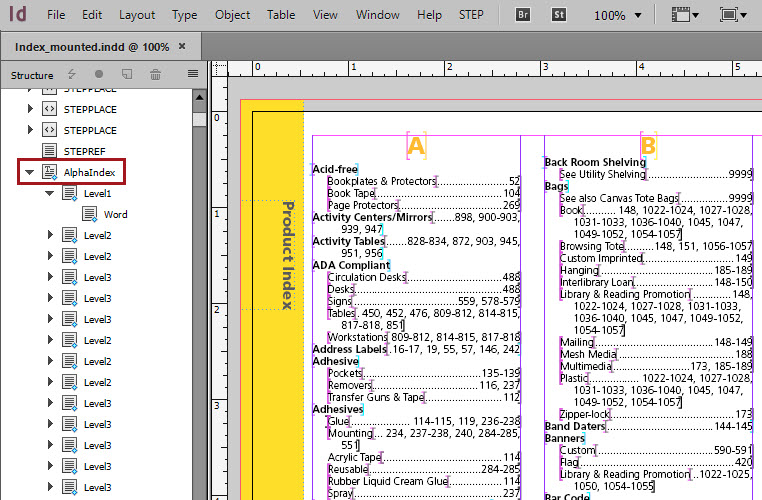
Because STEP’n’design enables documents to be saved back to STEP with page numbers, publication indexes can be created by using the STEP Export Manager to export the index words in an XML file. The file can then be imported into InDesign to create an index, as pictured in the below screenshot. For more information, see the Creating Document Indexes topic here.
Publications and Versions
Because STEP can store multiple 'views' of the same data in different contexts and workspaces, STEP Publisher allows for these different contexts to be represented in publications by versions. Versions are modeled around specific language and country views of data. Versions can also be created to support currency zones, vertical markets, or types of catalog. Individual publication versions are typically mounted on separate layers within the STEP Publisher document (publication template, or mounting page).
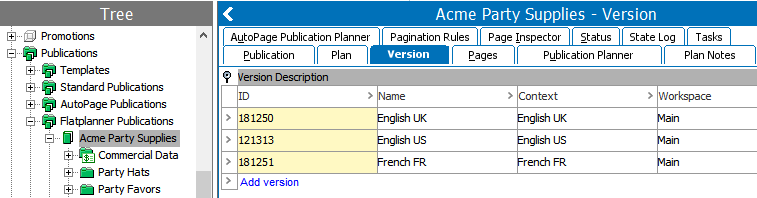
The advantages of using different versions and layers include:
- Viewing proof views of individual layers
- Saving money on printing costs by using 'fifth black' plate change (placing all black textual content on different layers with all images on a single layer)
For more information about creating versions, see the Publication Versions topic in the Publication Hierarchy section of the STEP Publisher (Adobe InDesign Integration) documentation
Publishing (Flatplanner) Workflows
Publishing workflows—known as Flatplanner workflows—can be implemented on systems that utilize both the Flatplanner and STEP Workflow components. Flatplanner workflows enable creative staff to pick up workflow tasks—in the form of Flatplanner planned pages—from within InDesign. Flatplanner workflows link together all of the tasks involved in the process of planning and approving the pages that comprise Flatplanner publications. In addition, these workflows greatly ease and streamline communication between different departments in production environments.
For more information about Flatplanner workflows, see the Flatplanner Workflows section of the Flatplanner documentation