This section describes how to write certain types of data from an InDesign page back to STEP without having to launch the STEP Workbench to first locate the product and attribute.
As the InDesign page is not really designed as a database front end, a range of restrictions apply to the writeback function.
The restrictions are as follows:
- You must have the required user privileges to write data back to STEP, e.g., the ability to modify attribute values
- Data can never be written back to the Approved workspace
- Calculated attributes or attributes that have undergone a data transformation (for instance, in a table) cannot be written back to STEP
- Invalid tags or special characters not defined in STEP cannot be written back
- Graphical formatting such as bold, italic, or underscore might be written back to the database if you manage the styles carefully (that is, if this formatting is tied to InDesign character styles that have corresponding style tags in STEP), but is not recommended
STEP Publisher supports two ways of writing data back from document to database:
- Writeback to DB: A general writeback option involving a dialog box that shows all items on the document that can be written back. Users can choose which items should be written back.
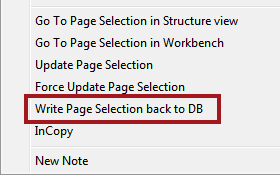
- Write Page Selection back to DB: A direct writeback option where the specific element that you want to write back to the database is chosen.
General Data Writeback: Writeback to DB
To perform a general STEP data writeback operation after you have changed some attribute text on the InDesign page, follow these steps.
- In the STEP menu, click Writeback to DB. The Writeback to DB dialog box appears.
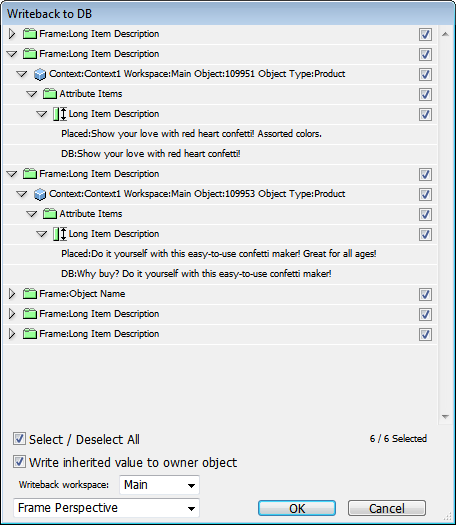
- From the list at the bottom of the dialog box, click either Frame Perspective or Object Perspective depending on how you want your changes to be presented. The above screenshot shows the frame perspective. The below shows object perspective.
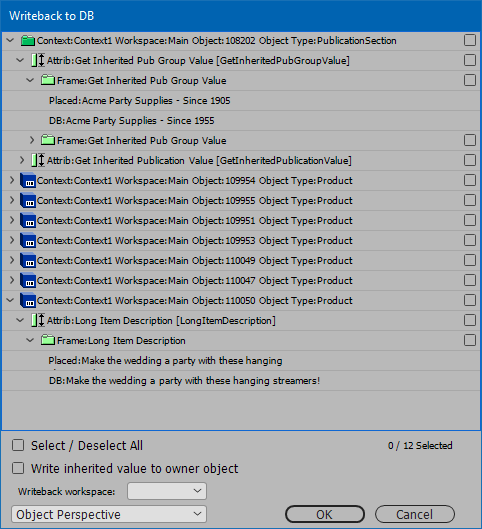
- Select the relevant check boxes to the right for the data you want to write back to STEP.
- Select / deselect the Select / Deselect All checkbox if you want to allow selection / deselection of all items within the Tree. The checkbox indicates how many items have been selected, and the total amount of items.
- Select Write inherited value to owner object if you are writing an attribute value back to STEP from a mounted 'child' object in InDesign. Checking this box will write the locally updated attribute value back to the owner (parent / grandparent) object.
- In the Writeback workspace list, click the workspace you want to write back to. The list displays all created workspaces. If not selecting a workspace, the default value is Main.
Note: It is extremely rare that an option other than Main will be present, as most systems only use the Main and Approved workspaces. Approved will never be an option, as data cannot be written back to the Approved workspace.
- Click OK. The contents of your attribute on the InDesign page will now be written back to STEP, provided that STEP allows it.
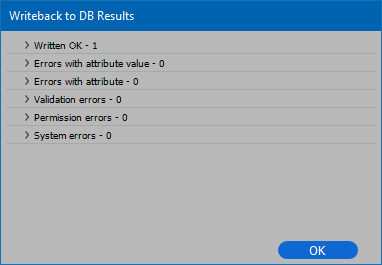
- A Writeback to DB Results dialog box displays. If no errors have been encountered during the writeback process, you may click OK to close the window. Users who do not have privileges to make changes in STEP, such as changing attribute values, may receive errors in the Writeback to DB Results dialog when attempting a data writeback.
Additional issues that can cause data writeback to fail include:
- Read-only attributes, which cannot be updated
- Attribute validation base type mismatch. For example, an attribute with a number validation has an original value of 112, but a user changes it to a text value (11-2). Another example is date attributes.
- Input mask on attribute mismatch. For example, in STEP, an attribute has an input mask set to (00.00) but an InDesign user attempts to write back a value of 11.222.
- List of values mismatch. If a user tries to update a value with an entry that is not in the list, then writeback will fail.
- Unit of measure mismatch. For example, an attribute uses cm as its unit but a user tries to update the value to km.
- Inherited attribute values (see the 'Writeback Errors for Inherited Values' section below for more information)
- After the writeback operation has been performed, STEP will take a few seconds to update.
Direct Data Writeback
To perform a direct STEP database writeback operation after you have changed some attribute text on the InDesign page, follow these steps.
- Place the text cursor within the item to be written back.
- Right-click and select Write Page Selection back to DB, which appears near the bottom of the popup menu.
Writeback Errors for Inherited Values
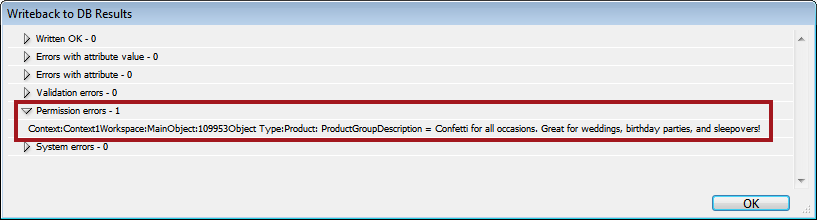
If Write inherited value to owner object is left unchecked in the Writeback to DB dialog box, even users with Super User privileges—who are granted All Setup Actions and All User Actions—will receive a permission error in the Writeback to DB Results dialog when attempting to locally update an inherited attribute value from within InDesign. This error occurs because inherited attribute values may not be locally overwritten from within InDesign by anyone. Inherited attribute values may only be locally overwritten in the workbench.
When this error appears, the value(s) contained in the error message have not written back to STEP at all. Thus, the only option to update an inherited attribute value from within InDesign is to write back to the owner object.
Considerations and Limitations for Writeback to Owner
- Writing a value back to an owner (parent / grandparent) object that exists in the Approved workspace will cause this object to become unapproved. Users should take care to ensure that data writeback from InDesign does not impact other processes (such as Outbound Integration Endpoints) that rely exclusively on products in the Approved workspace.
- A dialog containing the Write inherited value to owner object checkbox will not appear when writing data back to STEP using the Write Page Selection back to DB option. Users will only receive the Writeback to DB Results dialog, containing the Permission error(s).
- The Permission errors warning is not associated with user privileges as defined under Users & Groups in System Setup. 'Permissions' refers to core functionality of STEP Publisher itself, in which no users have the authority to overwrite inherited values from within InDesign.