Maintain menu provides the user to maintain STEP data by inserting, linking, merging, deleting, approving and others. Some options, such as Customer MDM Monitoring and User Anonymizer, are only available if the functionality is activated via a license and/or add-on component. Many options have additional options and are explained below:
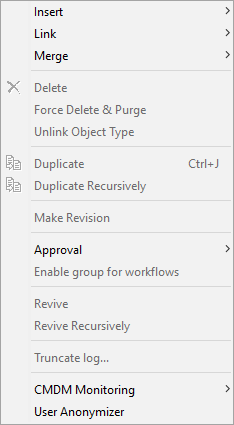
Insert
The 'Insert' action allows the user to create an object based on the currently selected object. The options are disabled based on the selection.
Note: It is also possible to create objects products, classifications, entities, publications, and assets when right-clicking in STEP. For more information on object creation, see the Creating Objects in Tree topic of this guide here.
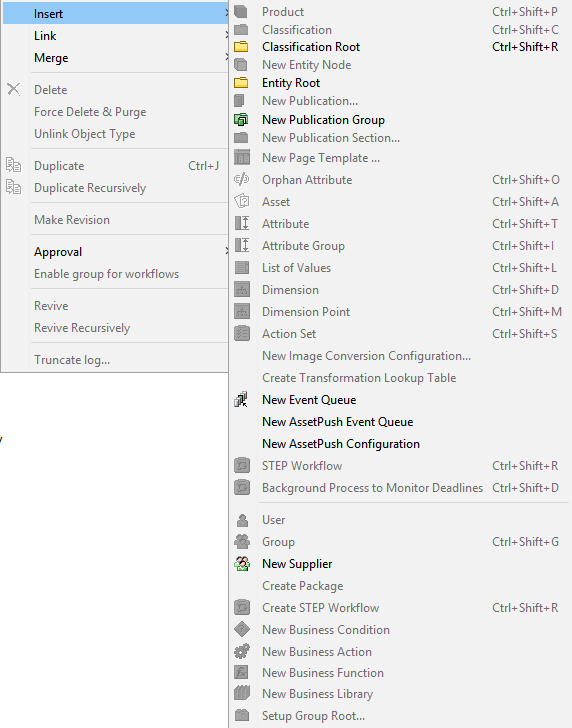
The following options are available in the Insert sub-menu:
- Product – If the user is within the primary product hierarchy, this option will create a new product beneath the selected hierarchy.
- Classification – If the user selected a classification hierarchy, this option allows creation of a new classification folder beneath the selected classification with the predefined classification object types.
- Classification Root – If the user would like to have a classification root to store images or configurations or to link products in the classifications folder, this option creates a classification root with a set of predefined classification root object types that are listed.
- New Entity Node – If the user selected an entity root, this option will create a new entity object based on one of the predefined entity types.
- Entity Root – A new 'Entity Root' can be created in the tree hierarchy from predefined set of entity root object types.
- New Publication... – Allows the user to create a new publication. If the user has already selected a publication hierarchy, then when this option is chosen, 'Create Publication' dialog will displayed with default object type selected. The user must provide a name of the publication and 'Page Template,' 'Product Template,' and 'Publication Template' to create a new publication.
Note: The 'Create' button in the ‘Create Publication’ dialog will be enabled only if the user has selected a publication template.
- New Publication Group – Allows the user to create a new publication group within the selected publication group. If a publication group is selected, once this option is chosen, ‘Create Publication Group’ dialog will display with the predefined set of object type.
- New Publication Section... – The user will get a wizard to create 'New Publication Section.' When selecting this option, the 'New Section' dialog will display. Complete the Section Name and select the Page Template from the dropdown list.
- New Page Template... – Allows the user to create a new page template. After selecting a 'Publication Group,' this option will display a wizard Create New Page Template in STEP.
- Orphan Attribute – This allows the user to add an attribute as an orphan attribute to a product by searching or browsing from System Setup tab. For information, see the Linking Orphan Attributes topic in the System Setup / Super User Guide documentation here.
- Asset – Allows the user to create placeholder with ID and name for a new asset on the selected classification folder. The user may choose an asset object type from the Create Asset dialog, then asset content can be added.
- Attribute – Allows the user to create a new attribute in the selected attribute group in System Setup.
- Attribute Group – Allows the user to create a new attribute group in System Setup.
- List of Values – Allows a user to create new list of values under Lists of Values Group / LOVs in System Setup. User will be allowed to key in ID and Name in the Create LOV dialog.
- Dimension – This option will create a new dimension. A user must select the 'Contexts' node in the System Setup for this option to be available. For more information on dimensions, see the Dimensions and Dimension Points topic in the System Setup / Super User Guide documentation here.
- Dimension Point – Allows the user to create new dimension point. A user has to select a dimension under System Setup > Contexts > Dimension (for example 'Language'). The label of this option changes dynamically based on the selection of dimension, so the option ‘Dimension Point’ is never displayed. For example, if the user has chosen 'Language' as Dimension, this option will be labeled as 'New Language'.
- Action Set – This option creates a new setup or user action. A 'Create Action Set' dialog displays with ID and Name to be filled when user selects the option Action Set. Creating a setup or user action is based on which node is selected in System Setup. For more information on action sets, see the Maintaining Action Sets topic in the System Setup / Super User Guide documentation here.
- New Image Conversion Configuration… – A wizard will display to create new image conversion configuration and save it for reuse in the selected classification folder. For more information on image conversions, see the Image Conversion Configuration topic in the Digital Assets documentation here.
- Create Transformation Lookup Table – Allows the user to create a transformation lookup table under the selected classification. For more information, see the Transformation Lookup Tables topic in the Resource Materials online help here.
- New Event Queue – The user can create a new event queue in System Setup. For more information, see the Creating a New Event Queue topic in the System Setup / Super User Guide documentation here.
- New Asset Push Event Queue – The user can create a new asset push event queue in System Setup and it will create a new event queue. The event queue can have any number of asset push configurations running from it. For more on assets push events, see the Creating and Maintaining Asset Push Event Queues topic in the Digital Assets documentation here.
- New Asset Push Configurations – A new asset push configuration will be created under the selected Asset Push Event Queue. For more on assets push configurations, see the Creating and Maintaining Asset Push Configurations topic in the Digital Assets documentation here.
- STEP Workflow – This will create a new workflow under System Setup > Workflows when the user first selects 'Workflows' in 'System Setup'. The STEP Workflow designer window will display. It is also possible to create a workflow by right-clicking on the 'Workflows' folder. For more information on workflows, see the Workflows documentation here.
- Background Process to Monitor Deadlines – When first selecting the System Setup > Workflows node, this option starts a background process for checking STEP Workflow items that have exceeded their deadlines.
- User – Users are created by first selecting System Setup > Users & Groups > Group where the user will belong. When a user selects a Group and select this option, the 'Enter New User' dialog displays. For more information on users in STEP, see the Working with Users topic in the System Setup / Super User Guide documentation here.
- Group – Groups are created by first selecting System Setup > Users & Groups > and selecting the necessary node to hold the group. For more information on groups in STEP, see the Working with User Groups topic in the System Setup / Super User Guide documentation here.
- New Supplier – Supplier users are created in System Setup > Supplier Group. A new supplier can be created by first selecting the supplier group.
- Create Package – Creates a package by first selecting System Setup > Change Package. After the user has selected the change package option, a 'Create Change Package' dialog displays. Enter an ID and Name of the Package. For more information on packages, see the Change Packages topic in the Configuration Management documentation here.
- New Business Condition – Creates a new business condition under Global Business Rules in System Setup. Business Conditions can also be created under Workflows in System Setup. For more information on business conditions, see the Business Conditions topic in the Business Rules documentation here.
- New Business Action – Creates a new business action in System Setup under Global Business Rules. Business action can also be created under Workflows in System Setup. For more information on business actions, see the Business Actions topic in the Business Rules documentation here.
- New Business Library – Creates a new business library in System Setup under Global Business Rules. Business libraries can also be created under Workflows in System Setup. For more information on business libraries, see the Business Libraries topic in the Business Rules documentation here.
- Setup Group Root... – Creates a new setup group root under System Setup. When the user selects this option, the 'Create Setup Group Root' dialog displays with set of object types. The user may create a new setup group root based on the object the object type selected.
Link
The 'Link' action provides a list of object or reference types for linkable actions. This menu will only show the relevant options as active if it is possible on the selected object.
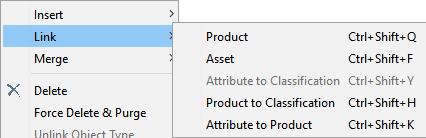
Based on the source object there are different link options available with keyboard shortcuts shown in the above screenshot.
- When a user selects a product hierarchy and clicks on Link > Product, the product is linked to the selected product via a product reference type dropdown.
- When a user selects a product hierarchy and clicks on Link > Asset, the asset is linked to the selected product via an asset reference type dropdown.
- When a user selects an attribute, it can be linked to classifications.
- When a user selects a classification, it can be linked to products.
- When a user selects an attribute, it can be linked to products.
For more information on linking your attributes to products, see the Creating a Product Attribute Link topic in the System Setup / Super User Guide documentation here.
Merge
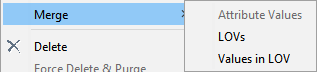
Depending on the selected object, the user can merge attributes, LOVs, and LOV values. For more information, see the Merging Attribute Values topic (here), the Merging Values in an LOV topic (here), or the Merging LOV Values in Bulk topic (here) in the System Setup / Super User Guide documentation.
Delete
In STEP, the 'Delete' action sends items to the Tree Recycle Bin. If the selected item for deletion contains child objects, the user will receive a warning that these items will also be deleted. For more information, see the Recycle Bin for Tree topic of this guide here.
Note: The keyboard 'Delete' button does not delete objects in STEP Workbench.
Force Delete and Purge
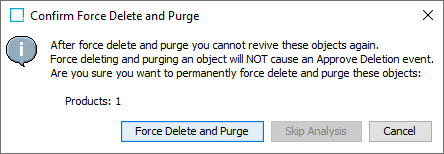
If an object is selected in the workbench, and 'Force Delete and Purge' is clicked, the Confirm Force Delete and Purge dialog is displayed. Click the 'Force Delete and Purge' button to permanently delete the object and purge it from the recycle bin without any further opportunity to cancel.
Unlink Object Type
When in System Setup, this option allows a user with the appropriate privileges to unlink the selected object type from its parent.
Duplicate
This standard 'duplicate' operation essentially copies and pastes in one click. Users may also right-click while selecting multiple objects and duplicate each of them. A prompt will request a new ID when an auto ID is not set, then automatically provides a different name. The user is also allowed to indicate if duplicate references should be created.
Duplicate Recursively
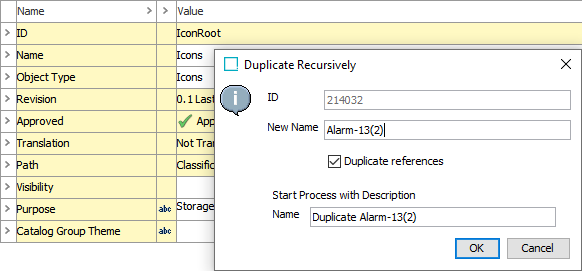
A hierarchy can be duplicated when the user selects the top node in the hierarchy and clicks 'Duplicate Recursively.' The ID should be editable for duplicate recursively.
In the below example, the ID is auto generated so the duplicate recursively background process will ultimately give an error.
Make Revision
Allows a user to force a revision on a product and provide a comment for explanation.
Approval
The approval options allow objects to be moved to the Approved workspace.
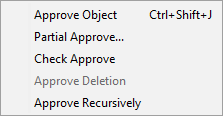
- Approve Object – Approves an object from the Main workspace to the Approved workspace and changes the red X (
 ) to either a green checkmark (
 ) or a yellow one (
 ). See the Approval of Objects section of this guide for more information
 - Partial Approval – Approve selected parts of the unapproved changes on the selected object.
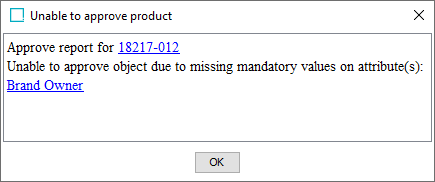
- Check Approve – The 'Check Approve' action allows the user to see if anything is barring successful approval of an object. In the example below, mandatory values are missing.
- Approve Deletion – For an approved object to be removed from the Recycle Bin, the object must be Approve Deleted. If a previously approved object is deleted, in the Recycle Bin it will have a red '(in Use)' header:

Performing an Approve Deletion changes the header to 'Not in Use' and allows the object to be deleted.

For more information, see the In Use and Not In Use Objects section in the Approval of Objects topic of this guide here.
- Approve Recursively – Launches a workflow process that will approve the currently selected object and all of its children.
Enable Group for Workflows
This is a disabled legacy option.
Revive
Revives a deleted object, either 'In Use' or 'Not In Use', from the Recycle Bin. For more information, see the In Use and Not In Use Objects section in the Approval of Objects topic of this guide here.
Revive Recursively
Revives a deleted object as well as all of its children, either in use or not in use, from the Recycle Bin. For more information, see the In Use and Not In Use Objects section in the Approval of Objects topic of this guide here.
Truncate Log
Once selecting an Event Queue or Asset Push Queue, this option will reduce the log to the most recent entries. For more information, see the Event Queues topic of the System Setup / Super User Guide documentation here.
Customer MDM Monitoring
Selecting the 'Start background process for monitoring Customer Data Policies' option under Customer MDM Monitoring will manually initiate any of the active data policies in the system. For more information, see the Data Policies topic in the Data Governance documentation here.
User Anonymizer
This option is available to admin users and is used to anonymize a deleted user within the object change logs, revision logs, and workflow status logs. For more information, see the User Anonymizer topic in the System Setup / Super User Guide documentation here.