Data profiles can be generated from within the Web UI via the Update / Refresh Profile actions and displayed via the Data Profile component screen.
Note: The Data Profile screen is available for product, entity, classification and collection profiles.
Accessing the Data Profile Screen
The Data Profile screen Web UI component is not configurable like profile dashboards in the workbench and has a uniform format for displaying profile information. However, a number of initial setup steps are required to access profiles in Web UI.
Note: Data profile dashboard widgets are available in the Web UI via KPI widgets. For more information, see the Data Profile Widgets in Web UI section of the Web User Interfaces / Web UI Setup and User Guide documentation here.
- Create a new screen and select the Data Profile screen. The screen itself does not require any configuration once the screen has been created. For more information on creating screens, see the Design Mode Basics section of the Web User Interfaces / Web UI Setup and User Guide documentation here.
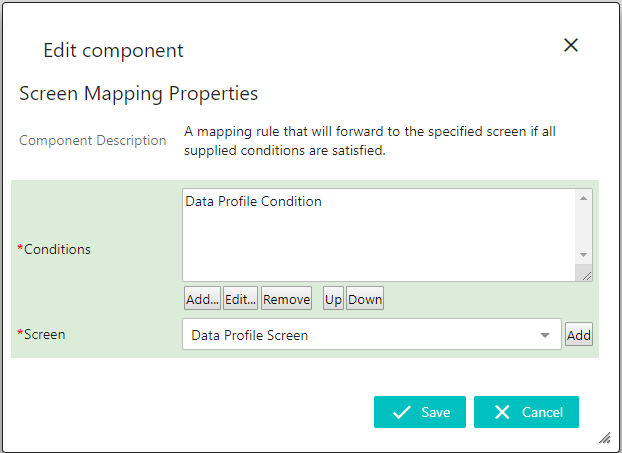
- Map the new Data Profile screen to the Data Profile Condition. For more information on mapping screens, see the Mappings section of the Web User Interfaces / Web UI Setup and User Guide documentation here.
- Enable Include Profile in the Collection / Entity Summary Card component of the applicable Entity and/or Collection screen. When enabled, a link to the data profile of the currently selected node is provided in the summary component. This link also displays the number of Profile Findings associated with the data profile.

For more information on Profile Findings and the Data Profile screen, see the Data Profile Screen section of the Web User Interfaces / Web UI documentation here. For more information on configuring the Entity Summary Card and Collection Summary components, see the Below Title Components section of the Web User Interfaces / Web UI documentation here.
Note: The Profile Findings link will only appear for nodes that have already been profiled.
Once the above setup has been completed, the user can access an entity's or collection's data profile by navigating to the node in question and clicking the Profile Findings link.
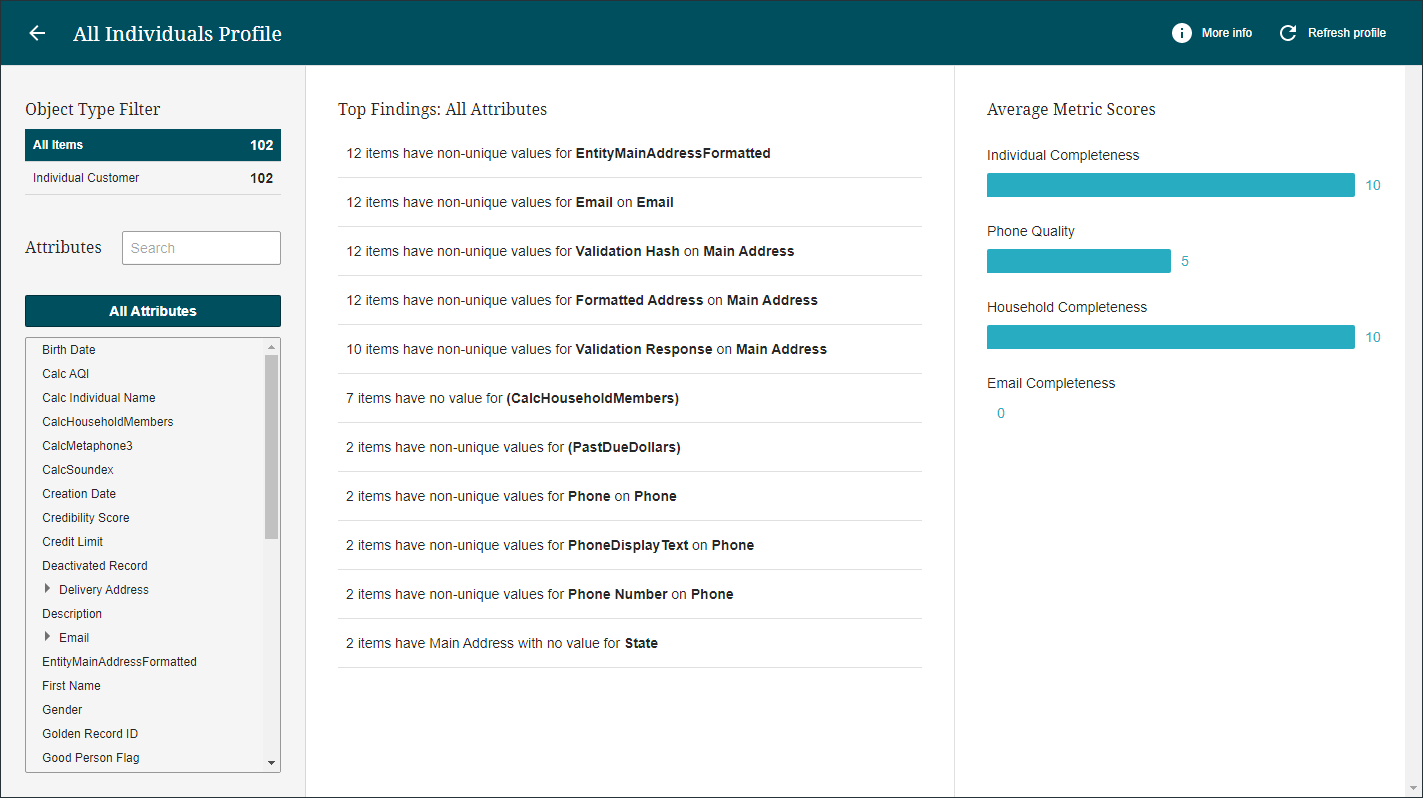
Creating and Updating Data Profiles in Web UI
Data profiles can be created / updated via two different action buttons in Web UI: the Update Profile Action and the Refresh Profile Action.
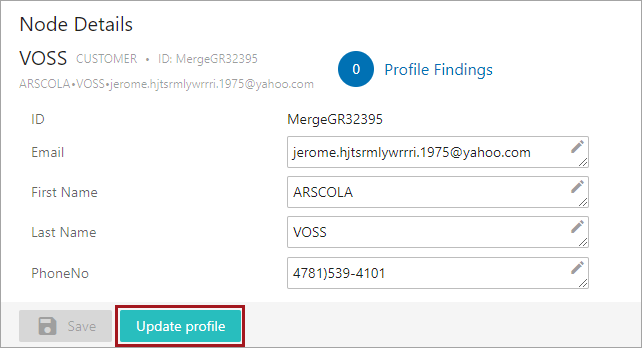
The Update Profile Action can be configured on a Node Details screen and can be used for any object with profiling enabled.
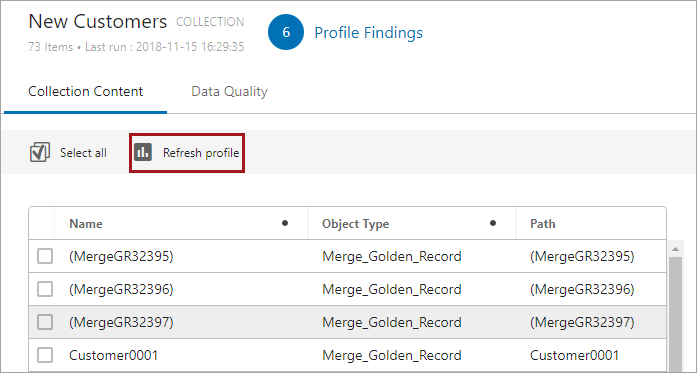
The Refresh Profile Action can only be configured on a Node List component and only for collection objects.
When either action button is clicked, a Create / Refresh Profile window will appear and prompt the user to select a profile configuration via a dropdown menu. Once a configuration is selected, click Create profile / Start refresh to create / update the profile.
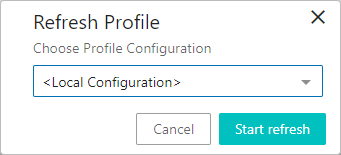
For more information on profile configurations, see the Profile Configuration section of this documentation here. For more information on the action buttons, see the Action Buttons section of the Web User Interfaces / Web UI documentation here.