A Web Service Endpoint receives request data and transmits response data. For more information on the Matching and Merging Web Service Endpoint, see the Configuring Match and Merge topic in the Matching, Linking, and Merging documentation here.
Match and Merge integrates via the following calls:
-
SOAP - on STEP API Documentation, click the 'Soap API documentation' link, and click the STEP Match And Merge Web Services SOAP API link.
-
REST - on STEP API Documentation, click the link under the 'REST API V2' heading. Under the Entities section, click the POST button to find details and the 'Try it out' option for /entities/match-and-merge.
For example use cases, see the Use Case Appendix topic in the Customer MDM Solution Enablement documentation here.
To access the Match and Merge Web Service endpoint for a given system, navigate to the following URL: [your system URL: port]/MatchingWS/matching.
Prerequisites
Create a web service endpoint as defined in the Web Service Endpoint topic here.
Configure a STEP Match and Merge Web Service Endpoint
-
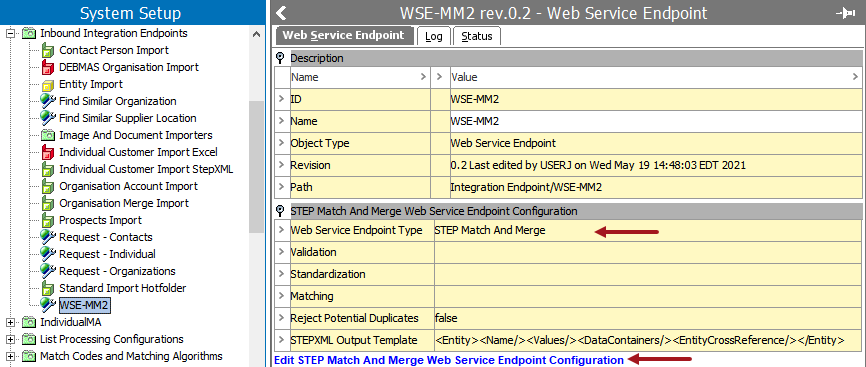
On the Web Service Endpoint object, open the STEP Match and Merge Web Service Endpoint Configuration flipper and verify the 'Web Service Endpoint Type' is set to 'STEP Match and Merge '. The type cannot be changed, if necessary, create a new web service endpoint. For other types of endpoints, see the configuration options defined in the Web Service Endpoint topic here.
-
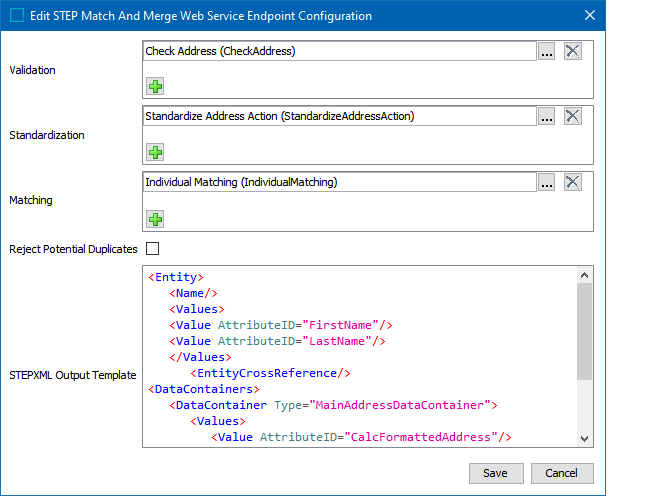
Click the 'Edit STEP Match and Merge Web Service Endpoint Configuration' link to configure as follows.
To modify a parameter:
-
Click the green plus button (
 ) to add a criterion (
 ).
). -
Click the ellipsis button (
 ) on a criterion to open the relevant selection dialog box. Make a selection and click the Select button to continue.
 -
Click the X button (
 ) to delete a criterion.
-
Validation - (optional) This parameter is constrained by business conditions that limit what data is matched. If the data does not conform to any validation criteria denoted, the record is rejected. These operations result in true or false. See the Business Conditions and Contexts section below. For more information, see the Business Condition topic in the Business Rules documentation here.
A validation business condition allows the Web Service Endpoint to do early rejection of incoming requests. If the business condition fails the record, the record is never matched in the system. For example, rejecting an incoming business-to-business customer record that does not specify the customer's legal name.
Click the plus button (
 ) to add a business condition. Click the ellipsis button () for the selector to display the available business conditions, click a condition, and click the Select button. Repeat this step to add as many business conditions as needed.
 -
Standardization - (optional) This parameter is constrained by business actions that make the data being matched conform to a set standard format. For more information, see the Business Actions topic in the Business Rules documentation here.
Standardization business actions allow the Web Service Endpoint to enhance and enrich the incoming data before matching. For example, using Address Standardization before running the match algorithm.
Click the plus button (
) to add a business action. Click the ellipsis button () for the selector to display the available business actions, click an action, and click the Select button. Repeat this step to add as many business actions as needed. -
Matching - (required) This parameter is where a matching algorithm is set for the records that will be compared. In cases with different object types, there may be multiple matching algorithms. For more information, see the Configuring Matching Algorithm topic in the Matching, Linking, and Merging documentation here.
Match and Merge is based on a matching algorithm. The matching algorithm could be the one used for import, but it is often a good idea to build a separate dedicated algorithm for match and merge.
Click the ellipsis button (
) for the selector to display the available matching algorithms, click an algorithm, and click the Select button. Only one algorithm can be assigned to a Match and Merge Web Service Endpoint. -
Reject Potential Duplicates - (optional) When checked, this parameter automatically rejects potentially duplicated records instead of creating a clerical review task. For example, the match score on an imported record that would normally result in the creation of a clerical review task is instead automatically rejected when the matching algorithm identifies similar records.
Incoming records that score above the auto threshold, or that are matched by STEP ID or source record ID are still accepted as updates.
Incoming records that score below the clerical review threshold still create new records. For more information, see the Match and Merge topic in the Matching, Linking, and Merging documentation here.
-
STEPXML Output Template - (required) The output template is an Advanced STEPXML structure that populates and filters the STEP data in the response. The <Entity> tag must be the highest level tag in the output template. A default template is displayed and can be edited if you require different data from STEP. See the Match Advanced STEPXML Output Template section below.
-
Click the Save button.
-
Continue configuration and validation as defined in the Configuring Match and Merge topic of the Matching, Linking, and Merging documentation here.
Business Conditions and Contexts
When sending a web service request, the request includes the current context. This request is sent to STEP and STEP returns a value with the context language included. If the 'Evaluate JavaScript Business Condition' fails, the included context signals which translation of the business condition message to include.
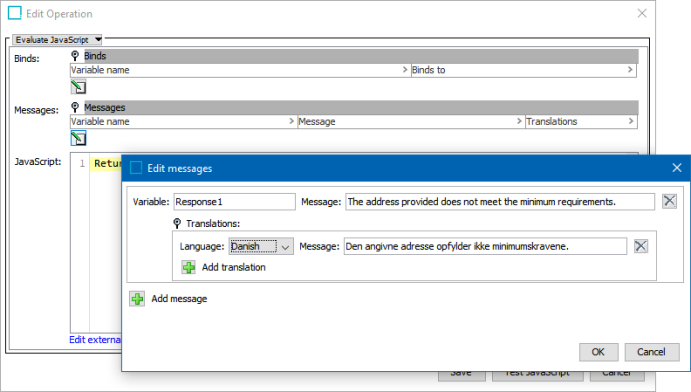
For more information, see the Business Condition: Evaluate JavaScript topic in the Business Rules documentation here.
Match Advanced STEPXML Output Template
The following in an example output template for a Match solution:
<Entity>
<Name/>
<Values>
<Value AttributeID="IndLastName"/>
<Value AttributeID="IndFirstName"/>
</Values>
<DataContainers>
<MultiDataContainer Type="ContEmailDataContainer"/>
<DataContainer Type="AddrMainAddressDataContainer"/>
</DataContainers>
</Entity> The XML template must contain a complexType 'EntityType' as defined in the STEPXML XSD.
To review the complexType:
-
Open the STEP SDK and API documentation from [server]/sdk or click the STEP API Documentation button on the STEP Start Page.
-
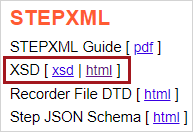
Under the STEPXML heading, click the html link.
-
At the top, under the Namespaces heading, click the /step/outputtemplate link and scroll down to select the EntityType link from the complexTypes list.

See the following topics for more information: