Events Generated on Main Workspace
By default, approval triggers an event for workspace revisable objects, meaning that from the Main workspace saving an edit (but not approving it) does not generate an event. However, in the Web UI Product Editor screen, events are needed for unapproved Main workspace edits so that the data is available for searching, sufficiencies, and PDS. To achieve this, the following additional manual configuration is required.
Important: The configuration below is only valid for unapproved updates saved on the Web UI Product Editor screen. The events generated are consumed by Product Data Syndication (PDS), the Search Screen, and the Sufficiency Panel.
Note: If you are using Search Screen / Elasticsearch functionality (with the X.Elasticsearch license enabled), as an alternative to the configuration below, you will have an OIEP / EP Triggering Workspace option when configuring Event Triggering Definitions and can opt to trigger events from the Main workspace. Refer to the OIEP - Event-Based - Event Triggering Definitions Tab topic in the Data Exchange documentation here.
Saving edits on the Product Editor screen in Web UI generates a 'postAction' for each of the following components:
- PDS - defined in the Product Data Syndication topic of the Data Integration documentation here.
- Sufficiencies - defined in the Sufficiency Panel topic of the System Setup / Super User documentation here.
The postAction executes a specified business action which creates a derived event. The derived event is then placed in the specified event processor queue. When the event processor is invoked, the unapproved data is made available to the specified component.
Configure Events for Unapproved Updates
Follow this configuration for each of the active components on your system.
- Create derived events to capture the applicable postActions, as defined in the Derived Events topic of the System Setup documentation here.
For example, the following derived event names are shown in the following images and would be required by a system with PDS and Sufficiency Panel components activated:
- PDSDerivedEvent
- SufficiencyDerivedEvent
- Create a JavaScript business action for each of the applicable activated components, as defined in the Creating a Business Rule or Library topic of the Business Rules documentation here.
Important: While not advised, the following recommended IDs can be changed, but they must be defined in the sharedconfig.properties file as shown in the Overwriting postAction Business Action IDs section below.
- PDS - use the ID pdsPostActionID
- Sufficiency - use the ID sufficiencyPostActionID
- Edit the business actions created above with the following information, as defined in the Editing a Business Rule topic of the Business Rules documentation here.
Note: See the Sample Configurations section below for relationships between the derived events, event processors, and business actions for each of the activated components.
- On the Business Rule Editor dialog, if necessary, set Valid Object Types to restrict the object types that will trigger the derived event.
- Click the Add new Business Action link and select the Execute JavaScript operation from the dropdown.
- On the Edit Operation dialog, add the Event Queue bind to identify the event processor and its queue.
- Set the Derived Event Type bind to identify the derived event created in the first step.
- Set the Current Object bind to take action on the object being handled by the business action.
- Add the JavaScript code to send the updated unapproved data, for example:
queue.queueDerivedEvent(event,node)
Once this configuration is complete and the defined event processor is enabled and running, clicking the Save button in the Product Editor Web UI screen triggers the derived events, which are handled by the defined event processor.
Sample Configurations
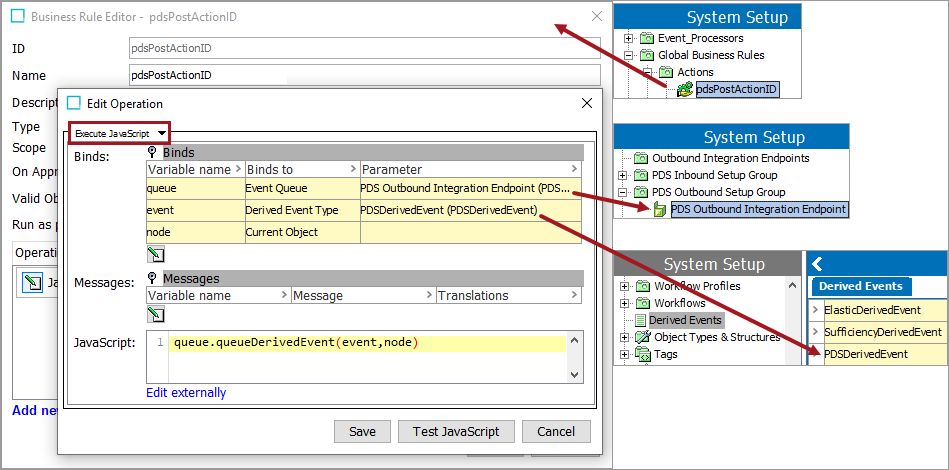
For PDS, the sample below:
- shows the business action with ID 'pdsPostActionID'
- identifies the OIEP with ID 'PDSOutboundIntegrationEndpoint' (including selection of the PDSDerivedEvent in the Output Template Object-EventTypes parameter, as well as the Main workspace (Approved is selected by default))
- uses the derived event with ID 'PDSDerivedEvent'
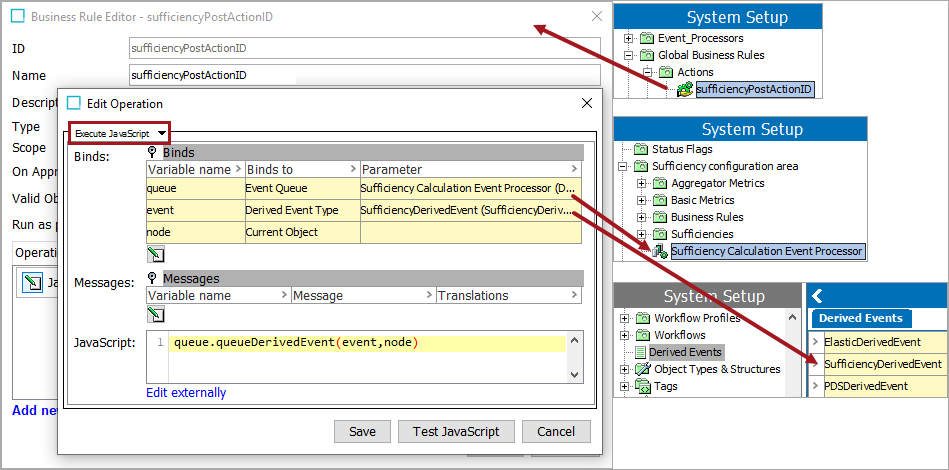
For Sufficiency Panel, the sample below:
- shows the business action with ID 'sufficiencyPostActionID'
- identifies the event processor with ID 'SufficiencyCalculationEventProcessor' (running the Data Sufficiency Calculator processor)
- uses the derived event with ID 'SufficiencyDerivedEvent'
Overwriting postAction Business Action IDs
By default, postActions are identified using the IDs detailed in the configuration steps above. Overwriting these IDs is not necessary, nor is it recommended, but it is possible using the following properties.
Important: Choosing to overwrite the postAction IDs requires that you use the override ID for the business actions created to generate the derived events.
In the sharedconfig.properties file on the STEP application server, add the following the case-sensitive entries:
-
PDS.UpdatePostActionID
PDS.UpdatePostActionID=modifiedPDSpostActionID
- Sufficiency.UpdatePostActionID
Sufficiency.UpdatePostActionID=modifiedSUFFpostActionID
Changes to the properties file, outlined above, are implemented when the server is restarted.