Match Criteria Configuration
To set up the match criteria for a match algorithm, the Matching Component Model must be populated. The user needs to know the data that are to be matched. One tool for such analysis is Data Profiling.
Matching Component Model
Before match codes can be generated and matching algorithms applied, the Matching Component Model must be configured. The Component Model determines which objects, attributes, and references are relevant to the configuration and how they apply.
Note: Additional Component Models must be configured for certain Match Actions. For more information, see the Match Codes topic in this documentation here.
All relevant Object Types, Attributes, and References must be created before they can be mapped to the component model.
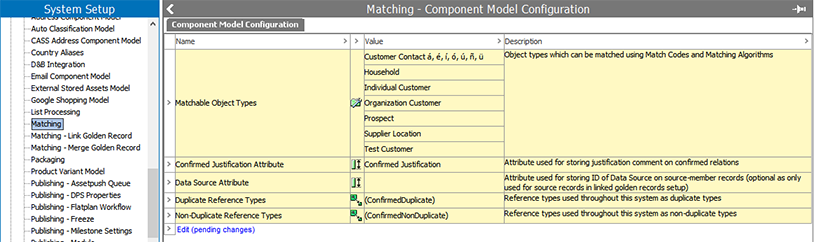
The Matching Component Model defines all Objects Types that are allowed to be matched.
- In System Setup, expand 'Component Models,' and click on the 'Matching' node.
- On the 'Component Model Configuration' tab, click the Edit link.
- Click the 'plus' button for the relevant component aspect to display the selection dialog, and then choose to add an object, attribute, or reference:
- Matchable Object Types – Select the object types that need to be matched. Only the object types configured can be used as object types for match codes. On objects of these types, the 'Matching' tab is automatically enabled. The 'Matching' tab shows match code values, potential duplicates, and confirmed relations for the selected object.
- Confirmed Justification Attribute – Select a valid description attribute for all reference types specified in the 'Duplicate Reference Types' and 'Non-Duplicate Reference Types' fields. This attribute stores a description explaining why two objects are marked as duplicates or non-duplicates.
- Data Source Attribute – Select one or more description attributes valid for all source object types specified in the 'Source Object Types' field. This attribute contains the source ID of the source objects. If you select more than one attribute in this field, then exactly one of these attributes must be valid per source object type chosen in the 'Source Object Types' field. This field is only required for Link Golden Records solutions with Trusted Source survivorship rules configured.
- Duplicate Reference Types – Select one or more reference types to store the manually maintained confirmed duplicate references. These references store the reason for confirming two objects as duplicates specified in the attribute selected in the 'Confirmed Justification Attribute' field. All the selected reference types must have exactly one valid attribute from the 'Confirmed Justification Attribute' field. Only the duplicate reference types you select can be used as 'Duplicate Type' on a matching algorithm. In a typical scenario, you will have different duplicate reference types for different matching algorithms. If you reuse duplicate reference type between algorithms, then the confirmed duplicates will be reused between those algorithms.
- Non-Duplicate Reference Types - Select one or more reference types used by the system for storing the manually maintained confirmed non-duplicate references. These references store the reason for confirming two objects as non-duplicates specified in the attribute selected in the 'Confirmed Justification Attribute' field. All the selected reference types must have exactly one valid attribute from the 'Confirmed Justification Attribute' field. Only reference types selected can be used as 'Non-Duplicate Type' on a matching algorithm. In a typical scenario, you will have different duplicate reference types for different matching algorithms. If you reuse the non-duplicate reference type between algorithms, then the confirmed non-duplicates will be reused between those algorithms as well.
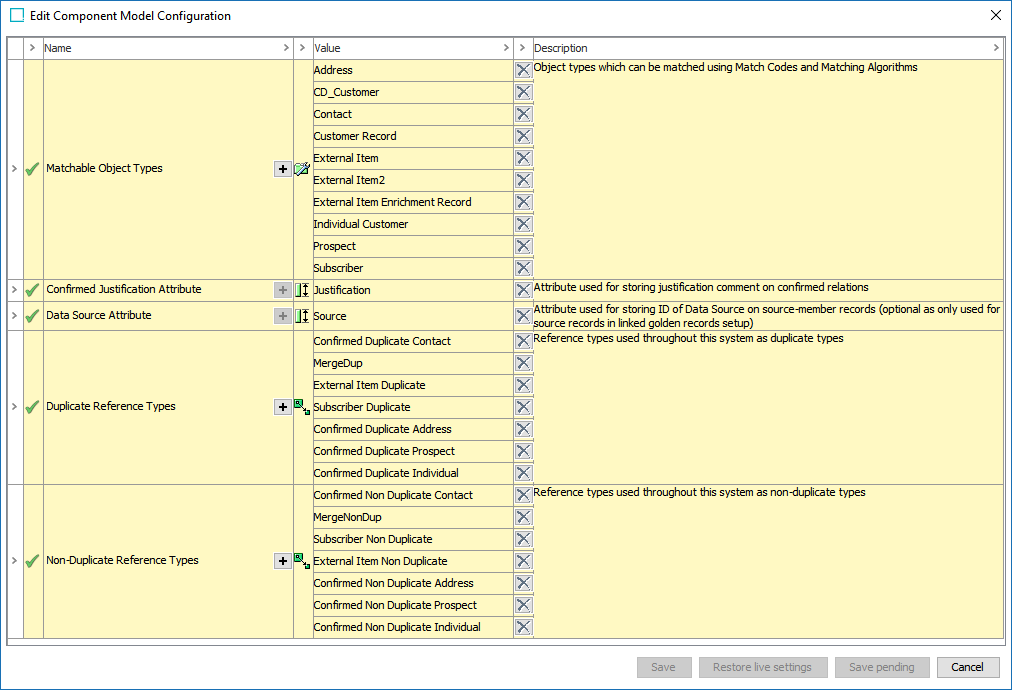
Click the 'X' button to remove the relevant object, attribute, or reference from the component model. A green checkmark will appear if the applicable row has a valid configuration.
- Click Save to save changes.
Note: If you need to navigate away from the configuration dialog and some of the rows are not yet valid (they have an 'X' instead of a checkmark), click Save pending to save your work.
Data Profile Analysis as Preparation for Match Criteria
Designing a deduplication strategy requires an intimate understanding of the data, and to that end, STEP Data Profiles can be of great assistance. Data profiles show the extent to which relevant attributes are populated and highlight the most frequent and rare values and patterns. For more information, see the Data Profiling documentation here.
If a profile is generated from the 'External Products' node, it is possible to see that there are missing values for both OEM and OEM Part Number. This ability to highlight missing values should be accounted for in the deduplication strategy. Furthermore, as illustrated below, the profile shows that the OEM values include obvious duplicates like 'Craft Parts' / 'Craft parts' and 'Weller' / 'WELLER INC,' indicating that some form of normalization is required.
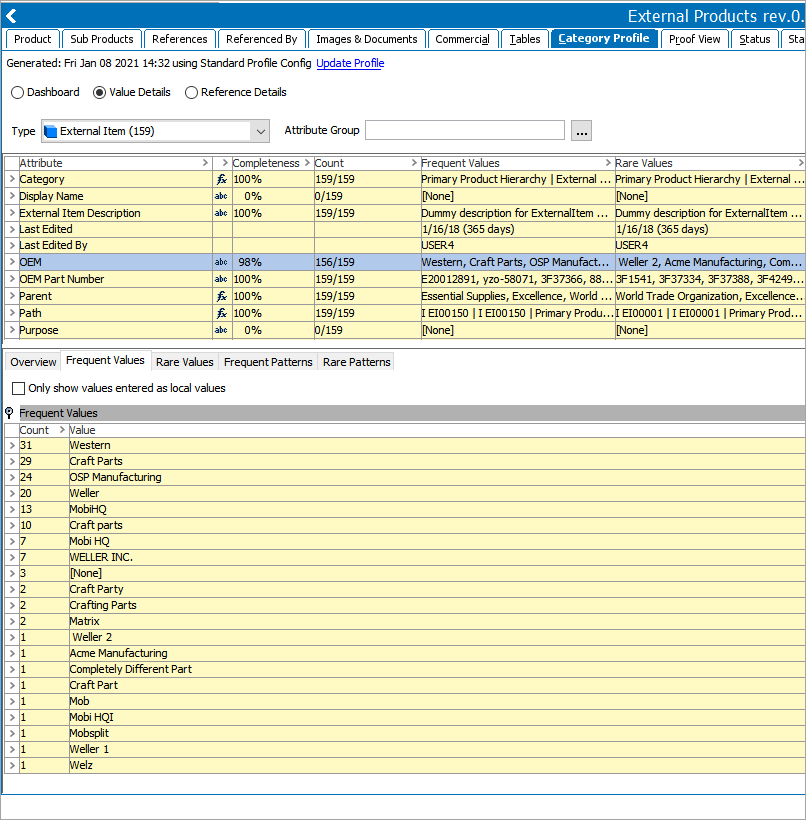
For OEM Part Number, there are more than one hundred distinct values, and thus, the profile does not provide exact statistics with the default settings. Still, it is possible to see that both uppercase and lowercase letters are used, and that punctuation is used in some values and not in others. Again, this indicates that normalization will be required.
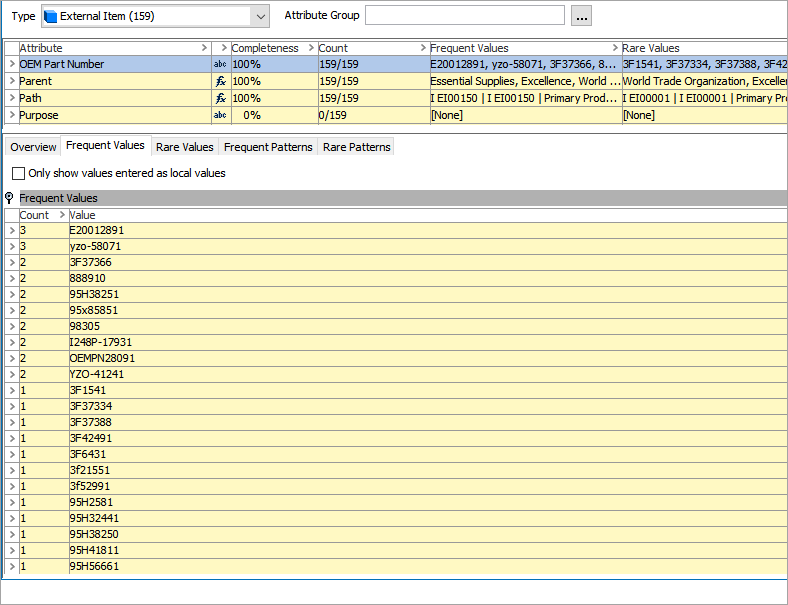
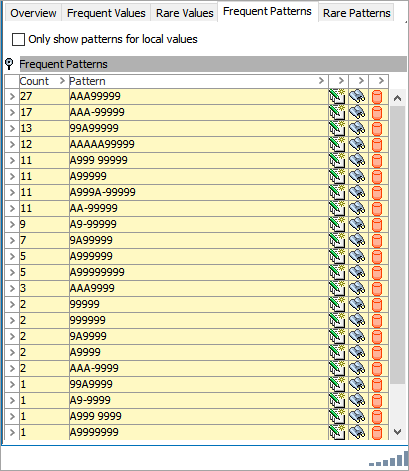
Notice, that when looking at the frequent patterns info, there are no clear, distinct patterns in the values.
With two 'matching' attributes, it would be possible to generate two match codes per object, but for this case, this is likely not the best strategy because the number of different OEM values is quite low, especially if they are normalized. Further, comparing all items from the same OEM would result in too many comparisons.
As there are a significant spread in OEM Part Numr values, generating match codes based solely on these values could work. Additionally, the OEM value should be used as a basis for match since a specific OEM Part Number value pattern to an OEM cannot be be assumed. For example, a match on OEM Part Number is not necessarily a true match as these values are reused. However, this approach would require that the matching algorithm logic inspect the OEMs later to determine if there was a match or not.
A possible solution is to generate composite match codes that include information from both attributes. Suppose the values are normalized during the match code generation. In that case, it will be possible to simplify the setup so that identical match codes are automatically considered a match. This strategy can be achieved by working with a Window Size of one, which only compares objects with the same match code, and the matching algorithm logic does not check anything, but it indicates a match for each comparison.
Matching Component Model
Before match codes can be generated and matching algorithms applied, the Matching Component Model must be configured. The Component Model determines which objects, attributes, and references are relevant to your configuration and how these configurations are used.
Note: Additional Component Models must be configured for certain Match Actions. See Match Actions
All relevant Object Types, Attributes, and References must be created before they can be mapped to the component model. The Matching Component Model defines all Objects Types that are allowed to be matched.
- In System Setup, expand 'Component Models,' and click on the 'Matching' node.
- On the 'Component Model Configuration' tab, click the Edit link.
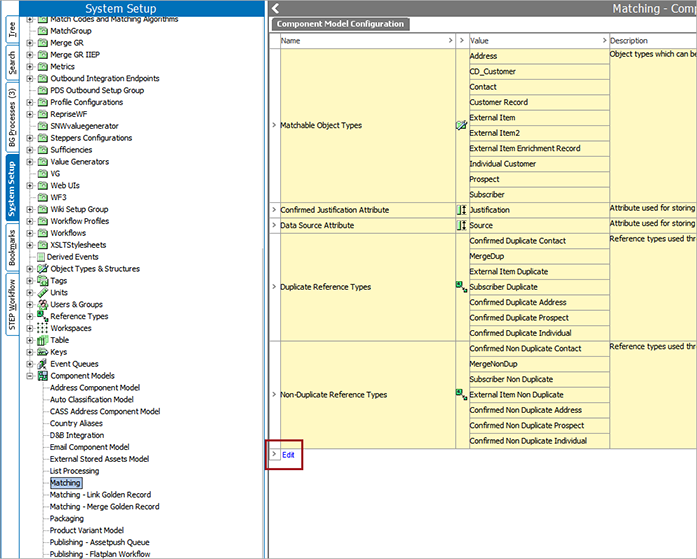
- Click the 'plus' button for the relevant component aspect to display the selection dialog, and then choose to add an object, attribute, or reference:
- Matchable Object Types – Select the object types that need to be matched. Only the object types configured can be used as object types for match codes. On objects of these types, the 'Matching' tab is automatically enabled. The 'Matching' tab shows match code values, potential duplicates, and confirmed relations for the selected object.
- Confirmed Justification Attribute – Select a valid description attribute for all reference types specified in the 'Duplicate Reference Types' and 'Non-Duplicate Reference Types' fields. This attribute stores a description explaining why two objects are marked as duplicates or non-duplicates.
- Data Source Attribute – Select one or more description attributes valid for all source object types specified in the 'Source Object Types' field. This attribute contains the source ID of the source objects. If choosing more than one attribute in this field, then exactly one of these attributes must be valid per source object type selected in the 'Source Object Types' field. This field is only required for Link Golden Records solutions with Trusted Source survivorship rules configured.
- Duplicate Reference Types – Select one or more reference types to store the manually maintained confirmed duplicate references. These references store the reason for confirming two objects as duplicates specified in the attribute selected in the 'Confirmed Justification Attribute' field. All the selected reference types must have exactly one valid attribute from the 'Confirmed Justification Attribute' field. Only the duplicate reference types you select can be used as 'Duplicate Type' on a matching algorithm. In a typical scenario, you will have different duplicate reference types for different matching algorithms. If you reuse duplicate reference type between algorithms, then the confirmed duplicates will be reused between those algorithms.
- Non-Duplicate Reference Types - Select one or more reference types used by the system for storing the manually maintained confirmed non-duplicate references. These references store the reason for confirming two objects as non-duplicates as specified in the attribute selected in the 'Confirmed Justification Attribute' field. All the selected reference types must have exactly one valid attribute from the 'Confirmed Justification Attribute' field. Only reference types selected can be used as 'Non-Duplicate Type' on a matching algorithm. In a typical scenario, you will have different duplicate reference types for different matching algorithms. If you reuse non-duplicate reference types between algorithms, then the confirmed non-duplicates will be reused between those algorithms as well.
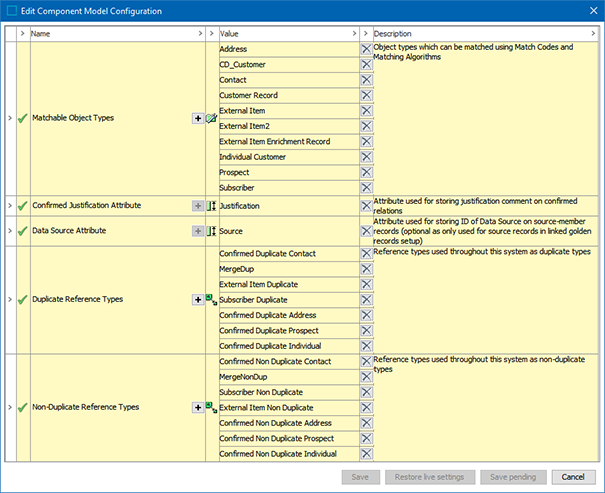
Click the 'X' button to remove the relevant object, attribute, or reference from the component model. A green checkmark will appear if the applicable row has a valid configuration.
- Click Save to save changes.
Note: If you need to navigate away from the configuration dialog and some of the rows are not yet valid (they have an 'X' instead of a checkmark), click Save pending to save your work.