Edit Menu
The Edit menu allows for typical text editing actions, asset editing actions, unique key editing, and spell check.
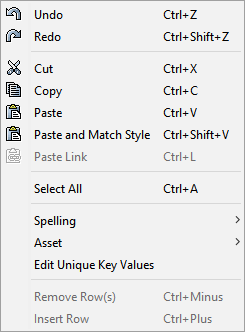
Undo
This action reverses the last action of the user.
Note: It does NOT restore character-by-character changes in text editors.
Redo
Once an action is undone by selecting 'Undo', a user can then select 'Redo' to repeat the action.
Cut
Standard 'cut' operation to remove the selected characters.
Copy
Standard 'copy' operation to duplicate the selected characters.
Note: If a folder is copied, the subfolders will NOT be copied.
Paste
Standard 'paste' operation to insert the copied characters at the selected point.
Paste and Match Style
Once something is copied or cut, this will paste with STEP styles associated with the copied / cut text. For more information, see the Style tag section of the Tags topic of the System Setup / Super User Guide documentation here.
Paste Link
Allows the copied object to be linked into another object (e.g., linking an attribute into a second attribute group). Creates a new instance of the same object (not a copy), just in a different location.
For example, if a user has an image for a product line that will live under multiple parents, the Paste Link action can be used. The user selects the asset, and then selects another location that will serve as a parent object. The paste link option can be used to create a link, giving this object two parents. This action will not work on products as products can only have one parent.
Some considerations with this action are:
- an attribute must exist in at least one attribute group,
- if the data must be shown in the Web UI, then an attribute for display purposes should be created
Note: The Paste option is available based on the selected node. For example, when selecting a product node and placing it into a classification folder, only the 'Paste Link' option is available. However, if a product is to be moved to another product family, when selecting the target family after cutting the original product, 'Paste Link' is disabled.
Select All
Standard 'select all' operation to mark all visible objects for another action, like copying or deleting.
Spelling
Allows a user to check the spelling of available text.
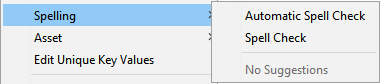
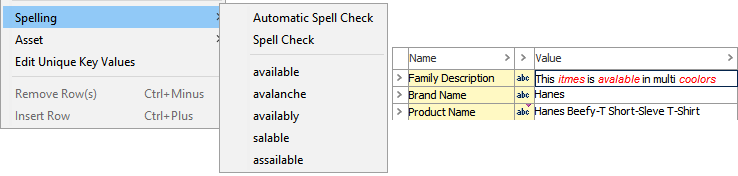
When the 'Automatic Spell Check' option is selected, as users type, incorrectly spelled words are displayed in red text.

If the 'Automatic Spell Check' is disabled, then selecting the 'Spell Check' action while in a field checks that field's spelling. If a user selects one of the incorrectly spelled words and navigates back to the Spelling menu, STEP will offer possible spelling corrections.
Asset
When an asset is selected in Tree, the 'Asset' menu shows various options to manage and change assets.
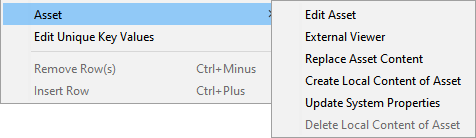
Note: If no object is selected or a non-asset node is selected, all of the 'Asset' menu options are disabled.
- The 'Edit Asset' action will open the asset in the program that is associated with the selected file type, like Adobe Acrobat for PDFs.
- The 'External Viewer' will open the asset in a program on the user's local computer.
- The 'Replace Asset Content' action will allow users to replace the asset with local assets.
- The 'Create Local Content of Asset' option initiates an asset push and downloads the asset.
- The 'Update System Properties' action refreshes the asset's system properties in the 'Images & Documents' tab of the asset.
- After selecting the 'Create Local Content of Asset' action, the 'Delete Local Content of Asset' option is enabled and allows a user to delete that downloaded asset.
Edit Unique Key Values
Unique Keys provide a special way of designating objects for identification outside of STEP. Selecting the 'Edit Unique Key Values' action on an object with active unique keys will display the 'Edit Unique Key Values' dialog, allowing users to edit any unique key related attributes on the object.
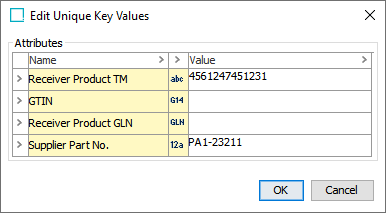
If there are no active unique keys for the selected object, then the following message displays.
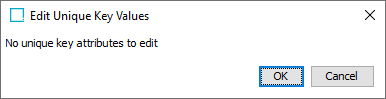
For more information, see the Unique Keys topic of the System Setup / Super User Guide documentation here.
Remove / Insert / Add Options
At the bottom of the Edit menu are two options that will change based on the selected node or current view. The following are a sampling of what may appear:
On attribute references
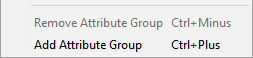
On the sub-products tab of a Product object
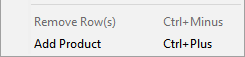
On Lookup tables
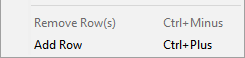
The options will allow users to add or remove to the selected node as desired.