Schedule Empty Recycle Bin
Objects within the Tree Recycle Bin can be automatically deleted and/or purged on a scheduled basis by using the Schedule Empty Recycle Bin feature. Recycle Bin emptying can be scheduled in a similar manner to how other processes are scheduled in STEP (e.g., data imports, data exports, and bulk updates). The ability to schedule Recycle Bin emptying at designated times, e.g., overnight, can help free users from time-consuming, manual Recycle Bin emptying tasks, allowing the Recycle Bin to be regularly emptied with minimal or no user intervention.
Note: Scheduling is not available for the System Setup Recycle Bin. For more information on the System Setup Recycle Bin, see the Recycle Bin for System Setup topic in the System Setup / Super User Guide here.
Configuring a Schedule Empty Recycle Bin Operation
To set a schedule for emptying the Tree Recycle Bin, follow these steps.
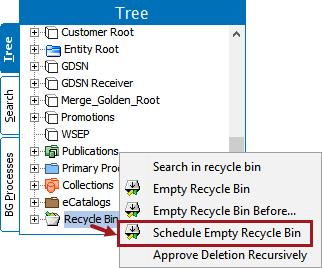
- Right-click on the Recycle Bin in Tree and select Schedule Empty Recycle Bin to display the Schedule Empty Recycle Bin wizard.
- On the Delete Options screen, choose the number of days that an object must be in the Recycle Bin before it is deleted, as well as whether you would like to approve deletions or attempt to force purge objects.
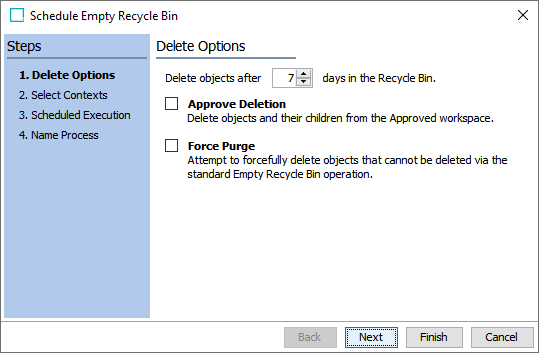
The available parameters are:
- Delete objects after __ days in the Recycle Bin: Enter the number of days that an object must be in the Recycle Bin before it is deleted. The default value is 7.
- Approve Deletion: Select this option to remove objects and their children from the Approved workspace, which will send a DELETEAPPROVAL event.
The following considerations apply to the Approve Deletion parameter:
- The 'Approve Deletion' parameter is not affected by the value provided in the 'Delete objects after __ days...' parameter. As a result, when the Schedule Empty Recycle Bin operation runs, if 'Approve Deletion' is selected, all objects in the Recycle Bin will be removed from the Approved workspace, even if they have not been in the Recycle Bin for the specified number of days.
- When an object is removed from the Approved workspace via 'Approve Deletion,' a DELETEAPPROVAL event is generated for that object. However, if the object is subsequently purged from the Recycle Bin as part of the same Schedule Empty Recycle Bin operation, the event is also deleted, since the object that the event is related to no longer exists in the system.
Therefore, if you have an event-based OIEP set up to capture DELETEAPPROVAL events, it is recommended to schedule this OIEP to start at more frequent intervals than the Schedule Empty Recycle Bin process, since the DELETEAPPROVAL event may disappear before the OIEP has been invoked. For example, schedule the OIEP to start every minute and configure the Schedule Empty Recycle Bin process to run once a week.
- Force Purge: Select this option to attempt to forcefully delete objects from the Recycle Bin that cannot be deleted via the standard Empty Recycle Bin operation. For example, with this option enabled, objects in the Approved workspace can possibly be force purged from the Recycle Bin without having first been removed from the Approved workspace through Approve Deletion.
Note: To use the Force Purge option, the user who configures the Schedule Empty Recycle Bin process must have the 'Force Delete and Purge' setup action included in their user privileges. For more information, see the Setup Actions topic in the System Setup / Super User Guide documentation here.
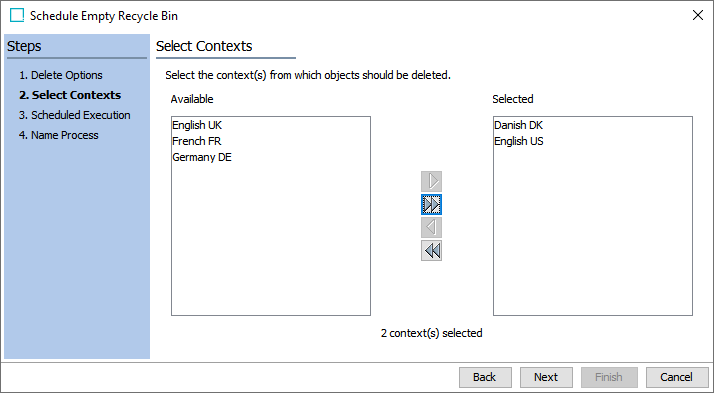
- On the Select Contexts screen, choose the contexts from which to delete objects.
Note: In the rare instance that there are additional workspaces on your STEP instance other than Main and Approved, this step will be named 'Select Workspace and Context' and a list of additional workspaces will display at the top of the wizard screen. Click the checkbox next to each workspace that you want to select.
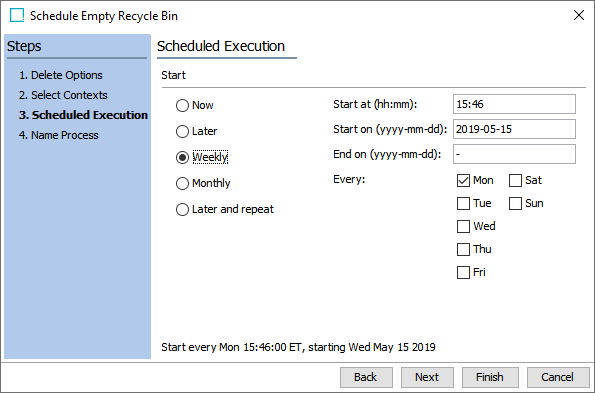
- On the Scheduled Execution screen, determine when and how often to empty the Recycle Bin.
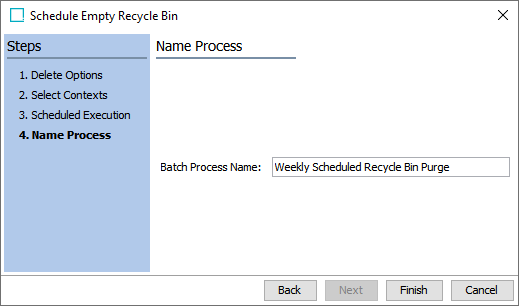
- On the Name Process screen, give the batch process a name if desired, then click Finish to complete the setup. To create more than one scheduled process, complete all steps in the wizard again.
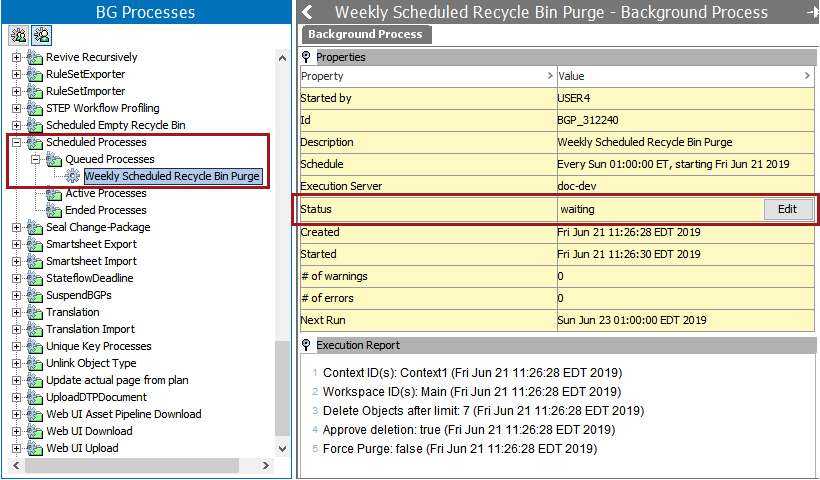
- Scheduled Empty Recycle Bin processes are stored on the BG Processes tab under Scheduled Processes > Queued Processes and display a status of 'waiting.' They can be edited by clicking the 'Edit' button in the Status row.