Importing Prices
eCatalog price lists are imported using standard Import Manager functionality. In STEP Workbench, these imports can be initiated from STEP Workbench menu (i.e., File > Import > Data) or from the price list object itself. This topic explains how to import commercial data information for eCatalog price lists through a right-click action on the price list object.
To import eCatalog price information:
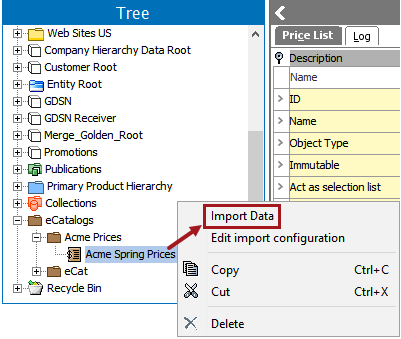
- Right-click on the price list object and select Import Data.
- In the Import Commercial Data dialog, click the ellipsis button (
 ) next to Filename, then navigate to and select the file you want to import.
Note: This file must match the format of the file saved in the import configuration.
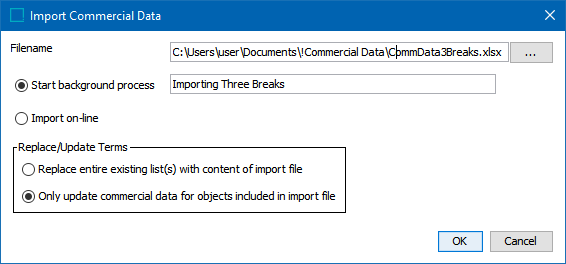
- In the Replace/Update Terms area, select one of the following options:
- To delete all existing content of the commercial list(s) and replace it with the content of the new file, select Replace entire existing list(s) with content of import file.
- To keep the existing content of the commercial list(s) and only replace the commercial data of the product IDs included in the new file, select Only update commercial data for objects included in import file.
The choice you made when defining the import configuration on the Advanced Settings screen of the Import Manager wizard will be set as default, but you can override this option by selecting the other option.
Note: If Immutable has been checked on the price list object, values cannot be updated regardless of what option is chosen. See Creating a Price List here for more information.
- Select Import on-line option if you want the process to run and show the result online instead of going to a background process. Once the process completes, the Import Report window will show the complete report.
- Click OK.
To view the imported data, use one of the methods outlined in the Viewing Price Lists topic here.