Creating a Price List
A price list consists of terms. A term for a product is a combination of a value (price) and a set of conditions such as Minimum Quantity, Maximum Quantity, Start Date, and End Date.
The first step when setting up your eCatalog is to create a price list that holds the prices of the eCatalog.
- In the Tree, select the eCatalog that you want to create a price list for.
- Right-click, and then click New Price List.
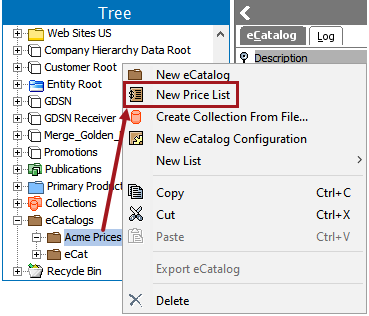
Note: The STEP object type used for eCatalog price lists, Price (Price), is the same default object type used for Commercial Data price lists. If you are also using Commercial Data in your system, any configurations made to the Price object type (e.g., setting an ID Pattern) will apply to eCatalog price lists. Additionally, the eCatalog price list cannot have the same ID as a Commercial Data list that uses the Price object type. For more information on Commercial Data, see the Commercial Data section of the STEP Publisher (InDesign) documentation here.
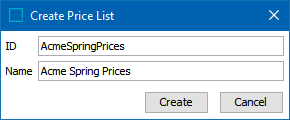
- In the Create Price List dialog, enter an ID and a Name for the price list, then click Create.
- On the Price List tab, the following optional settings are available.
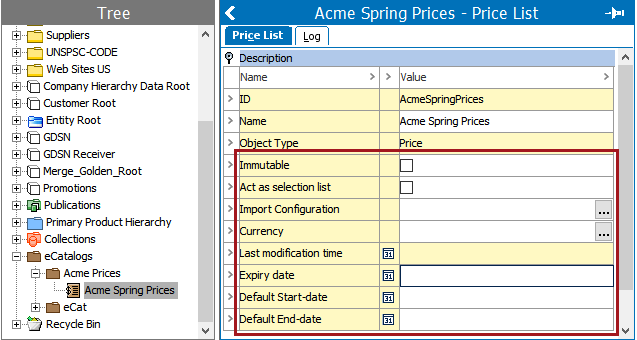
- Immutable: When checked, this setting prevents commercial data from being updated.
- Act as selection list: Enable this option to have the products included in the price list serve as the product selection for the eCatalog. If a collection is added to the eCatalog, the collection serves as the product list, and this option will be disabled. For more information on adding a collection to an eCatalog, see the Selecting Products for eCatalogs topic here.
- Import Configuration: Specifies the import configuration to be used for the price list. Click the ellipsis button (
 ) to select the saved import configuration.
 - Currency: Click the ellipsis button () to choose a currency unit for the list. This selection can be any unit and does not have to be currency.
Note: This does not place the unit on price lists values. To have the unit display within terms lists, the unit must be added when defining the import configuration by mapping the values of an Excel column to the 'Unit' aspect of the terms list. See Creating an eCatalog Configuration here for more information on creating import configurations.
- Last modification time: Displays the date and time that the list was last modified. This field is non-editable.
- Expiry date: Enter an expiration date for the list, or double-click the field to open the Date Picker.
Note: The price list will not expire automatically. The date is for administrative purposes only and is not the same as the 'End Date' value that can be defined for individual terms. See Creating an eCatalog Configuration here for more information on the 'End Date' value.
- Default Start-date and Default End-date: Like Expiry date, these values are for administrative purposes only and are not the same as the 'Start Date' and 'End Date' values defined for individual terms.