Hierarchy Builder
The Hierarchy Builder creates classification folders in which the imported assets are stored (if the folders do not already exist). Both 'File Name Hierarchy Builder' and 'Metadata Hierarchy Builder' are the configuration options available for the Hierarchy Builder. The 'File Name Hierarchy Builder' configuration option uses the names of the assets being loaded to generate a multi-level hierarchy in STEP, while the 'Metadata Hierarchy Builder' configuration option creates folders in STEP from a metadata file containing the desired file structure for each asset.
This topic will cover both configuration options (including their similarities and differences) available in the Hierarchy Builder.
File Name Hierarchy Builder
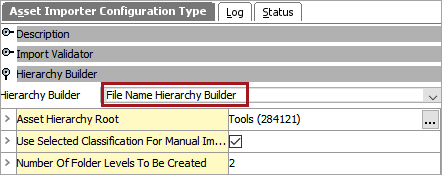
Both 'File Name Hierarchy Builder' and 'Metadata Hierarchy Builder' configurations include an 'Asset Hierarchy Root' and 'Use Selected Classification for Manual Imports' field, and function in the same manner regardless of the hierarchy builder chosen by the user.
Note: The 'File Name Hierarchy Builder' includes an additional option, 'Number of Folder Levels to Be Created', while the 'Metadata Hierarchy Builder' includes a 'Hierarchy Metadata Field' option.
- Asset Hierarchy Root:In this field, the user selects or searches for the classification in STEP under which all asset hierarchy folders will be created.
To select a classification, in the 'Asset Hierarchy Root' field, click the ellipsis button (
 ) and select the STEP ID for the desired root classification.
 - Use Selected Classification for Manual Imports: If the 'Use selected classification for manual imports' checkbox is enabled, the asset hierarchy root selection made above will be overwritten by the classification hierarchy selected during manual import (via Web UI).
For more information regarding manually importing assets in the Web UI, see the Asset Importer in Web UI topic in the Importing Assets documentation here.
- Number of Folder Levels to be Created ('File Name Hierarchy Builder' option only): In the 'Number of Folder Levels to be Created' field, specify the number of hierarchy levels to be generated. By default this parameter is set to '0', which results in placement of the asset(s) directly into the indicated Asset Hierarchy folder. Any whole number exceeding '0' added in this field determines the number of folder levels that will be created under the root. The folder created at the first level of the hierarchy under the root is named with the first character of the imported asset name, the second level folder under the root with the first two characters of the imported asset name, and so on.
As an example, in the screenshot below, the 'Number of Folder Levels to be Created' field has been populated with with the number '2':
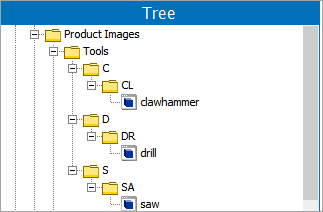
The folders are created and placed in the Asset Hierarchy Root, in this case, 'Tools', and named based on the asset name. The 'clawhammer' image asset in this example would be placed in a folder named 'CL' (second level) while that folder would be placed in a folder named 'C' (first level).
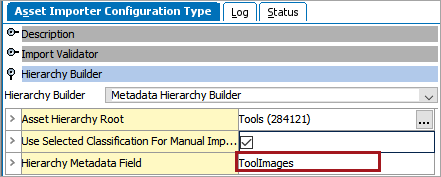
- Hierarchy Metadata Field ('Metadata Hierarchy Builder' option only): The file name included in the metafile needs to be placed in this field. Further details regarding the Hierarchy Metadata Field will be covered later in this topic in the 'Metadata Hierarchy Builder' section.
Folder Identification and Creation
Prior to importing assets, a classification structure of repeating asset sub-folders should be set-up via the object type setup in System Settings. Doing so will allow for the creation of sub-classification folders during import. These asset hierarchy classification object types should use auto-generated IDs to avoid potential errors.
For more information regarding classification structure, see the Classification Hierarchy Structure topic in the Object Types and Structures documentation here.
When creating the classification structures, the system searches for a classification in STEP that matches the classification name selected in the Asset Hierarchy Root field.
- If a match is found, the asset is placed under it.
- If ' File Name Hierarchy Builder' is selected and a match is not found, the system attempts to create a new folder based on the file name using the first available classification child object type. If the folder cannot be created due to either no available sub-classification object types or missing permissions, then the system logs an error and the asset is not uploaded.
Metadata Hierarchy Builder
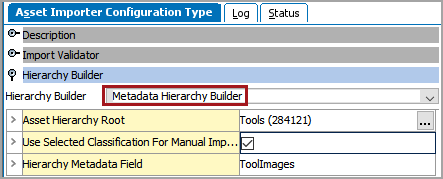
The Metadata Hierarchy Builder option creates folders in STEP from a metadata file containing the desired file structure for each asset. To use this option, the 'Metafile Receiver or ZIP' with 'Metafile Receiver' option must also have been selected as the Receiver.
For more information regarding selecting options within the receiver, see the IIEP - Configure Asset Importer Processing Engine topic in the Creating an Inbound Integration documentation here.
The image below shows a basic example of a metafile that contains a simple file structure.

Note that the Hierarchy Metadata Field file name (in this case, 'ToolImages') matches the Filename in the metafile shown above. This allows STEP to read the metafile and create folders based on the information within the metafile.
In this example, based on the metafile above, the assets (in this case, clawhammer.jpg and drill.jpg) are placed in hierarchical folders within the Asset Hierarchy Root.
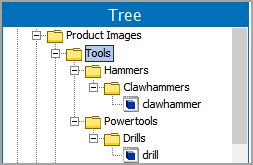
If a folder listed in the metafile already exists within the chosen Asset Hierarchy Root, that folder will not be re-created and the asset assigned to the folder within the metafile will be placed in the existing folder.
Considerations
- Supplier users are only allowed to have access to their specified classification structure in the yellow supplier hierarchy under the suppliers sub folder 'assets.' This will ensure protection from other suppliers.
- Ensure that the Asset Hierarchy Root property is adjusted to match the dedicated classification root folder for the particular supplier user.
- It is strongly recommended to set asset hierarchy classification object types to use auto-generated IDs.