Asset Matcher
Based on criteria defined in the Asset Matcher configuration, the Asset Importer can determine when an asset is new to STEP or is a replacement for an existing asset. It also indicates whether or not new assets are allowed to be created, and if so, allows for the use of regular expressions or metadata to control how the STEP Names and IDs of those assets are set.
The Asset Matcher comes with one default option, the Standard Asset Matcher, which lets you define how new and existing assets will be handled, using a series of configuration options and regular expressions.
A number of the parameters on this step require the use of regular expressions. For more information, see the Regular Expression section of the Resource Materials online help here.
Besides the default Asset Matcher plugins, custom ones can be created to extend and modify the asset matcher functionality further.
An asset matcher selection must be made, and the corresponding configuration options populated.
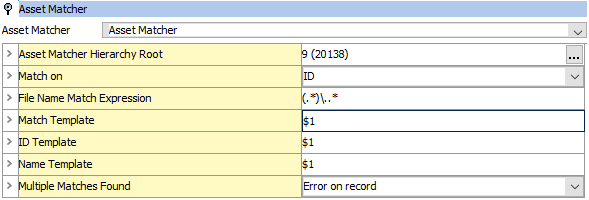
- Asset Matcher Hierarchy Root
In the 'Asset Hierarchy Root' field, click the ellipsis button ( ) and select the STEP ID of the root folder under which the Asset Importer will look for asset matches. This field is mandatory.
This option is based on a node picker where the user can select or search for a classification in STEP or type the name in the field and the typeahead search will be displayed.
- Match on
In the 'Match on' field, define how to match assets to existing assets via the dropdown list. The default value ‘Asset Name’ will be selected from the dropdown list. This field is mandatory.
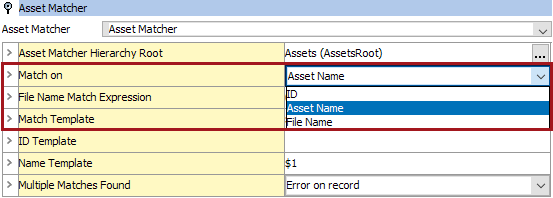
Options include:
- ID: Match asset filename to STEP ID
- Asset name: Match asset file name to STEP Name
- File Name: Match asset file name to Filename metadata attribute in STEP
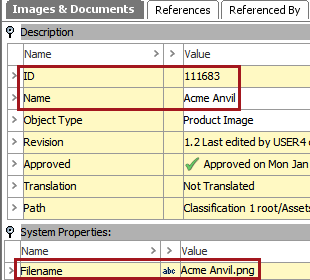
Note: If the Match template filters out the file extension, matching by File Name is not possible.
- File Name Match Expression
The 'File Name Match Expression' field is used in conjunction with the 'Match Template' field to match assets based on their file names via a regular expression. The default value with a regular expression – (.*)\..* will be populated for this field. This option is used to define match groups to be referenced in the Match Template, defined by the parentheses. This field is mandatory. If left empty, the 'Next' button will be disabled to indicate this field will need to be filled out.
Note: Each group of parentheses indicates a match group. For more information on match groups, see the Grouping section of the Regular Expression topic here.
Examples:
(.*)\.(.*)
- Indicates that the asset file name contains zero or more characters, followed by a period (.), followed by zero or more characters
- May be used to isolate the file name and exclude the extension - 12345.jpeg
- Finds any file with any extension
- Indicates a single match group, which would necessitate a corresponding Match Template entry of ‘$1’
- Match Template
In the 'Match Template' field, specify which match group (or combination of match groups) to use for matching assets via a regular expression. Populate with a dollar sign symbol ($), followed by a whole number to indicate a match group. The default value with a regular expression $1 is populated for this field. The first set of parentheses in the File Name Match Expression field is assigned '1,' the second '2,' and so on. This field is mandatory.
Examples:
- $1 - Match only on the first match group identified in the regular expression
- $1.$2 - Match on the first match group identified in the regular expression, followed by the second match group, with the two match groups separated by a period (.)
- ID Template
In the 'ID Template' field, use a regular expression to specify how the STEP ID of an asset should be set if no match can be found and creation of new assets is allowed.
- This is an optional field that should be left blank if you want STEP to auto generate the ID.
- Populate with ‘$’ plus the number of the match group (parentheses set in the File Name Match Expression) that should be used to create the STEP ID.
- Can be combined with static text to form the template
Examples:
- $1 - Create the STEP ID using the value identified in the first match group from expression
- asset-$1 - Create the STEP ID using the value identified in the first match group from the expression, prefixed with ‘asset-‘
- Name Template
- In the 'Name Template' field, use a regular expression to specify how the STEP Name of an asset should be set if no match can be found, and creation of new assets is allowed.
- Though optional, it is recommended to populate this field. Otherwise, the STEP Name of the asset will be left blank.
- Populate with ‘$’ plus the number of the match group (parentheses set in the File Name Match Expression) that should be used to create the STEP Name.
Example:
- $1 - Create the STEP Name using the value identified in the first match group from the expression.
- Logo.$1 - Create the STEP Name using the value identified in the first match group from the expression, prefixed with ‘Logo’.
- Multiple Matches found
In the 'Multiple Matches found' dropdown field, select which method to use when dealing with multiple matches.
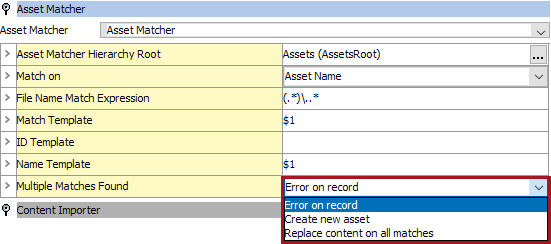
Default value 'Error on record' will be populated for this field. Options include:
- 'Error on record' - This option will log an error for the current asset and the Asset Importer will proceed to the next asset for import.
- 'Create new asset' - This option will cause the Asset Importer to attempt to create a new asset.
- 'Replace content on all matches' - This option will cause the Asset Importer to replace the content on all matching assets with the content of the file being imported.
Note: This requires 'Allow content replace' to be set to 'Yes' in the Content Importer settings. Using this setting can potentially change a large number of assets and should be considered carefully. If 'Allow content replace' is set to 'No' an error will be logged and the Asset Importer will proceed with the next file to import.
Example:
An example is provided to demonstrate how the File Name Match Expression, Match By, and Match Template fields are used in combination to yield the desired match results.
Consider the following configuration loading an asset with the file name 12345.tif.
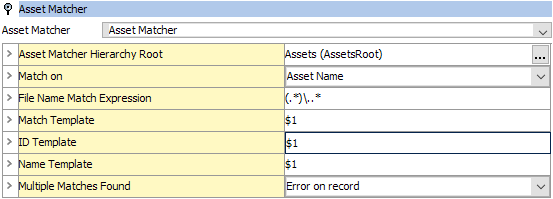
The Asset Importer will identify ‘12345’ as the match group and will search STEP for an existing asset with the STEP Name of ‘12345’ within the Assets hierarchy.
If the asset is found, the existing asset will be replaced by the new file.
If no asset exists under the Assets folder (or any child folders) with the STEP Name ‘12345’, a new asset will be created. The STEP Name and ID of this asset will be ‘12345.’
Placement of the asset in STEP is determined by the Hierarchy Builder configuration here.