PDS Status Data Container Configuration
The PDS Status Data Container displays information relevant to:
- Products that are submitted from STEP to the master data list in PDS
- Products that are submitted from PDS to specific stand-alone channels (e.g., Amazon, Walmart), and group channels (e.g., 1WorldSync)
- Acceptance / rejection statuses received back from the channels within PDS
This topic provides information on:
- How to configure the PDS Status Data Container in STEP Workbench
- The attributes that make up the PDS Status Data Container
- How the data container functions when products are submitted to PDS and when status messages are returned from PDS
Configuring the PDS Status Data Container
The PDS Status Data Container is created automatically when the PDS integration is activated on your STEP system. To configure it for initial use, follow these steps:
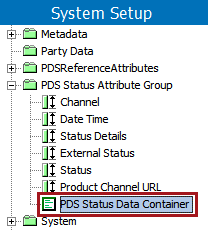
- In System Setup, open the 'Attribute Groups' node, select 'PDS Status Attribute Group' and click 'PDS Status Data Container.'
- On the Validity tab, make the data container valid for the product object types that will be integrated with PDS.
- Optionally, restrict the data container to specified hierarchies. Select the 'Data Container Types' tab, click the 'Restriction' parameter and set it to 'Validity restricted to hierarchies.' On the 'References' tab, select the required classification or product hierarchies.
For more information regarding configuring data containers, see the Setting Up Data Container Types in Workbench topic in the Data Containers section of the System Setup / Super User Guide documentation here.
Viewing PDS Status Data Containers in the Workbench
In the product editor, valid object types display a 'Data Containers' tab and contain a flipper for the PDS Status Container. No data containers will display beneath the flipper until the product is initially submitted to PDS.
The example below displays a PDS Status Data Container in the workbench that includes pertinent channel names, date and times of product submission, status of products, the URL where the specific product is located, and any relevant status messages. The ID column contains the ID of the data container, which does not display in the Web UI PDS Channel Status component.
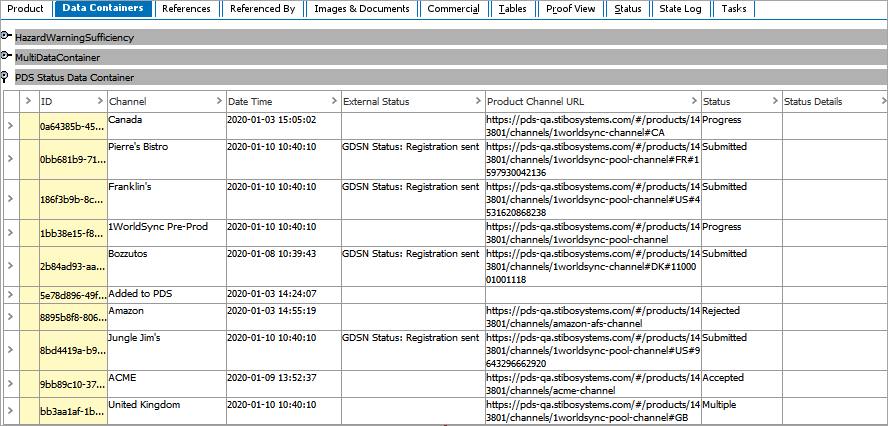
For more information about the functionality of PDS Status Data Containers, see the 'Functionality of the PDS Data Container' subsection below.
PDS Status Data Container Attributes
The attributes found in the PDS Status Data Container are the same attributes contained within the PDS Status Attribute Group. The PDS Status Container comes pre-configured with these attributes. Their descriptions and functions are as follows:
- Channel (PDS Channel): Indicates the name of the channel in which an action has taken place. When a product is initially submitted to PDS, the Channel field does not display the name of a channel but instead contains the value 'Added to PDS.' In the Web UI PDS Channel Status component, the Channel attribute also contains the link to the product URL. For further information regarding the product URL link, see the PDS Channel Status Web UI Component topic here.
- Date Time (PDS Date Time): Specifies when an action (such as a product submission to channel) has occurred. By default, the time and date is displayed in the ISO format.
- External Status (PDS External Status): Indicates status of products submitted to a channel. These messages are generally channel-specific. Depending on the channel, a higher level of detailed information may be displayed than the information presented in the Status attribute text field.
- Product Channel URL (PDS Product Channel URL): Displays the URL of the product in PDS. In the workbench, the URL can be copied and then pasted into a browser to access the specific product's location. In the Web UI the Product Channel URL attribute can be added to the PDS Channel Status component, but is not necessary as a link is automatically provided in the Channel attribute.
- Status (PDS Status): Indicates both status of a product added and submitted to a channel. This is the same channel status that can be seen within PDS.
- Status Details (PDS Status Details): When applicable, displays pertinent and additional information related to an External Status message e.g., Catalog Item Confirmation (CIC) message details.
Functionality of the PDS Data Container
The PDS Status Data Container is empty until a product is submitted to PDS. Since the PDS Status Data Container is configured to allow multiple data containers, multiple data containers will be added as products flow back and forth between STEP and PDS and their statuses are updated.
New rows are added to the data container when:
- A product is sent from STEP Workbench to PDS via the PDS Outbound Integration Endpoint.
- A product is added to a PDS channel.
Rows are updated within the data container when a change of status is received from PDS via the PDS Inbound Integration Endpoint. Generally, these updates are due to a product being submitted to a channel within PDS or messages from channels, e.g., a submitted or rejected product message.
For more information on the PDS Outbound Integration Endpoint, see the PDS Outbound Integration Endpoint Configuration topic here.
For more information on the PDS Inbound Integration Endpoint, see the PDS Inbound Integration Endpoint Configuration topic here.
Important: Adding a product to a channel and submitting a product to a channel are two different actions. Adding a product to a channel is when the product within the master data list in PDS is added to a channel. Submitting a product to a channel is when a product that has already been added to a channel within PDS is submitted to a channel outside of PDS, meaning product data is being sent out of PDS to the receiving systems.
Viewing PDS Status Data Containers in the Web UI
Though initially configured in STEP Workbench, end users will typically view the contents of the PDS Status Data Container in the Web UI, using the 'PDS Channel Status' component. For more information on the configuration of this component and how it is used to monitor PDS channel status, see the PDS Channel Status Web UI Component topic here.