Dun & Bradstreet Integration
Both STEP Workbench and Web UI support matching data from the Dun & Bradstreet (D&B) database and then allow for enriching customer information in STEP with this data. These records, brought in either manually or through inbound integrations, can be matched using confidence scoring and enriched automatically through the use of new processors and workflows.
The integration to D&B services is implemented following an asynchronous integration pattern, using the following STEP components
- Event processors for matching and detailed company profile enrichment
- Business actions that enable matching, company profile enrichment, removal, republishing, and candidate selections
- Workflows for D&B integration
- D&B Integration component model
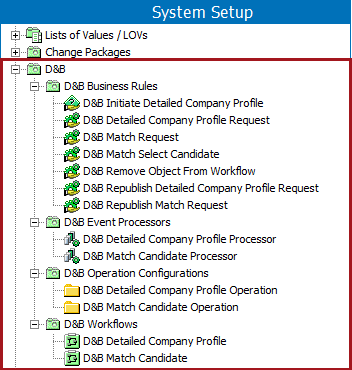
To assist with proper configuration, an easy setup is available that creates all of the D&B mapping configurations, workflows, business rules, and event processors. STEP will create a D&B (STEP ID: DnBIntegration) setup folder in System Setup that contains the following:
- D&B Business Rules - Business actions that enable the D&B functionalities to process. Each one is named according to its function.
- D&B Integration Event Processors - Event processors used to request changes from third-party services.
- D&B Operation Configurations - There is a node for each D&B operation with a configuration specific to each operation.
- D&B Integration Workflows - There is one workflow for each D&B Service: D&B Match and D&B Detailed Company Profile. The workflows are used for controlling the information flow.
This easy setup is referred to as 'automatic setup' throughout the rest of the Dun & Bradstreet documentation.
In addition to the D&B System Setup folder, attribute groups, attributes, and data containers are created as part of the automatic setup. There are over 200 attributes / data containers, and they are separated out between the ones used for candidate matching and the ones used for enriching company profiles. For a full list of attributes, see the Dun & Bradstreet Attributes and Data Containers topic here.
Note: If you need to change any of these generated D&B tools, it is recommended practice to duplicate the supplied instance, then modify that business rule, workflow, event processor, etc. This method is advised because whenever D&B integration is updated, any values that were changed may be overwritten.
Prerequisites
Important: To use the D&B functionality, the applicable license must be in place and the installation recipe applied. Also, it is important for customers to note that D&B Direct API calls must be made using Secure Sockets Layer (SSL), and the URL of the D&B endpoint is https://direct.dnb.com/.
Configuring the component model requires users to be familiar with the System Setup tab in STEP Workbench and how to configure within this area (e.g., creation and maintenance of object types, attributes, and references). Users must also have the privileges required to carry out these tasks.
Also, users should be familiar with business rules, workflows, event processors, and it is expected that anyone configuring Web UI components is familiar with Web UI designer. If not, the users should search online help to understand these concepts and processes.
Anyone configuring or using the D&B setup package needs to have the proper privileges and understand how all the pieces work together. The automatic setup is designed to make it so that users have very little to do configuration-wise to get up and running as soon as possible and most of these concepts are not covered in this D&B documentation.
Customer Data Model
Before starting the D&B setup, the relevant data structures need to be defined. The proper entity object types should be created and the entity root for where the system will create new D&B organization entity records as returned from D&B. The D&B records will be referenced by a customer record, so the proper reference types and links also need to be configured prior to starting the D&B automatic / easy setup process. More information about the data model and what is required can be found by reading through the next section in this topic, so it is a good idea to read through that information to verify that your data model is setup as needed for D&B integration to function.
Note: As part of the D&B Integration Easy Setup (described in the Configuring Dun & Bradstreet Integration section that follows), the user must define already configured references for the component model to be considered valid. The references for D&B Match Candidate Reference Type and D&B Organization Reference Type must have specific Sources and Targets. The record which holds the information to be compared should be the Valid Source Type and the D&B record which will hold the D&B results should be the Valid Target Type. These references must have only one Valid Source Type and one Valid Target Type.
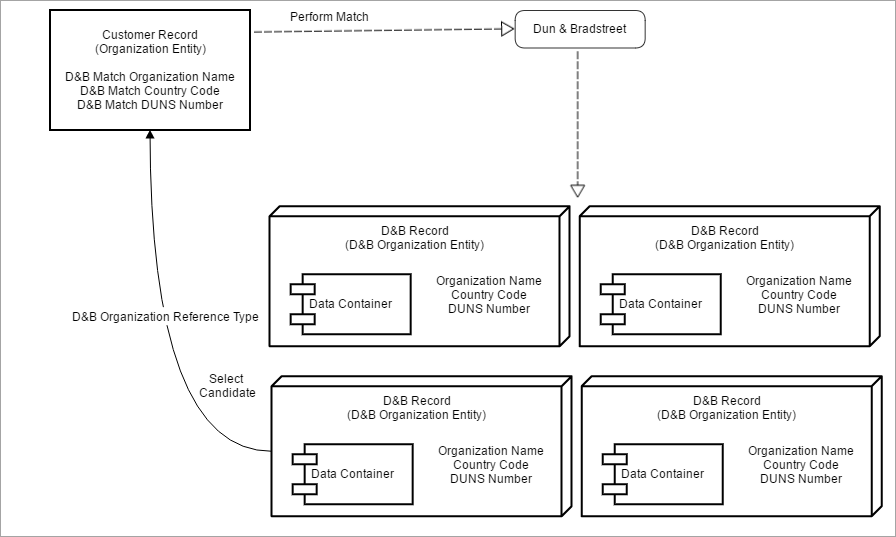
This is an outline of the D&B process that shows why the setup is so important:
- Input for D&B Match requests is taken from a configurable set of attributes on the organization record
- Data returned from D&B is stored in an entity, in a fixed data model comprised of data containers and attributes that is created by the easy setup
- D&B Matching will create the D&B organization entities and a reference from the organization record to the D&B organization record
Configuring Dun & Bradstreet Integration
As mentioned, D&B Integration includes an automatic setup that will create all the setup files and needed attributes and data containers. To start the automatic configuration:
- Go to System Setup > Component Models > Select D&B Integration.
- Right-click the component model name (D&B Integration) and select 'Easy setup of D&B Integration.'
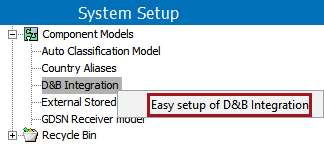
- When this menu option is selected, the 'Easy setup of D&B Integration' dialog will display. The dialog requires a bit of setup to create the appropriate connections with D&B.
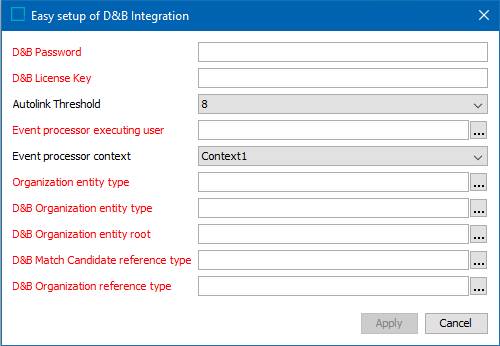
-
D&B Password and D&B License Key: By default, customers can access up to 500 free D&B ‘match’ transactions. Request a license key from your Stibo Systems representative.
When the 500 ‘match’ transactions are used, customers may purchase ‘match’ and ‘profile’ licenses directly from Stibo.
Note: The ‘profile’ license includes access to both ‘match’ and ‘profile’ transactions. One transaction of ‘profile' gives you the ability to do a match first and then obtain a detailed company profile. Regardless of which license you buy, only one license key will be provided to cover both ‘match’ and ‘profile’ transactions. Contact your Stibo Systems account manager or partner manager for more information.
- Select a Autolink Threshold (integers 6 through 10) from the dropdown. This is a D&B-determined auto-linking threshold used for matching customer records to D&B record candidates. For example, if you set it at 6 and get one match candidate at that threshold, the D&B record auto-links to the customer record. The numbers are labeled in the dropdown with 6 being a very low (match) threshold and 10 being a very high (match) threshold. The default is 8.
- Event processor executing user tells the system which user will be associated with all of automatic event processing done as part of the D&B processes. Click the ellipsis button (
 ) to select the user.
 - Event processor context is the STEP Context the event processors will be configured to operate in. You can make an alternate selection via the dropdown.
- The rest of the values need to be populated before moving forward and the data modeling setup must be created prior to running the easy setup. The objects, roots, and reference types created for the modeling are the ones to be selected in the 'Easy setup of D&B integration' dialog.
Click the ellipsis button () for each parameter to set the entity roots, entity types, and entity-to-entity reference types as indicated within the dialog.
- Organization entity type - Entity object type for the customer records.
- D&B Organization entity type - Entity object type for the D&B records.
- D&B Organization entity root - Root where D&B records will be saved
- D&B Match Candidate reference type - Reference type for D&B match candidates. A reference is made from each candidate to the applicable customer record; once a match is made, all the non-matched records are removed from the system and this reference is no longer needed for that particular customer record since matching is complete.
- D&B Organization reference type - Reference type for D&B matches. Once a match candidate selection is made, the D&B record is then linked to the customer record with this reference type.
This is an example of what an 'Easy setup of D&B Integration' dialog may look like filled out. Your setup will differ depending on your data model. Also, the D&B License Key shown is just an example and not representative of how an actual key would look when populated.

- After completing this configuration, select 'Apply.' The component model will populate with the information provided, the setup folders will be created, and candidate matching can begin.
Dun & Bradstreet Component Model
After running the automatic setup, the Dun & Bradstreet component model will map the component model names (D&B data fields) to STEP attributes, entity object types, and entity reference types. A completed component model will appear like the following image:
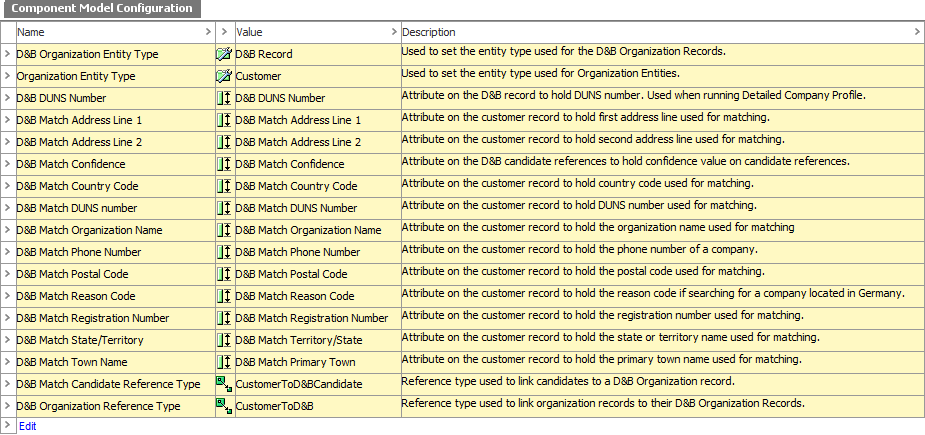
If there are any issues with the automatic setup and not all values could be mapped, then you will be able to see what the issues are within the component model. If any of the object types, reference types, or attributes / data containers being mapped are unclear, the Description column will provide context for how these fields are to be used.
These attributes in the component model will map to the following corresponding D&B attributes:
| Request Attributes | D&B Attributes |
|---|---|
| D&B Match Address Line 1 | StreetAddressLine-n |
| D&B Match Address Line 2 | StreetAddressLine-n |
| D&B Match Country Code | CountryISOAlpha2Code |
| D&B DUNS Number | DUNSNumber |
| D&B Match Organization Name | SubjectName |
| D&B Match Organization Postal Code | FullPostalCode |
| D&B Match Registration Number | OrganizationIdentificationNumber |
| D&B Match Organization Territory/State | TerritoryName |
| D&B Match Organization Primary Town | PrimaryTownName |
| D&B Match Phone Number | TelephoneNumber |
| D&B Match Reason Code | OrderReasonCode |
Note: The D&B Match Confidence is a candidate reference attribute that is set by the D&B response based on the quality of the matched record.
Once the setup is complete, users can begin matching existing customer records. More information can be found in the Dun & Bradstreet Matching topic here.
Errors during setup, matching, and detailed company profiling
The table below outlines different errors that are possible during the D&B process. Outlined is the type of error, if the system should retry the process, if the error stops the event processor, and if the error is recorded within the workflow.
| Type of error | Retry | Stop event processor | Report to workflow (to data steward) |
|---|---|---|---|
| Connection timeout | Y | N | N |
| Invalid license | N | Y | N |
| D&B finds no results (company profile) | N | N | Y |
| Invalid match request | N | N | Y |
| Internal unknown service error | N | Y | N |
| STEP internal error | N | Y | N |
| Response parse error | N | N | Y |
| Data model errors | N | Y | N |
| Other errors from D&B service | N | N | Y |
When errors are sent to the workflows, a transition is made to an error state. A user must access those tasks and handle the errors.