Business Action: Set Attribute Value
This operation can set the value of an attribute on the object where the action is being executed to a static value, match another attribute value on the same object, or as a workflow variable value.
For example, a product being published to a downstream system can first be checked to ensure all mandatory attributes are populated. If so, this business action sets the value of the ‘Ready for Sale’ attribute to ‘Yes’ indicating that the product can be approved.
This operation is similar to one in Bulk Update, as described in the Attribute Values: Set Value Operation topic in the Bulk Updates documentation here.
Prerequisite
Before using this operation:
- Create a business rule as defined in the Creating a Business Rule or Library topic here.
Configuration
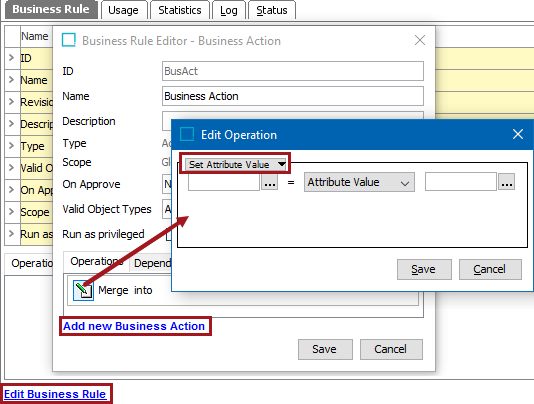
- On the Edit Operation dialog, select the Set Attribute Value option from the dropdown.
- Select the target attribute by typing into the field on the left to use the auto-complete search functionality, or click the ellipsis button (
 ) to display the Select Attribute dialog. Use search or browse to select the attribute, then click the Select button. The value on this attribute will be changed to be equal to the attribute value that exists in the source.
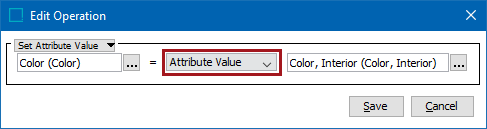
 - In the center dropdown parameter, make a selection to display additional required parameters.
- When Attribute Value is selected, the select source attribute parameter is displayed. The attribute must be externally maintained and a description attribute.
Select the source attribute by typing into the field on the right to use the auto-complete search functionality, or click the ellipsis button () to display the Select Attribute dialog. Use search or browse to select the attribute, then click the Select button.
- When Workflow Variable is selected, the select source workflow and select source variable parameters are displayed. For more information on workflow variables, see the Workflow Variables topic in the Workflows documentation here.
Select the source workflow by typing into the field on the right to use the auto-complete search functionality, or click the ellipsis button () to display the Select Workflow dialog. Use search or browse to select the workflow, then click the Select button.
Use the Variable dropdown to select the variable that holds the value used to update the target attribute value.

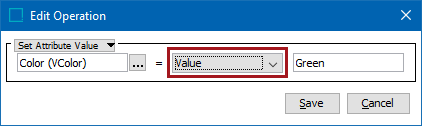
- When Value is selected, a source value text box is displayed.
Set the source value by typing into the field on the right. This text will be used to update the target value.
- Click the Save button to add the operation to the business rule editor.