Merging Confirmed Matches
Once two objects have been confirmed as duplicates they can be viewed on a Confirmed Matches component screen. The user can decide whether to merge the duplicates together or reject the confirmation, reverting the objects back into potential duplicates. Opting to merge the matches will invoke a Merge Nodes screen, allowing users to choose which of the two objects will persist following the merge, which will be deleted, and to select the specific attribute values and outgoing references to be applied to the surviving record.
For more information about the Potential Duplicates List component, see the Potential Duplicates List section of the Web UI documentation here.
For more information about how to merge confirmed matches via workbench, see the Handling Potential Duplicates section of the Matching and Linking documentation here.
Note: While the Merge Nodes Screen can be used to merge random nodes of the same super type, it is intended for usage with matching algorithms using the Match Action for Identify Duplicates in conjunction with the Merge Confirmed Match From Grid action in the Confirmed Matches component.
Configuration
Add Merge Nodes Screen
- In design mode, select New.
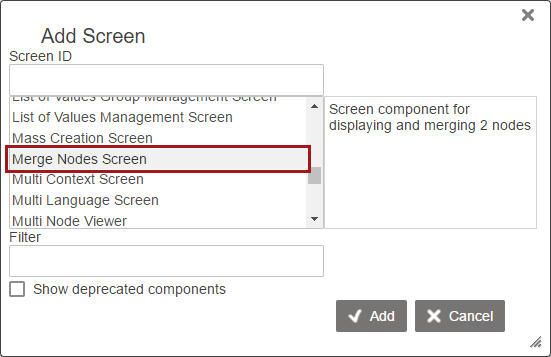
- In the 'Add screen' window that appears, select 'Merge Nodes Screen', enter a Screen ID, and then click Add.
- In the 'Merge Nodes Screen Properties' select 'Configured Merge Handler' from the 'Merge Handler' dropdown selector.
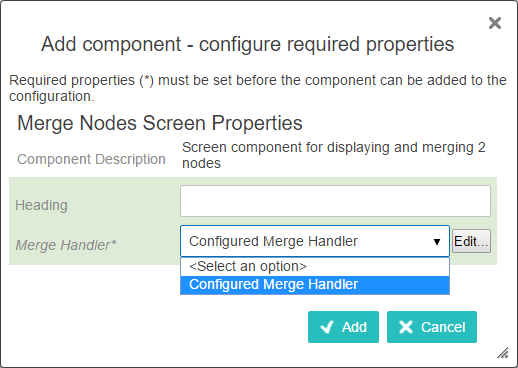
- Click the Add button.
Map Merge Node Screen
- In design mode, navigate to [MAIN].
- Under 'Mappings', click Add.
- Under 'Conditions', click Add, and select 'Merge Duplicate Condition' from the list that appears. Click Add.
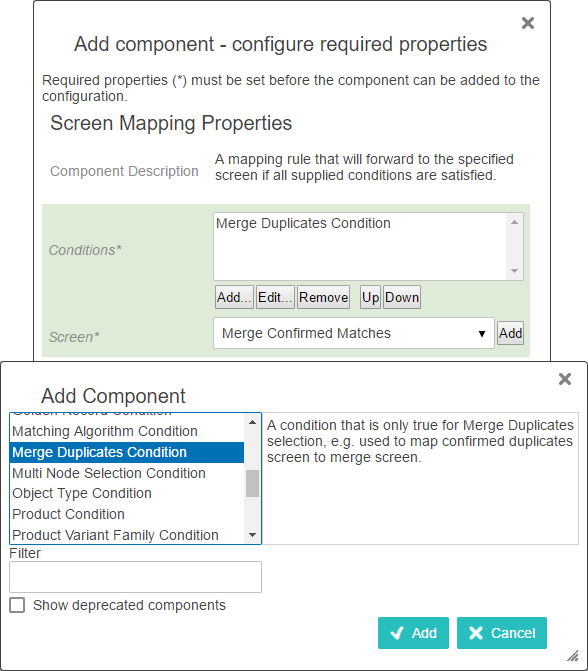
- Under the 'Screens' dropdown, select the Merge Nodes screen configured in the previous section.
- Click the Add button.
Add Merge Confirmed Match From Grid Action
- In design mode, select a 'Confirmed Matches' component screen. If one does not exist, configure it on any Tab Page or Node Details component.
- Under 'Child Components', in the 'Actions' field, click Add.
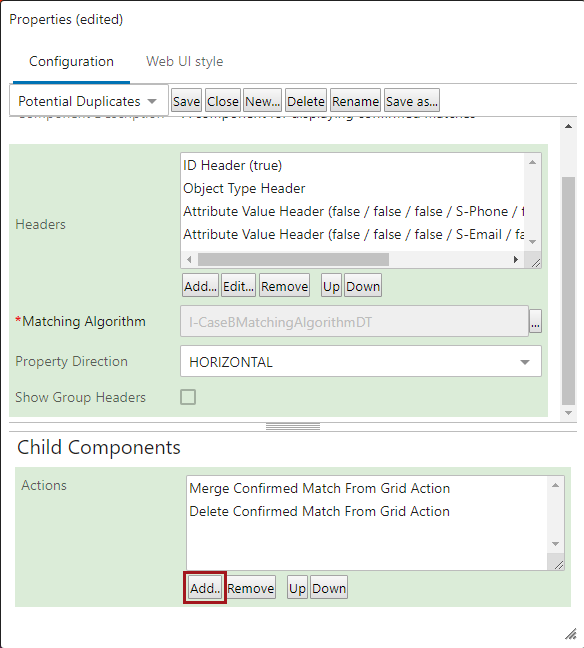
- In the window that appears, select 'Merge Confirmed Match From Grid Action' from the list. Click Add.
- Click Save.
Performing a Merge
Before beginning the merge process there are a few caveats to consider. Metadata and inherited attributes, as well as inbound references, cannot be merged. Additionally, if the object that remains after the merge does not contain data for a given attribute or reference in any context, the data is taken from the deleted object and merged into the remaining object.
All attributes and references eligible for merging will appear in the table.
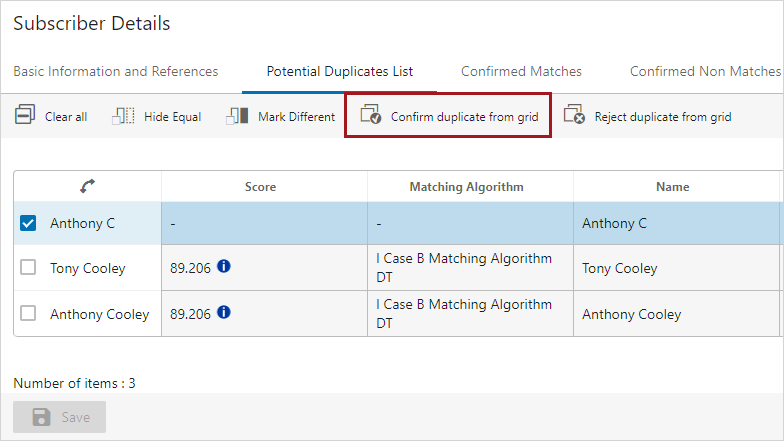
- While on a 'Potential Duplicates List' screen, choose which object to merge with the currently selected node. Next, click the 'Confirm duplicate from grid' button.
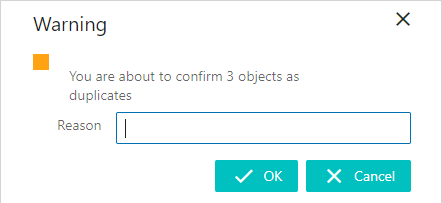
- In the message that pops up, provide a reason for why they are duplicates, and then click OK.
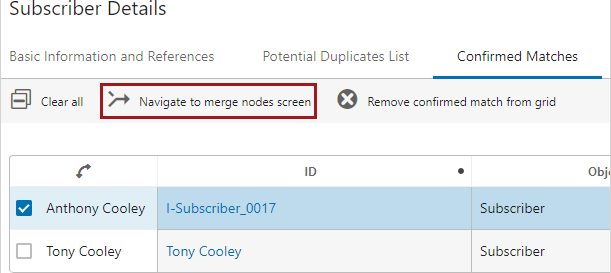
- Navigate to the 'Confirmed Matches' component screen and select which match to merge the currently selected node with. Then, click the 'Navigate to merge nodes screen' button.
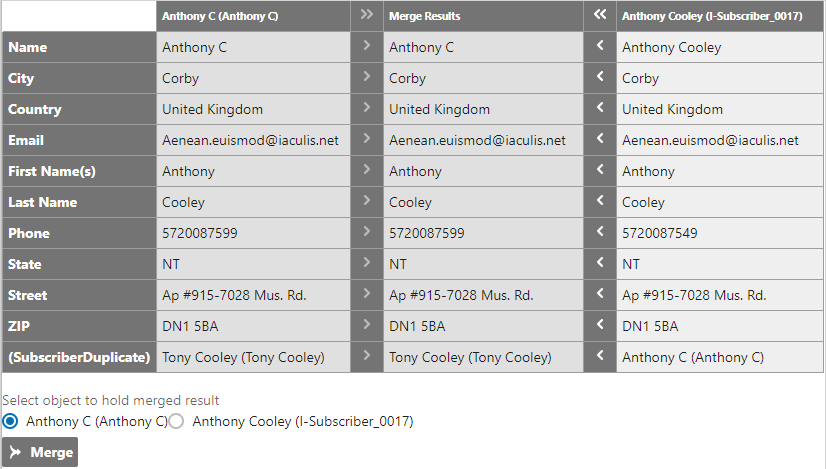
- On the merge screen that pops up, choose which attributes and references will survive the merge by clicking the arrows next to them. Surviving attributes / references are highlighted green and appear in the 'Merge Results' column. Select the surviving node via the radio buttons that appear above the Merge button.
- Click Merge to merge the two objects. The object that was not picked to survive will be deleted. Note that this deletion is not automatically approved.