Handling Potential Duplicates
Once the matching algorithm has been run, the results can be viewed on the 'Match Result' tab of the matching algorithm.

Note that potential duplicates identified via a golden record configuration can also be handled in a workflow. For more information, see the Clerical Review section of the Matching, Linking, and Merging documentation here.
Important: It is recommended that potential duplicates identified through a Match and Merge solution should be handled in Web UI. For more information, see the Matching and Merging in Web UI documentation here.
Confirm or Reject Duplicates
From the 'Match Result' tab it is possible to compare pairs and mark them as either confirmed duplicates or confirmed non-duplicates.
- In System Setup, select the relevant matching algorithm, and then click the 'Match Result' tab.
- Click the row that contains the duplicates you wish to confirm or reject.

- Provide a reason for the confirmation / rejection. Click OK.

Note: The reason provided is saved as an attribute value on the corresponding Confirm Duplicate/Confirm Non Duplicate reference.
If two objects are confirmed as being duplicates, a reference of the 'Duplicate Type' specified in the component model and in the matching algorithm will be created, the pair will be removed from the 'Match Result' tab, and instead, will show up on the 'Confirmed Duplicates' tab.

Likewise, if a pair is rejected as being duplicates, a reference of the 'Non Duplicate Type' will be created and the pair will be shown on the 'Confirmed Non Duplicates' tab.

It is important to understand that if a pair has been confirmed as duplicate / non duplicate, the pair will not be considered if the matching algorithm is reapplied, regardless of whether the data on the objects has changed. The confirmed duplicate / non-duplicate relationship can be updated either via the 'Remove From List' options shown above or by deleting the references.
Add Additional Matching Algorithm
If you need more information about the objects before you decide whether they are duplicates or not, add an additional matching algorithm or compare the objects (described below). An additional algorithm can be added via a link on the 'Match Result' tab.

Note: Filters can be applied to the column headers for easy navigation and filtering of desired data.
Compare Matched Objects
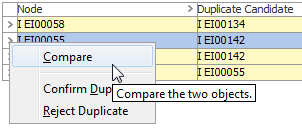
To compare a pair of objects, right-click on the applicable row in the 'Match Result' or 'Confirmed Non Duplicates' tab and select the 'Compare' option.
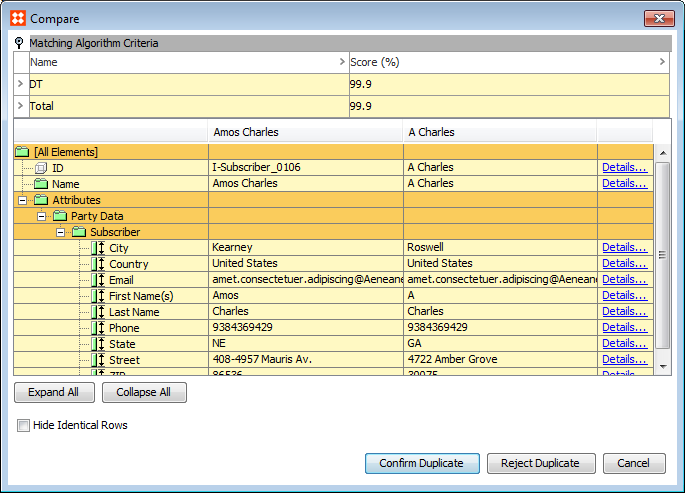
The 'Compare' screen can be used to review the similarities and differences between the paired objects. When accessed via the 'Match Result' you can confirm or reject duplicates via the Confirm Duplicate and Reject Duplicate buttons.
View Matched Objects in Tree
Duplicate information can also be viewed on objects in the Tree.
In Tree, select the relevant object, and then click the 'Matching' tab. Alternatively, you can access this information by clicking the link of the object if it is listed in the Match Result tab.

Merging Confirmed Duplicates
From the 'Confirmed Duplicates' tab, apart from removing a pair, it is also possible to merge a pair into a single record. If this option is selected, then a dialog like the one shown below will open. You can decide which object to keep, and manually merge data from the object you choose to delete and the one you wish to keep.
Important: Because duplicate source records are deleted during a merge this should not be used as part of a Golden Record solution.

If the object that remains does not contain any data in any context, the data is taken from the deleted object and merged into the remaining object.
Data is defined as:
- Attributes
- Object name
- Reference types
- Object to classification link types
- Table types
- Object to attribute links
There is no accumulation for reference and link types. If the reference or link type is already populated in any context nothing is merged from the object that is deleted.
The five columns show the data type, the object to be kept, the result of the merge, the object to be deleted, and a details link used to inspect differences between the data on the objects.
- To keep the object that is currently set to be deleted, and instead delete the other object, click Keep this instead in the header of the 'Delete' column.
- Select 'Hide Identical Rows' to toggle between hiding and showing rows where the duplicate pairs contain the same data.
- Select 'Automatically Approve Deletion' to automatically approve that the deletion of objects in the 'Delete' column during the merge process.
The green cell background color indicates where data is taken from.
During the merge process, all references to the deleted object are modified to point to the object that remains in the database. This means that the source objects will be modified. If you select 'Automatically Approve Deletion', only the deletion of the objects is approved. Changes to objects because of references that are pointed to another target are not approved.
For more information about how to merge confirmed matches via Web UI, see the Merging Confirmed Matches section of the Web UI documentation here.