Configuration Example - Basic
This example use case concerns deduplication of products from different suppliers. The products are of the object type 'External Item' and live below an 'External Products' product category node, below which they are again organized by supplier.
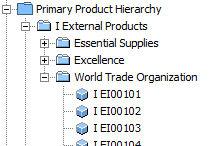
Each External Item has four significant attributes: 'OEM' (Original Equipment Manufacturer), 'OEM Part Number', 'Source' (supplier), and 'External Item Description'. The main objective is to identify duplicates based on the OEM and OEM Part Number attributes, i.e., the items are duplicates if they have the same OEM and OEM Part Number.

Data Profile Analysis
Designing a deduplication strategy requires intimate understanding of the data, and to that end STEP Data Profiles can be of great assistance. Data profiles show to what extent relevant attributes are populated, and can highlight the most frequent and rare values and patterns. For more information, see the Data Profiling topic here.
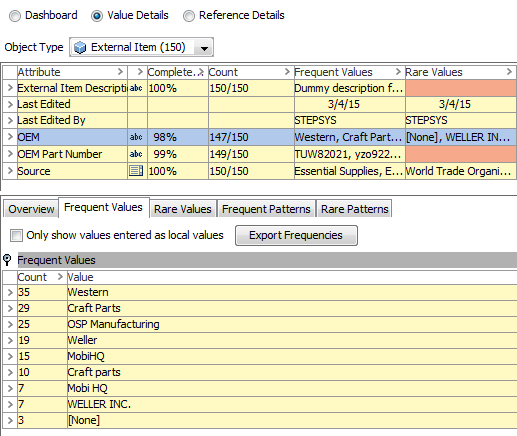
If a profile is generated from the 'External Products' node, it is possible to see that there are missing values for both OEM and OEM Part Number, and this should be accounted for in the deduplication strategy. Furthermore, as illustrated below, the profile shows that the OEM values include obvious duplicates like 'Craft Parts'/'C'raft part'" and'"Welle'"'"WELLER INC'" indicating that some form of normalization is required.
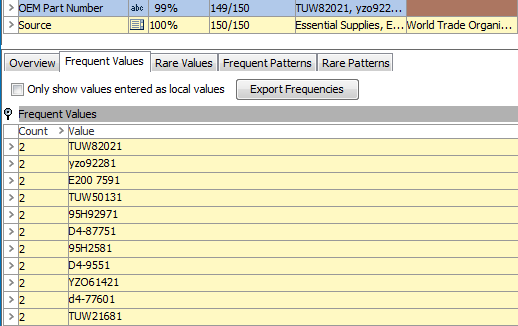
For OEM Part Number, there are more than 100 distinct values and thus the profile does not, with the default settings, provide exact statistics. Still, it is possible to see that both uppercase and lowercase letters are used and that punctuation is used in some values and not in others. Again, this indicates that normalization will be required.
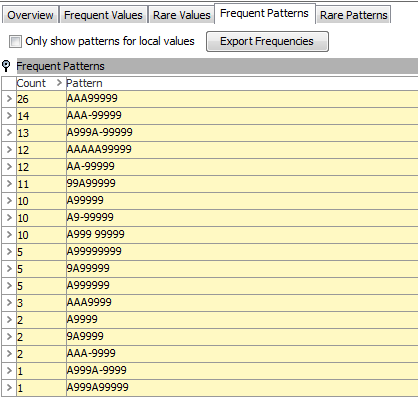
Looking at the frequent patterns info, there are no clear distinct patterns in the values.
With two 'matching' attributes, it would be possible to generate two match codes per object, but for this case, this is likely not the best strategy. Thus, the number of different OEM values is quite low, especially if they are normalized, and comparing all items from the same OEM would result in too many comparisons.
As there is a significant spread in OEM Part Number values, generating match codes based solely on these could work. Additionally, you also want a match on OEM and cannot tie a specific OEM Part Number value pattern to an OEM (a match on OEM Part Number is not necessarily a true match). However, this would require that the matching algorithm logic inspected the OEMs later to determine if there is a match or not.
A possible solution is to generate composite match codes that include information from both attributes. If the values are normalized during the match code generation it will, with this approach, be possible to simplify the setup so that identical match codes are automatically considered a match. This can be achieved by working with a Window Size of 1 (only compare objects with the same match code) and have matching algorithm logic that does not check anything, but for each comparison it indicates that there is a match.
Match Code Configuration
The JavaScript below can be used for match code generation ('Current Object' is assumed bound to 'node'). A match code is only generated if there are values for both attributes (two items with missing values are not a match) and basic normalization is applied. For OEM Part Number, punctuation and spaces are removed and the values put in lowercase. For OEM, the same two operations are applied and furthermore, only the first four characters of the values are used, and are separated by a colon (:).
var mpn = node.getValue("OEMPartNumber").getSimpleValue();var oem = node.getValue("OEM").getSimpleValue();if(oem && mpn) {mpn += ""; // Converts to JS string
mpn = mpn.replace(/[^\w]|_/g, ""); // Leaves only letters and digits
mpn = mpn.toLowerCase(); // Converts to lowercase
oem += ""; // Converts to JS string
oem = oem.replace(/[^\w]|_/g, ""); // Leaves only letters and digits
oem = oem.substring(0, 4).toLowerCase(); // First 4 characters in lowercase
return mpn + ":" + oem
}
else {return "";
}
For an item with OEM Part Number 'D4-90581' and OEM 'Mobi HQ', a match code 'd490581:mobi' would be generated. Likewise, an item with OEM Part Number 'E200 173' and OEM 'Craft Parts' would get a 'e200173:craf' match code, and so forth.

For more information of configuring match codes, see the Configuring Match Codes documentation here.
When the match code definition has been configured, match codes can be generated from the match code object context menu as shown below. For more information, see the Generating Match Codes and Running a Matching Algorithm topic here.

Following this, statistics and most common match codes can be inspected via the 'Match Code Values' tab.

It is possible to see that there are duplicates in the set as three items have the Match Code 'd421881:well' and two items have 'yzo41241:ospm'.
Matching Algorithm Configuration
Matches can be compared, rejected / verified, and potentially merged by configuring and applying a matching algorithm.
To do this, the matching component model must be configured first. The Source Object Type 'External Item' must be selected along with a Data Source Attribute (in our case 'Source') valid for External Items. Additionally, two different reference types must be configured and selected. These are used to indicate that objects are confirmed as duplicates / non-duplicates and must be valid from External Item to External Item. Finally, an attribute used to hold the justification for confirmations must be selected. This attribute must be valid for the reference types.
For more information on configuring the component model, see the Component Model Configuration documentation here.

For more information on configuring matching algorithms, see the Configuring Matching Algorithms Overview documentation here.
Once the matching algorithm has been configured, it can be applied via the object context menu as illustrated in the image below.

Handling Identified Duplicates
The matches that the matching algorithm finds can be inspected from the matching algorithm 'Match Result' tab.

It is important to understand that with the 'Identify Duplicates' match action nothing has happened to the objects at this point. No references or new objects (golden records) have been created. On the 'Match Result' tab you see the pairs that the matching logic has identified as duplicates.
From this tab it is possible to compare pairs and mark them as either confirmed duplicates or confirmed non-duplicates.

It is important to understand that if a pair has been confirmed as duplicates / non duplicates, the pair will not be considered if the Matching Algorithm is re-applied regardless of whether the data on the objects has changed. The confirmed duplicate / non-duplicate relationship can be updated either via the 'Remove From List' option or by deleting the references.
From the 'Confirmed Duplicates' tab, apart from removing a pair, it is also possible to merge a pair into a single record. If this option is selected, then a dialog like the one shown below will open. You can decide which object to keep and manually merge data from the object you choose to delete and the one you wish to keep.

For more information on handling identified duplicates, see the Handling Identified Duplicates documentation here.
Golden Record Configuration
If instead of just identifying (and potentially merging) duplicates you want to have the matching functionality produce golden records, some extra configuration is required.
Golden records automatically created by the matching functionality should be of a different object type than the source objects, e.g., 'ExternalItemGoldenRecord'. The golden record object type must have an auto ID pattern configured.
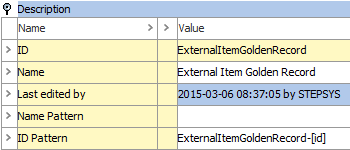
Validity-wise, if you intend to copy all data (attribute values and references) from source objects, the golden record object type should have the same valid attributes and be a valid source for the same reference / link types. An easy way to secure this is via the 'Update Object Type From' context menu option as illustrated in the image below.

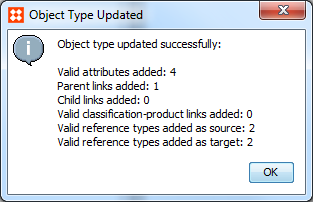
Once an object type for the golden records has been created, it must be selected in the 'Matching – Golden Record' component model as shown below.

In order for golden records to referenced back to their source objects a golden record reference type must be created. The reference type must allow for multiple targets and should be valid from the golden record object type to the source object type.

In addition to this, a root node for the golden records must be created. Initially, all golden records will be created as immediate children of this node.

The golden record object type, the reference type, and the golden records root node must be selected in the Golden Record Match Action on the matching algorithm. You must specify an 'Auto Threshold' and a 'Clerical Review Threshold.'
For more information about configuring golden records, see the Configuring Golden Records documentation here.
Survivorship Rules Configuration
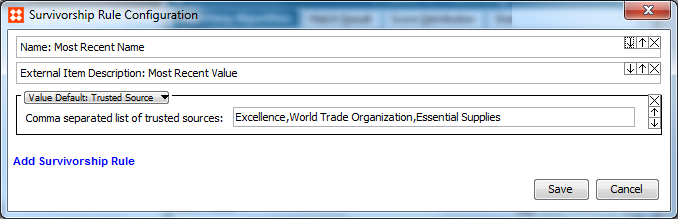
To copy data from source objects to golden records, survivorship rules must be configured. Two different approaches exist for this: 'Most Recent' and 'Trusted Source'. A mixture of these can be used and different rules can be configured for individual pieces of data.
The Trusted Source option takes a comma-separated list of sources as an argument. Notice that it is preferable if the source attribute is LOV based so that you know exactly which values to expect.
In the image below, the survivorship rules have been configured, allowing data to be copied from the External Item Source Objects to the External Items Golden Records.
For more information on configuring survivorship rules, see the Golden Records Survivorship Rules documentation here.