Workflow variables are temporary values that travel with an object as it progresses through a workflow, but only for as long as the object is in that workflow. Variables are temporary because they are relevant to the object only so long as the object is moving through the workflow. An admin might create, configure, and attach a variable to a workflow so a user working on an object in an early workflow state can send information to the user working on the same object in the next workflow state, without that guidance remaining on the product forever. Additionally, workflow variables can be used to store information that needs to be remembered for later workflow states for automatic processes.
Workflows can have the following variable variants:
JavaScript Variables - Standard JavaScript variables can be declared in business actions and conditions. The scope of these variables is limited to the action / condition where they are declared and are only persisted during the execution of the action / condition.
Workflow Variables - Workflow variables are string variables defined in the Workflow Designer. The variables are global to the workflow instance and are stored on the object-in-workflow relation. Therefore, workflow variables are persisted as long as this relation remains. Workflow variables can be 'bound' or 'unbound'.
-
Bound Workflow Variables
A bound workflow variable is tied to a STEP Attribute and gets its validation from the STEP Attribute. The description attribute must be externally maintained, non-dimension dependent, and must not be valid for any object type. Additionally, bound workflow variables have access to the corresponding attribute editor when a user chooses to display them in the workbench views (refer to the Views and Mappings for Workflows topic).
-
Unbound Workflow Variables
When a workflow variable is not bound to an attribute, it is a simple string variable with a default workbench view editor.
The value of unbound variables can be the result of an expression. In the expression panel, a reserved variable named 'value' is used. Below is a script / expression is shown that will set the value of the variable to be the ID of the current node. Expressions are calculated each time the variable is used.
value = node.getID();
Creating a Workflow Variable
To create a workflow variable:
-
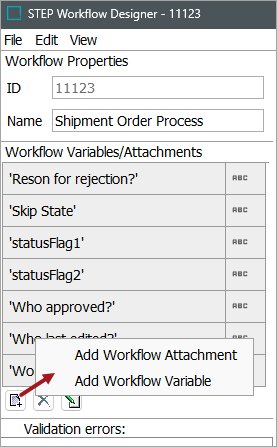
In the 'Workflow Variables/Attachments' section, click the add button and select 'Add Workflow Variable'.
-
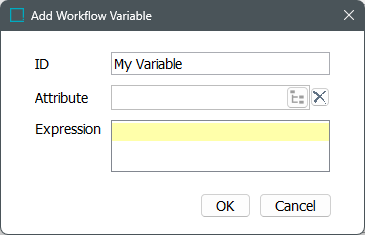
In the Add Workflow Variable dialog, enter the ID of the variable, optionally select an 'Attribute' to bind it to or add an 'Expression'.
As noted in the Business Rules and Workflows topic, workflow variables are manipulated through the WorkflowInstance interface. Unbound workflow variables are automatically limited to a value size of 1 MB. The value size of bound workflow variables is always limited by the attribute definition.
The value of a workflow variable can be obtained from a business action as follows:
var valueStoredInVariable = node.getWorkflowInstance(workflow).getSimpleVariable("Variable ID");
Likewise, a simple value for a workflow variable can be set with:
node.getWorkflowInstance(workflow).setSimpleVariable("Variable ID", "Value to be set");
Bound workflow variables can hold a value greater or smaller than 1 MB depending on the Maximum Value of the linked attribute, for example:
var valueObj = node.getWorkflowInstance(workflow).getValue("ID of Attribute the variable is bound to" AttributeID);
For more information, refer to the Javadoc link under the Extension API section of the Technical Documentation, available at [SaaS Environment URL]/sdk or accessible from the Start Page.
Workflow Variables in Use
Consider a user group consisting of five users. These users have access to a particular workflow and can submit a product from the Edit to the Review state. For this workflow, because there is a requirement to identify which of these users submitted a particular product, a business rule has been set up to save the details to an attribute. This business action is set on the Edit state in the State Editor on the 'On Exit' tab.
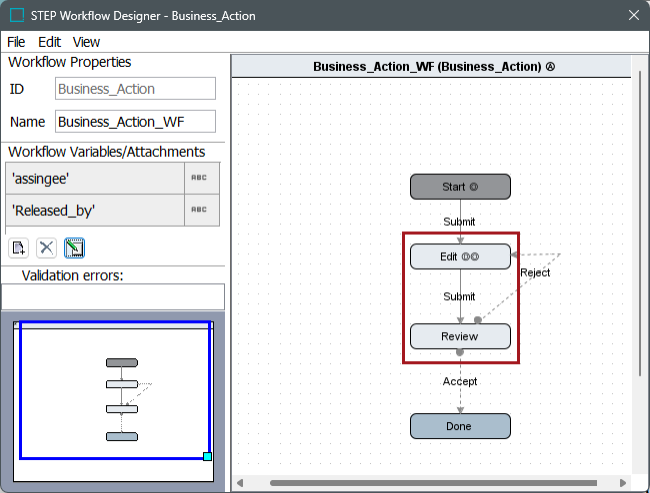
For example, to create this business rule, first define a 'Released_by' workflow variable.
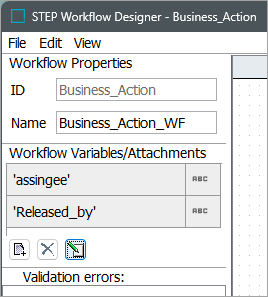
Then, write a business rule to call the workflow variable as follows:
var assigneeID = step.getCurrentUser().getID();
node.getWorkflowInstance(workflow).setSimpleVariable("Variable ID", assigneeID);
Note: In this code, replace "Variable ID" with the ID of the actual workflow variable for the workflow in use.
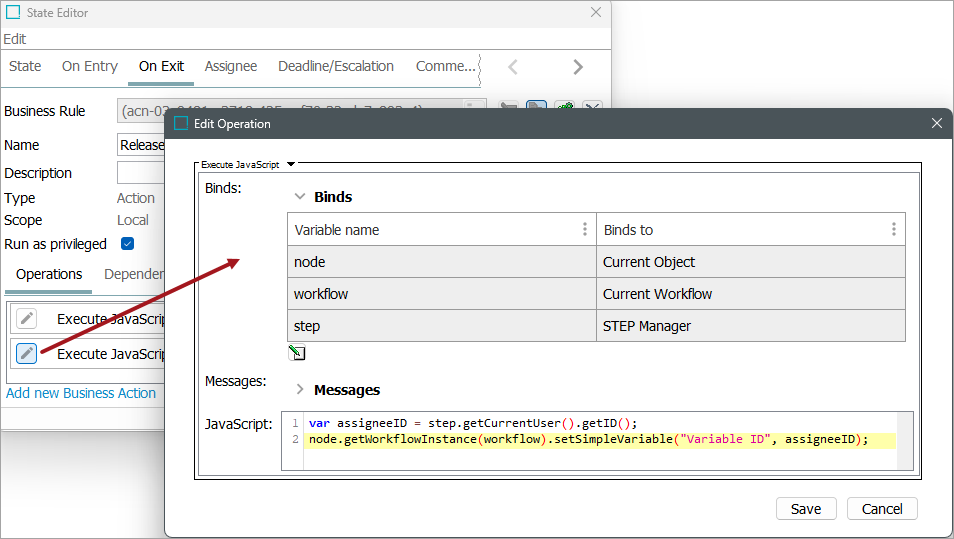
With this business action in place, when a product is submitted, the business rule is executed and the user ID of the user who submitted the product is stored. If this was mapped in the views and mappings View Editor, this is visible in the STEP Workflow Items tab.
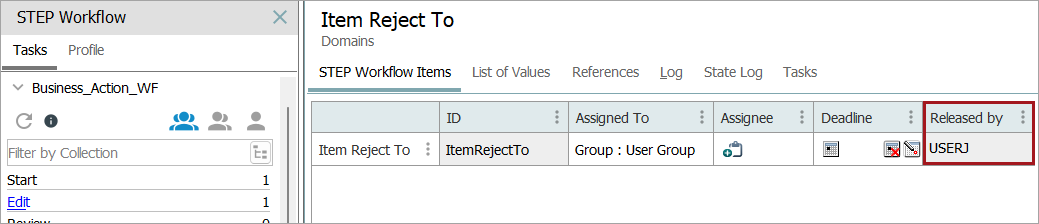
For more on setting up views and mappings, refer to the Views and Mappings for Workflows topic.
Workflow Variables in the Web UI
In the Web UI, workflow variables can be added to relevant components using the Workflow Variable or Workflow Variable Header components. In addition, workflow variables can be added to submit actions (Submit Action or Submit from Grid Action).
Note: Workflow variables are excluded from output files generated by the Export Current View Action.
Workflow Variables in New UI for STEP
Workflow variables configured in the workbench display in the New UI. If a workflow variable is mandatory on workflow states, a red asterisk displays beside the mandatory variable; if a mandatory workflow variable is configured on a workflow transition, no asterisk displays because a state may have multiple transitions and may use a transition for which the variable is not mandatory.
For more information on workflow variables in the New UI, refer to the Mandatory Attributes, References, and Variables in Workflows topic.