Although the Address Typeahead functionality is used in the Web UI, configuration begins in the workbench.
The Address Typeahead configuration uses a Basic Object Type to define how the Web UI Address Typeahead functionality connects with the external address search service.
Follow the steps in each section below to complete the initial setup in the workbench:
When the initial setup is complete, configure the Address Typeahead Configuration as defined in the STEP Workbench Configure Address Typeahead topic.
Configure a Gateway Integration Endpoint
A REST Gateway Integration Endpoint (GIEP) is required to communicate with the address search service.
As defined in the Configuring a Gateway Integration Endpoint - REST topic, configure a GIEP:
-
This functionality is managed by a configuration property that is not available in the Self-Service UI. Contact Stibo Systems Support for assistance. Configure the Server URL parameter to add the URL for the API used by your address search service.
-
Complete the other parameters as required.
-
Enable the GIEP.
Configure Error Reporting on the Log
Admin users can enable additional entries in the step.0 log for troubleshooting issues with the Address Typeahead configuration. For more information on the step.0 log, refer to the Logs topic in the Administration Portal documentation.
Important: Although the URL is encoded by the REST gateway integration endpoint before it is used, the URL is not encoded when written in the step.0.log.
To enable the logging:
-
Determine the logging required. Logging can be enabled separately for suggestion and selection service endpoints:
-
com.stibo.address.typeahead.logging.suggestionservice
-
com.stibo.address.typeahead.logging.selectionservice
-
-
This functionality is managed by a configuration property that is not available in the Self-Service UI. Contact Stibo Systems Support for assistance. Set the Log.Level property for the service endpoints to determine the level of detail included in the step.0 log. No logging is included by default.
Logging output levels include:
-
FINE: Outputs request and response information.
-
FINER: Adds output for each JSON Path mapping.
-
SEVERE: Outputs the same as FINER, plus the exceptions encountered.
For example:
Log.Level.com.stibo.address.typeahead.logging.suggestionservice=FINER Log.Level.com.stibo.address.typeahead.logging.selectionservice=SEVERE
In this example, for the suggestion service, the log is set to include output requests, response information, and JSON Path mapping. While the selection service will also log exception errors.
-
Once troubleshooting is concluded, it is advised to remove the additional logging.
To disable the logging, remove the Log.Level properties for the suggestion and selection services. This functionality is managed by a configuration property that is not available in the Self-Service UI. Contact Stibo Systems Support for assistance.
Configure the Address Component Model
Only attributes that are included as fields in the Address Component Model can use the Address Typeahead functionality. Although the parameters on the component model Description column include the 'Loqate' label, for Address Typeahead, these parameters are also used with Google Places and other address search services.
For details on configuring the component model, refer to the Address Component Model topic in the Data Integration documentation.
Configure Setup Entity
Review your System Setup tab to determine if the Address Typeahead Configuration is already valid for a setup group type. Validity is determined by the Parents references and indicates the setup group types that can hold an Address Typeahead Configuration. The name of the nodes on your system are not required to match the one in the image below.
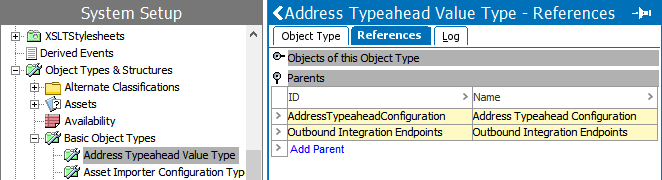
Setup entity definitions can be exported as comments and submitted to an external source control system for comparison purposes. For details, refer to the Configuration Management documentation.
If no parents are displayed on your system or if the setup group type you want to use is not displayed, configure the setup as follows:
-
Create a new Address Typeahead Configuration setup entity.
-
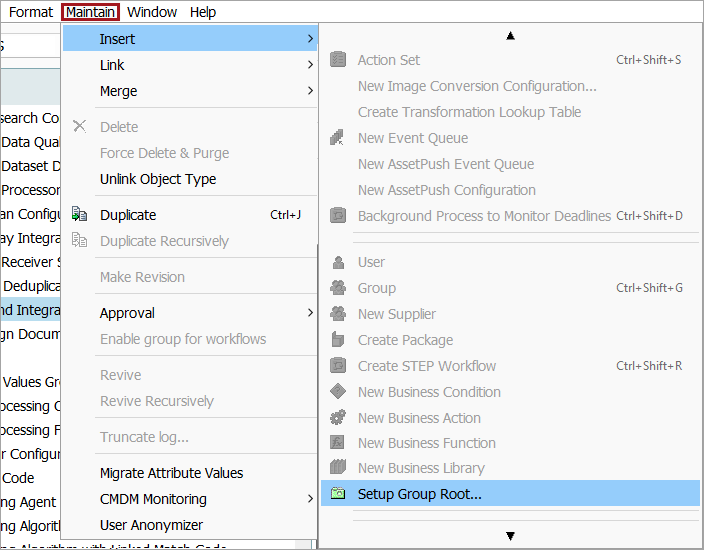
In System Setup, click any setup group node, click the Maintain menu, expand the Insert menu option, and scroll down to select the Setup Group Root option at the bottom of the list.
-
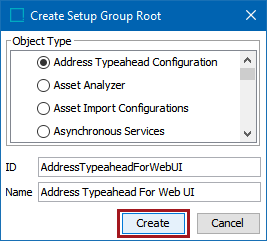
In the Create Setup Group Root dialog, select the radio button for the Address Typeahead Configuration, add an ID, a Name, and click the Create button.
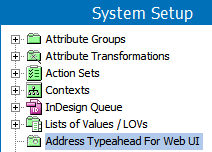
The new Setup Group Root displays in System Setup.
-
-
Link the Address Typeahead Configuration object type to a Setup Group Type.
-
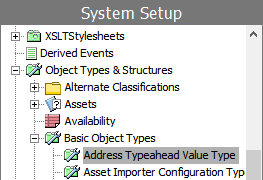
In System Setup, expand the Object Types & Structures node and expand the Basic Object Types node.
-
Select the Address Typeahead Configuration object type to display the editor, click the References tab and open the Parents flipper. Click the Add Parent link and browse or search to select the desired setup group type. Click the Select button.
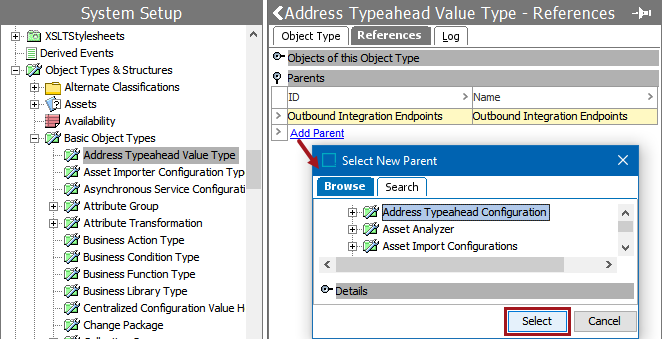
The new setup group type is displayed in the Parents flipper.
-
Create an Address Typeahead Configuration Object
Use the following steps to create a new Address Typeahead Configuration to contain the necessary JSON Paths for integration with the address search service. Using a Default Address Typeahead Configuration for Loqate or Google Places supplies default JSON Path values for the configuration object that can be edited or removed. Creating a new configuration may be necessary for other address search services.
Default Address Typeahead Configuration
To add a default configuration via STEPXML:
-
Click the Copy button on the XML file below for either Loqate or Google Places.
Loqate Default Configuration
Copy<STEP-ProductInformation ContextID="Context1" WorkspaceID="Main" UseContextLocale="false">
<SetupEntities>
<SetupEntity ID="loqate" UserTypeID="AddressTypeaheadValueType" Selected="true" Referenced="true">
<SetupGroupLink SetupGroupID="AddressTypeaheadConfiguration"/>
<Name>loqate</Name>
<Configuration>H4sIAAAAAAAAAI1V72/TMBD9Xyo+oWn9sUlICJC6bqDA2Mo6+MDoh2t8Sw2uHc721oD43zk3bdJGrpJv8d177+x3znli9KPMPIGTRr/928vA4TMUiXaYlcErLXIjteu97l2b35weC0H3RY6wRBAfkqtp76RnfZahDfApuCVDJ5A7T9gPQgSpk0/Yfy+16D8NT4eD/k9r9Nnpsw1UVJi2MO/QkUT+YPbogA25/ITFF49UTIFghUxiEY5VSV5uyljLRe7NL9SH8AqiQGceMoylb0lmUu+BOPZ1xmtPamqse5TrXR2gdHkoYUuNe1w7RqxgPavsskf2IkgqJcyzDm7z1idGO5AaKRExRpU+6MUdpobEmAgC5sXDDz8YjF4lDle2/Jw/vJyHYtLmCoqwv49214iHihDiWzyDd9FLtCnJPNTZJef7xcMVqdVqMQ7XYofw2e4qfAPlg8Pbw4dWll+JiEgmohascDGXEsGI1HjtqEismRiBx3wZzLfRSQUf1VWkzr3bbm7YKnHNjRnGyaNO5COVzzqRz+Lk807k8zg5pNr5sEDV4F94qYTUWSt5B7zh/jU0JtIdvc512xjU5JWd7NrxWOWQaRcYi5XUY0KISFxijlqgdtcmBdXlJDcos+XCeFoaI46pzRwhulatGQ8ELYCKEt9Qu6UMtPyzmfodXFrloJseh1G4MOtW9vT2wqxv/GqB1FCYOX5i2vlknqROm+52tCH2Q5bU0LF2F2PmbfmbI3W/3VEH/KLzb7KHbah8l3m7i9wtUGEM1mTF7Xd+MxjDyuhsb4lEhi55oG6mdGwUR+tcBVpdYqPymccIP6Ox9yYuEnlvTtruKHiLXcF3aI3yB8/Zvzf8Lkr37j9GADBDJQkAAA==</Configuration>
</SetupEntity>
</SetupEntities>
</STEP-ProductInformation>Google Places Default Configuration
Copy<STEP-ProductInformation ContextID="Context1" WorkspaceID="Main" UseContextLocale="false">
<SetupEntities>
<SetupEntity ID="google" UserTypeID="AddressTypeaheadValueType" Selected="true" Referenced="true">
<SetupGroupLink SetupGroupID="AddressTypeaheadConfiguration"/>
<Name>google</Name>
<Configuration>H4sIAAAAAAAAALVWbW8TMQz+K6Xiw0AI9oJAQryNbkKFMQqd+MCoTu7Fu4blklPibD0Y/x3fa7O1pVrLvqyr/fjxE9uN0zP6TCbeAkmjX/3uJkB4CXlfEyaV8VCLzEhN3Rfd98YkCveFsCd5hjBBEO/7h4Puo67zSYKugA+AJgwFTyY2aaaQ8MlPZ3QBQoVxgBFIIJVr3JDJj5h/8WjzAVhIOdIy6hzz1slfSx7nmOXEnKO+Dq8gtZ8KP8MV6MRDgougjS+AsbUM81YNjKMzOWUL8XndD7+9vSeAj88JSh1g48l1WlfxSp15YkgK02FbGrdIAYOElUoJc6n3K+oeawep0fbFkohZub9ibKzYtxYK1/3TQuPu88yikGWpXWUYnT4cFZmkyxTkJzilD67pw2kbJtDFVmZFXB3WHYXJiq7P4q4LKXzDpsHfQHmsEHW5+iIIbGUqiDGSokkWoBcdvIEzLjZek837zvSMwICSo72i5tDVZ00aFfNoNGpqi/Jmq/qvpqu+dKTuvH1cdvxBQ+EmxlKkWc1Ma9njumU7KyQsj9ytyhSa9uZNT+dNRzwhK7KeGZsCEYqoLsENCe+8VELqJCDvSco3LqcyMSgmmqtn5+qqs3VvFai0PKv+dupJ4V8iqIj4RzLfpLZLyuhkUZN6VXvvfkz+KWDz/CBSqaWj4mK+wAgsQqTwAlW0e3tNB5ihFpzmqG7ExvKcHzdNrWXtbCBrSBaRgtH8bBPQ8le5lAJzcUmPzTSwDImX2B0We41TtYe55SVRxR2zY+PzWOMJ11V+7NNxuY03nJCSLNIl2xpa/Di4sjYeVt6SqXRr1OS7zDbOX99oMa+vWwlQPI7kV+68BA1vzuaumvHFEGz3xgoU8HPK/55AJ7MEaK2xB7zVy5fCgldBCYhSLh+/xm7Efaqsix4vS8KWP4kCJ7eCfGsf/XnJzyRJr/8C1eOMkB0LAAA=</Configuration>
</SetupEntity>
</SetupEntities>
</STEP-ProductInformation> -
Create a new file and paste the copied XML code into the file.
-
Edit the XML code to match your system. For example, the context ID in these files is 'Context1'. To create this setup entity object for a different context, edit the file to match the desired context ID. Change the value for the setup entity ID, setup group ID, and name as desired.
-
Save the file locally with an 'XML' file extension.
-
Import the saved XML file to STEP. For details on STEPXML imports, refer to the Creating a Data Import topic in the Data Exchange documentation.
-
Modify the new setup entity to meet your needs as defined in the STEP Workbench Configure Address Typeahead topic.
Blank Address Typeahead Configuration
To add a blank instance of an Address Typeahead Configuration:
-
Right-click a valid setup group root node and select New Address Typeahead Configuration.
-
Add an ID, a Name, and click the Create button.
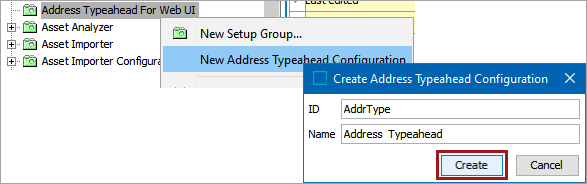
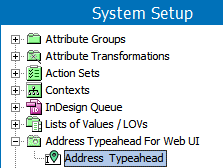
The new Setup Group Root is displayed in System Setup below the selected node.
-
Continue with configuration as defined in the STEP Workbench Configure Address Typeahead topic.