This section describes the options available under System Settings related to the Request Translation - Data Objects functionality (which is explained in more detail in the Starting a Structured Translation section of the Translations documentation).
These options are available under System Setup > Users & Groups > Translation Settings.

Translation File Pattern
The default file name for an XML translation file exported from STEP is 'translation.xml'. The 'Translation File Pattern' setting allows users to change the file name pattern to something a little more meaningful. The following predefined 'macros' in STEP enable this tailoring:
-
procName pulls the process name for the action (which is always 'Translation')
-
caseNum pulls the number of the corresponding background process.
-
src and tgt pull the source and target language.
Therefore an entry such as:
[procName]-[caseNum]-[src]-[tgt].xml
Creates a file with a name such as:
Translation-BGP_24304-US Eng-French Canadian.xml
Note: Users that incorporate or are planning to incorporate asynchronous services for translation purposes must include 'translation-' (and not 'procName') at the beginning of the file name pattern. For more information regarding asynchronous services for translation, refer to the Asynchronous Translations topic in the Data Integration documentation.
Should "Filter spreadsheet" Option be Shown in Translation Wizard
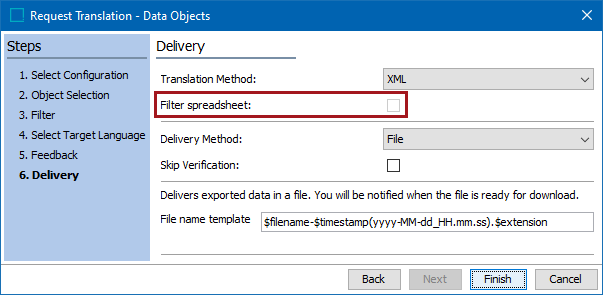
This setting provides the ability to control if an XLS translation file should contain both text attribute values that need to be translated as well as text attribute values that do not need to be translated. This is allows users to filter out all text entries from the XLS translation file that do not require translation by checking a 'Filter spreadsheet:' option.
-
If set to 'Y', the 'Filter spreadsheet:' option displays on the 'Delivery' screen (step 4) of the 'Request Translation' wizard, which is used when starting a translation workflow. If checked, the exported XLS file will only include text entries that require translations.
Note: This option must be set to 'Y' before the 'Default value for "Filter spreadsheet" option in Translation.' setting (described next) can be enabled.
-
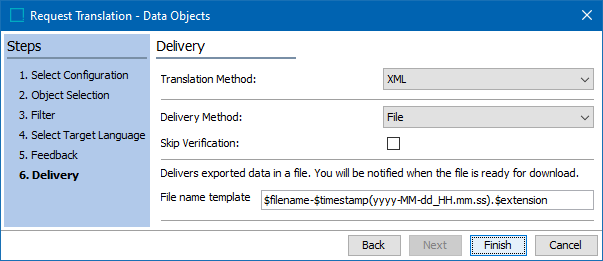
If set to 'N', the 'Filter spreadsheet:' option does not display on the 'Delivery' step.
Default Value for "Filter spreadsheet" Option in Translation
If set to 'Y', the 'Filter spreadsheet:' option on the Delivery screen (step 4) of the 'Request Translation' wizard will be checked automatically.
Note: The default value option is only respected when the 'Should "Filter spreadsheet" option be shown in Translation Wizard' setting is set to 'Y'.
Always Excluded Attributes
Language-dependent attributes and attribute groups selected in the 'Always Excluded Attributes' parameter are always be excluded from translation requests. This means that values set for the selected attributes and attribute groups are ignored when creating a translation export, even if values are present on objects being translated.
To select attributes and attribute groups that should always be excluded for translations:
-
Click the ellipsis button (
 ) located on the 'Always Excluded Attributes' parameter.
-
In the 'Always Exclude From Translation' dialog, select any language-dependent attribute or attribute group and:
-
Click the right directional arrow to include in the 'Excluded Attributes' column.
-
Click the left directional arrow to remove any attribute or attribute group from the 'Excluded Attributes' column.
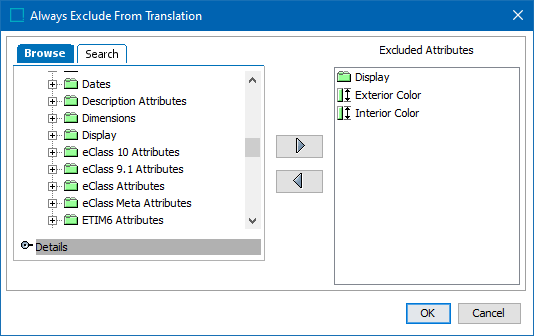
In the example screenshot below, the user has selected the attribute group 'Display' and the attributes 'Exterior Color' and 'Interior Color.'
-
-
Click 'OK' to close the 'Always Exclude From Translation' dialog.

The selected attributes and attribute groups will now be excluded from all translations.