The BMECat 2005.1 Converter format enables export of product data in BMECat 2005.1 and the BMECat 2005.2 XML standard.
Exporting the BMEcat formats involves supplying header data and catalog / product data via the parameters displayed on the Select Format step and during the Map Data step. Some information is required, as is indicated on the Map Data step.
Note: While it is possible to initiate the export process even in the absence of mandatory fields, it is important to note that the background process (BGP) will fail.
Format Availability
BMECat 2005.1 Converter (which can export BMEcat 2005.1 and BMEcat 2005.2 XML) can be triggered from:
-
Export Manager - refer to Creating a Data Export
-
OIEP - refer to Creating an Outbound Integration Endpoint
Mapping
This format requires creating a data map between STEP and the data being processed, and may also include data transformations. For further details on mapping, refer to Data Mapping.
Selecting the BMEcat 2005.1 or BMEcat 2005.2 options within the BMEcat 2005.1 Converter Export format will automatically generate the data within the <PRODUCT_FEATURES></PRODUCT_FEATURES> Tag with the in STEP available ECLASS Advanced content. The extension plug-in will produce the needed information for the output.
Standard BMEcat fields can be mapped with the usual mapping process. For more information on mapping, refer to the Outbound Map Data Options topic in the Data Exchange documentation.
To map for ECLASS Advanced, the STEP ID of the SKU / Product must be mapped to the mandatory field 'SKU ID.'
Should other relevant fields need to be mapped, they can be mapped as needed.
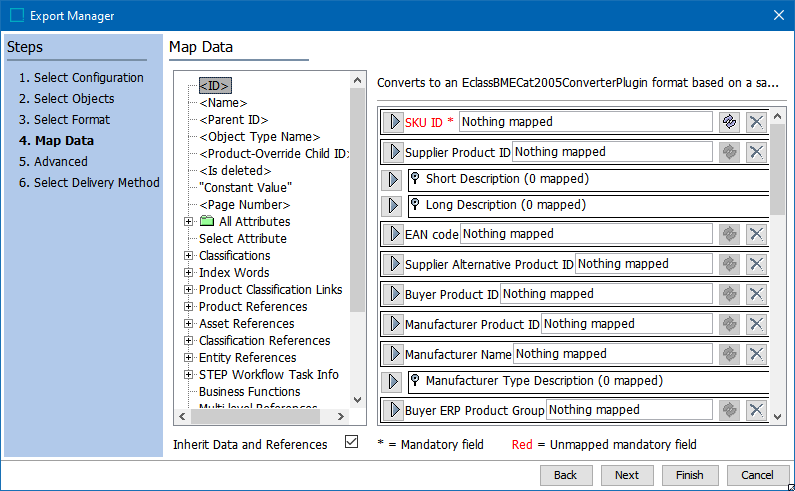
Configuring BMEcat Exporter
The technical starting point for the Exporter is always the SKU / Product. Therefore, the user should trigger the exporter from either the SKU / Product or a relevant Industry Standards classification node from the top Industry Standard level downwards.
Note: Only mapped languages are determined for output.
-
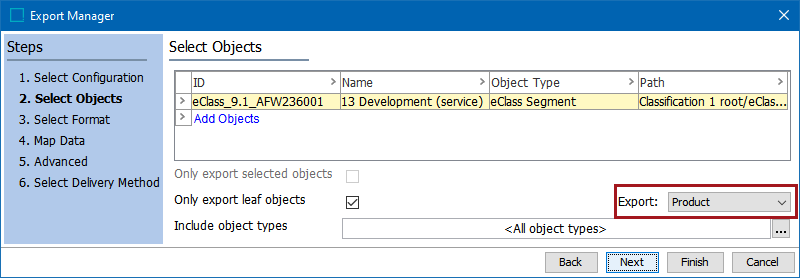
In the workbench, initiate the export for the product(s) you intend to export. For information on how to initiate an export refer to the Creating a Data Export topic in the Data Exchange documentation.
Important: When exporting from a Classification node, in the Export dropdown select 'Product.'
-
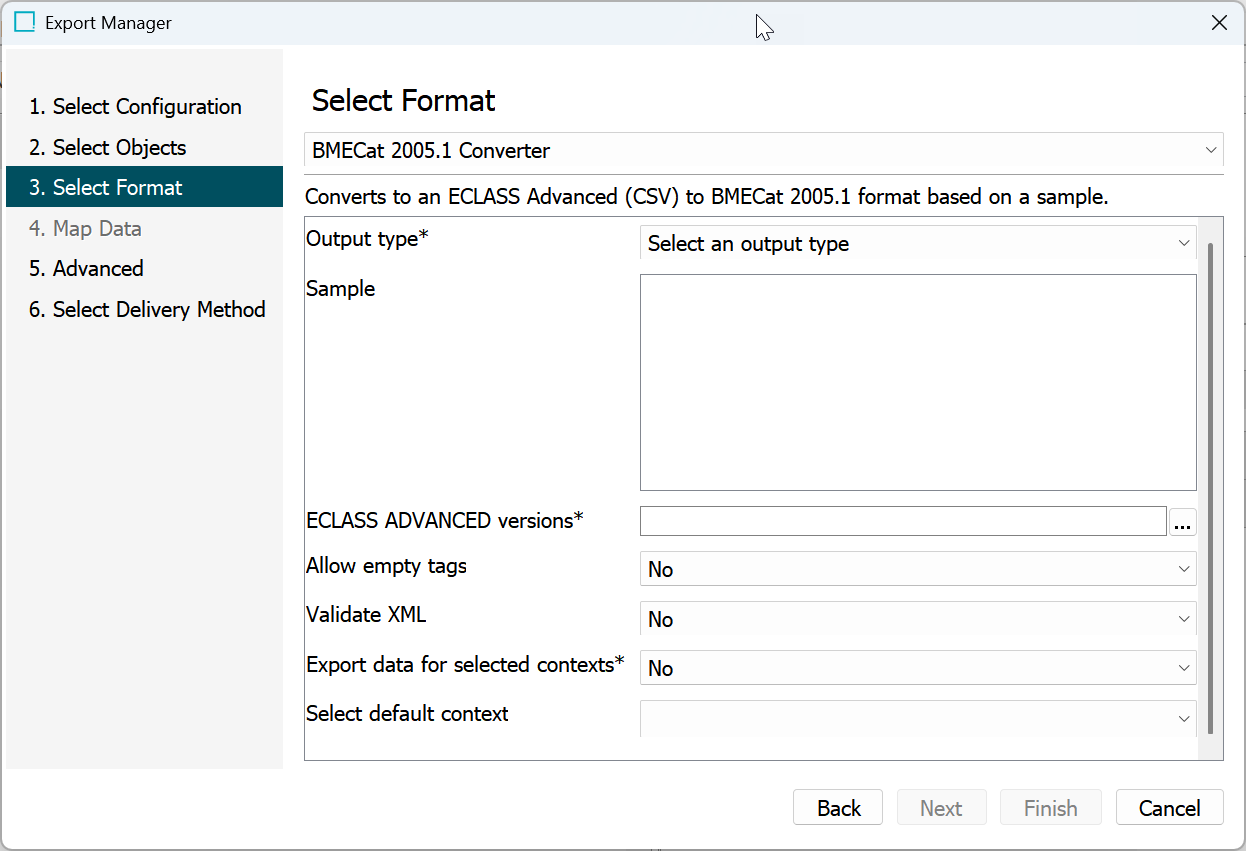
On the Select Format step of the Export Manager, fill out the following Outbound Parameters.
Outbound Parameters
The parameters that are available to fill out are controlled by the XML template that is uploaded. The fields listed below are displayed for all users.
-
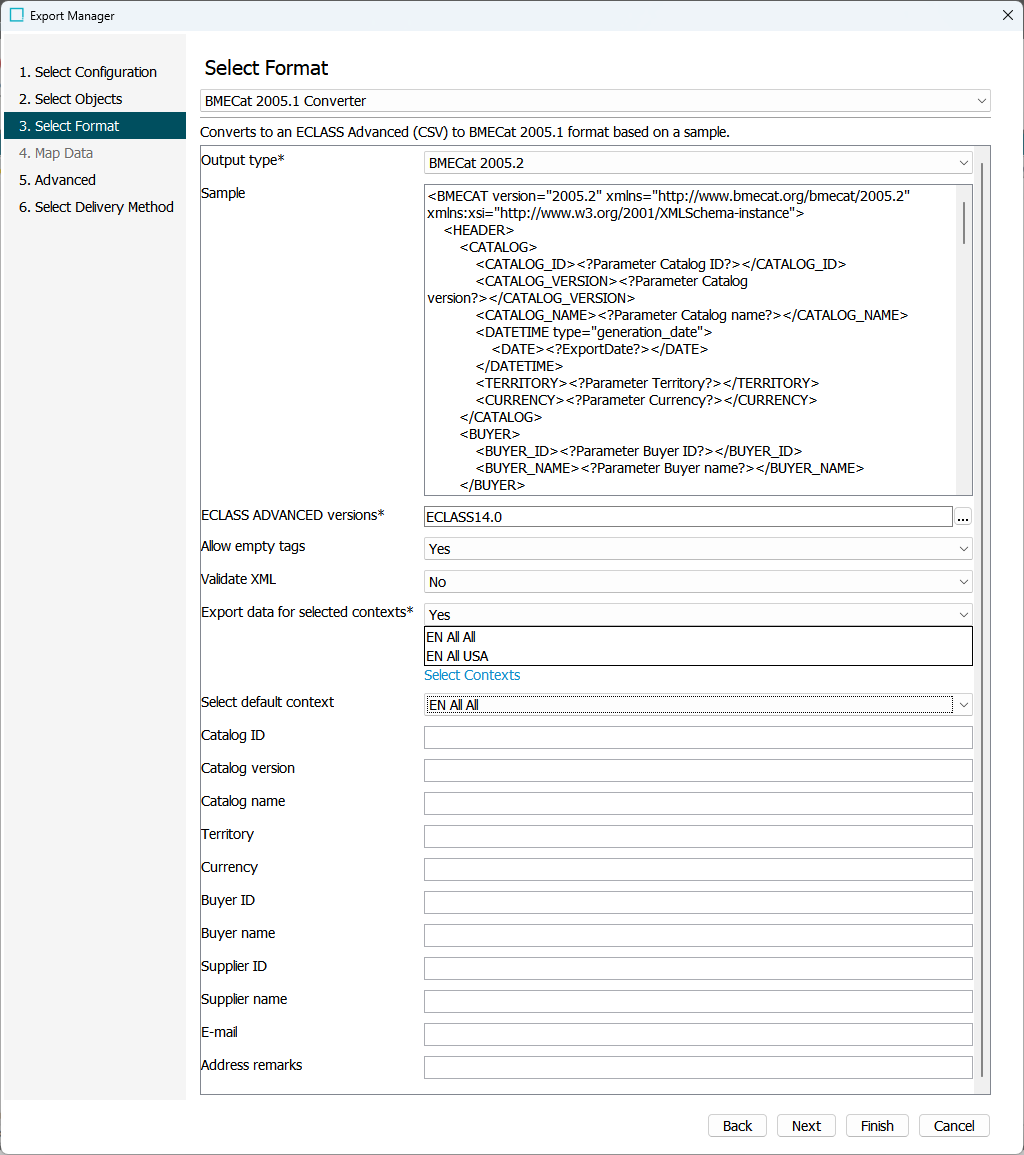
Output Type: This parameter determines the format and structure of the exported file. Available options are BMECat 2005.1 and BMECat 2005.2. Based on the selected format, the next parameter (Sample) is automatically populated with the corresponding template.
Sample: An XML template file is loaded automatically but can be modified as required. This defines the format of the XML file to be exported.
Note: For more information on Generic XML instructions, refer to the Generic XML Outbound Processing Instructions topic in the Data Exchange documentation.
-
ECLASS ADVANCED versions: This field is mandatory. If no version is selected, no SKUs or products will be exported.
It specifies the root classification node of the version to be exported. To select the relevant ECLASS Advanced version(s), click the eclipses button, and choose the desired version from the list.
Note: Only versions that have already been imported into the system are available for selection.
-
Allow empty tags: Selecting Yes indicates that export tags with empty values are included in the output. If set to No, tags containing empty values are not included in the export.
-
Validate XML: Selecting Yes indicates that the BMEcat 2005.1 or BMEcat 2005.2 export file is validated against an XSD included in STEP. When validation fails, the background process also fails, and the problem is reported in the BGP execution report. If set to No, the validation is skipped and the BGP does not fail due to differences found when comparing to the XSD.
-
Export data for selected contexts: This allows you to filter and export data only for specific contexts rather than exporting all available contexts. Select Yes in the dropdown to display the Select Contexts link. Click the link, select the required contexts for the export from the Select Contexts dialog, and click the Select button. The selected contexts are listed in a text box.
The chosen contexts will be presented as <LANGUAGE> elements within the <HEADER> section of the exported XML file. If the system contains the specified context-dependent attribute values, they will be incorporated into the <PRODUCT_DETAILS> segment.
Important: When using an OIEP for BMECat format export, ensure consistency between the contexts specified in the 'Export data for selected contexts' parameter and OIEP > Configuration tab > Configuration flipper > Contexts parameter. A mismatch may lead to contexts being presented differently in the exported file: those added in OIEP > Configuration tab > Configuration flipper > Contexts parameter will appear in the <PRODUCT_DETAILS> element, and those in 'Export data for selected contexts' parameter will be in the <HEADER> element.
Select default context: This shows the default context that is selected for the output. The parameter only displays contexts that were selected in the Export data for selected contexts parameter, and automatically selects the first context from the list. However, this can be changed by clicking the dropdown menu and selecting a different option.
Note: For exports done in the BMEcat file format, all cross-context exports, by default, always contain suppressed references. However, to omit suppressed references, the following configuration property must be added: ExportManager.Omit.SuppressedReferences.CrossContext=true This functionality is managed by a configuration property that is not available in the Self-Service UI. Contact Stibo Systems Support for assistance.
For an explanation of the remaining parameters, search the web. No validation is performed on the text entered or the selections made, but if Validate XML = Yes, errors will be reported in the execution report, as defined above.
Export Manager
OIEP
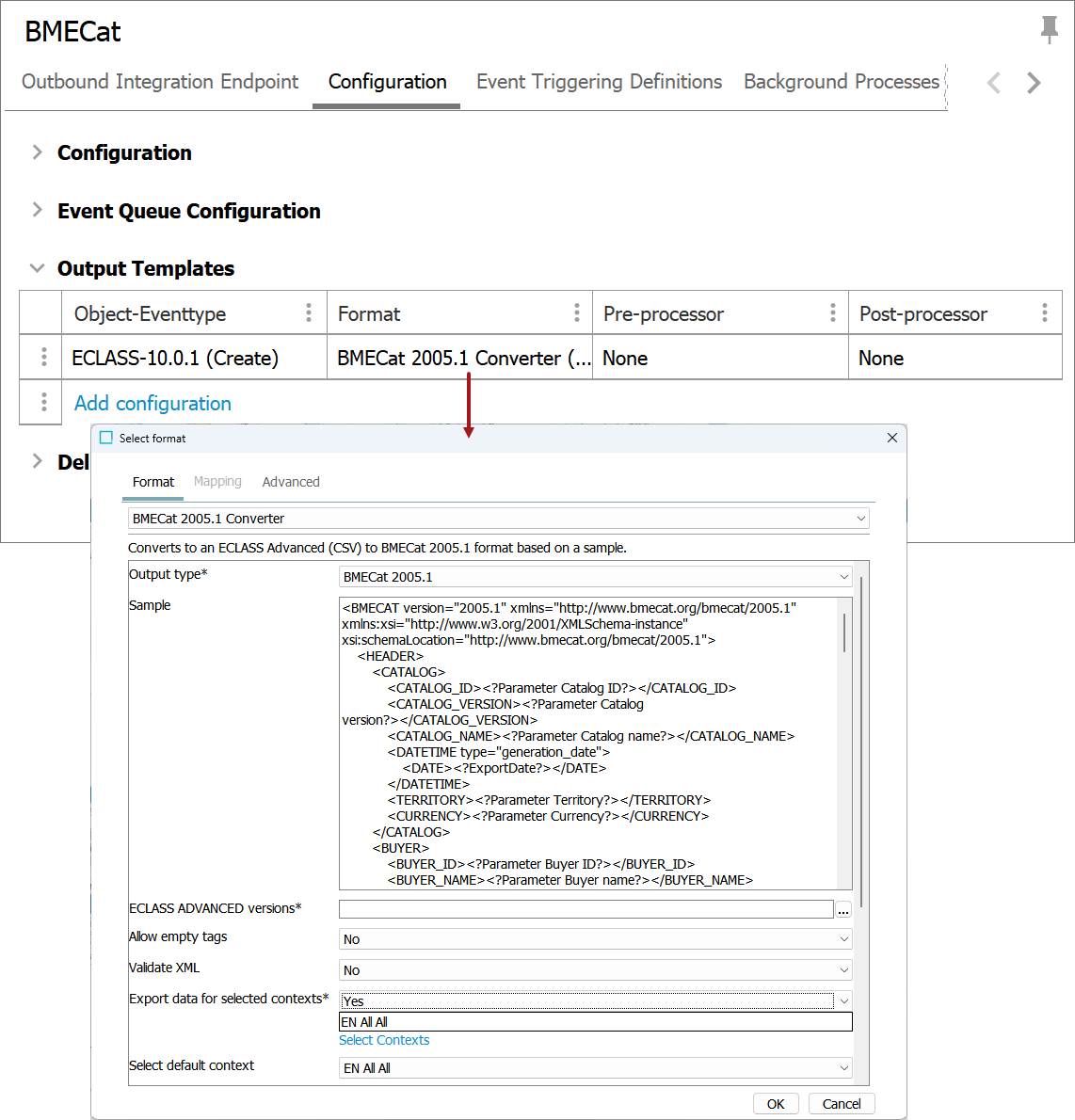
Note: When using an OIEP for BMECat format export, there is a subtle distinction in how contexts are filled in the <HEADER> and <PRODUCT_DETAILS> elements. Specifically, for the context-dependent attribute values populated in the <PRODUCT_DETAILS> element, the values set in OIEP > Configuration tab > Configuration flipper > Contexts parameter take precedence and are populated accordingly. However, the contexts presented as <LANGUAGE> elements within the <HEADER> section are determined by the settings made in the above mentioned 'Export data for selected contexts' parameter itself.