The intention of this topic is to introduce the basic AutoCare PIES file structure and the way the objects are built in the system when a PIES file is imported into the system.
Currently, the Automotive solution supports import and export of three versions of PIES files: PIES 6.5, PIES 6.7, PIES 7.0, PIES 7.1 and PIES 7.2. Each version shares a common structure with additional features available in the later versions. For the purposes of this topic, PIES 6.5 will be the PIES version referenced throughout the following text.
The PIES file shall include only plain text delimited by 'valid' XML tags (as defined below). A CR/LF (ASCII 13,10 decimal) should separate lines and it is recommended that the text should use UTF-8 character encoding. However, ISO-8859-1 is also accepted.
The PIES standard is designed in a flexible format which allows each record segment to loop as many times as needed in order to meet data delivery requirements. For example, a part with multiple price levels would have multiple price detail segments, one for each price level. Also, only those segments, which are needed to provide specific information, need be sent. To accomplish this flexibility, the PIES delivery standard is designed using XML and XML Schema Definition (XSD).
Delivering PIES Files
Sample File structure
Below is a sample PIES 6.5 file with one PIES Item.
<?xml version="1.0" encoding="UTF-8" standalone="yes"?>
<PIES xmlns="http://www.aftermarket.org">
    <Header>
        <PIESVersion>6.5</PIESVersion>
        <SubmissionType>FULL</SubmissionType>
        <BlanketEffectiveDate>2017-03-15</BlanketEffectiveDate>
        <BrandOwnerDUNS>123456789</BrandOwnerDUNS>
        <BrandOwnerGLN>4567890120003</BrandOwnerGLN>
        <TechnicalContact>Katherine</TechnicalContact>
        <ContactEmail>Katherine</ContactEmail>
    </Header>
    <PriceSheets>
        <PriceSheet MaintenanceType="A">
            <PriceSheetNumber>2017WD</PriceSheetNumber>
            <PriceSheetName>2017 WD Prices</PriceSheetName>
            <SupersededPriceSheetNumber>2016WD</SupersededPriceSheetNumber>
            <CurrencyCode>USD</CurrencyCode>
            <PriceZone>Western</PriceZone>
            <EffectiveDate>2017-03-07</EffectiveDate>
            <ExpirationDate>2018-03-07</ExpirationDate>
        </PriceSheet>
    </PriceSheets>
    <Items>
        <Item MaintenanceType="A">
            <HazardousMaterialCode>Y</HazardousMaterialCode>
            <BaseItemID>VC21</BaseItemID>
            <ItemLevelGTIN GTINQualifier="UP">11234567890123</ItemLevelGTIN>
            <PartNumber>VC21499</PartNumber>
            <BrandAAIAID>DKGX</BrandAAIAID>
            <BrandLabel>Wako</BrandLabel>
            <SubBrandAAIAID>DMST</SubBrandAAIAID>
            <SubBrandLabel>SubBrand Label</SubBrandLabel>
            <ACESApplications>Y</ACESApplications>
            <ItemQuantitySize UOM="EA">1</ItemQuantitySize>
            <ContainerType>BO</ContainerType>
            <QuantityPerApplication Qualifier="VAR" UOM="EA">1</QuantityPerApplication>
            <ItemEffectiveDate>2010-08-13</ItemEffectiveDate>
            <AvailableDate>2010-08-13</AvailableDate>
            <MinimumOrderQuantity UOM="EA">123</MinimumOrderQuantity>
            <ManufacturerProductCodes>
                <Group>02347</Group>
                <SubGroup>A</SubGroup>
            </ManufacturerProductCodes>
            <AAIAProductCategoryCode>199456</AAIAProductCategoryCode>
            <UNSPSC>11223348</UNSPSC>
            <PartTerminologyID>5696</PartTerminologyID>
            <VMRSCode>123000789</VMRSCode>
            <Descriptions>
                <Description MaintenanceType="A" DescriptionCode="MKT">MKT</Description>
            </Descriptions>
            <Prices>
                <Pricing MaintenanceType="A" PriceType="WD1">
                    <PriceSheetNumber>2017WD</PriceSheetNumber>
                    <CurrencyCode>USD</CurrencyCode>
                    <EffectiveDate>2008-10-22</EffectiveDate>
                    <ExpirationDate>2012-10-22</ExpirationDate>
                    <Price UOM="PE">10</Price>
                </Pricing>
            </Prices>
            <ExtendedInformation>
                <ExtendedProductInformation MaintenanceType="A" EXPICode="HSB">01</ExtendedProductInformation>
                <ExtendedProductInformation MaintenanceType="A" EXPICode="RCT">Marietta, GA</ExtendedProductInformation>
                <ExtendedProductInformation MaintenanceType="A" EXPICode="MSD">MSDS26426</ExtendedProductInformation>
                <ExtendedProductInformation MaintenanceType="A" EXPICode="RCS">Cobb, GA</ExtendedProductInformation>
                <ExtendedProductInformation MaintenanceType="A" EXPICode="EMS">1</ExtendedProductInformation>

            </ExtendedInformation>
            <Packages>
                <Package MaintenanceType="A">
                    <PackageLevelGTIN>12345000451747</PackageLevelGTIN>
                    <ElectronicProductCode>4A.356E414.B351C7.AD331A465</ElectronicProductCode>
                    <PackageBarCodeCharacters>005555010</PackageBarCodeCharacters>
                    <PackageUOM>PK</PackageUOM>
                    <QuantityofEaches>1</QuantityofEaches>
                    <Dimensions UOM="CM">
                        <Height>10.2</Height>
                        <Width>3.6</Width>
                        <Length>2.0</Length>
                    </Dimensions>
                    <Weights UOM="PG">
                        <Weight>12.5</Weight>
                        <DimensionalWeight>45</DimensionalWeight>
                    </Weights>
                    <WeightVariance>90</WeightVariance>
                    <HazardousMaterial MaintenanceType="A" LanguageCode="EN">
                        <ShippingScope>INT</ShippingScope>
                        <Bulk>N</Bulk>
                        <RegulatingCountry>US</RegulatingCountry>
                        <TransportMethod>R</TransportMethod>
                        <Regulated>Y</Regulated>
                        <Description>Hazmat Description</Description>
                        <HazardousClass>2.2</HazardousClass>
                        <HazardousMaterialCodeQualifier>D</HazardousMaterialCodeQualifier>
                        <HazardousMaterialClassCode>1.4</HazardousMaterialClassCode>
                        <HazardousMaterialDescription>Hazardous</HazardousMaterialDescription>
                        <ShippingName>Great Lakes Shipping</ShippingName>
                        <UNNAIDCode>027455</UNNAIDCode>
                        <HazardousPlacardNotation>Caution</HazardousPlacardNotation>
                        <WHMISCode>B.4</WHMISCode>
                        <WHMISFreeText>Caution</WHMISFreeText>
                        <PackingGroupCode>III</PackingGroupCode>
                        <RegulationsExemptionCode>4</RegulationsExemptionCode>
                        <TextMessage>Be careful</TextMessage>
                        <OuterPackageLabel>ORM-AIR</OuterPackageLabel>
                    </HazardousMaterial>
                </Package>
            </Packages>
            <PartInterchangeInfo>
                <PartInterchange MaintenanceType="A" LanguageCode="EN">
                    <TypeCode>O</TypeCode>
                    <BrandAAIAID>BBTB</BrandAAIAID>
                    <BrandLabel>Great Lakes</BrandLabel>
                    <PartNumber>GL26409</PartNumber>
                    <QualityGradeLevel>P</QualityGradeLevel>
                    <InterchangeNotes>Yellow indicator light</InterchangeNotes>
                    <InternalNotes>May be difficult to remove</InternalNotes>
                </PartInterchange>
            </PartInterchangeInfo>
            <DigitalAssets>
                <DigitalFileInformation MaintenanceType="A" AssetID="Asset456" LanguageCode="EN">
                    <FileName>VC21499_P04</FileName>
                    <AssetType>P04</AssetType>
                    <Representation>R</Representation>
                    <Resolution>96</Resolution>
                    <Background>CLI</Background>
                    <OrientationView>BAC</OrientationView>
                    <Details>Details/Description</Details>
                    <FilePath>images\SVlight.tif</FilePath>
                    <URI>www.stibo.com</URI>
                    <FileDateModified>2008-04-11</FileDateModified>
                    <EffectiveDate>2008-04-11</EffectiveDate>
                    <ExpirationDate>2012-04-11</ExpirationDate>
                    <Country>US</Country>
                </DigitalFileInformation>

            </DigitalAssets>
            <Kits>
                <Kit MaintenanceType="A">
                    <ComponentPartNumber IDQualifier="VN">VC36004</ComponentPartNumber>
                    <ComponentBrand>DKGX</ComponentBrand>
                    <Description DescriptionCode="SHO" LanguageCode="EN">CKENGSENS</Description>
                    <QuantityInKit UOM="EA">2</QuantityInKit>
                    <SequenceCode>1</SequenceCode>
                </Kit>
                <Kit MaintenanceType="A">
                    <ComponentPartNumber IDQualifier="VP">VC36009</ComponentPartNumber>
                    <ComponentBrand>DKGX</ComponentBrand>
                    <Description DescriptionCode="SHO" LanguageCode="EN">CKENGSENS</Description>
                    <QuantityInKit UOM="EA">1</QuantityInKit>
                    <SequenceCode>2</SequenceCode>
                </Kit>
            </Kits>
        </Item>
    </Items>
</PIES>
A normal PIES file has five segments in it: Header, Price Sheet (PRCS), Market Copy (MKTC), Item (ITEM), and the Trailer. These five segments also includes some additional segments within them. The way it is structured is demonstrated in the screenshot below.
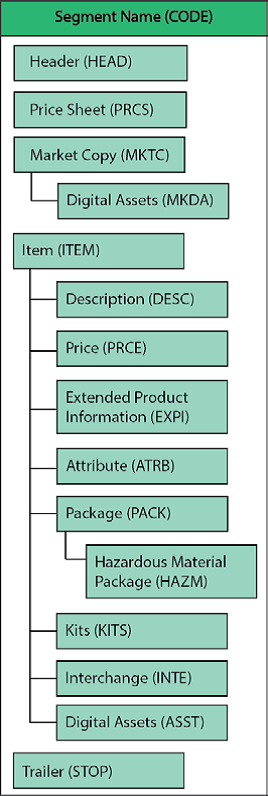
A description of each of these five segments and some segments within them follows below.
Header
The Header constitutes the initial section of the file. This section defines trading partner information and global value characteristics. There can only be one instance of this segment within a PIES file. All Header information is contained within <Header> tags.
The order of the tags within the Header is defined by the XML schema. In the Header section, the <PIESVersion> and <SubmissionType> tags are required to be populated. If they are left empty, the XML file will fail to load and will be moved to an Error state in the workflow.
Note: Although element <BrandOwnerAAIAID> is optional, if the <Item> segment does not have the <BrandAAIAID> defined (an element within the <Item> segment), then <BrandOwnerAAIAID> would need to be defined in the <Header> segment in order for the PIES Items to get created.
In the table below, tags included within the Header section of the PIES file are explained. For more information on the tags available in the PIES Header section, refer to the AutoCare PIES Exporter topic within the Exporting Automotive Data section.
|
XML Element |
Requirement |
Description |
Example XML Code |
|---|---|---|---|
| PIESVersion | Required | <PIESVersion>7.2</PIESVersion> | |
| SubmissionType | Required | <SubmissionType>FULL</SubmissionType> | |
| BlanketEffectiveDate | Optional | "Blanket Effective Date" acts as the global default value for a particular PIES file. "Blanket Effective Date" may be overridden at Price Sheet Header, Item, or Price Segment Levels. | <BlanketEffectiveDate>2013-01-31</BlanketEffectiveDate> |
| ChangesSinceDate | Conditional | “Changes Since Date” is a control date indicating the date the last PIES file was generated. This field is MANDATORY if the tag 'Submission Type', has been filled with the value 'UPDATE' | <ChangesSinceDate>….</ChangesSinceDate> |
| ParentDUNSNumber | Optional | Unique 9-digit Dun & Bradstreet ID. May also use +4 format with 13 digits. The D&B D-U-N-S Number is a unique nine-digit identification sequence, which provides unique identifiers of single business entities, while linking corporate family structures together | <ParentDUNSNumber>9999999990001</ParentDUNSNumber> |
| ParentGLN | Optional | GS1 Company ID + Location ID + Check Digit. The GLN is a standard means of identifying global trading partner locations. Through the process of Product Synchronization, the seller and buyer identify each other’s names, addresses, and other information, so that all subsequent electronic documents can be identified, routed, and processed using only these codes. This is essential for the smooth, automated, error-free processing of electronic documents. | <ParentGLN>7777777555551</ParentGLN> |
| ParentVMRSID | Optional | A unique Company identifier for all participating Heavy Duty parts manufacturers. | <ParentVMRSID>GIANT</ParentVMRSID> |
| ParentAAIAID | Optional | This field is recommended to use when identifying Parent Company Ownership. | <ParentAAIAID>BBCD</ParentAAIAID> |
| BrandOwnerDUNS | Optional | Unique 9-digit Dun & Bradstreet ID. May also use +4 format with 13 digits. The D&B D-U-N-S Number is a unique nine-digit identification sequence, which provides unique identifiers of single business entities, while linking corporate family structures together | <BrandOwnerDUNS>8888888880001</BrandOwnerDUNS> |
| BrandOwnerGLN | Optional | GS1 Company ID + Location ID + Check Digit. The GLN is a standard means of identifying global trading partner locations. Through the process of Product Synchronization, the seller and buyer identify each other’s names, addresses, and other information, so that all subsequent electronic documents can be identified, routed, and processed using only these codes. This is essential for the smooth, automated, error-free processing of electronic documents. | <BrandOwnerGLN>7777777123459</BrandOwnerGLN> |
| BrandOwnerVMRSID | Optional | A unique Company identifier for all participating Heavy Duty parts manufacturers. | <BrandOwnerVMRSID>WONDR</BrandOwnerVMRSID> |
| BrandOwnerAAIAID | Optional | This field is recommended to be populated when identifying Brand Owner of the data supplied in the PIES file. | <BrandOwnerAAIAID>BRST</BrandOwnerAAIAID> |
| BuyerDuns | Optional | D&B D-U-N-S Number for PIES Trading Partner. The D&B D-U-N-S Number is a unique nine-digit identification sequence, which provides unique identifiers of single business entities, while linking corporate family structures together | <BuyerDuns>8888888880001</BuyerDuns> |
| CurrencyCode | Optional | The default value for the entire PIES file. This value may be overridden at the PRCS (Price Sheet Segment) or PRCE (Pricing Segment) levels. | <CurrencyCode>USD</CurrencyCode> |
| LanguageCode | Optional | The default value for the entire PIES file. This value may be overridden within many of the underlying Segments. | <LanguageCode>EN</LanguageCode> |
| TechnicalContact | Optional | Name of Contact for resolving technical issues with PIES file. | <TechnicalContact>John Smith</TechnicalContact> |
| ContactEmail | Optional | Contact Email address at data Supplier/Sender company for resolving issues with PIES file or receiving file processing reports. | <ContactEmail>john@smith.com</ContactEmail> |
| PCdbVersionDate | Optional | Version date of the PCdb used to create the file. The date can be found in the 'Version' table of the PCdb. | <PCdbVersionDate>2014-06-27</PCdbVersionDate> |
| PAdbVersionDate | Optional | Version date of the PAdb used to create the file. The date can be found in the 'Version' table of the PAdb. | <PAdbVersionDate>2014-06-27</PAdbVersionDate> |
Price Sheet Header Segment (PRCS)
The Price Sheet Header Segment is used to define any number of price sheets. When exchanging pricing data with a trading partner, it is recommended to define at least one Price Sheet Header. The <PriceSheetNumber> defined in the Price Sheet Header segment will be referenced within the Price Segment for an individual PIES Item record.
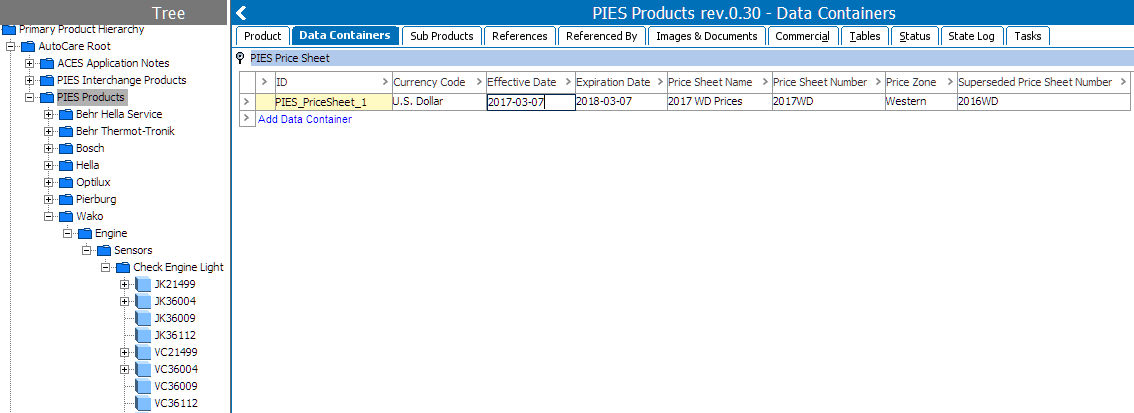
The Price Sheet Header Segment is defined within the <PriceSheets> tag. This segment is an optional looping segment within the specification, meaning there may be zero instances of this segment in a PIES file. If this segment is used, there must be one or more instances of a child <PriceSheet> </PriceSheet> loop. Multiple loops of a <PriceSheet> </PriceSheet> section may be used to define multiple Price Sheets.
A sample PIES Sheet Header Segment and a screenshot of how the segment is populated in STEP are displayed below. The Price Sheet information is created as Data Container valid on the PIES Products object (root node).
<PriceSheets>
        <PriceSheet MaintenanceType="A">
            <PriceSheetNumber>2017WD</PriceSheetNumber>
            <PriceSheetName>2017 WD Prices</PriceSheetName>
            <SupersededPriceSheetNumber>2016WD</SupersededPriceSheetNumber>
            <CurrencyCode>USD</CurrencyCode>
            <PriceZone>Western</PriceZone>
            <EffectiveDate>2017-03-07</EffectiveDate>
            <ExpirationDate>2018-03-07</ExpirationDate>
        </PriceSheet>
    </PriceSheets>
PIES Item Segment (ITEM)
The Item segment is the core looping (or repeating) segment within the PIES standard. Each instance of this segment is responsible for defining individual Item Part Numbers (which are also called PIES Items).
All <Item> instances are contained within the parent <Items> element. For each PIES Item to be defined, a new instance of <Item> and its child segments are initiated. Many of the child segments under <Item> are themselves segments of PIES which are defined later in this topic.
The following XML sample code shows the upper level <Items> element and the beginning of a single instance of <Item>. The child segments are part of the logical grouping known as the Item Segment. Further segments continue from the end of this code sample.
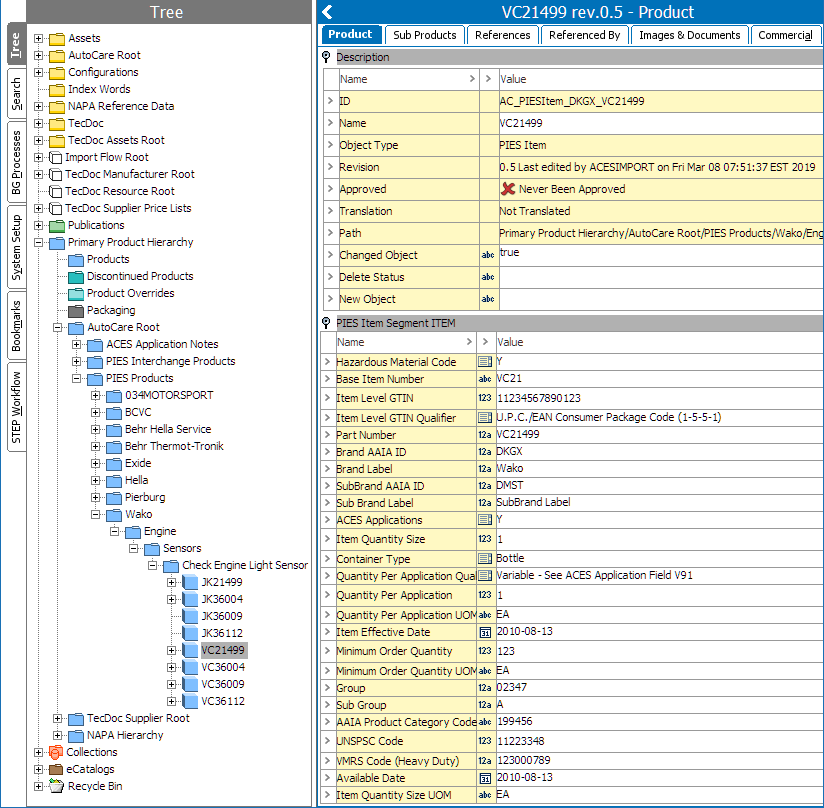
A sample PIES XML PIES Item structure and a screenshot of how it is populated in STEP is displayed below.
<Items>
        <Item MaintenanceType="A">
            <HazardousMaterialCode>Y</HazardousMaterialCode>
            <BaseItemID>VC21</BaseItemID>
            <ItemLevelGTIN GTINQualifier="UP">11234567890123</ItemLevelGTIN>
            <PartNumber>VC21499</PartNumber>
            <BrandAAIAID>DKGX</BrandAAIAID>
            <BrandLabel>Wako</BrandLabel>
            <SubBrandAAIAID>DMST</SubBrandAAIAID>
            <SubBrandLabel>SubBrand Label</SubBrandLabel>
            <ACESApplications>Y</ACESApplications>
            <ItemQuantitySize UOM="EA">1</ItemQuantitySize>
            <ContainerType>BO</ContainerType>
            <QuantityPerApplication Qualifier="VAR" UOM="EA">1</QuantityPerApplication>
            <ItemEffectiveDate>2010-08-13</ItemEffectiveDate>
            <AvailableDate>2010-08-13</AvailableDate>
            <MinimumOrderQuantity UOM="EA">123</MinimumOrderQuantity>
            <ManufacturerProductCodes>
                <Group>02347</Group>
                <SubGroup>A</SubGroup>
            </ManufacturerProductCodes>
            <AAIAProductCategoryCode>199456</AAIAProductCategoryCode>
            <UNSPSC>11223348</UNSPSC>
            <PartTerminologyID>5696</PartTerminologyID>
            <VMRSCode>123000789</VMRSCode>

            <Descriptions> … </Descriptions>
            <Prices>   …   </Prices>
            <ExtendedInformation> … </ExtendedInformation>
            <Packages> … </Packages>
            <PartInterchangeInfo> … </PartInterchangeInfo>
            <DigitalAssets> … </DigitalAssets>
            <Kits> … </Kits>
        </Item>
    </Items>
PIES Description Segment
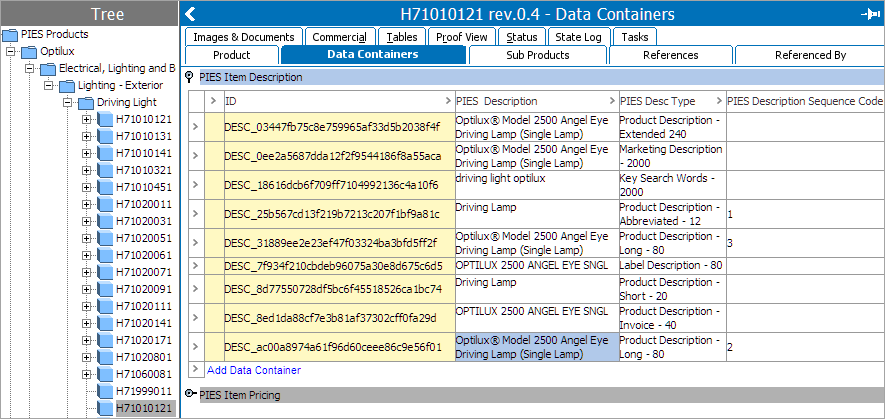
The Description segment allows you to send one or as many descriptions of an Item record part number (PIES Item). The flexibility to send multiple descriptions on a single PIES Item is possible because of the capabilities inherent in XML's looping structure. The Description segment (<Descriptions>…</Descriptions>) is an element group available within the <Item> tag. To send multiple descriptions about an individual Item part number (PIES Item), a user can loop (repeat) the <Description> element, changing the 'DescriptionCode' attribute as well as the string value for the Description.
A sample PIES Description Segment and a screenshot that shows how it is populated in STEP is displayed below.
Note: The Description (DESC) segment is created as Data Containers on the PIES Item starting with Automotive 9.1 MP1. Earlier versions of the PMDM for Automotive solution had the Description (DESC) segment stored as attribute values within an attribute group called 'PIES Description Segment DESC'.
Important: When a Data Container is deleted from a Product or Entity object, its ID cannot be revived, nor can its ID be reused until the object is purged from STEP. This is a known core STEP gap (not Automotive specific). User needs to be aware of this behavior while importing files to test and happen to delete the Data Container on the PIES Item. The next time when user imports the same file, that Data Container will not be created because its ID was in use and then deleted (the import process generates the Data Container ID through a hash function). But if the Data Containers are manually created in the workbench / Web UI, then user will not encounter the ID problem because a new ID is auto-generated for each new Data Container.
<Descriptions>
<Description MaintenanceType="A" Sequence="1" DescriptionCode="ABR">Driving Lamp</Description>
<Description MaintenanceType="A" Sequence="2" DescriptionCode="DES">Optilux® Model 2500 Angel Eye Driving Lamp (Single Lamp)</Description>
<Description MaintenanceType="A" Sequence="3" DescriptionCode="DES">Optilux® Model 2500 Angel Eye Driving Lamp (Single Lamp)</Description>
<Description MaintenanceType="A" DescriptionCode="EXT">Optilux® Model 2500 Angel Eye Driving Lamp (Single Lamp)</Description>
<Description MaintenanceType="A" DescriptionCode="INV">OPTILUX 2500 ANGEL EYE SNGL</Description>
<Description MaintenanceType="A" DescriptionCode="MKT">Optilux® Model 2500 Angel Eye Driving Lamp (Single Lamp)</Description>
<Description MaintenanceType="A" DescriptionCode="SHO">Driving Lamp</Description>
<Description MaintenanceType="A" DescriptionCode="LAB">OPTILUX 2500 ANGEL EYE SNGL</Description>
<Description MaintenanceType="A" DescriptionCode="KEY">driving light optilux</Description>
</Descriptions>
PIES Price Segment PRCE
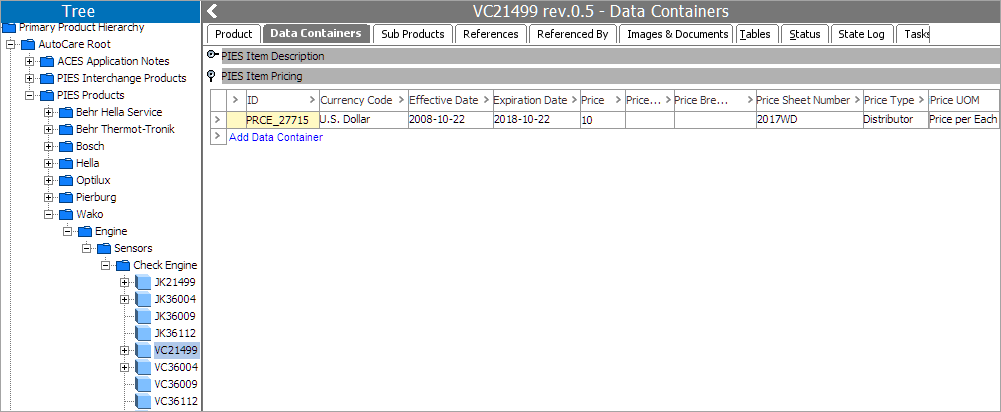
The Pricing Segment is defined by the PIES XML parent element <Prices>. Within this element group, there may be multiple instances of <Pricing> that define a single pricing instance. This element takes a 'Price Type' as an attribute indicating which type of price the following child segments needs to be defined in.
To supply multiple prices (price types) for an Item Part Number (PIES Item), the user needs to repeat the <Pricing> XML structure and redefine the new loop with the 'Price Type' attribute.
A sample PIES Price Segment and a screenshot of how it is populated in the STEP system is displayed below.
Note: The PIES Price Segment is created as Data Containers on the PIES Item starting with Automotive 9.1 MP1. Earlier versions of the PMDM for Automotive solution had the PIES Price Segment stored as attribute values within an attribute group.
<Prices>
                <Pricing MaintenanceType="A" PriceType="WD1">
                    <PriceSheetNumber>2017WD</PriceSheetNumber>
                    <CurrencyCode>USD</CurrencyCode>
                    <EffectiveDate>2008-10-22</EffectiveDate>
                    <ExpirationDate>2012-10-22</ExpirationDate>
                    <Price UOM="PE">10</Price>
                </Pricing>
            </Prices>
PIES Extended Product Info Segment (EXPI)
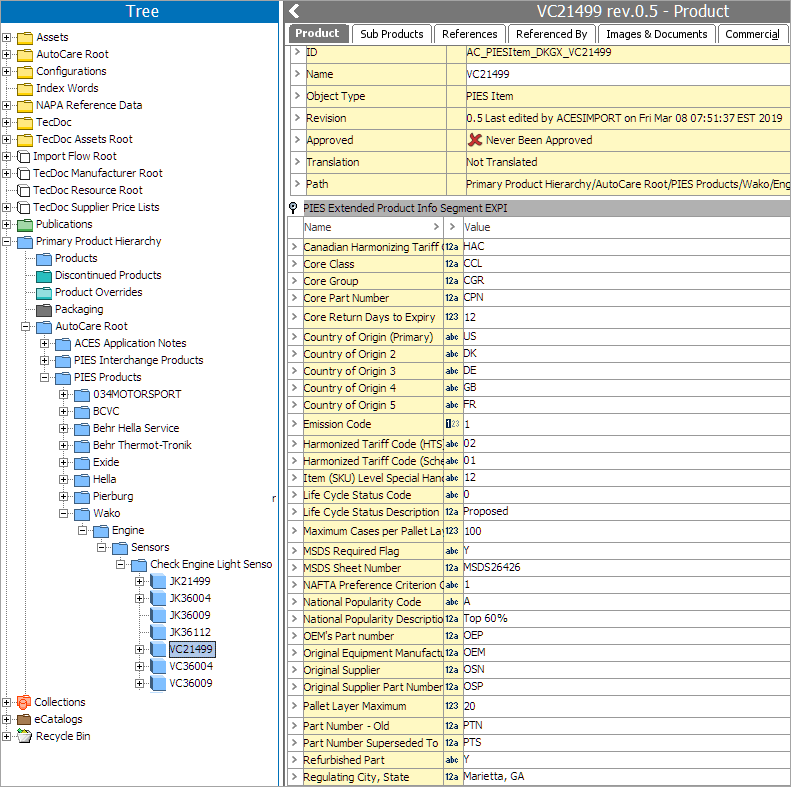
The Extended Product Information (EXPI) Segment is designed to relay information about an Item Part (PIES Item). The PIES Extended Product Information Segment contains information ranging from 'Country of Origin' to 'Warranty Terms'.
The format of the data expressed in the 'EXPI Data' field (<ExtendedProductInformation>) is dependent on the 'EXPI Code' selected.
To express information covering multiple (or one) 'EXPI Codes', the <ExtendedProductInformation> element is looped once for each code. Any and all instances of <ExtendedProductInformation> are grouped under the <ExtendedInformation> element.
A sample PIES Extended Product Info Segment and a screenshot of showing how it is populated in STEP is displayed below.
<ExtendedInformation>
                <ExtendedProductInformation MaintenanceType="A" EXPICode="HSB">01</ExtendedProductInformation>
                <ExtendedProductInformation MaintenanceType="A" EXPICode="HAC">HAC</ExtendedProductInformation>
                <ExtendedProductInformation MaintenanceType="A" EXPICode="CTS">FR</ExtendedProductInformation>
                <ExtendedProductInformation MaintenanceType="A" EXPICode="LIF">0</ExtendedProductInformation>
                <ExtendedProductInformation MaintenanceType="A" EXPICode="NAF">1</ExtendedProductInformation>
                <ExtendedProductInformation MaintenanceType="A" EXPICode="HTS">02</ExtendedProductInformation>
                <ExtendedProductInformation MaintenanceType="A" EXPICode="HZ1">12</ExtendedProductInformation>
                <ExtendedProductInformation MaintenanceType="A" EXPICode="TAX">Y</ExtendedProductInformation>
                <ExtendedProductInformation MaintenanceType="A" EXPICode="LIS">Proposed</ExtendedProductInformation>
                <ExtendedProductInformation MaintenanceType="A" EXPICode="TMC">AB</ExtendedProductInformation>
                <ExtendedProductInformation MaintenanceType="A" EXPICode="NPD">Top 60%</ExtendedProductInformation>
                <ExtendedProductInformation MaintenanceType="A" EXPICode="NPC">A</ExtendedProductInformation>
                <ExtendedProductInformation MaintenanceType="A" EXPICode="WS2">LF</ExtendedProductInformation>
                <ExtendedProductInformation MaintenanceType="A" EXPICode="WS1">SR</ExtendedProductInformation>
                <ExtendedProductInformation MaintenanceType="A" EXPICode="WD2">MI</ExtendedProductInformation>
                <ExtendedProductInformation MaintenanceType="A" EXPICode="CXP">12</ExtendedProductInformation>
                <ExtendedProductInformation MaintenanceType="A" EXPICode="RST">GA</ExtendedProductInformation>
                <ExtendedProductInformation MaintenanceType="A" EXPICode="CPN">CPN</ExtendedProductInformation>
                <ExtendedProductInformation MaintenanceType="A" EXPICode="WT2">MO</ExtendedProductInformation>
                <ExtendedProductInformation MaintenanceType="A" EXPICode="CGR">CGR</ExtendedProductInformation>
                <ExtendedProductInformation MaintenanceType="A" EXPICode="WT1">36</ExtendedProductInformation>
                <ExtendedProductInformation MaintenanceType="A" EXPICode="CCL">CCL</ExtendedProductInformation>
                <ExtendedProductInformation MaintenanceType="A" EXPICode="MSR">Y</ExtendedProductInformation>
                <ExtendedProductInformation MaintenanceType="A" EXPICode="RCT">Marietta, GA</ExtendedProductInformation>
                <ExtendedProductInformation MaintenanceType="A" EXPICode="MSD">MSDS26426</ExtendedProductInformation>
                <ExtendedProductInformation MaintenanceType="A" EXPICode="RCS">Cobb, GA</ExtendedProductInformation>
                <ExtendedProductInformation MaintenanceType="A" EXPICode="EMS">1</ExtendedProductInformation>
                <ExtendedProductInformation MaintenanceType="A" EXPICode="RPC">30060</ExtendedProductInformation>
                <ExtendedProductInformation MaintenanceType="A" EXPICode="CTR">GB</ExtendedProductInformation>
                <ExtendedProductInformation MaintenanceType="A" EXPICode="CTQ">DE</ExtendedProductInformation>
                <ExtendedProductInformation MaintenanceType="A" EXPICode="CTP">DK</ExtendedProductInformation>
                <ExtendedProductInformation MaintenanceType="A" EXPICode="CTO">US</ExtendedProductInformation>
                <ExtendedProductInformation MaintenanceType="A" EXPICode="OSN">OSN</ExtendedProductInformation>
                <ExtendedProductInformation MaintenanceType="A" EXPICode="OEP">OEP</ExtendedProductInformation>
                <ExtendedProductInformation MaintenanceType="A" EXPICode="OEM">OEM</ExtendedProductInformation>
                <ExtendedProductInformation MaintenanceType="A" EXPICode="REF">Y</ExtendedProductInformation>
                <ExtendedProductInformation MaintenanceType="A" EXPICode="PTS">PTS</ExtendedProductInformation>
                <ExtendedProductInformation MaintenanceType="A" EXPICode="PTN">PTN</ExtendedProductInformation>
                <ExtendedProductInformation MaintenanceType="A" EXPICode="OSP">OSP</ExtendedProductInformation>
                <ExtendedProductInformation MaintenanceType="A" EXPICode="WD1">500</ExtendedProductInformation>
                <ExtendedProductInformation MaintenanceType="A" EXPICode="RET">RET</ExtendedProductInformation>
                <ExtendedProductInformation MaintenanceType="A" EXPICode="REM">N</ExtendedProductInformation>
                <ExtendedProductInformation MaintenanceType="A" EXPICode="STA">S</ExtendedProductInformation>
                <ExtendedProductInformation MaintenanceType="A" EXPICode="PLM">20</ExtendedProductInformation>
                <ExtendedProductInformation MaintenanceType="A" EXPICode="PLC">100</ExtendedProductInformation>
            </ExtendedInformation>
Packaging Segment (PACK)
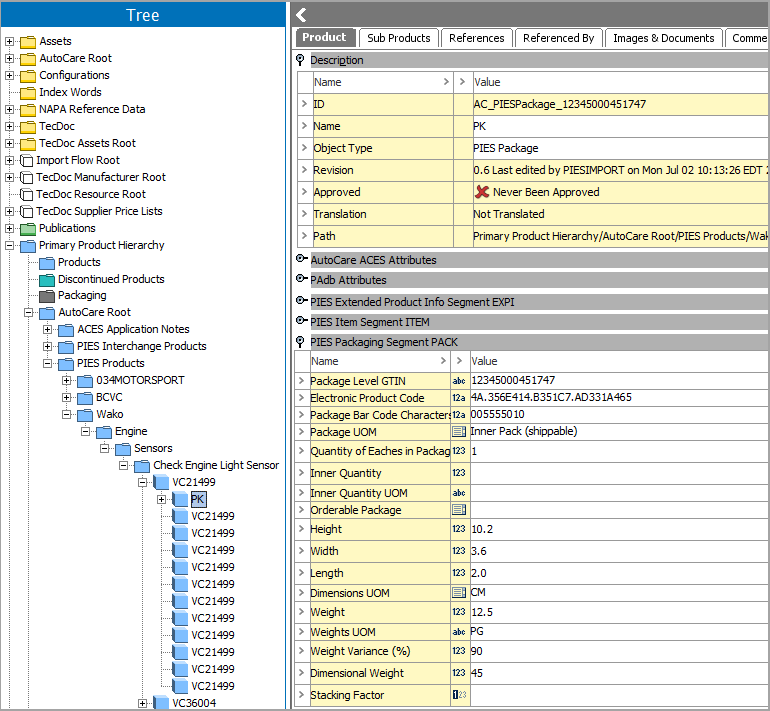
The Packaging Segment is used to express various volumetric details for different packaging levels of PIES Items. Package information is grouped within the <Packages> child element of <Item>. Each instance of the <Package> element (looped beneath <Packages>) and its child segments corresponds to a distinct 'Package UOM'. This UOM, or Unit of Measure, identifies the type of packaging the data element contains.
The consumer-level package (UOM type 'PK') should always be defined if possible. The consumer-level pack can be defined, for example, as the Item Part in the packaging used for in-store display and stocking. This is the package level that an individual consumer may purchase.
The sample XML code below shows the Packaging Segment in relation to the other segments defined to this point, and the screenshot below shows the way it is populated in the system where the packaging object is created as an object below the PIES Item.
<Packages>
                <Package MaintenanceType="A">
                    <PackageLevelGTIN>12345000451747</PackageLevelGTIN>
                    <ElectronicProductCode>4A.356E414.B351C7.AD331A465</ElectronicProductCode>
                    <PackageBarCodeCharacters>005555010</PackageBarCodeCharacters>
                    <PackageUOM>PK</PackageUOM>
                    <QuantityofEaches>1</QuantityofEaches>
                    <Dimensions UOM="CM">
                        <Height>10.2</Height>
                        <Width>3.6</Width>
                        <Length>2.0</Length>
                    </Dimensions>
                    <Weights UOM="PG">
                        <Weight>12.5</Weight>
                        <DimensionalWeight>45</DimensionalWeight>
                    </Weights>
                    <WeightVariance>90</WeightVariance>
                    <HazardousMaterial> … </HazardousMaterial>
                </Package>
            </Packages>
Hazardous Material Package Segment (HAZM)
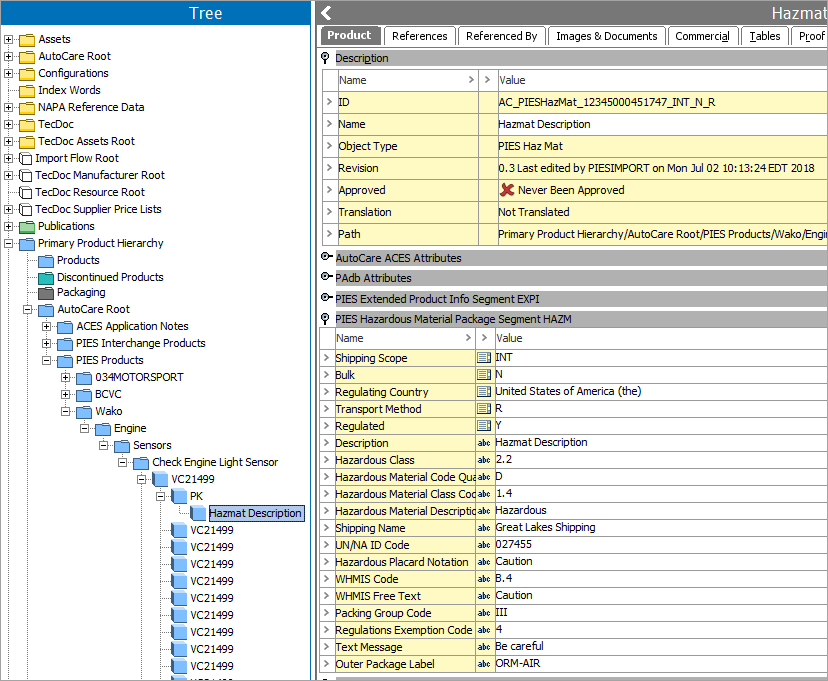
Hazmat information is relayed due to different Hazmat rules and regulations, each of which may depend on the type of package a product is using. For instance, a product may have one set of regulations (or none) at the Consumer Pack level, but a completely different set of government regulations may apply if the package is a Case or Pallet of product. Regulations may change as well depending on the transportation method used when shipping a product.
The Hazardous Material Package Segment does not repeat as a loop of <Item>. Rather, this segment is a looping structure within the <Packaging> segment.
The sample XML code below shows how a single instance of the Hazardous Material Package Segment, defined by the <HazardousMaterial> parent element, falls within the Packaging Segment (<Package>), and the screenshot below shows how it is populated in the system.
<HazardousMaterial MaintenanceType="A" LanguageCode="EN">
                        <ShippingScope>INT</ShippingScope>
                        <Bulk>N</Bulk>
                        <RegulatingCountry>US</RegulatingCountry>
                        <TransportMethod>R</TransportMethod>
                        <Regulated>Y</Regulated>
                        <Description>Hazmat Description</Description>
                        <HazardousClass>2.2</HazardousClass>
                        <HazardousMaterialCodeQualifier>D</HazardousMaterialCodeQualifier>
                        <HazardousMaterialClassCode>1.4</HazardousMaterialClassCode>
                        <HazardousMaterialDescription>Hazardous</HazardousMaterialDescription>
                        <ShippingName>Great Lakes Shipping</ShippingName>
                        <UNNAIDCode>027455</UNNAIDCode>
                        <HazardousPlacardNotation>Caution</HazardousPlacardNotation>
                        <WHMISCode>B.4</WHMISCode>
                        <WHMISFreeText>Caution</WHMISFreeText>
                        <PackingGroupCode>III</PackingGroupCode>
                        <RegulationsExemptionCode>4</RegulationsExemptionCode>
                        <TextMessage>Be careful</TextMessage>
                        <OuterPackageLabel>ORM-AIR</OuterPackageLabel>
                    </HazardousMaterial>
Kits Segment (KITS)
The Kits Segment is defined by the <Kits> parent element which contains the child element <KitComponent>. This element contains child segments that define the component parts and supporting data.
If the item is a kit or set, the Kit Segment of PIES conveys the part numbers contained in a kit or set Bill of Materials (BOM).
Kits are defined as an assemblage of parts or equipment that serve the specific purpose of performing a full maintenance procedure or function.
A Set is a group or collection of things that belong together, resemble one another, or are usually found together. A range of tools (such as a drill bit set, or a tool assortment), or a battery booster cable set are examples of sets.
The Kits Segment allows the data sender to express what components are in a particular kit. To send multiple components within a Kit, the segments within the Kit Segment repeat as many times as necessary to identify all components.
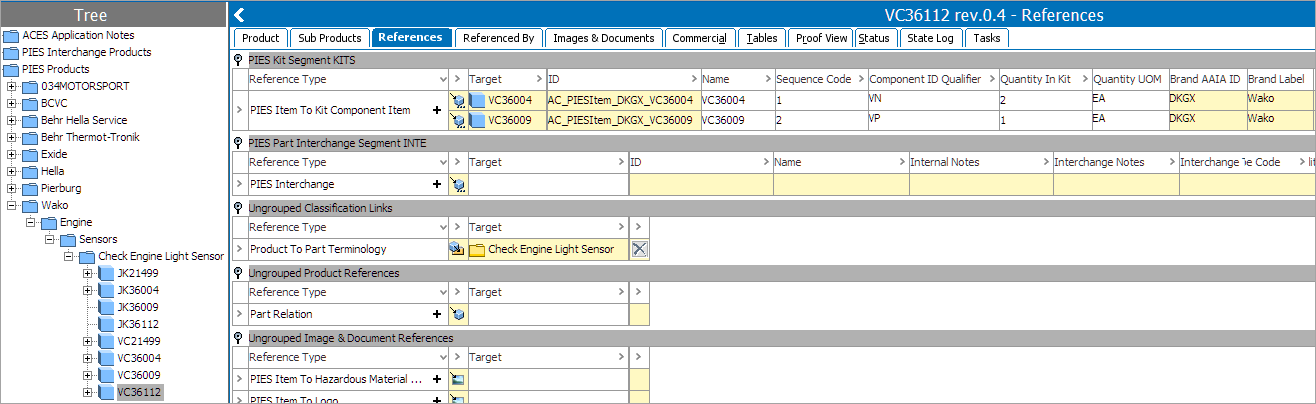
If the Kit object does not already exist in STEP, then the import will create the Kit as a PIES Item object type. And will establish a reference from the PIES Item to the Kit PIES Item through the 'PIES Item To Kit Component Item' reference type. The Kit Sequence, Quantity, UOM, and Qualifier is populated as metadata attributes on the Reference Type within the References tab.
A sample Kits Segment and a screenshot showing how it is populated on STEP is displayed below.
<Kits>
                <Kit MaintenanceType="A">
                    <ComponentPartNumber IDQualifier="VN">VC36004</ComponentPartNumber>
                    <ComponentBrand>DKGX</ComponentBrand>
                    <Description DescriptionCode="SHO" LanguageCode="EN">CKENGSENS</Description>
                    <QuantityInKit UOM="EA">2</QuantityInKit>
                    <SequenceCode>1</SequenceCode>
                </Kit>
                <Kit MaintenanceType="A">
                    <ComponentPartNumber IDQualifier="VP">VC36009</ComponentPartNumber>
                    <ComponentBrand>DKGX</ComponentBrand>
                    <Description DescriptionCode="SHO" LanguageCode="EN">CKENGSENS</Description>
                    <QuantityInKit UOM="EA">1</QuantityInKit>
                    <SequenceCode>2</SequenceCode>
                </Kit>
            </Kits>
Interchange Segment (INTE)
The Interchange Segment in PIES is used to relay interchange data for the PIES Item in relation to alternative Brand Owner Part Numbers. The Interchange part number is also known as Competitor / OE Number in STEP system. The segment is defined by the <PartInterchangeInfo> grouping element. Within <PartInterchangeInfo> is the <PartInterchange> element which contains the child segments that define an interchange. <PartNumber> element instance is repeated as many times as necessary to identify all components.
All interchange part numbers are defined by both the interchange part number and a 'Brand AAIAID'. The 'Brand AAIAID' value for the interchange supplier can be found in the Brand table.
As with some of the other segments described above, to express multiple interchanges for a PIES Item, the <PartInterchange> element is repeated as many times as necessary to identify all interchanges.
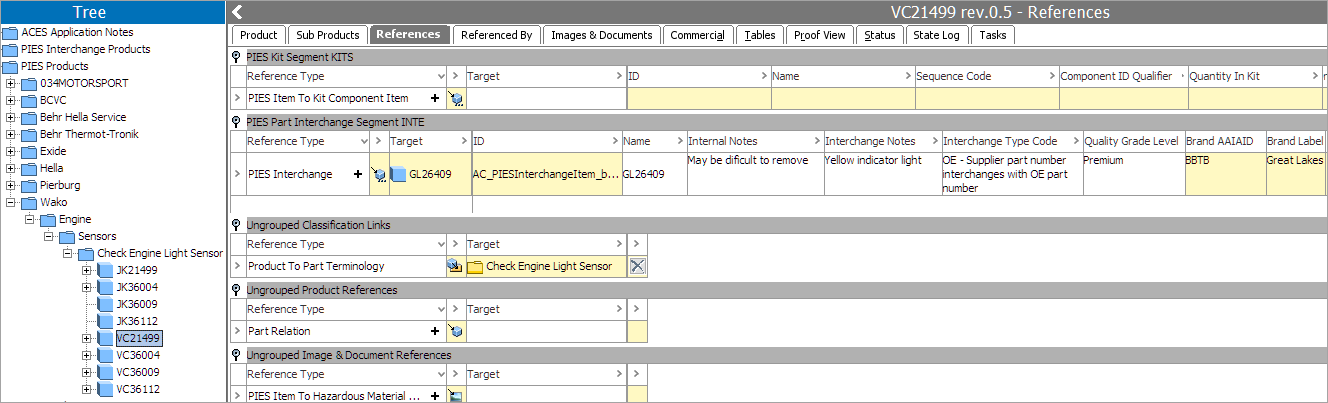
If the Interchange object does not already exist in STEP, then the import will create the Interchange object as a PIES Interchange Item object type. And will establish a reference from the PIES Item to the PIES Interchange Item through the 'PIES Interchange' reference type. The PIES Interchange data is populated as metadata attributes on the Reference Type within the References tab.
A sample Interchange Segment and a screenshot showing how it is populated in STEP is displayed below.
<PartInterchangeInfo>
                <PartInterchange MaintenanceType="A" LanguageCode="EN">
                    <TypeCode>O</TypeCode>
                    <BrandAAIAID>BBTB</BrandAAIAID>
                    <BrandLabel>Great Lakes</BrandLabel>
                    <PartNumber>GL26409</PartNumber>
                    <QualityGradeLevel>P</QualityGradeLevel>
                    <InterchangeNotes>Yellow indicator light</InterchangeNotes>
                    <InternalNotes>May be difficult to remove</InternalNotes>
                </PartInterchange>
            </PartInterchangeInfo>
Digital Asset File Information Segment (ASST)
The Digital Asset File Information Segment is used to relay information about many different media types which support the PIES Item. The 'Asset Type' field is used to identify what type of digital asset is being defined.
This segment is defined by the <DigitalAssets> grouping element. Below this element is the <DigitalFileInformation> element which contains corresponding child segments (fields) used to express the defined values for a digital asset. As with other segments, to supply information for multiple digital assets for a PIESItem, the <DigitalFileInformation> element and its child segments are repeated for each digital asset.
AutoCare Easy Setup creates the Asset Type attribute and LOV, and the PCdb importer populates the values for the LOV. Easy Setup also creates following six PIES asset object types:
- PIES Asset (General)
- PIES Hazardous Material Asset (AssetType = HMS)
- PIES Logo (AssetType = LGO)
- PIES Material Safety Data Sheet (AssetType = MSD)
- PIES Owners Manual (AssetType = OWN)
- PIES Product Image (AssetType = P04)
And following six Image and Document Reference Types:
- PIES Item To Hazardous Material Asset (AssetType = HMS)
- PIES Item To Logo (AssetType = LGO)
- PIES Item To Material Safety Data Sheet (AssetType = MSD)
- PIES Item To Owners Manual (AssetType = OWN)
- PIES Item To Product Image (AssetType = P04)
- PIES To Asset
Five asset types (HMS, LGO, MSD, OWN, and P04) will get its own object type and reference type, and all other asset types will be created as PIES Asset (General) object type and referenced using 'PIES To Asset' reference type.
A sample Digital Asset File Information Segment and a screenshot showing how it is populated in STEP is displayed below.
<DigitalAssets>
                <DigitalFileInformation MaintenanceType="A" AssetID="Asset456" LanguageCode="EN">
                    <FileName>VC21499_P04</FileName>
                    <AssetType>P04</AssetType>
                    <Representation>R</Representation>
                    <Resolution>96</Resolution>
                    <Background>CLI</Background>
                    <OrientationView>BAC</OrientationView>
                    <Details>Details/Description</Details>
                    <FilePath>images\SVlight.tif</FilePath>
                    <URI>www.stibo.com</URI>
                    <FileDateModified>2008-04-11</FileDateModified>
                    <EffectiveDate>2008-04-11</EffectiveDate>
                    <ExpirationDate>2012-04-11</ExpirationDate>
                    <Country>US</Country>
                </DigitalFileInformation>

            </DigitalAssets>
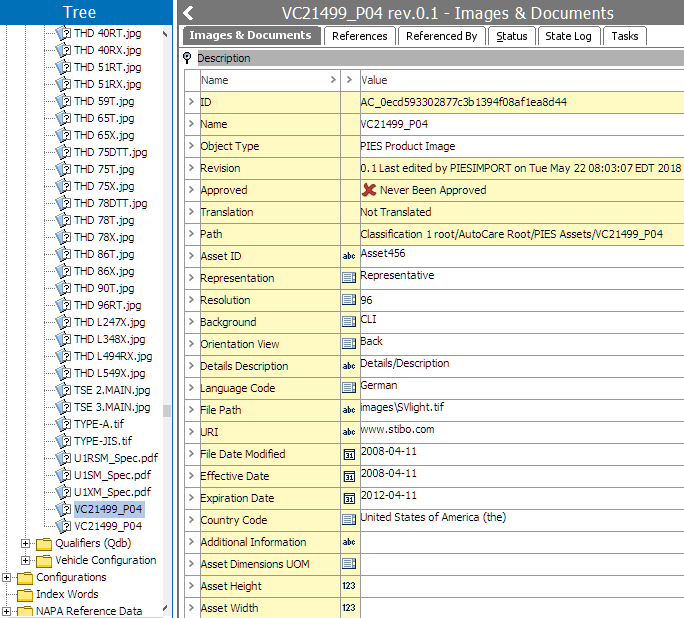
In the screenshot below, the Asset ID ‘VC21499_P04’ is linked to the PIES Item ‘VC21499’ via the reference type ‘PIES Item To Product Image.’
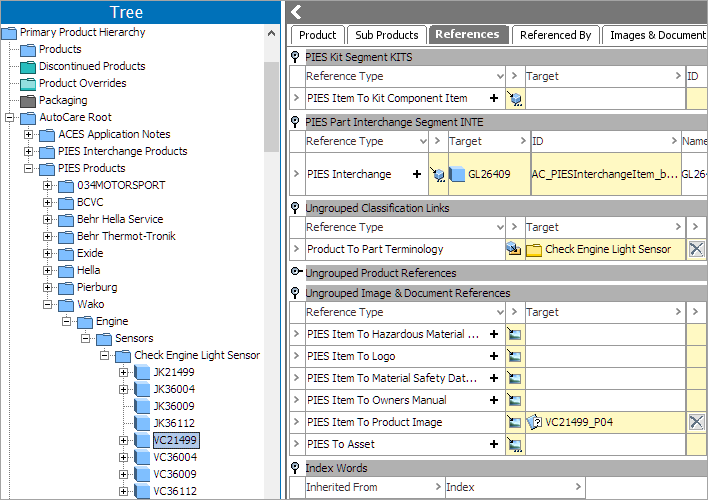
Asset details are populated as attribute values on the asset object (listed under the PIES Assets folder) based on the input data in the PIES file as shown in the screenshot below.
Output
Upon successful import, a PIES Item will be created / modified. The PIES Importer do not delete any PIES Item. The Importer marks the PIES Item as new, delete, or change through change flags.
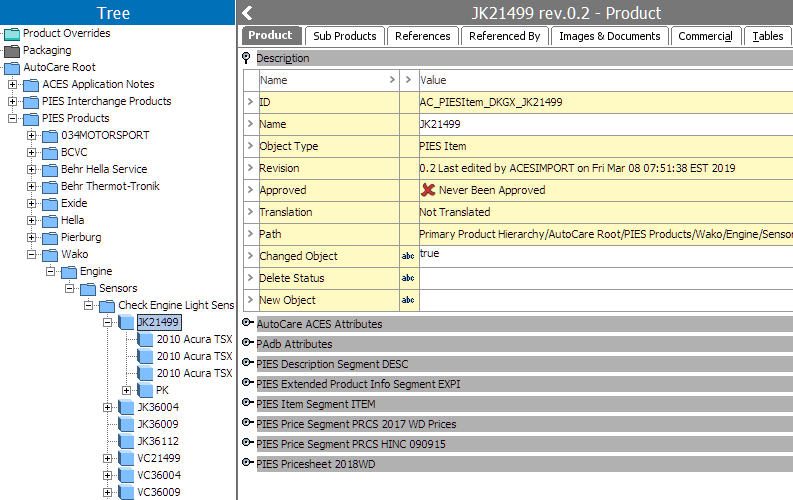
The <PartTerminologyID> within the <Item> segment is used to locate the Part Terminology in the PCdb classification. If the PartTerminologyID is found in the PCdb classification, then the importer will create the PIES Item under the same structure in the PIES Products Hierarchy for Brand, PCdb Category, PCdb Sub Category, and PCdb Part Terminology.
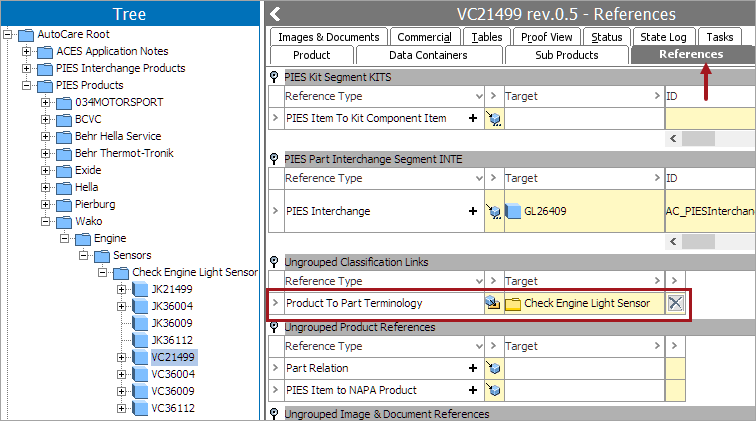
An example of PIES Item ‘VC21499’ (ID: AC_PIESItem_DKGX_VC21499) created under Object 'Check Engine Light Sensor' (ID: AC_PIESPCdbPartTerminology_5696_DKGX) with its various attribute values and reference type (as explained above) is shown below.
In addition, a reference will be established from the PIES Item to the Part Terminology using the 'Product To Part Terminology' reference type. This is done so that the PIES Item will display only the PAdb attributes that are valid for that Part Terminology.