When the Part Number References component is configured, Web UI users can create new competitor and/or OE part numbers for existing manufacturers and simultaneously reference them to a selected part.
When a part is selected within the Web UI Tree, STEP looks at the configured Reference Types and displays their targets, attribute values, and/or metadata via configurations within the 'Part Number References' Node Editor component. Whether or not references are displayed, at a minimum the blank typeahead field will display, prompting users to 'Enter a manufacturer name and/or part number.' This typeahead field can be used to access the 'Create New Part' dialog where users can create a new part number for an existing manufacturer and reference it to the selected part. This typeahead field can also be used to quickly select an existing part number to be referenced. For more information, refer to the Adding Part Number References Manually topic.
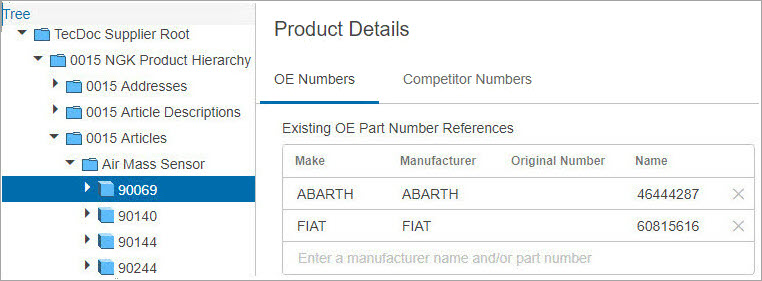
In the example below, part '90069' is selected within the Web UI Tree, and an 'OE Numbers' tab is configured to display results for 'Existing OE Part Number References.' Within the results, two part numbers display with different Makes and Manufacturers, along with the blank typeahead field that prompts users to 'Enter a manufacturer name and/or part number.'
Note: Though a new part number can be created using the Create New Part dialog, a new manufacturer name cannot be created.
When the manufacturer name exists in STEP, but the part number does not, users can type at least two letters of the beginning of an existing manufacturer name, and the dropdown list will display a list of manufacturers and their part numbers.
In the example below, 'lan' is typed in and the typeahead suggestion list displays the matching manufacturer name, part numbers, and a 'Create new' button.
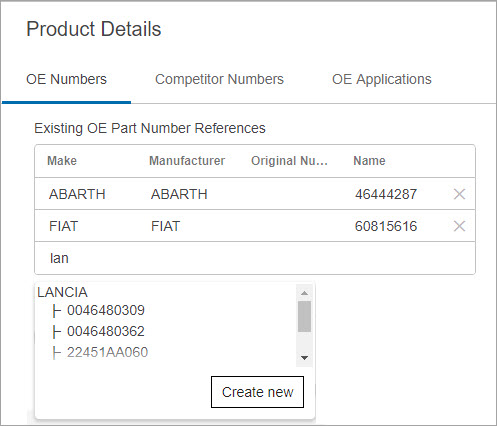
Clicking on a manufacturer name in the dropdown list, or using the arrow keys to navigate to the desired manufacturer name and pressing the Enter key, or clicking the 'Create new' button will display the Create New Part dialog with the Manufacturer Name field pre-populated (as shown below).
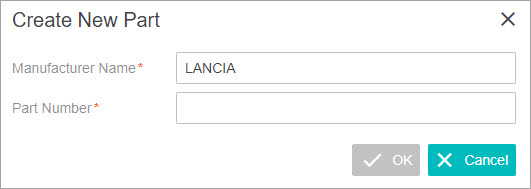
Once the Create New Part dialog displays, the Part Number field must be populated before the OK button will enable.
Optionally, the text within the pre-populated Manufacturer Name field can be edited. Typing text into this typeahead field will display a list of existing manufacturer names that begin with the provided text.
Once a part number is typed into the Part Number field and the OK button is clicked, the new part number is added to STEP and displays at the top of the references list.
If the Manufacturer name cannot be found, a warning dialog will display, as shown below.
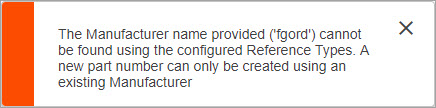
Additionally, if the attribute configured within the 'Original Number Attribute' parameter is not valid for the object type used for the new part number created, a warning dialog will display (as shown below). For more information, refer to the 'Original Number Attribute' parameter within the Configuring the Part Number References Component topic.

If the Part Number References list / Part Number Suggestions list is configured to display attributes of Competitor / OE Part Number, those attributes values (whether single valued or multi- valued) can only be displayed and cannot be edited in the Part Number References list / Part Number Suggestions list. To edit any Competitor / OE Part Number attribute value, users should navigate to the Competitor / OE Part Number using the Web UI tree.
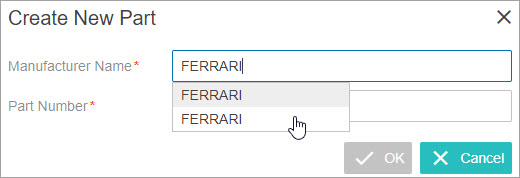
When more than one manufacturer with same manufacturer name exists in STEP but different IDs, the typeahead field cannot determine the actual manufacturer and so does not auto populate. In this case, the system assumes the value should be created as the new part number. When users access the 'Create New Part' dialog, they can choose the desired manufacturer and type in the correct part number.
For example, let us consider that there are two existing manufacturers with the name 'Ferrari' present in STEP. STEP cannot auto populate the Manufacturer Name field with 'Ferrari.' However, within the 'Create New Part' dialog, users can retype the manufacturer name and select the correct instance of 'Ferrari.'
Note: To ensure users are able to easily distinguish the correct manufacturer name, be sure the manufacturer names within STEP are unique.
Normalization / Harmonization of Part Numbers
When the Create New Part dialog is used, part numbers created using special characters, spaces, and/or non-ASCII characters are normalized / harmonized to use alphanumeric characters only. The original part number can be stored (and searched for) within a separate attribute value configured within the Part Number References 'Original Number Attribute' parameter. For more information, refer to the Configuring the Part Number References Component topic.
In the example below, a new part number '12ET00@#12/*2' is created and then normalized / harmonized to '12ET00122.' The actual value '12ET00@#12/*2' is retained in the attribute 'ATTR_Original.'
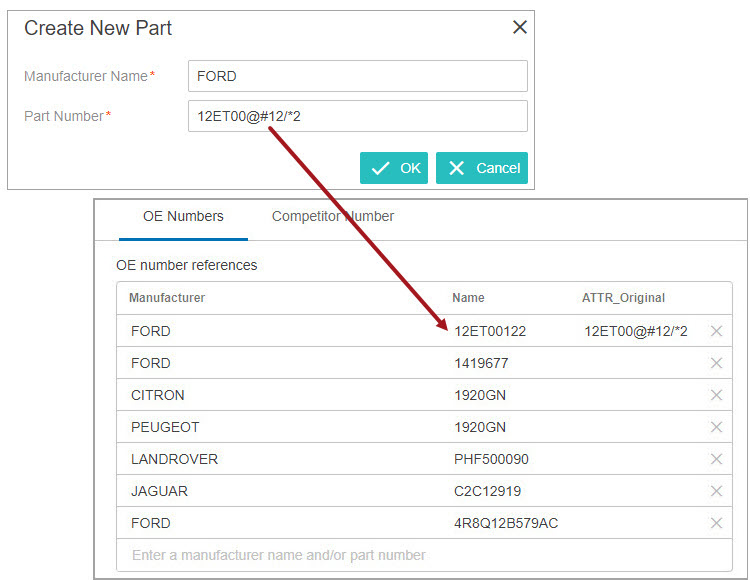
The original number can sometimes have illegal characters or spaces, the original value can be stored but a normalized value can also be stored and displayed along with the original value.
Once a new competitor and/or OE part number is created, a business action can be executed if configured. The business action must be valid for the following standards: AutoCare, TecDoc, and NAPA.