The top half of the Application Manager screen offers features related to the intelligent search interface. The bottom half of the screen is dedicated to the search results table and its toolbar. For more information about the Results Table, refer to the Results Table and Toolbar topic. This section provides an overview of the interface, and then addresses the following:
- Using Intelligent Search Interface
- Saved Search Tool
- Missing Application Coverage Functionality
- Application Coverage Report
Intelligent Search Interface Overview
The intelligent search interface of an Application Manager screen is composed of the following:
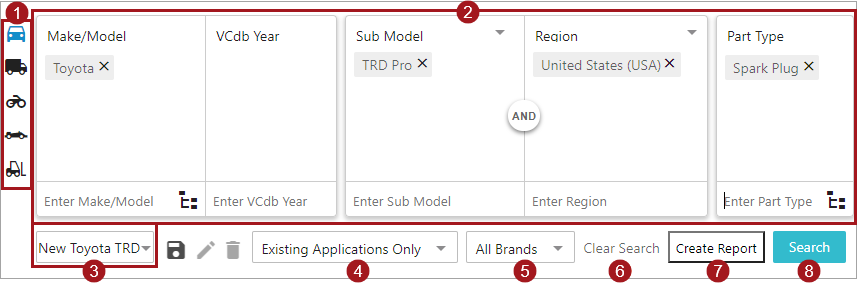
- Vehicle type icon: A visual representation of the 'Vehicle Type Search Panel' contents. Clicking a vehicle type icon displays the configured Vehicle Type Search Panel for the vehicle type (i.e., Personal Cars, Buses, Marine, Street Bikes). Hovering over the icon will display the name configured for the Vehicle Type Search Panel. Each Application Manager must have at least one vehicle type icon. Whenever there are more than five vehicle type icons, an ellipsis button will be shown below the fifth icon that allows users to view more Vehicle Type Search Panels. For a list of available icons, and more information about the Vehicle type icon, refer to the Configuring Application Manager topic.
- Search Boxes: This search section can be made up of five available 'search box types' (Make/Model, Attribute, Options Group, Part, and Part Type). Because many of the search boxes are synchronized, search criteria can be entered into any one of the search boxes in any order, and the available search criteria will display in the typeahead dropdown based upon the criteria entered within the other search boxes. For more information on using the Search Boxes within the Vehicle Type Search Panel, refer to the Using Intelligent Search Interface topic.
- Saved search tool: Allows users to save previously selected search criteria with custom names, and then quickly populate previously saved search criteria by selecting the name of a saved search from the saved search dropdown. The tool consists of a saved search dropdown field, as well as Save, Rename, and Delete icons. For more information about the saved search tool, refer to the Saved Search Tool section.
- Existing and missing applications dropdown: Allows users to determine if their search should or should not contain missing applications. To search or report on missing applications, users can select either the 'Missing Applications Only' or 'Existing and Missing Applications' options from the Existing and Missing Applications dropdown. Additionally, users can select the 'Existing Applications Only' option, if the desired results should only display existing applications. For more information about missing applications, refer to the Missing Application Coverage Functionality topic.
-
Hierarchy Restriction dropdown: Allows users to restrict the Application Manager search results by object type. Users can select from a pre-configured dropdown list of object types. This can be helpful when search results needs to be filtered by Brand, Manufacturer, OEM, Product Line, etc. When the parameter is blank, the Hierarchy Restriction dropdown will not display within the Application Manager. In other words, this option can be removed from an Application Manager screen by removing all object types from the Hierarchy Restriction Object Types parameter. For more information, refer to the Configuring Application Manager topic.
Note: Both the 'Existing and missing applications' and 'Hierarchy Restriction' dropdowns are tied to the Vehicle type icon. Each time a Vehicle Type icon is selected, the two dropdowns will reset to their defaults ('Existing Applications Only' and 'All Brands').
- Clear Search link: Allows users to easily clear all search criteria, results, and filters applied to Results Table. The Clear All link remains disabled until at least one criterion for one of the search boxes is populated. When text is typed into a search box, but is not yet selected, clicking the link will also remove the text typed into the search box. Additionally, criterion can be cleared one at a time by clicking the 'X' to the right of a value within a search box. Clearing criteria in either way does not update the search results. Once any unnecessary criteria are removed, the Report or Search buttons must be used to update the results table.
- Application Coverage Report button: This action button has the ability to do the following functions:
- Allows users to export an Application Coverage Report in an Excel spreadsheet (XLSX file type)
-
Allows users to export a report of invalid application records in an Excel spreadsheet (XLSX file type) and initiate the invalid application records into a workflow
This report provides results based upon the combination of the search criteria, Existing and Missing Applications dropdown, and Brand dropdown selections. Because this report is built to work with the intelligent search interface of the Application Manager, it is extremely configurable. This allows users the flexibility to choose the report criteria that best suits their needs on demand, and then easily export the search results. The Report button remains disabled until at least one search box is populated. For more information, refer to the Application Coverage Report topic.
Note: When the results table is populated, and one or more criteria are changed, clicking the Search button will initiate a new search and the results table will only display results related to that search.
-
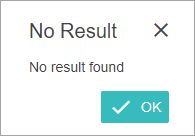
Search button: When clicked, the Search button will use the criteria provided within the search boxes, selections made within the Existing and Missing Applications dropdown, and/or Brand dropdown, and then provide any results in the results table. The Search button remains disabled until at least search boxes is populated. Requiring only one criterion within the Make/Model, Part Type, or Options search boxes, allows users to conduct very broad searches. For example, to view existing applications for Spark Plugs, type 'Spark Plugs' into the Part Type search box. With 'Existing Applications Only' selected, click the Search button to display all the existing applications for Spark Plugs in the results table. However, to view missing applications, this type of broad search would be very time consuming, therefore it is recommended to use additional search criteria, or use the Application Coverage Report button, instead of the Search button. When the Search button is clicked, and no results are available, a 'No Result' dialog will display, as shown below. Clicking the OK button closes the dialog, and allows the remaining search criteria to be adjusted.