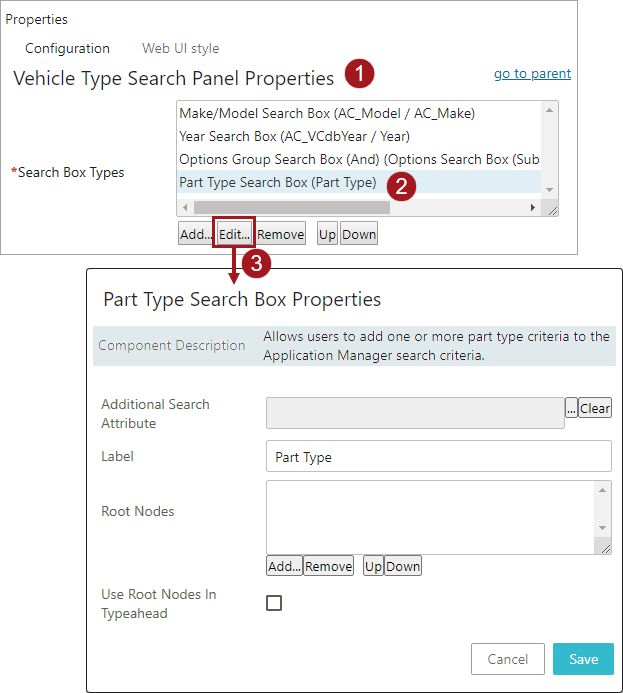
Because the Part Type search box type does not require additional configuration, it can quickly be added to the Search Box Types parameter within the Vehicle Type Search Panel Properties dialog by following the steps listed below:
- From the Vehicle Type Search Panel Properties dialog, click the Add button below the Search Box Types parameter field, and the Add Component dialog will display.
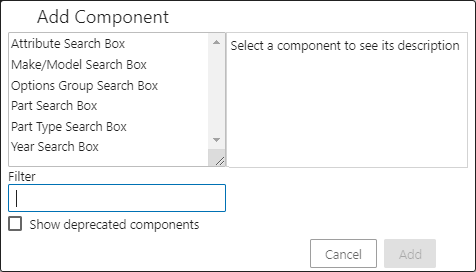
- Click Part Type Search Box from the list of components.
- Click the Add button, and the Vehicle Type Search Panel Properties will display with the Part Type Search Box added to the Search Box Types parameter.
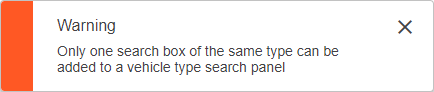
Because each search box type can only be configured once for each Application Manager, if a second search box of the same type is added, a Warning dialog will display as shown below, and the Search Box Types parameter will remain unchanged.
Editing the Part Type Search Box Label
The Part Type search box label displayed within the Application Manager can be edited by following the steps listed below:
- Go to the Vehicle Type Search Panel Properties for the Application Manager.
- Within the Search Box Types parameter, select the Part Type Search Box.
- Click the Edit button, and the Part Type Search Box Properties dialog will display as shown below.
- Edit the following parameters as necessary.
- Additional Search Attribute: This optional field allows users to add attribute criteria to their search. All attribute validation base types (e.g., Text, Number, List Of Values) are allowed. Click the ellipsis button (
 ) to find and select the attributes. The selected attributes must be valid for the Part Type object type, and the attribute value must be populated on the part type in order for it to display correctly in the typeahead search field.
 - Label: By default, the Label parameter is populated as 'Part Type.' Optionally edit the parameter to a more suitable label.
- Root Nodes: Allows for the restriction of root nodes to be used within the Part Type search box when searching / filtering for a Part Type. Once the root node(s) is defined, the search input field displays only suggestions of objects that belong in the root node defined within this parameter. Additionally, when the Node Picker is used, its dialog will display the only those classification folders that pertain to the root nodes defined within this parameter. Click the Add button below the parameter field to browse or search for the necessary vehicle root node object(s).
- Use Root Nodes In typeahead: Selecting this parameter allows the display of suggestions in the typeahead field of only those objects that belong in the root node defined within the Root Nodes parameter. However, the user needs to be aware that the selection of this parameter would affect the performance of the display of suggestions in the typeahead field.