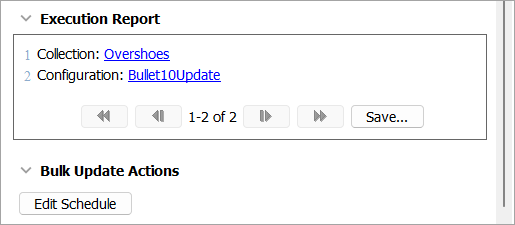
Collections are often used as filters on status selectors, though to refresh a collection in the Web UI you must go to the collection directly to refresh it in Web UI without going to the collection directly. This can be accomplished by going to the collection content screen directly or via a scheduled bulk update. Using a scheduled bulk update you can control the amount and frequency of the collection refresh processes.
For more information on status selectors, refer to the Status Selector Homepage Widget topic in the Web User Interfaces documentation.
Important: Consider the time zone of the application server compared to that of the workbench (the client) where the schedule is created or viewed. When scheduling a job, the local time zone is displayed in the workbench, but the time zone of the server is used to run the background process. Although displayed, the time zone of the client is not included in the instructions to the server to run the job. This can cause confusion about when the job will run since the scheduled time is not automatically converted to accommodate potential differences in time zones.
To schedule a collection refresh, follow the directions below:
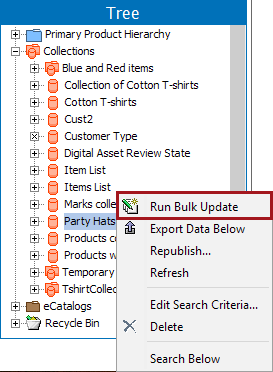
- In the workbench, right-click the desired collection and click Run Bulk Update.
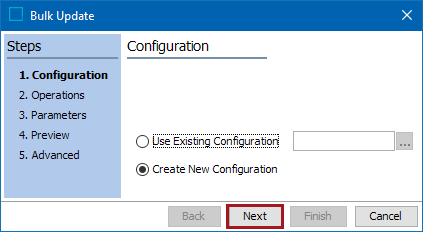
- In the Bulk Update dialog, select Create New Configuration and click Next.
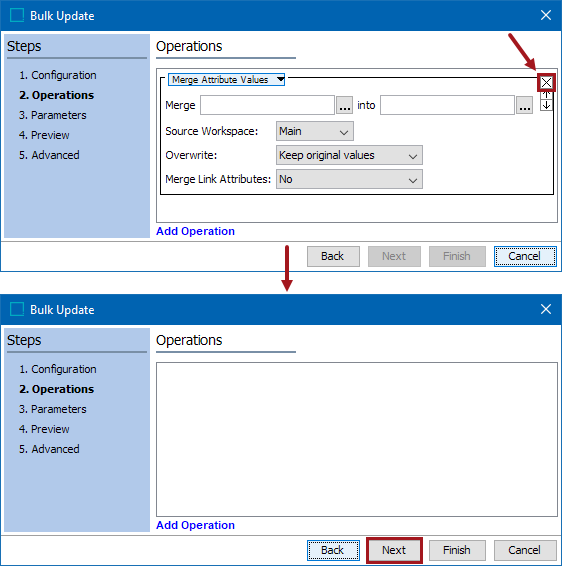
- In the Operations step, remove the default operation and proceed with no operations selected and click Next.
- Click Next to display the Advanced step, check the Save Configuration option, click the ellipsis button (
 ) to select a location and name for the configuration.
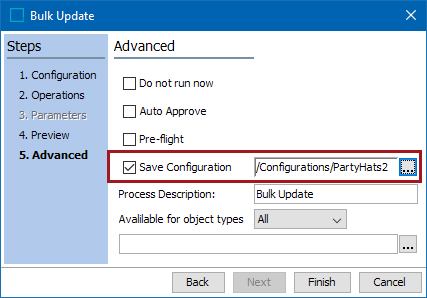
Once complete, this will trigger
- Click Finish. The background process runs but does not make any changes. View the background process or close the dialog.
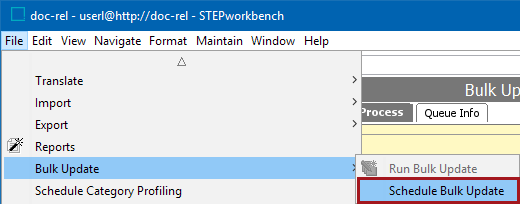
- On the File menu, select Bulk Update and Schedule Bulk Update.
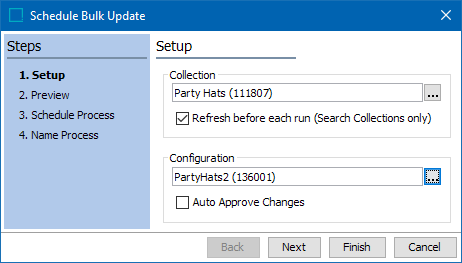
- Select the relevant collection, check the refresh option, and select the bulk update configuration that you created.
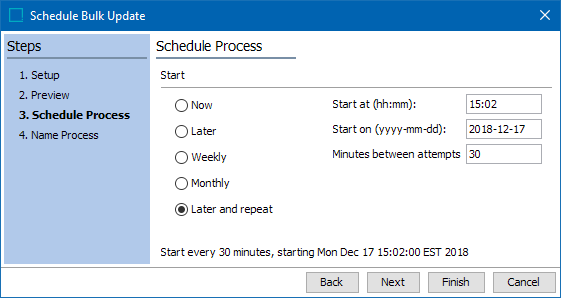
- Click Next until the Schedule Process step displays. Select the Later and repeat option and specify the interval at which the update should be run.
- Click Next and then click Finish to complete the scheduling wizard.
Editing a Scheduled Bulk Update
To change the schedule for the Bulk Update:
-
On the BGProcesses tab, select the scheduled bulk update.
-
In the Bulk Update Actions section, click the 'Edit Schedule' button to reopen the 'Schedule Bulk Update' wizard on the 'Schedule Process' step. Modify the schedule as needed. The changes will be applied to the next scheduled run.