Power BI supports three different levels of filters that can be applied to reports: report level, page level, and visual level. To simplify the Web UI configuration, only report level filters are supported, which are filters that apply to the entire report. Power BI filters information on a dataset, and the filters that are passed from STEP to Power BI at report load time are in JSON format.
Note: Filter panels are only applicable to reports; dashboards and tiles do not support filter panels.
On Power BI screens and widgets that display Power BI reports, JSON filters allow you to specify additional filters beyond the standard filters configured in Power BI. On screens that show reports, the filters can be shown in the optional Power BI 'Filters' pane on the right side of the page.
Note: To filter data based on user permissions, e.g., to ensure that the logged-in user only accesses data that is relevant to them, you must use row-level security (RLS). For more information, refer to the Power BI Row-Level Security topic.
This topic describes several examples of JSON-formatted filter strings that can be placed into the 'JSON parameters and Filter String' field in the Web UI designer when configuring a report display for a Power BI screen. For more in-depth details on configuring report filters for Power BI, refer to the following Microsoft help documentation: https://github.com/Microsoft/PowerBI-JavaScript/wiki/Filters.
Example Filters
Report-level filters support the following types: Basic Filter, Advanced Filter, and Relative Date Filter. The exact format for filters is defined by Microsoft. For more information, refer to: https://microsoft.github.io/powerbi-models/interfaces/_models_.ifilter.html.
When no JSON filter is specified in the Web UI screen configuration, the Power BI filter pane appears as in the following screenshot. The filter parameters shown in the filter pane are only those that are configured on the Report within the Power BI application.
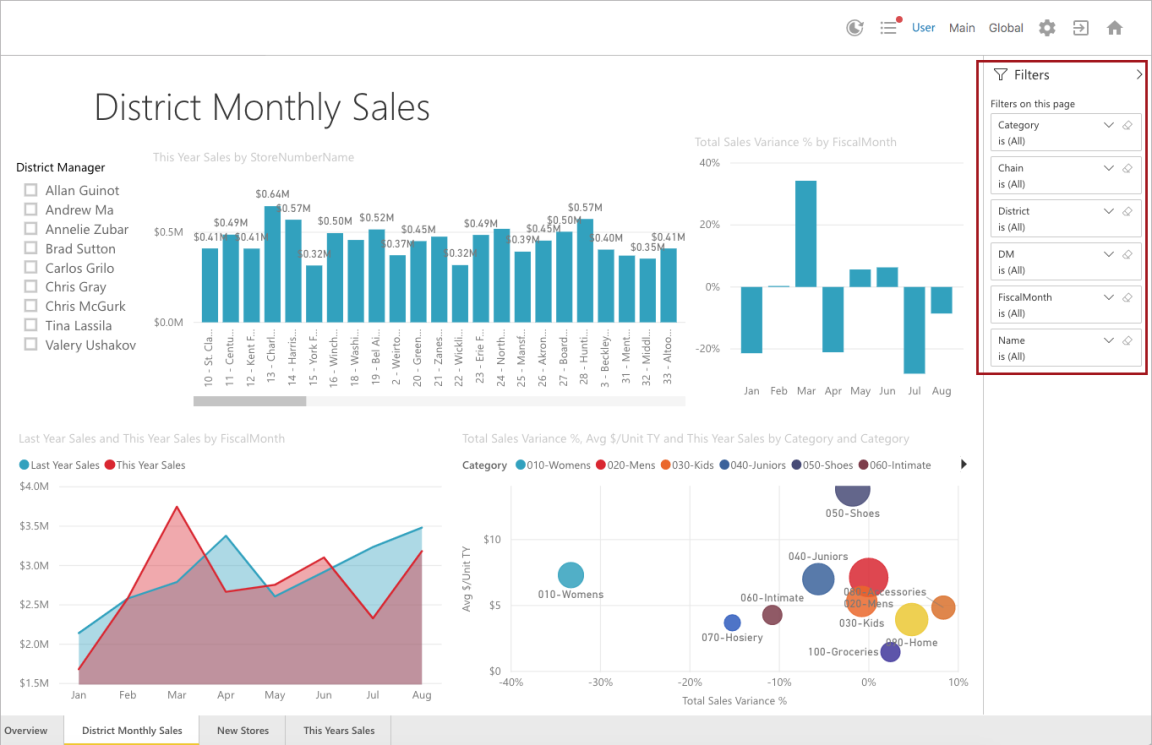
When JSON filter panes are specified in the Web UI screen configuration, additional Power BI report-level filter parameters are added to the filter panel with the relevant value(s) preselected.
Note: Users can deselect the values and show the unfiltered results.
Basic Filter
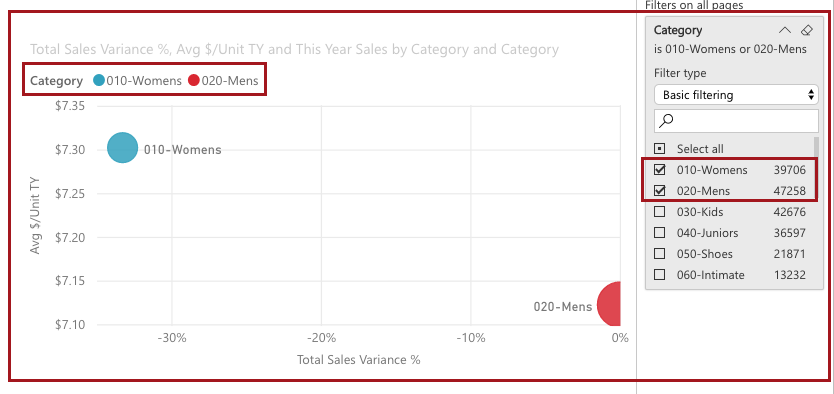
The following string creates a simple Power BI filter that only includes data if the value in the 'Item' table / 'Category' column is either 010-Womens or 020-Mens.
{
  "target": {
    "table": "Item",
    "column": "Category"
  },
  "filterType": 1,
  "operator": "In",
  "values": [
    "010-Womens", "020-Mens"
  ]
}
As shown in the following screenshot, the string has created a 'Category' filter pane with basic filtering that automatically filters data on the 010-Womens and 020-Mens categories.
Basic Filter - Select All
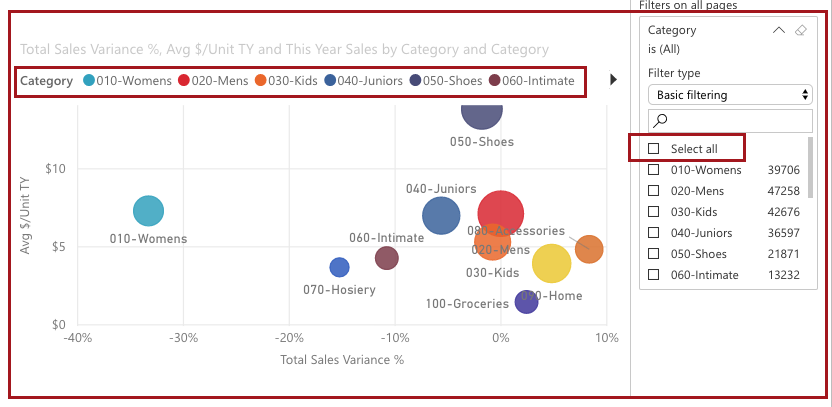
The following basic filter string uses the 'All' operator, which will cause all entries in the 'Item' table / 'Category' column to contribute data to the report. It is effectively a 'Select All' filter.
{
  "target": {
    "table": "Item",
    "column": "Category"
  },
 "filterType": 1,
 "operator": "All",
 "values": []
}
In the filter panel, data from all entries are displaying.
Note: In Power BI, the 'Select All' button is not activated when using this filter.
Advanced Filter
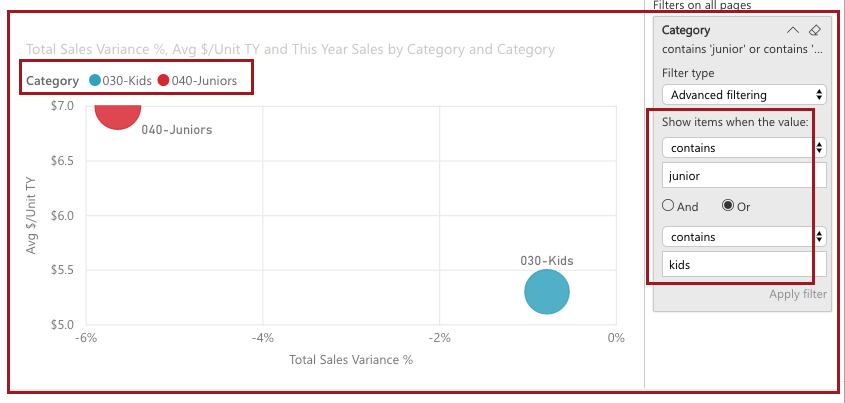
An advanced filter can contain operators and conditions. The below string creates a Power BI filter pane with advanced filtering that only includes data if the value in the 'Item' table / 'Category' column contains either 'junior' or 'kids.'
{
  "target": {
    "table": "Item",
    "column": "Category"
  },
  "logicalOperator": "Or",
  "conditions": [
    {
      "operator": "Contains",
      "value": "junior"
    },
    {
      "operator": "Contains",
      "value": "kids"
    }
  ],
  "filterType": 0
}
In the report sample shown below, this will match the values 030-Kids and 040-Juniors.
Advanced Filter - Is Blank
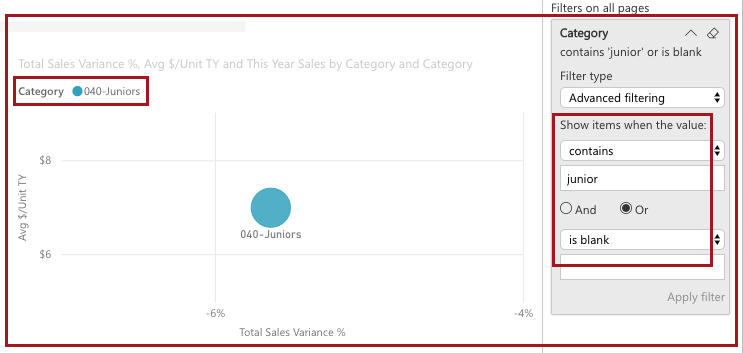
The following string creates a similar Power BI filter as the previous example, except the filter only includes data if the value in the 'Item' table / 'Category' column contains either 'junior' or is blank.
{
  "target": {
    "table": "Item",
    "column": "Category"
  },
  "logicalOperator": "Or",
  "conditions": [
    {
      "operator": "Contains",
      "value": "junior"
    },
    {
      "operator": "IsBlank",
      "value": ""
    }
  ],
  "filterType": 0
}
Relative Date Filter
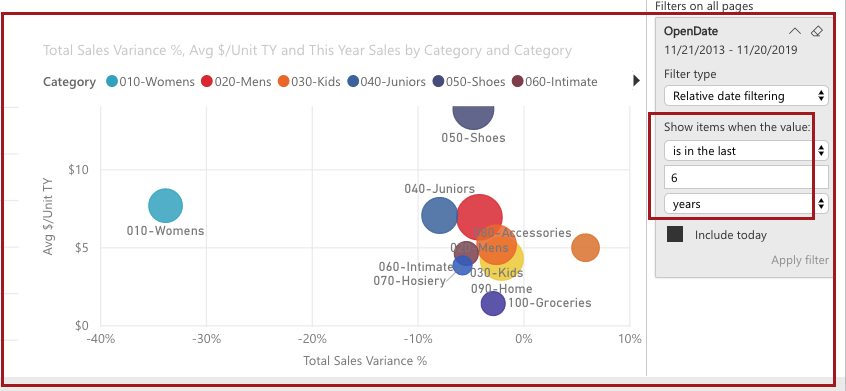
A relative date range is a period of time that is relative to the current date, e.g., last week, last month, or last year. The following string creates a Power BI filter pane that includes data if the value in the 'Store' table / 'OpenDate' column contains a value within the last 6 years.
{
  "target": {
    "table": "Store",
    "column": "OpenDate"
  },
  "operator": 0,
  "timeUnitsCount": 6,
  "timeUnitType": 5,
  "includeToday": true,
  "filterType": 4
}
Explanation of values:
- The operator field is set to 0, which is RelativeDateOperators.InLast
- The timeUnitType of 5 is RelativeDateFilterTimeUnit.Years
- The filterType of 4 is FilterType.RelativeDate
The filter displays as follows in the Web UI:
Example Web UI Report Filters
JSON filter strings like those described in this topic are placed into the 'JSON parameters and Filter String' field in the Web UI designer when configuring a Power BI screen or widget. One or more filters can be specified at the same time within this field. Multiple filters are defined as an array of filters. For additional information on configuring the Power BI Web UI Screen in the Web UI designer.
Single Filter
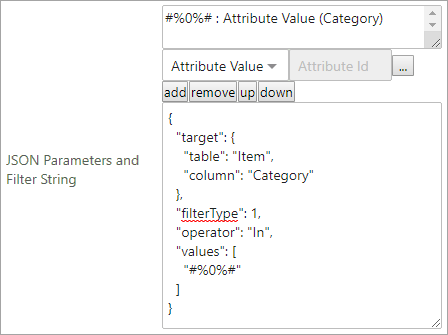
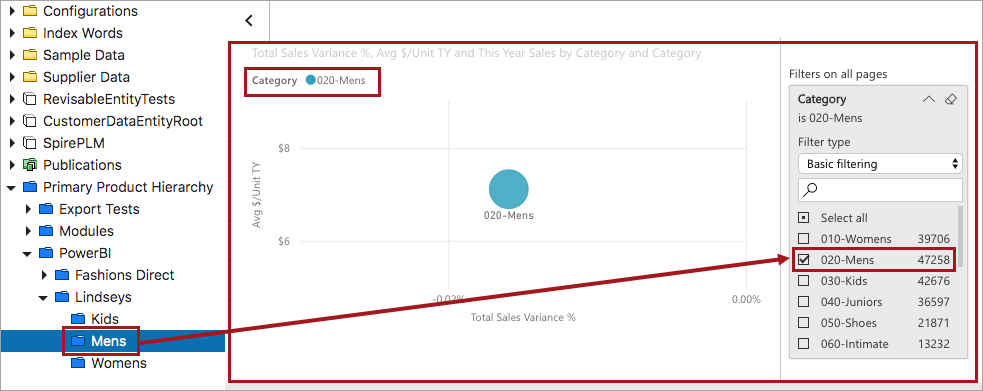
This sample shows a basic JSON filter string that is configured to have a dynamic value replacement in the form of a placeholder to fill in the 'values' field. The placeholder string #%0%# will be replaced with the value(s) for the attribute 'Category' for whichever node is currently selected in the Web UI. A screenshot of how the filter displays in the Web UI designer appears below the string.
Note: The placeholder string (e.g., #%0%#) is specific to STEP functionality and is not part of the schema as defined by Microsoft.
{
  "target": {
    "table": "Item",
    "column": "Category"
  },
  "filterType": 1,
  "operator": "In",
  "values": [
    "#%0%#"
  ]
}
Note: If you specify a basic filter with the operator set to either 'In' or 'NotIn', and the 'values' field contains no values or a single empty value, you are effectively setting a 'Select All' filter. To set a filter that only matches empty values, you will need to use an Advanced Filter set to 'is blank' instead.
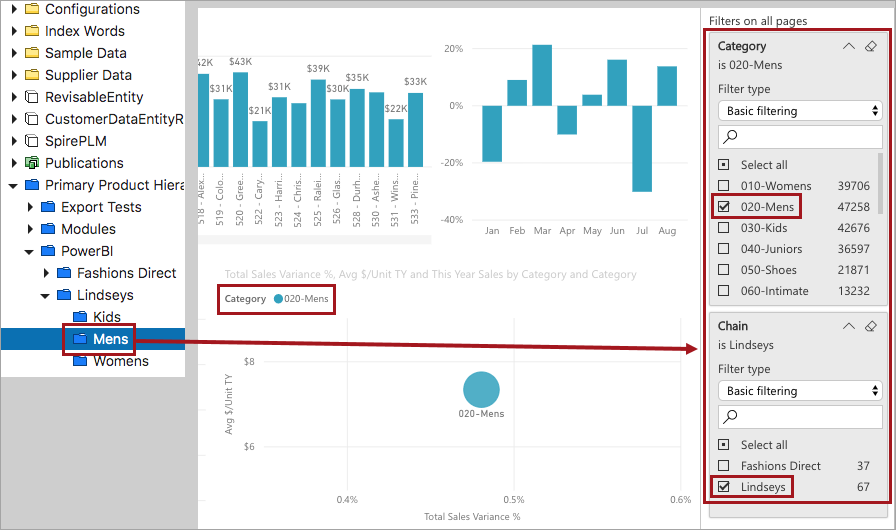
When the relevant product folder is selected in the Web UI on a Node Details screen, the attribute value for 'Category' is passed to Power BI to use in a filter on the 'Item' table / 'Category' column. In this instance, the value of 'Category' on the selected 'Mens' product node is '020-Mens.' This results in a filtered report with '020-Mens' preselected, as shown below:
Multiple Filters Defined in an Array - Hierarchical Example
Multiple filters are defined as an array of filters, as shown in the following example. Arrays of filters display within square brackets ([ ]) and are separated by commas. This example shows two basic filters in an array. The placeholders '#%0%#' and '#%1%#' will create filter parameters for the attributes Category and Brand Name. This array has two filters because the filtering is being done on two separate attributes.
[
   {
      "target":{
         "table":"Item",
         "column":"Category"
      },
      "filterType":1,
      "operator":"In",
      "values":[
         "#%0%#"
      ]
   },
   {
      "target":{
         "table":"Store",
         "column":"Chain"
      },
      "filterType":1,
      "operator":"In",
      "values":[
         "#%1%#"
      ]
   }
]
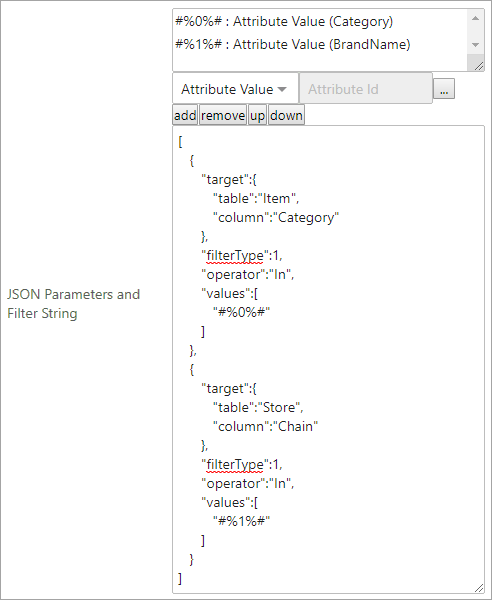
The example Web UI scenario for the above string is as follows:
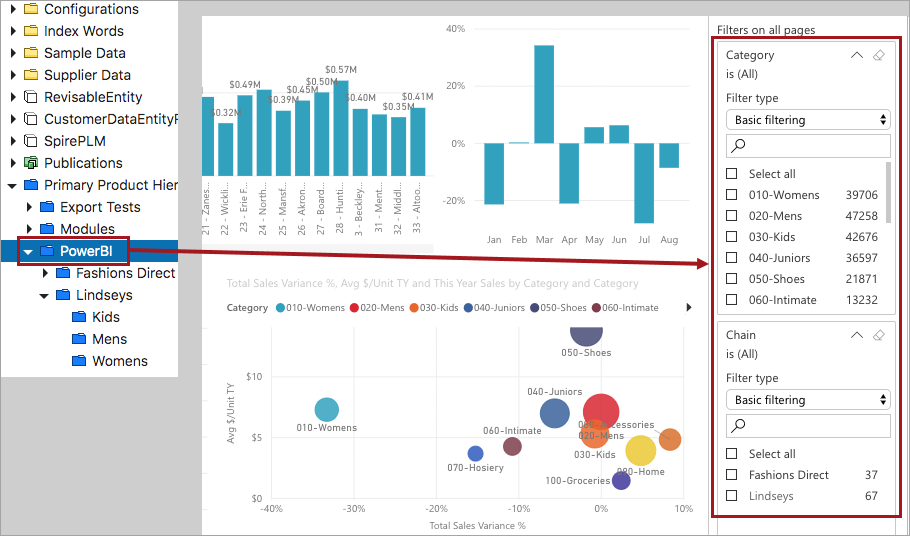
For a hierarchy of products, the report data at each level in the Tree should be further filtered to be more specific to the selected node. This is possible using basic filtering and attribute value inheritance. In this example, there is a folder hierarchy named 'Power BI' that contains two child folders: Fashions Direct and Lindseys. The Lindseys folder contains further category folders—Kids, Mens and Womens. When the Power BI folder is selected in the Web UI, it will display a report that includes all data—both Lindseys and Fashions Direct and all the category folders below them.
The Power BI product folder has no values for either the Brand Name or the Category attribute. When specifying a basic filter, if there are no values for the specified attributes, then the filter defaults to 'Select all.'
Note: In Power BI, the 'Select all' checkbox is not always selected when a filter is set to 'Select all.'
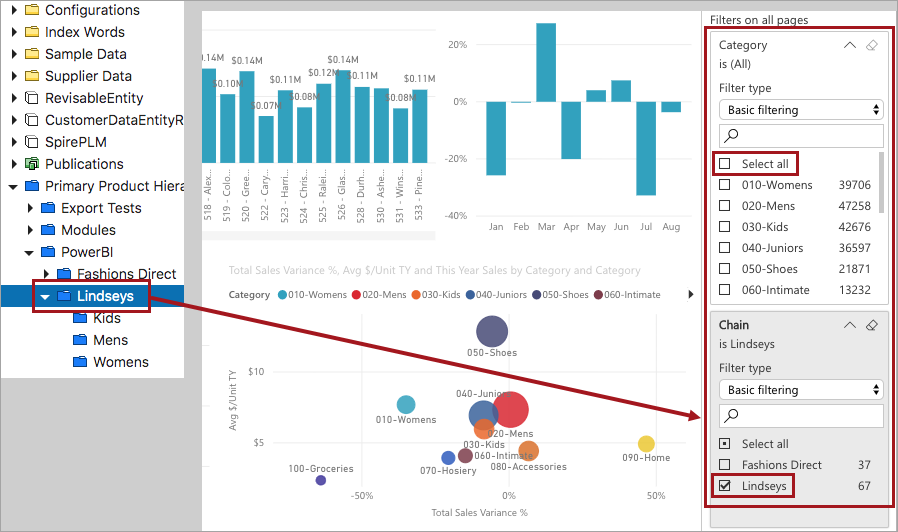
The Lindseys product folder has a value for the Brand Name but does not have a value for the Category attribute. This sets the filter to 'Select all' for Category and 'Lindseys' for Chain.
The Mens product folder has an inherited value for Brand Name (inherited from Lindseys) and also has a value for the Category attribute. When you select the Power BI > Lindseys > Mens folder, this sets the filter to 'Mens' for Category and 'Lindseys' for Chain.