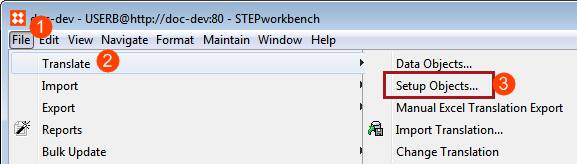
This guidance outlines how to create translation export files for Setup Objects, which refer to LOVs (or List of Values), attribute names, and units. Users who read this guidance should be able to create an export file for these setup objects, and understand how the content is displayed in the XML export file. For information on translating Data Objects, see the Starting a Structured Translation documentation here.
There are two kinds of objects that must be handled differently than all the others: LOVs, attribute names, and units. In STEP these kinds of objects are classified as setup objects. Setup objects do not register a translation status, meaning STEP does not track whether they are "Up to date" or "Re-Translation Needed". The primary reason for this is these objects are rarely translated more than once, negating any value that might come from tracking their status. For instance, the purpose of an LOV is to provide the user with a pre-set list of options that are common and recurring. Translating an LOV means that this list of common and recurring dropdown values is available in each target language. If the LOV is being translated again and again, it means the values in that LOV are either being changed or new values added frequently. If that is the case, it's likely the object should not be an LOV but rather a multi-valued attribute.
Because STEP does not track changes to setup objects, users must manually track any changes made to these objects.
Note: Although LOVs are classified as setup objects, users are able to track the translation status of LOVs.
Before setup objects can be exported for translation, some criteria must be met:
If these criteria are not met, these objects cannot be exported for translation. If these criteria are met, then they can be exported for translation either by using a Manual Excel Translation export or through creation of an XML file using the structures translation method.
The process required to initiate translation exports for setup objects is not significantly different from the process for data objects. With that in mind, listed below are the differences to consider when initiating translations for setup objects that make the process different from that of data objects.
 ) and navigate to the attribute or LOV group that you want to export for translation, and then click Next.
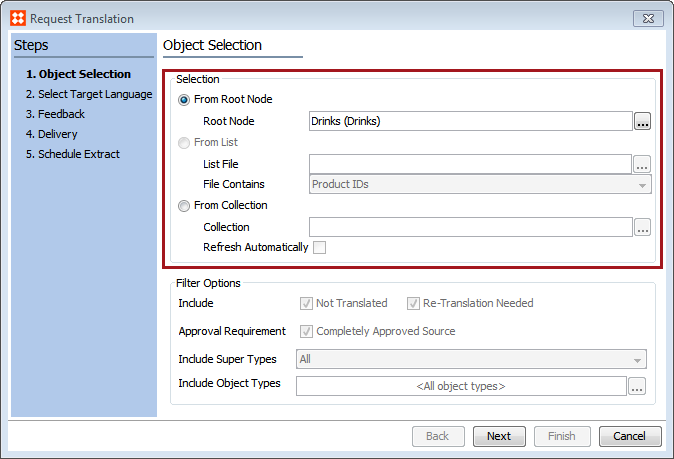
You may notice that if certain target languages are selected, additional languages will appear in brackets to the right of that language. If one language is used in two or more contexts (for example, the French language used in both the France_French context and the Belgium_French context), then all contexts associated with that language will be displayed in brackets.
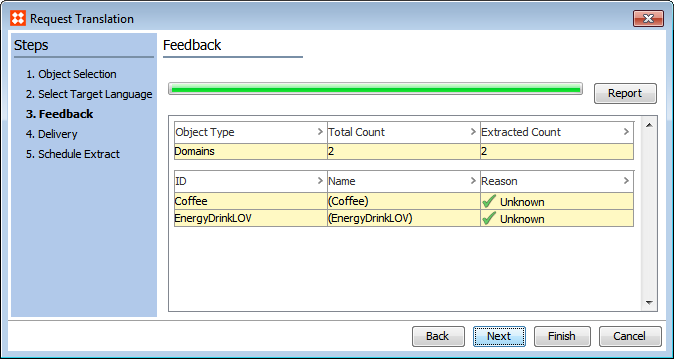
The structured translation will then export the data into an XML file.
Note: Setup objects cannot be exported into an Excel file using the structured translation method.
Displayed below is an example of an LOV and its three component values exported for translation. In this case, the LOV name is Colors, the target language is German, and the values (highlighted in yellow) are Yellow, Green, and Red. In this instance, these values are to be translated into German.
<STEP-ProductInformationTranslation ExportTime="2013-03-27 10:06:21" ExportContext="EN All All" ContextID="EN All All"
WorkspaceID="Main" wfmProcessTemplateName="Translation"
wfmProcessID="BGP_768298" translationTarget="German" PendingFileName="translation.xml">
<ListsOfValues>
<ListOfValue ID="Colors" UseValueID="true" AllowUserValueAddition="false" ParentID="List Of Values group root">
<Name>Colors</Name>
<Validation InputMask="" MaxLength="100" MaxValue="" MinValue="" BaseType="text"/>
<DimensionLink DimensionID="Language"/>
<Value ID="634592" QualifierID="en"><TranslatableText>Yellow</TranslatableText></Value> <Value ID="634593" QualifierID="en"><TranslatableText>Green</TranslatableText></Value> <Value ID="634594" QualifierID="en"><TranslatableText>Red</TranslatableText></Value></ListOfValue>
</ListsOfValues>
</STEP-ProductInformation>
Next, a translation vendor would receive this data, translate the data, and then send the updated XML file with the translated values back to user. Subject to how the workflow has been configured between the user and the translation vendor, the updated XML file is then imported back into STEP, and the translation of the setup data is complete.
Displayed below is an example of an attribute name and an attribute metadata value exported for translation (the text to be translated is highlighted in yellow). In this case, the attribute name is Color Attribute, and the metadata attribute is Description, for which the value is This color attribute is supposed to be used for cars.
<STEP-ProductInformationTranslation ExportTime="2013-03-27 10:06:21" ExportContext="EN All All" ContextID="EN All All"
WorkspaceID="Main" wfmProcessTemplateName="Translation"
wfmProcessID="BGP_768299" translationTarget="German" PendingFileName="translation.xml">
<AttributeList>
<Attribute ID="Color" MultiValued="false" ProductMode="Property" FullTextIndexed="false" ExternallyMaintained="true"
Derived="false" HierarchicalFiltering="false" Selected="true" Referenced="true">
<Name><TranslatableText>Color Attribute</TranslatableText></Name><ListOfValueLink ListOfValueID="Colors1"/>
<DimensionLink DimensionID="Language"/>
<MetaData>
<Value AttributeID="Description"><TranslatableText>This color attribute is
supposed to be used for cars</TranslatableText></Value></MetaData>
<AttributeGroupLink AttributeGroupID="AAKA1"/>
<UserTypeLink UserTypeID="Product"/>
<UserTypeLink UserTypeID="LATS_TEST_OT"/>
</Attribute>
</AttributeList>
</STEP-ProductInformation>
As with the LOV example, a translation vendor would receive this attribute name data, translate it, and then send the updated XML file with the translated values back to user. Subject to how the workflow has been configured between the user and the translation vendor, the updated XML file would then be imported back into STEP. The translation of the setup data is then complete.
2020, Stibo Systems – Confidential