Most content definitions used in tables are Product content definitions. A common table setup (for a horizontally read table) uses attribute content definitions for columns and product content definitions for rows.
Product content definitions can be applied to pull information from individual products or classifications, from the children or parents of these products / product-overrides / classifications, and more. The available product content definitions are:
Note: Any content definition that applies to products also applies to product-overrides.
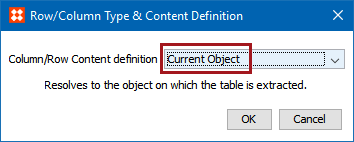
The Current Object content definition resolves to the object on which the table is extracted. You cannot point a current object row to a specific object. If you, for example, mount a table on the product 123-123 in InDesign, the current object resolves to 123-123.
In a horizontally read table, a current object row type is typically used with Attribute or Asset Reference column types to display selected attributes for the products in the rows.
The First Subproduct, Classification content definition will extract the first product or product family from either a specified classification node or dynamically from where the table is defined.
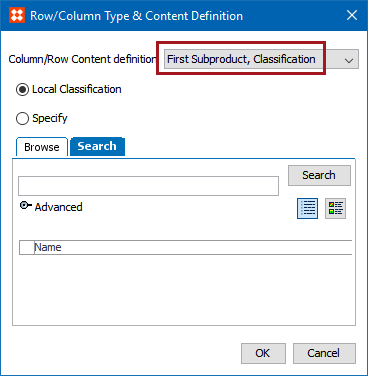
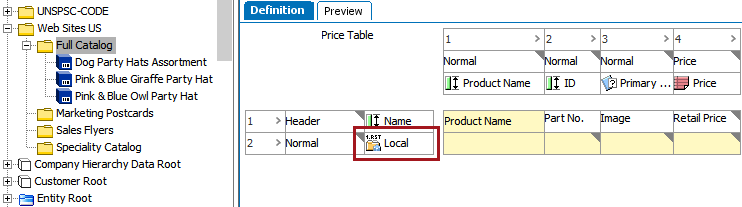
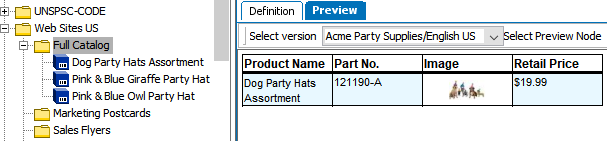
The First Subproduct, Family definition will insert the first child product under the family into the table. If you are already on the lowest level in the node, no product will show up in the table.
You are allowed to indicate at which level the products should be extracted and also if the intermediate levels should be included. You can also specify which Object Types should be extracted.
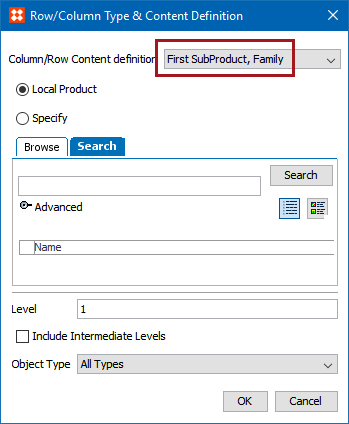
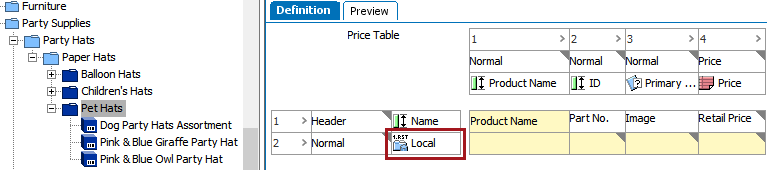
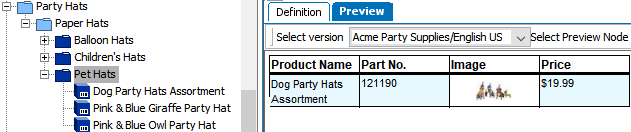
The first screenshot below shows how the content definition looks on the table on the Definition tab. The second screenshot shows the table on the Preview tab, which is only pulling the first subproduct.
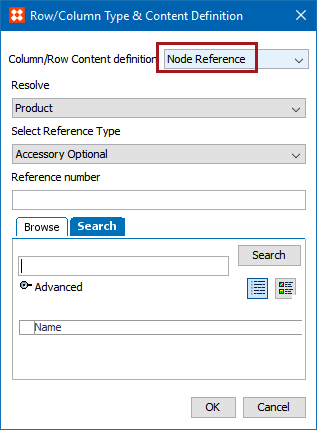
The Node Reference will insert a row or column in the table that resolves a reference for a product, classification, or asset.
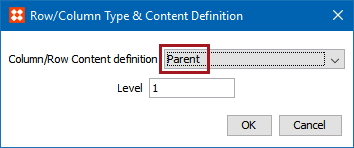
Pulls information from a Parent object. Enter a number in the Level field to determine how many levels up in the hierarchy to go to locate the parent.
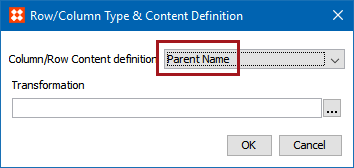
The Parent Name content definition extracts the name of the parent product of the selected product.
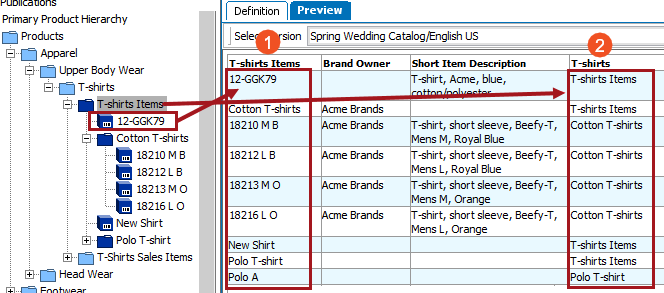
The parent name that is displayed comes either from the product or the classification hierarchy. Because product can be linked to both a product hierarchy and a classification hierarchy, the parent name depends on whether the product was inserted as a classification or a product.
To apply a transformation to the parent name value, click the ellipsis button ( ) in the Transformation field. For more information about applying attribute transformations to data in tables, see the Applying Attribute Transformations to Table Content topic here.
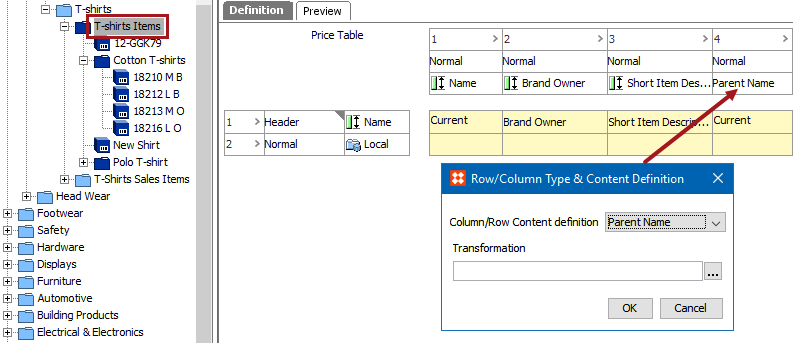
The first screenshot below shows the table on the Definition tab, with the Parent Name content definition applied in the last column. The second screenshot shows how the table looks resolved, on the Preview tab. The object name is extracted in the first column (1), and the names of the objects' parents are extracted in the fourth column (2).
The Product/Classification/Asset content definition enables you to select a specific product, classification, or asset. This selection is not dynamic; the content selection remains the same regardless of where the table is resolved.
In a horizontally read table, a Product/Classification/Asset row type is typically used with Attribute column types. For example, if you want to display the name of the object or selected attributes on the object.
If you select an asset, the asset itself (e.g., image) is not displayed in the target cells. However, if using the Attribute content definition for the column, you can display the name or the ID of the asset in the cell(s). Likewise, if you select a classification, you can let the target cells display the name or ID of the classification.
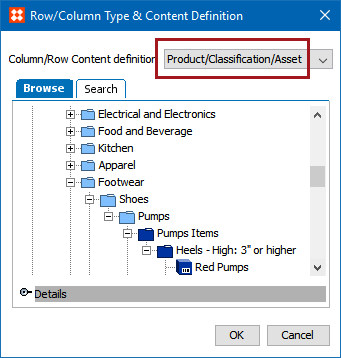
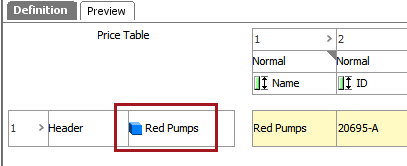
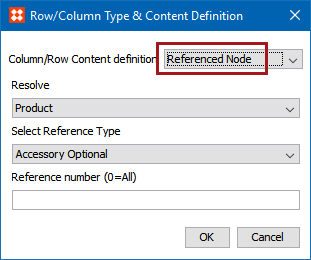
The Referenced Node content definition extracts values from a referenced product, classification or asset.
If the product that you have created the table on has a product reference to another product, adding a Referenced Node row type enables you to extract values from the referenced product. For example, a product 'AAA-100' has a product reference to another product, 'AAA-200.' The reference type is 'Accessory Optional.' Creating a table on 'AAA-100' with a row type 'Referenced Node' will allow you to extract values from 'AAA-200.'
Note: Using Reference node in tables will only bring you the referenced products from the current node. You will not be able to fetch the subproduct(s) referenced products using this functionality.
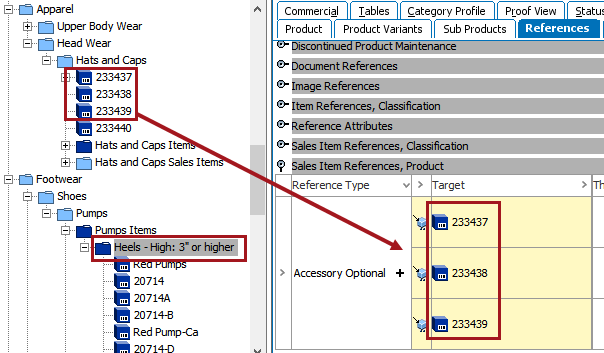
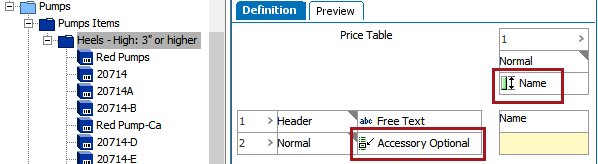
In the below example, the table will be resolved on the 'Heels - High: 3" or higher' product object. On the References tab, three products are linked from a different folder using the 'Accessory Optional' reference type.
A very simple table has been built that will pull the name of the objects that are linked using the Accessory Optional content definition.
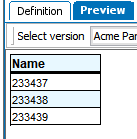
The resolved table lists the names of the referenced objects.
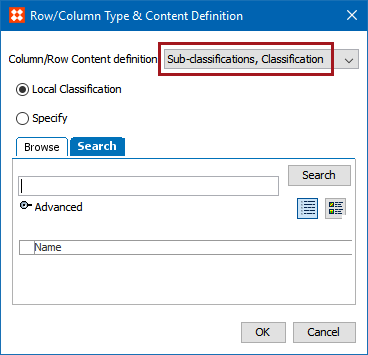
The Sub-classifications, Classification content definition works identically to the 'Subproducts, Classification' definition, except this definition displays sub-classifications instead of subproducts. See the following subsection, 'Subproducts, Classification' for more information.
The Subproducts, Classification content definition extracts all products that are children within a specific classification, either manually from a specific level in the classification hierarchy, or dynamically from where the table is defined.
When you have selected a level in a classification, a row is inserted in the table for each product that the classification contains. So, if a classification contains three products, three rows are added to the table, unless filtering options such as object type are applied (see steps below for more information).
In a horizontally read table, a Subproducts, Classification row type is typically used with Attribute or Asset Reference column types. You can, for example, use the Attribute column type to display selected attributes for the products in the rows.
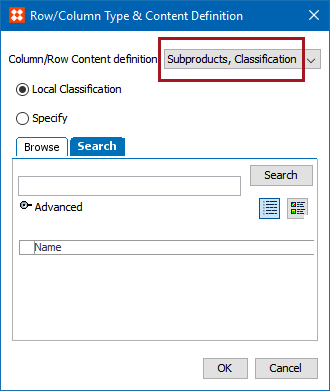
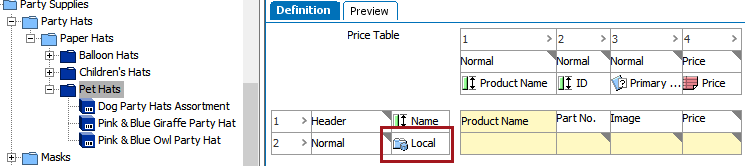
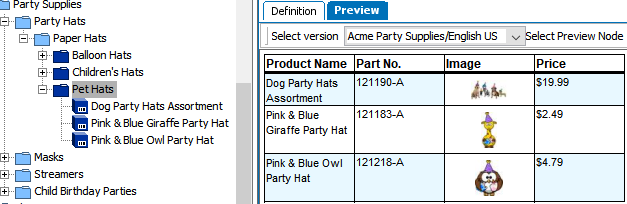
The first screenshot below shows the Subproducts, Classification content definition on the Definition tab. The second screenshot shows the resolved table on the Preview tab, with one subproduct per row.
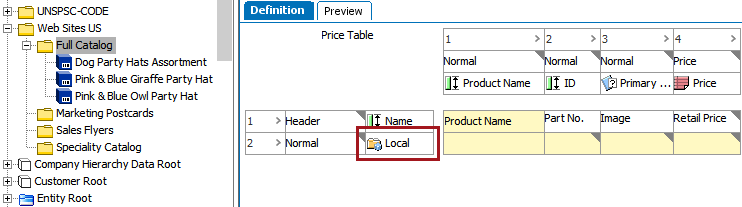
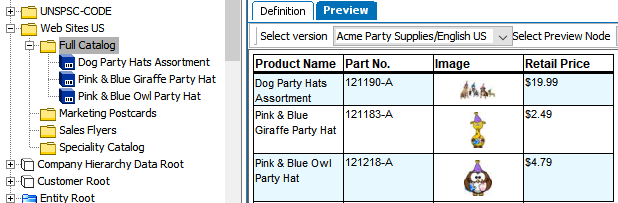
Use this when you want to extract all products contained within the selected level in the product hierarchy.
The Subproducts, Family content definition extracts product families either manually from a specific level in the product hierarchy or dynamically from where the table is defined.
When you have selected a level in the product hierarchy, a row is inserted in the table for each product that the product level contains. So if a product level (family) contains three products, three rows are added to the table, unless filtering options such as object type are applied (see steps below for more information).
In a horizontally read table, a SubProducts, Family row type is typically used with Attribute or Asset Reference column types, for example, if you want to display selected attributes or images for the products in the rows.
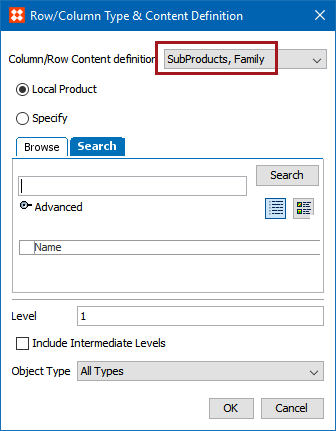
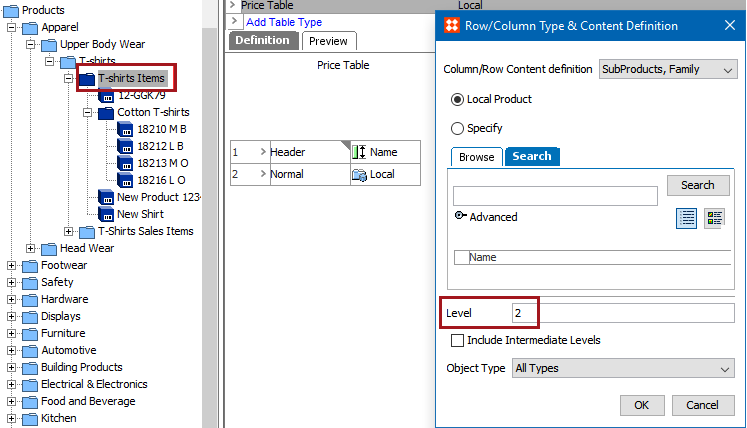
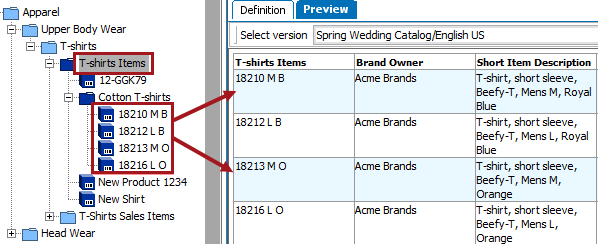
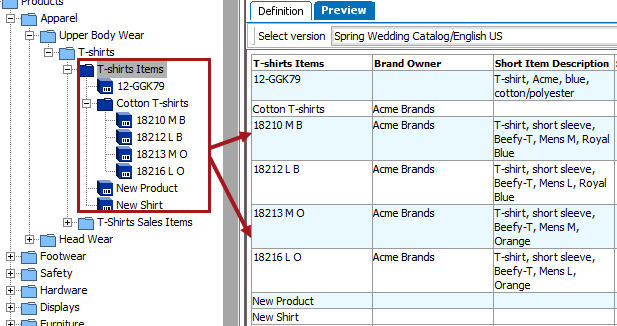
The first screenshot below shows the Subproducts, Family content definition on the Definition tab. The second screenshot shows the resolved table on the Preview tab, with one subproduct per row.
2020, Stibo Systems – Confidential