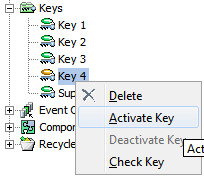
When a Key is first configured, it will be inactive and must be activated to take effect. The activation is performed by a background process that calculates and stores keys for the affected objects, and only allows the key to become active if the keys can be created for all specified object types.
Keys will only be generated for objects that have local values for all key attributes. For the objects that do not have local values for all attributes and for new objects added later, keys will be generated once all key attributes have local values.
Once a key has been activated, in the workbench, key attribute fields with values will be read-only and only users with a special 'Modify unique key value' privilege can update the value (Edit menu > 'Edit Unique Key Values'). It will not be possible to update the value via an import or via the APIs.
Prerequisites
It is expected that anyone activating a STEP Key is familiar with the Defining Keys section of the Keys topic (here) within this guide.
Below are steps to activate a key.
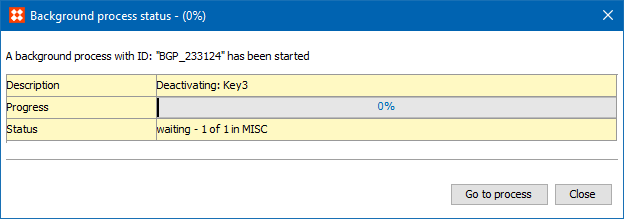
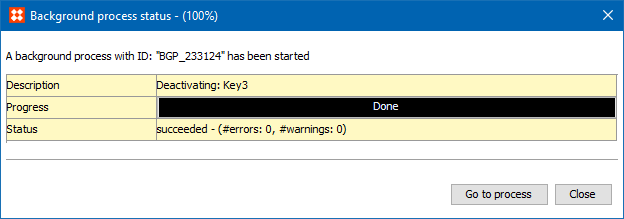
A background process is started that tries to generate keys for all objects of the specified object types. If identical keys are generated for two or more objects, this is reported as errors in the Execution Report. The generated key and the conflicted objects are listed in the report.

Keys are not generated for objects with missing key attribute values. Once values are supplied for all key attributes of an object, keys are generated on the fly.
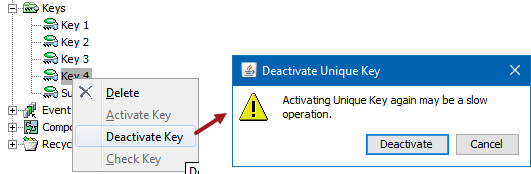
When a key has been activated, it is no longer possible to edit the values on the key attributes, unless you have set up special user privileges. However, you must deactivate the key first.
2020, Stibo Systems – Confidential