
In the Watermark step, users can add watermarks to images.
Note: The 'Watermark' step in the Export Images and Documents wizard is available only when a custom image conversion configuration is selected in the Image Conversion step and if 'Use predefined image conversion pipeline' or 'Use predefined script' are not selected in the File Format step.
Businesses use watermarks in product images for reasons that include identifying their company name and preventing competing retailers from stealing images and using them to sell identical products.
The following screenshot shows an example of a watermark that has been added to an exported image.
In addition to custom image conversion configurations in the Export Images and Documents wizard, watermarks can also be applied to images in the following locations:
Watermarks can be applied to images on import using an inbound integration endpoint (IIEP) that applies an image conversion configuration with a watermark step. For more information, see the Content Importer topic in the Digital Assets / Asset Importer Configuration documentation here.
The Watermark step contains numerous configuration options that allow you to fine-tune how the selected watermark will display on exported images. These settings include whether the watermark should be of a fixed size, scaled in relation to the target image, or tiled; the opacity of the watermark; whether the watermark should be rotated; and where it should appear in the image (e.g., centered).
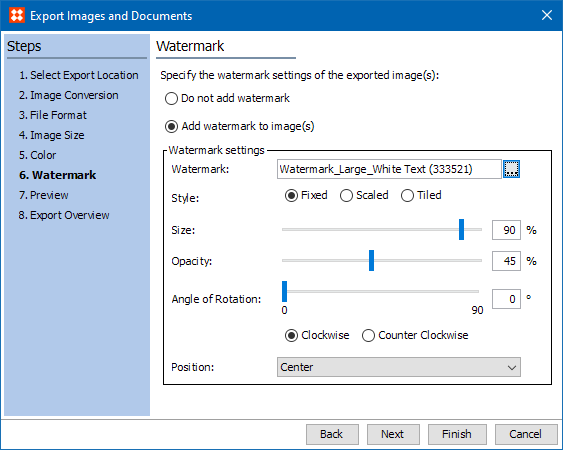
 ) to browse to or search for the image that will be used for the watermark.
Note: Only the PNG image format is supported, since this is the only system-supported image format that supports transparency.
The following screenshot shows an example watermark image in which the content of the watermark (the text 'SAMPLE') is white and the background is transparent. It is strongly recommended to use watermark images with transparent backgrounds to ensure that settings, such as opacity, apply to the content of the watermark only and do not affect the negative space that surrounds the watermark content.

The fixed and scaled options allow for single watermarks to be added to images, either in a fixed size or scaled in relation to the target image. The tiled option will repeat the watermark in tiles over the underlying image.
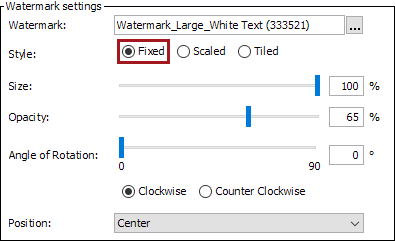
Position: Select where the watermark should be positioned on the target image. The default position is center.
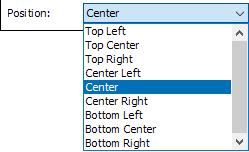
The following screenshot shows the 'SAMPLE' watermark placed in the Fixed style using the following settings: 100% size (actual size), 65% opacity, 0-degree rotation, and center positioned.

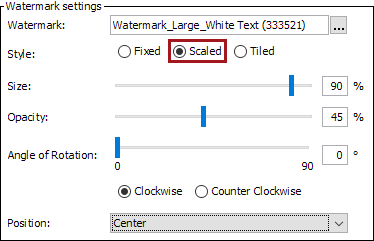
The following screenshot shows the 'SAMPLE' watermark placed in the Scaled style using the following settings: 90% (scaled to 90% of the target image size), 45% opacity, 0-degree rotation, and center positioned.

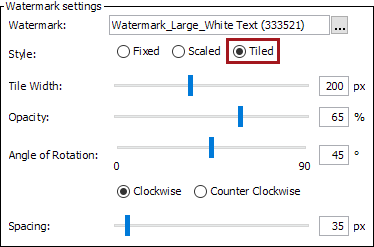
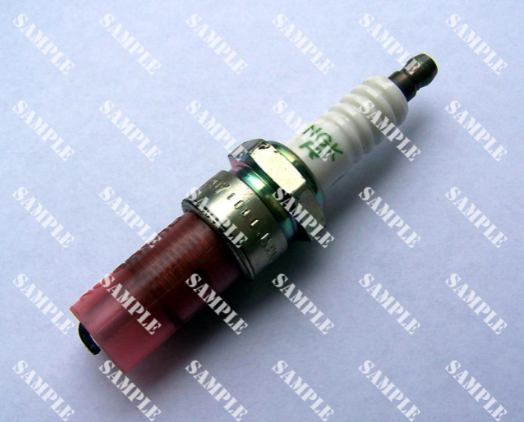
The following screenshot shows the 'SAMPLE' watermark tiled using the following settings: tile width of 200 pixels, opacity of 65%, 45-degree clockwise rotation, and 35 pixels of spacing between each tile.
2020, Stibo Systems – Confidential