 , and select the option Add Workflow Attachment.
 While not the only reason, 'Workflow Attachments' are typically used for holding files that are necessary for users handling tasks in states. This could be written instructions, images, data sheets etc. Once the attachment is in place, when a user receives or gets a specific task(s), they can access the attachment and follow the specified instructions / guidelines.
Using workflow attachments a user can attach files to workflow instances. Also, like the workflow variables, workflow attachments are global to the workflow instance.
Note: Users should be familiar with the navigation to the STEP Workflow Designer and defining the views and mappings. See Creating a Workflow in the Workflows documentation for more on the workflow designer here. Also, see Views and Mappings for Workflows in the Workflows documentation for additional information here on view and mapping.
As described in the Configuring Views for Workflows section in the Workflows documentation here, the 'WorkflowAttachment' component allows Users to add, open, download and delete workflow attachments through views.
Attachments are defined in the left pane of the Workflow Designer. To add a workflow attachment:
, and select the option Add Workflow Attachment.
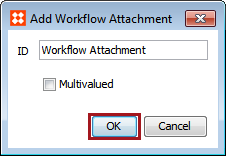
If multiple attachments are required then check the option for 'Multivalued'.
Note: If a user needs to edit or delete a workflow attachment added in this section, they can click on the edit icon,  , or they can click on the remove icon,
  , to make any necessary changes.
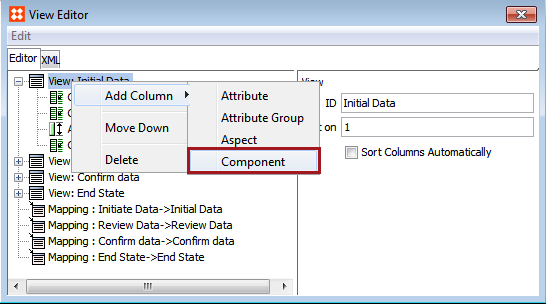
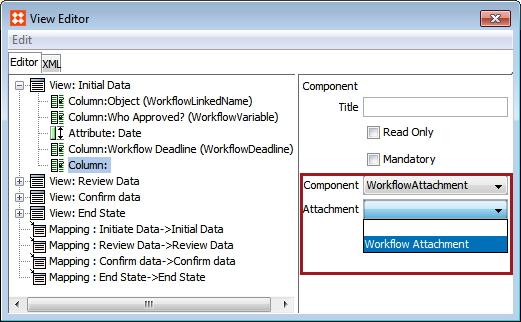
|
Component |
Returned Value |
|---|---|
|
Read Only |
If marked as this the add and delete options will be disabled, but users will still be able to open and download attachments. However, any uploaded files will not be stored in the STEP database. Instead, they will live in the application server file system in a path specified via the configuration property 'Install.STEPWorkflowArea'. |
|
Mandatory |
Tell the user that the attachment is required information. |
Now that the configurations are in place, the steps below show a user how to attach and remove a file.
 , next to the desired product and select the file from the system that is to be attached.
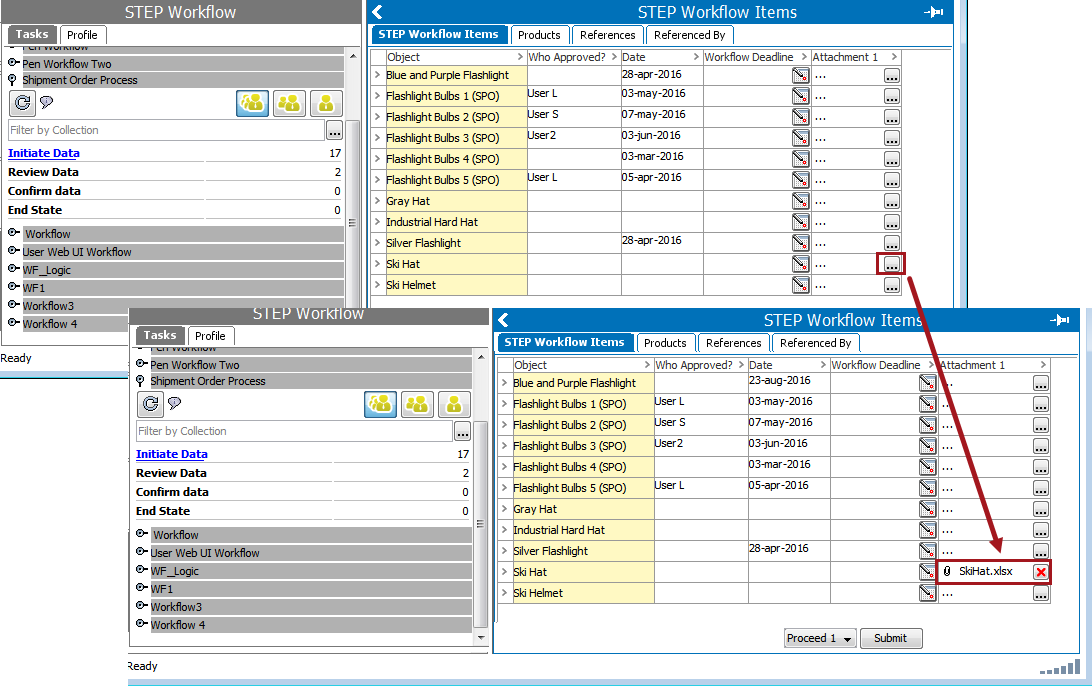
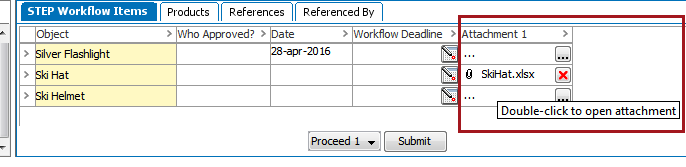
 .
.It is worth noting that workflow attachments are instance specific, and values will be deleted together with the instance.
In the public API you can obtain a 'WorkflowAttachment' object through the 'WorkflowInstance' interface via 'WorkflowInstance.getAttachmentByID'("Attachment ID") and have various methods available on the returned object.
Note: The files referenced by attachments are stored on the application server in the directory pointed to by config property "Install.STEPWorkflowArea". If you are on a clustered environment, the directory should be on a shared drive. Workflow attachments are not stored as assets in STEP.
2019, Stibo Systems – Confidential