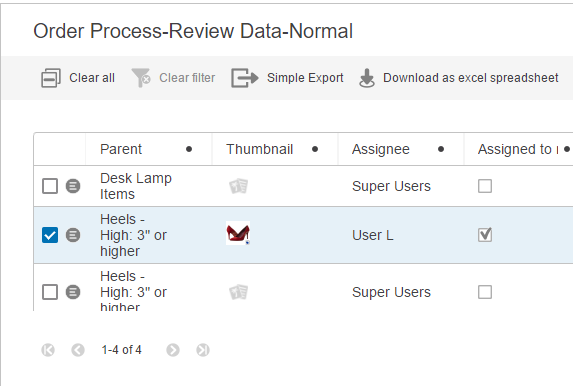
With simple export, it is easy to export any selection of products, entities, and classifications. Users may export one node type at a time. And supported export formats are Excel or CSV.
To begin using the simple export functionality, the action for this has to be applied to toolbars on relevant screens.
In the designer an action called 'Simple Exporter Action' can now be added to a toolbar on a given screen of the type Node List or Task List:
Configuring the Simple Exporter Action
When configuring it is possible to change the default settings shown in the screenshot below:
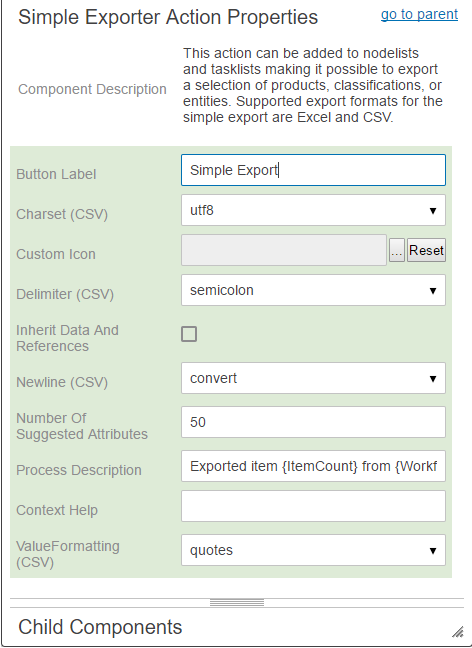
Button Label: Entered text is displayed on the button. When no text is entered, the default 'Export action' is displayed. This is only valid if the 'Include Label' parameter on the parent Node List properties is checked.
Charset (CSV): Choose the character set that should be used from the dropdown list.
Custom Icon: An icon can be selected from those that exist in workbench. Adding a custom icon overrides the default icon displayed in the user interface. The recommended size of the icons in pixels is 20 (high) x 35 (wide). The recommended color of an icon is jewel-toned, deep colors that fade well for the disabled state. Click the Reset button to restore the default icon.
Delimiter (CSV): A default can be set from the dropdown list, but the end user can overwrite this setting when doing an actual export.
Inherited Data And References: If selected, the Export Manager extracts values for products that have inherited values from products at a higher level in the hierarchy. When not checked , the export with not include any inherited data or references on the exported object(s).
Newline (CSV): Select whether you want to keep carriage return (new line) or convert to a space instead. The latter is recommended. If you keep the carriage returns, you may experience issues with the data integrity.
Number Of Suggested Attributes: When mapping the attributes, this allows the number of suggestions can be changed.
Process Description: Template for process description text.
Context Help: Text displayed when hovering over the object.
Value Formatting (CSV): Select either to export all values in quotes or without quotes.
When the portal user has not picked a selection of objects to be exported, the icon will not be enabled and will be grayed out.
If the selection consists of more than one node type, the user is asked to decide which node type to export:
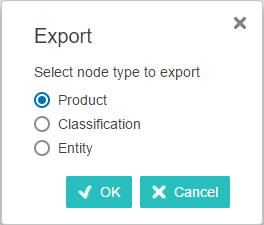
If the selection is limited to less than one hundred objects, this choice is only presented when objects of different node types are present in the selection.
Mapping
On the Simple Export mapping screen (shown below), the ID is pre-selected for inclusion.
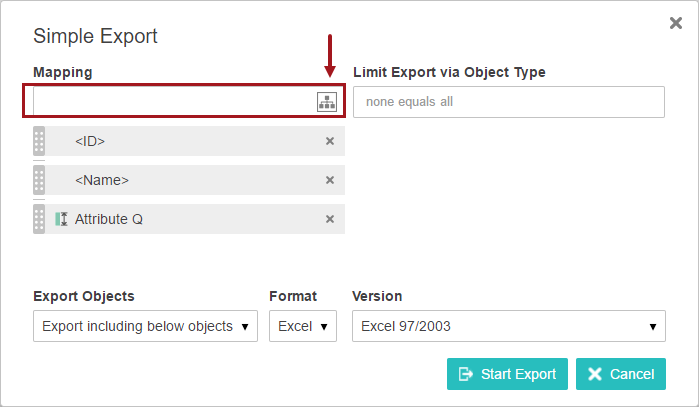
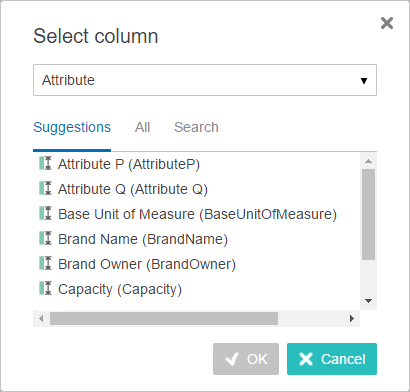
 ) to display the Select column dialog.
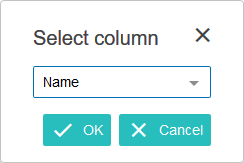
For example, when the attribute option is selected, three tabs are displayed to help you find the required attribute. Suggestions are given based on a sample of the objects in the beginning of the selection after navigating between the available tabs. Under the 'All' tab you can browse through all the attributes in the system. Finally, you can search for a given attribute under the 'Search' tab.
 button and dragging the field up or down in the list.
2019, Stibo Systems – Confidential