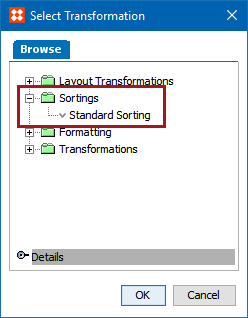
Only one sorting transformation, Standard Sorting, exists for tables. The Standard Sorting transformation enables you to sort the rows in your table according to the contents of one or more columns.
Example
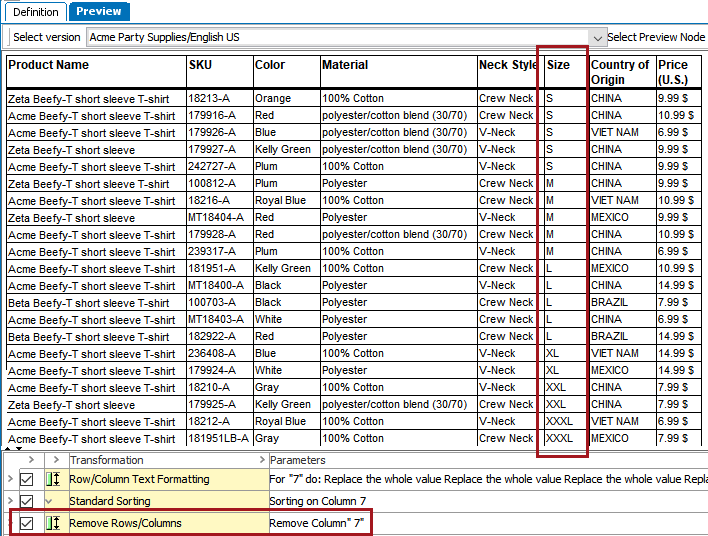
In this example, the table includes a listing of T-shirt sizes in S, M, L, XL, XXL, and XXXL. Two Size columns are present. One lists the T-shirt sizes, and the second contains numbers that correspond to the sizes—1 for S, 2 for M, etc. This is so an ascending sort can be applied to sort the T-shirts from smallest to largest size (S, M, L, XL, etc.) instead of alphabetically (M, L, S, XL, etc.)

The Standard Sorting transformation is added to the second Size column (in this example, column 7) to sort the rows by ascending numbers.

To finish the look of the table, a Remove Rows/Columns transformation is added to remove the sort column, so the finished table has the rows sorted by S, M, L, etc. See the Remove Rows/Columns topic here for more information on this transformation.
Steps
 ). The Standard Sorting dialog displays.


). The Select Row/Column dialog displays.
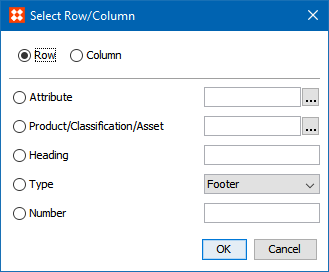
) to search or browse for the relevant attribute.) to search or browse for the relevant object.

2019, Stibo Systems – Confidential