The Merge Rows/Columns transformation enables you to merge single columns or rows, groups of columns or rows, or a range of columns or rows into one column or row.
When you merge columns or rows, the values of all rows or columns are retained and usually separated by a separator character. After the merge, it will look as if two or more attributes are placed in the same column or row.
The instructions in this topic assume that you have already added the transformation to your table by following the instructions in the Add a Transformation to a Table or Table Type subsection of the Table Transformations topic here.
In the following example, the 'Neck Style' and 'Material' columns are merged. Though it is common to merge columns or rows that are directly adjacent to one another, any columns or rows can be chosen. E.g., in the below example, 'Product Name' and 'Color' could be merged, and so forth.
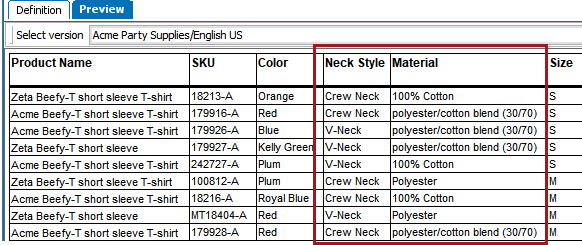
Before
Before the merge, the 'Neck Style' and 'Material' attributes are maintained in two separate columns.
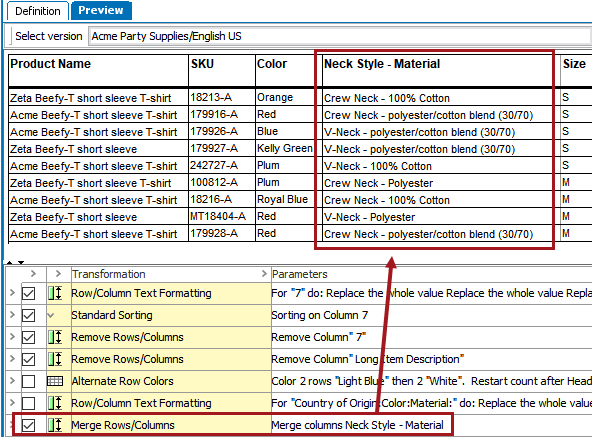
After
After the merge, the contents of the two columns are now merged into one column, and the values are separated by a hyphen with a space on either side.
The Merge Rows/Columns transformation is set up in a three-step wizard. The steps are Orientation, Rows/Columns, and Result.
To get started, after adding the transformation, click the ellipsis button ( ) under Parameters to display the Merge Rows/Columns wizard.
In the Orientation step, specify whether you want to merge columns or rows. Click Next.

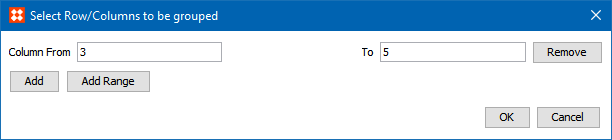
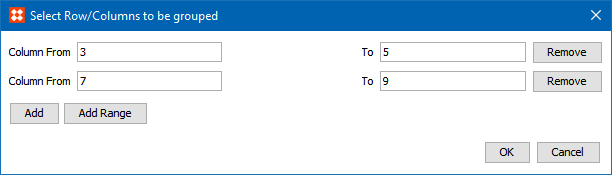
In the Rows/Columns step, two merge options are available—Merge Single Columns and Merge Group of Columns.
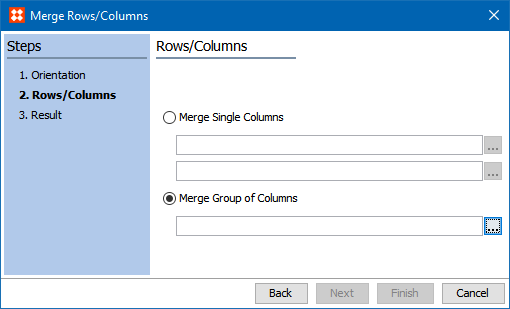
) on the first parameter to choose the first row or column that you want to merge.
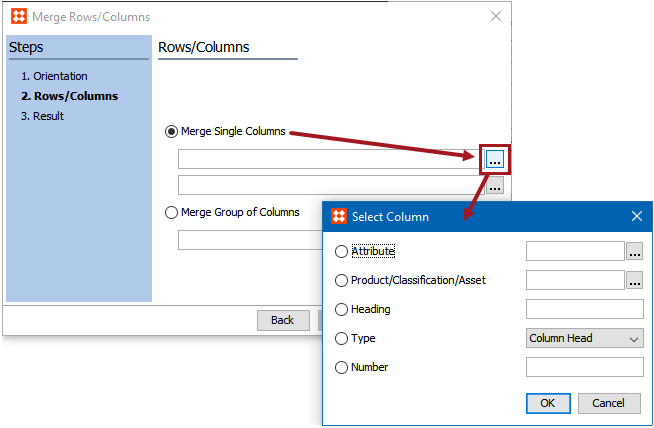
) in the second field to choose the second row or column to be merged, following the same steps that you used to choose the first row or column. ).
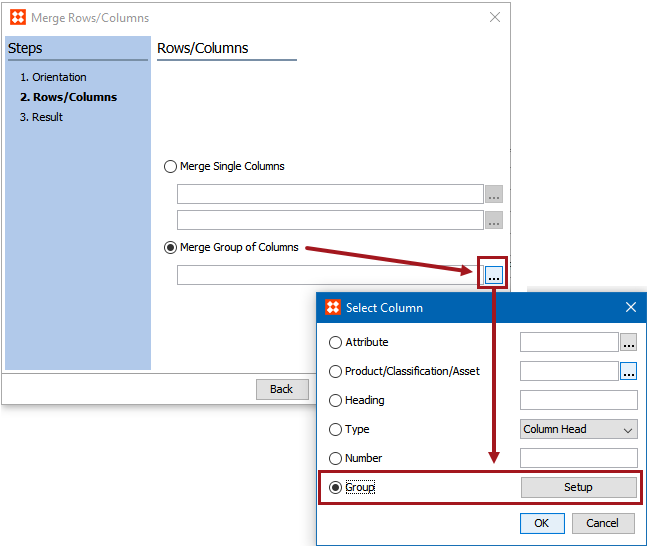

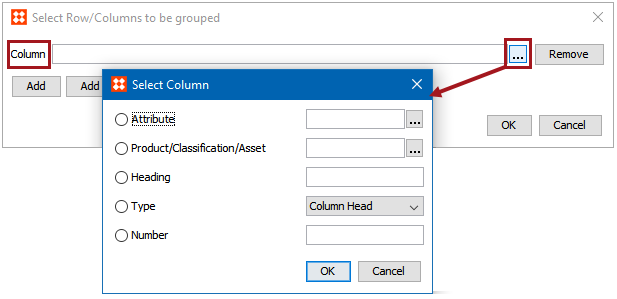
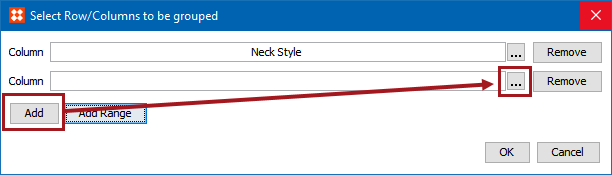
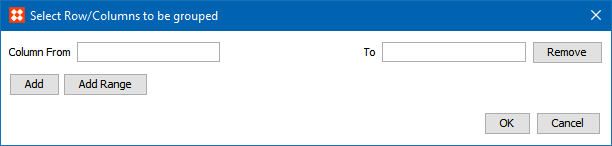
) to launch the Select Column (or, Select Row) dialog. Specify the first row to be grouped, then click OK.


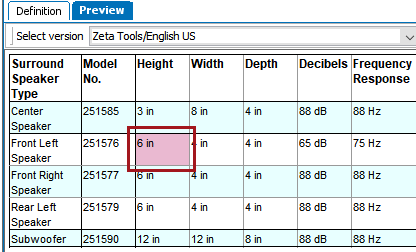
In the following example, the 'Height,' 'Width,' and 'Depth' columns will be merged using the Merge Rows/Columns transformation. Before the transformation is applied, a single pink cell appears in the 'Height' column, and all dimension values appear independently, each in their own column.
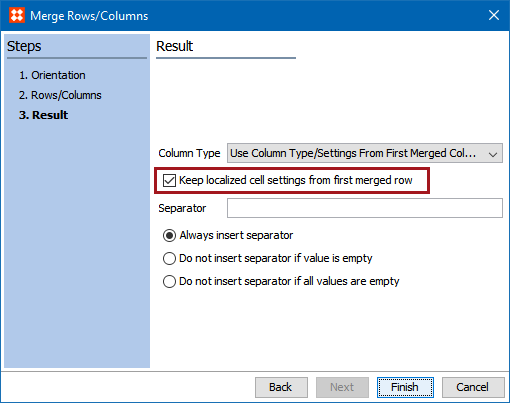
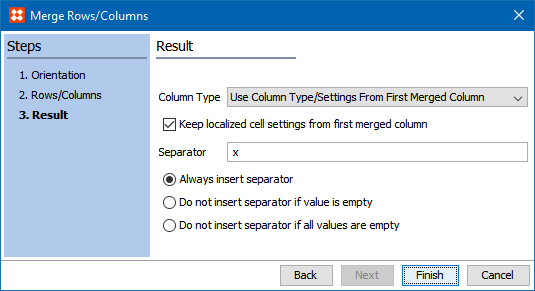
After the transformation is applied, the pink shading is retained in the merged cell, and all merged values now appear in the same column, separated by ' x '. This is due to Keep localized cell settings from first merged column being selected and a separator of ' x ' being used as the separator on the Result screen of the wizard.
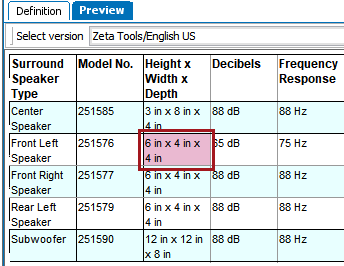
Had Keep localized cell settings from first merged column been left unchecked, the pink shading would have been lost and the table would look like this:

2019, Stibo Systems – Confidential