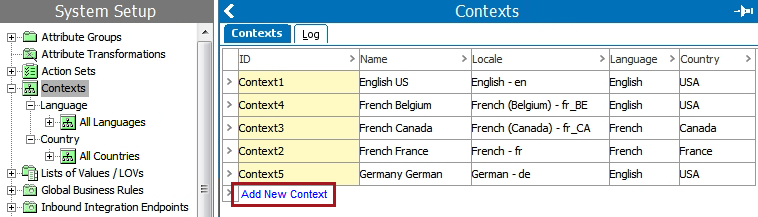
This section describes how to create, edit, and delete contexts. Also explained is the concept of hidden values, which can be caused when a context is deleted, and how to specify a default context.
Contexts are maintained in System Setup > Contexts. A context must contain at minimum one language dimension point; for example, English.
Note: Before creating a context, the associated dimension and dimension points must be created. For more information, see the Maintaining Dimensions and Dimension Points topic here.
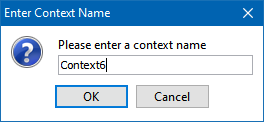
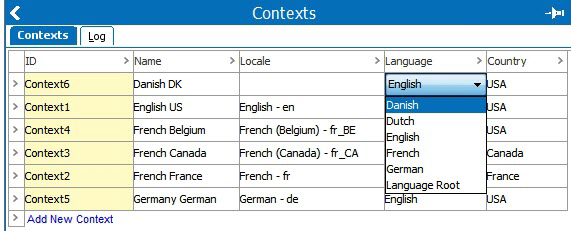
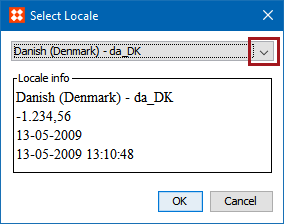
 ) to select the locale that will be used for data in the context.
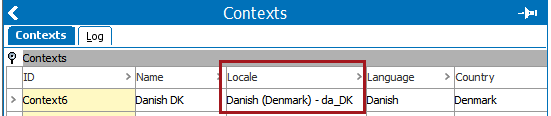
When editing a context, the following options are available:
The ID cannot be edited; a new context must be created to generate a new ID.
To delete a context:
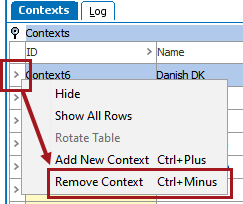
If a context in which attribute values exist is deleted—and the attribute(s) are dependent on one or both of the dimension points contained within the context (e.g. language or country)—these values will be hidden if no other contexts use one of these dimension points. Hidden values can be viewed on the Status tab in the workbench, beneath the 'Hidden values' flipper.
The values will reappear if the context is added again, or if another context is created that uses the same dimension point.

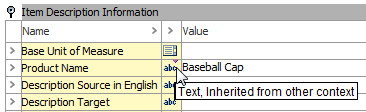
Within a standard editor, values inherited from another dimension will have a purple indicator in the attribute icon, as shown below:
Note: Deleting a context can also cause a product to not be fully approved even if it is approved in all contexts. This is because there are still existing values in a deleted context.
To ensure that the STEP Workbench always loads in your preferred context, you can specify a default context by following these steps.
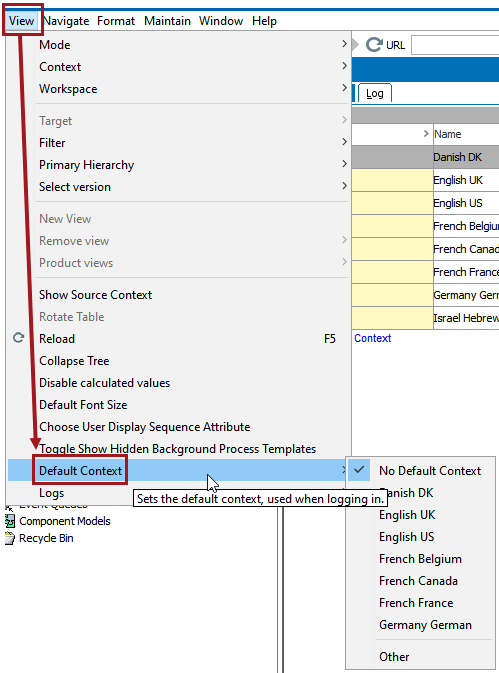
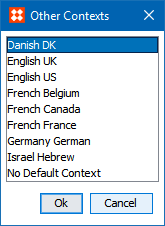
Going forward, STEP will always open in this context unless you set the default context to something else or choose 'No Default Context.'
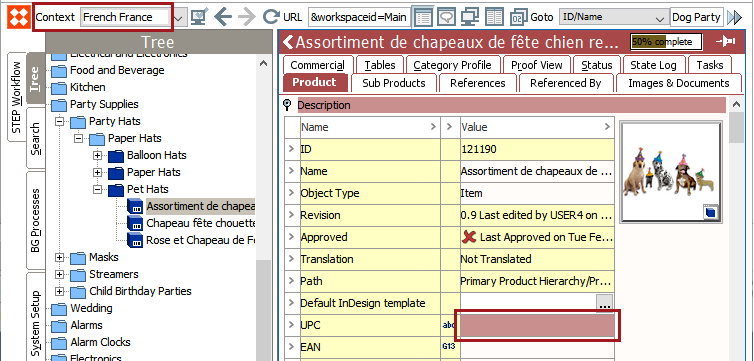
You can still work in other contexts, but if you select a context that is not the default context, the toolbar turns dark pink to indicate that you are not working in the default context. Additionally, attribute editor fields will turn pink when selected.
2019, Stibo Systems – Confidential