The default function in STEP is that attributes shown in the editor of a product are displayed in alphabetical order. However, if a Display Sequence Attribute has been set up, the attributes shown in the editor are sorted according to the value of the Display Sequence attribute.
Important: The Display Sequence Attribute has no impact on the order in which attributes are exported.
This section describes how you can set up the STEP Workbench so that the attributes shown in the product editor display according to the order set in the Display Sequence Attribute.
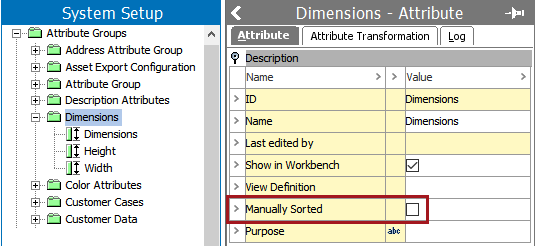
Before using a display sequence attribute, you must verify that 'Manual Sorting' is not selected on the attribute groups in which the relevant attributes are contained. If enabled on an attribute group, the Manual Sort option will overwrite any attribute sequences you configure. To check if the manual sorting is enabled , select the relevant attribute group in System Setup as shown below.
Set Up Display Sequence Attribute
A Display Sequence Attribute is a description attribute that dictates how other attributes will be ordered in an object editor. To configure a Display Sequence Attribute, it must:
To create this type of attribute, see the Creating Attributes topic here.
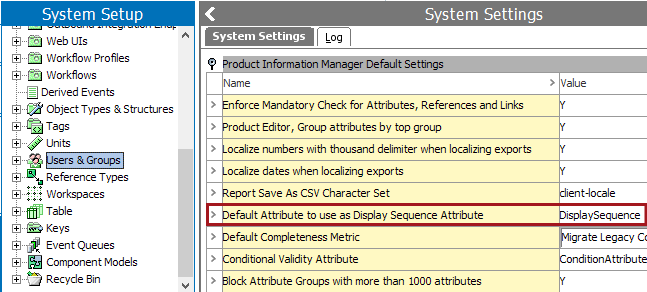
Select the display sequence attribute in System Setup > Users & Groups > System Settings tab > Product Information Manager Default Settings flipper > Default Attribute to use as Attribute Display Sequence Attribute.
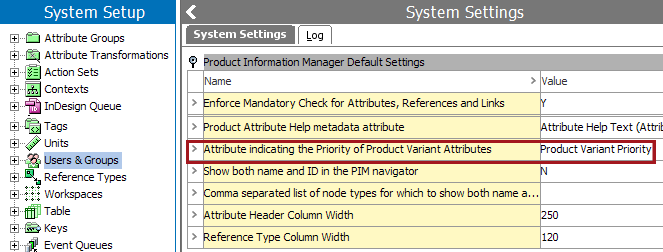
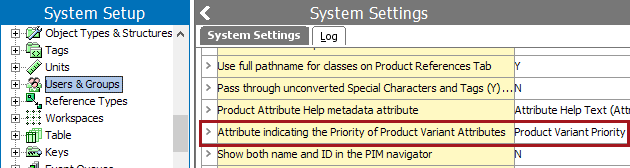
Similarly, select the display sequence for the product variant object types in System Setup> Users & Groups > System Settings tab > Product Information Manager Default Settings flipper > Attribute indicating the Priority of Product Variant Attributes.
View Menu: Choose Display Sequence Attribute
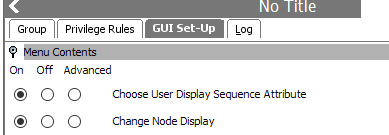
By default, users are able to select a display sequence attribute. However, if admin users want to prevent specific users from making this selection, they may disable this privilege by making a change to the user group that contains the relevant users as follows:
Select the GUI Set-Up tab, and under the Menu Contents flipper locate the Choose User Display Sequence Attribute option.
For more information on how to use the Display Sequence Attribute, see the Default Attribute to use as Display Sequence Attribute heading within the Product Information Manager Default Settings topic of the System Setup / Super User Guide documentation here.
Once the display sequence attribute has been set up, a user can establish the sorting. The attributes shown in the product editor are sorted according to the order set in the display sequence attribute. This can be done in two ways:
Setting a display sequence number on the attribute
In System Setup, expand Attribute Groups, then click the relevant attribute. An Attribute editor displays.
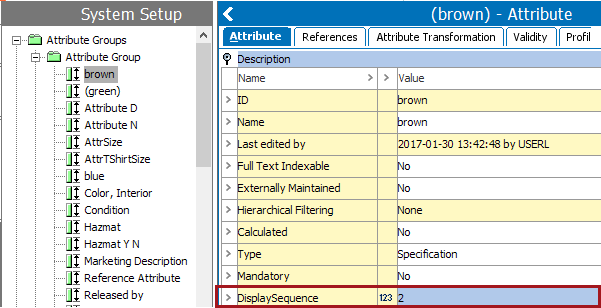
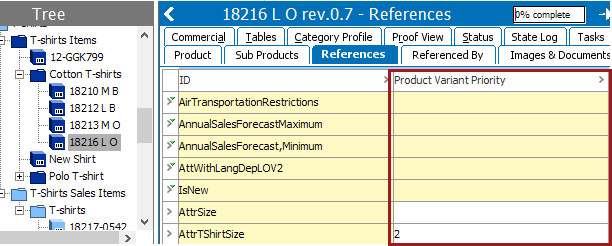
Note: If you do not know which attribute on your system is set up as the display sequence attribute, go to System Setup > Users & Groups > and verify the name of the attribute under Default Attribute to use as Attribute Display Sequence Attribute. Alternatively, in Tree, view a product, click the References tab. Under Linked Attributes, the first column shows the display sequence attribute on your system.
Setting a display sequence number under Linked Attributes
Open the Linked Attributes from Product Hierarchy flipper, type a number in the cell related to the display sequence attribute column in front of the relevant attribute, as shown below.
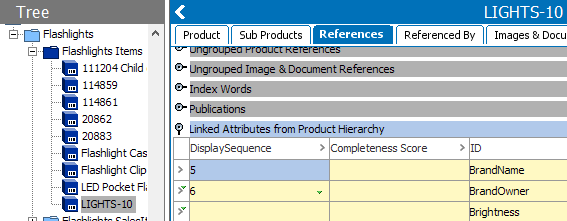
Note: The display sequence attribute column can only be edited if the attribute is linked in at the product hierarchy level you have selected. The Inherited from column shows where the attribute is linked in. An attribute can be linked in to one or more attribute groups. In the Attribute Groups column, you can see to which attribute group(s) the attribute belongs.
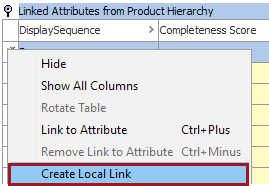
The symbol will change in the inherited column and also the background color of the row will change from yellow to white. You are now able to type a local value in the Display Sequence column.
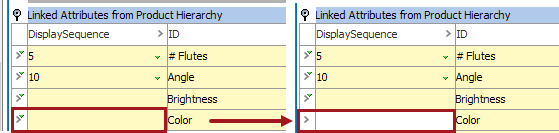
Attributes that have no sequence number, are alphabetically sorted and will be placed last on the list.
Important: Information about the display sequence of attributes is exported in an XML file. If the display sequence number is set on the attribute itself, the XML export will contain the attributes with display sequence attribute value. If the display sequence number is set on the attribute link, the XML export will contain the display sequence information on the attribute links. A combination of the two is possible.
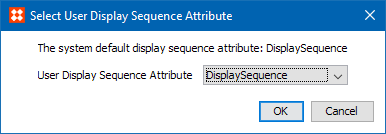
If you are interested in sorting attributes in the product editor on a different display sequence attribute than the one set in System Setup >Users and Groups> Default Attribute to use as Display Sequence Attribute, do the following:
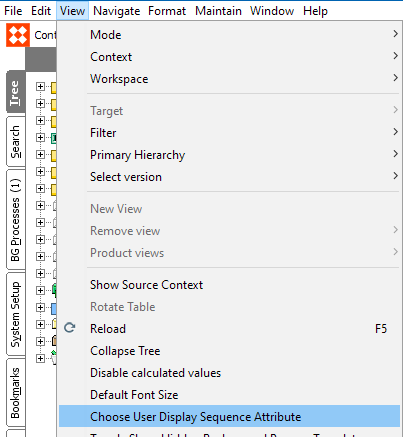
A Select User Display Sequence Attribute dialog box displays.
In Tree, select a product object and select the References tab. The first column under Linked Attributes displays your personal display sequence attribute.
In the product editor, within an Attribute Group, the attributes are sorted on the display sequence attribute. If no display sequence attribute is set, the attributes are shown in alphabetical order.
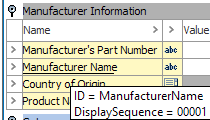
Note: When selecting two or more products, the product editor will show the attributes in alphabetical order since it is possible to select two or more products with the same attributes but with different values for the display sequence attribute.
Your system can be set up to display the display sequence attribute at the classification level.
A display sequence attribute column is shown in the Attributes flipper.
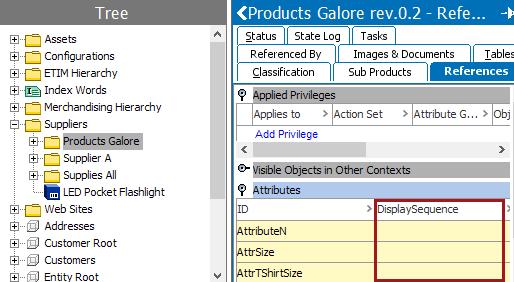
Important: Maintaining attribute display sequence in this area as no effect in either the classification editor or an export.
You can use the display sequence attribute to sort attributes within attribute groups in tables. For more information, see the Tables documentation here.
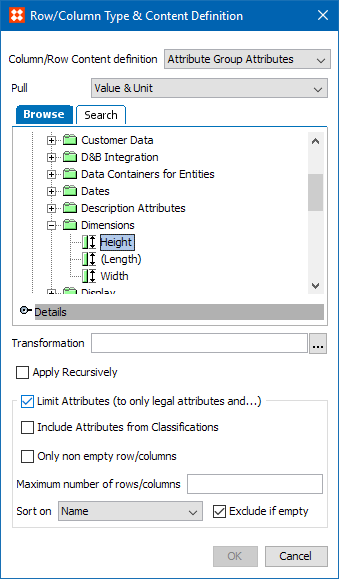
Shown in the screenshot below, in the Sort On parameter, select the display sequence attribute that will determine the order in which the attributes within an attribute group will show in a table.
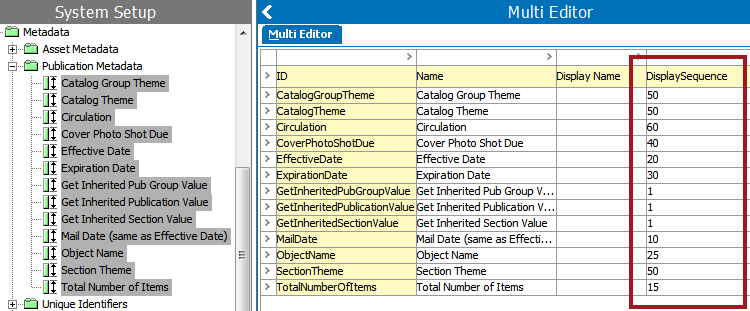
Metadata (or description) attributes on publication hierarchy objects (publication groups, publications, sections, and planned pages) may also be sequenced using a display sequence attribute.
Because publication hierarchy objects do not use reference types, attribute sequencing cannot be set from a 'Linked Attributes' flipper on the References tab. Instead, metadata attribute sequencing must be set up at the attribute level. However, attributes may be multi-selected to allow sequencing from a single location.
2019, Stibo Systems – Confidential