
This section contains information about installing the STEP Publisher / STEP’n’design plugin on your local computer and logging on to STEP from within InDesign. This topic assumes the following:
To log onto STEP from within InDesign, you must first install the STEP’n’design plugin that is associated with the STEP system that you are trying to access.
Note: It is strongly recommended that InDesign is closed while you install the plugin. If InDesign is open when you install the plugin, you will need to close and reopen InDesign before the plugin can be registered.
Once the STEP'n'design plugin is successfully installed, you will see a STEP menu option across the top of the InDesign interface. If you do not see this option, then the plugin installation was unsuccessful.
The following instructions are written for the Windows platform, but the overall process of downloading and installing the plugin is equivalent for Mac users.



C:\Program Files\Adobe\Adobe InDesign CC 2018\Plug-Ins

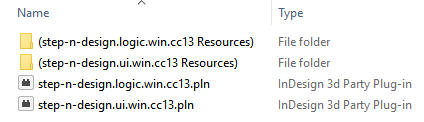
For Mac systems, only the two plugin files will be available; the resources folders will not be present.

After installing the STEP'n'design plugin and opening InDesign, you will have the ability to connect to STEP from InDesign.


Note: If using http://, by default the system will connect using a port number. If SSL is enabled and you are using https://, then the system will connect using a different port number for the same server. For more information, contact Stibo Systems support staff.
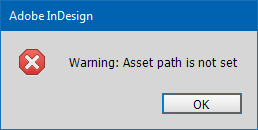
For information on setting an asset path and disabling this warning, see the Linking to an Asset Location topic
The STEP'n'design plugin must be reinstalled every time your STEP system is upgraded and/or every time a patch is applied to your system that impacts the STEP'n'design component. In these instances, the STEP'n'design plugin in your Plug-Ins folder must be deleted and a brand-new plugin must be downloaded again and installed from the Start Page of your STEP system.
If the build level of your STEP'n'design plugin does not match the build level of your STEP system, you will receive a warning such as the below after you connect to your STEP server from InDesign:
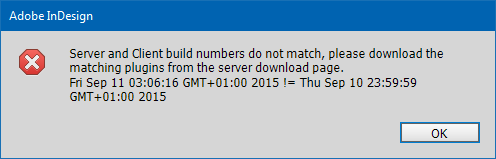
Though you will still be connected to STEP after clicking 'OK,' it is not recommended to work with a mismatched plugin. For example, there might have been bugs in the system that were fixed with a patch. If your InDesign client is running an older build of the plugin that was released before the patch, your system may not function properly.
In some instances, IT standards and procedures for data safety may prohibit users from accessing the 'Program Files' folder which contains the 'Plug-Ins' folder. Due to this, users cannot reinstall the InDesign plugins with each subsequent update of STEP Publisher. To alleviate that issue, a workaround exists in InDesign to allow users to designate an accessible folder location for the plugins. This workaround includes the following:
After creating the alternate plugins folder, create a text file named 'PlugInConfig.txt' which contains the file path to the new plugin location. Inside the file, the following information will be included. (The file paths below are example paths.)
=Path
"C:\InDesign\Plugins"
=MorePluginConfiguration
=Exclude
=Path
"Disk:directory:InDesign\Plugins"
=MorePluginConfiguration
=Exclude
Next, based on the related InDesign version, the PlugInConfig.txt will need to be located in one of the following locations.
| InDesign Version | Windows File Location | OSX File Location |
|---|---|---|
| CC-2017 | C:\Users\'user'\AppData\Roaming\Adobe\InDesign\Version 12.0\en_US | ~/Library/Preferences/Adobe InDesign/12.0/en_US |
| CC-2018 | C:\Users\'user'\AppData\Roaming\Adobe\InDesign\Version 13.0\en_US | ~/Library/Preferences/Adobe InDesign/13.0/en_US |
| CC-2019 | C:\Users\'user'\AppData\Roaming\Adobe\InDesign\Version 14.0\en_US | ~/Library/Preferences/Adobe InDesign/14.0/en_US |
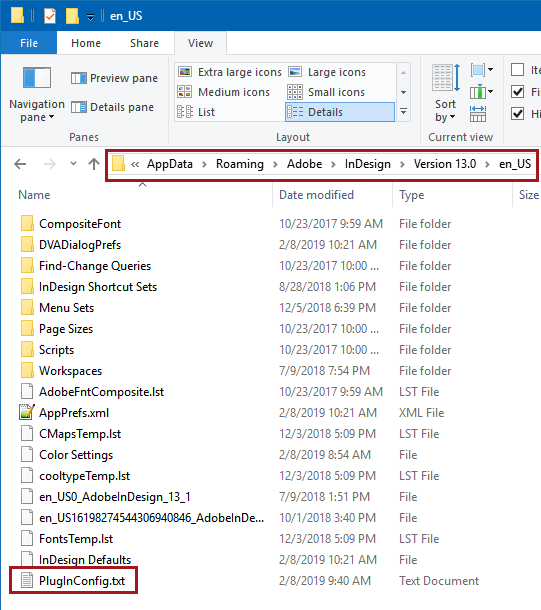
On a Windows machine running CC-2018, the correct location for the PlugInConfig.txt text file is pictured below:
To proceed with this method, relocate the two resource folders and the two plugin files from the 'usual' Plug-Ins folder into the alternate Plug-Ins folder. The below example shows the plugins as stored in a folder named 'InDesign Plug-Ins' on a Windows desktop:

InDesign will load and read the additional plugin location, and no additional configurations are needed. When STEP Publisher is upgraded, users can download and unzip the plugins into this alternate folder and completely bypass the Plug-Ins folder located inside Program Files.
2019, Stibo Systems – Confidential