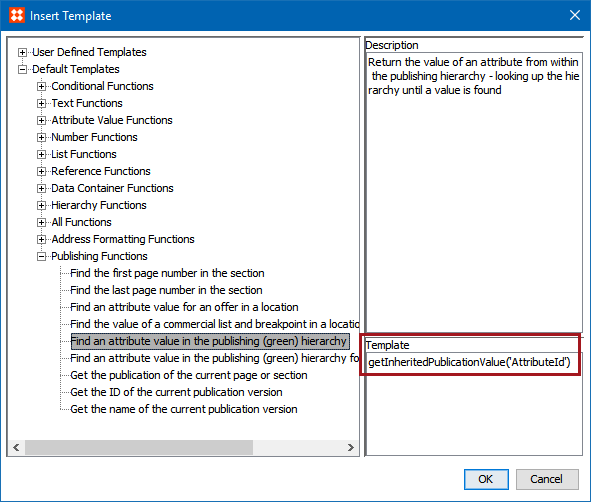
The STEP function 'getInheritedPublicationValue' is used to pick up metadata (description) attribute values from section, publication, and publication group objects within the publication hierarchy. One use case for this functions in AutoPage is to display publication-related metadata on mounted pages by using calculated attributes containing these functions.
Note: Though there is a similar STEP function named 'getInheritedPublicationHierarchyValue', that function is primarily used to pull metadata onto product objects, which are not relevant to this topic. For more information, see the Publishing Examples section of the Calculated Attributes documentation here.
Calculated attributes using the 'getInheritedPublicationValue' function can be used to mount publication metadata onto InDesign pages by way of InDesign tagging applied to the publication template. This functionality allows users more dynamic control over content that exists as 'furniture' (publication template elements) on pages spreads. For example, a section-level description attribute that identifies the 'theme' of the section could be displayed on side tabs or headers of mounted pages, reducing manual work on publication templates and mounted pages.
This topic describes how to use the 'getInheritedPublicationValue' function to pull metadata values from a section, a publication, and a publication group onto InDesign pages generated in AutoPage.
This topic assumes the following:
Follow these steps to create a calculated description attribute using the 'getInheritedPublicationHiearchyValue' function:
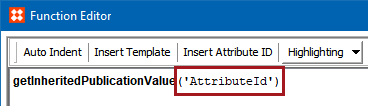
Note: Calculated attributes related to publishing functions cannot be tested in the Function Editor, as publication hierarchy [green] objects are not among the available options when selecting an object as the Evaluation Node.
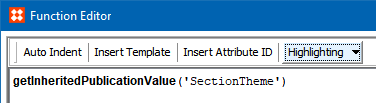
In this example, three calculated attributes are created:
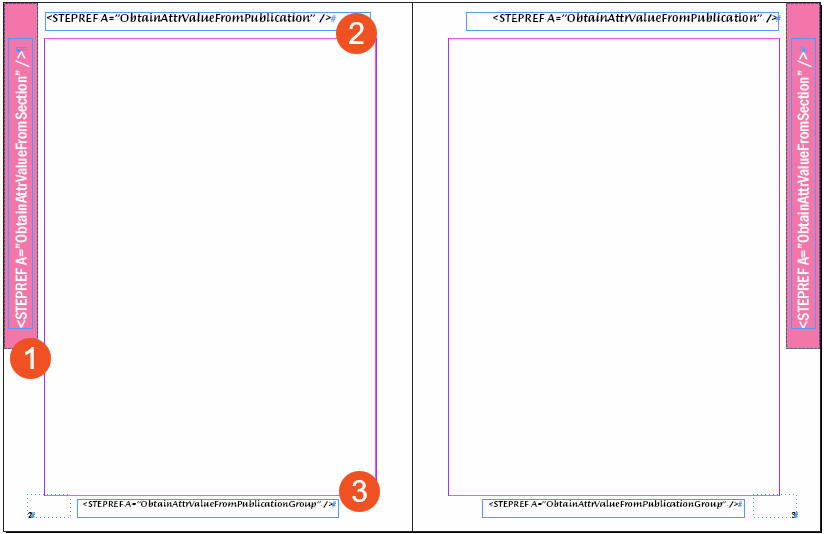
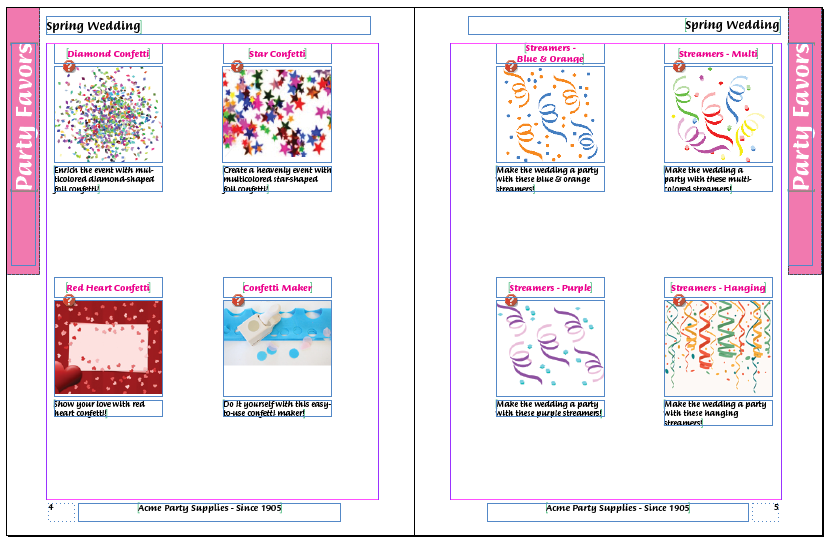
ObtainAttrValueFromSection [using the formula getInheritedPublicationValue('SectionTheme')] will pick up the value of the description attribute Section Theme (SectionTheme), which is 'Party Favors' in this example.
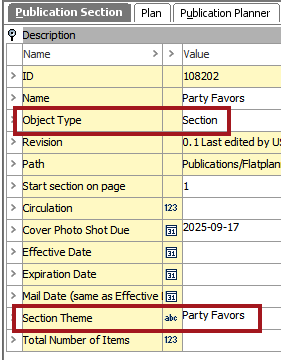
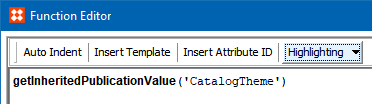
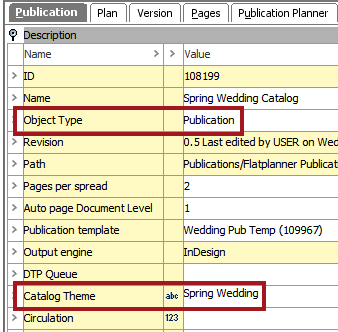
GetInheritedPublicationValue [using the formula getInheritedPublicationValue('CatalogTheme')] will pick up the value of the description attribute Catalog Theme (CatalogTheme), which is 'Spring Wedding' in this example.
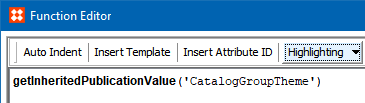
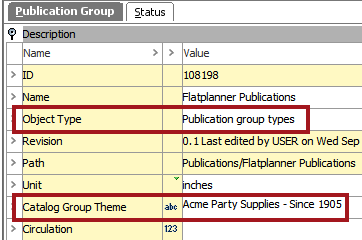
ObtainAttrValueFromPublicationGroup [using the formula getInheritedPublicationValue('CatalogGroupTheme')] will pick up the value of the description attribute Catalog Group Theme (CatalogGroupTheme), which is 'Acme Party Supplies - Since 1905' in this example.
Place the attributes on the publication template just as you would place attributes on a product template. See the Text Frames in Product Templates section of the STEP Publisher documentation here for more information.
Note: Attributes must be placed on the page spread(s) of the publication template, not the master spread(s).
In this example, the attributes and their placement on the pages are as follows:
After running the autopagination process on your publication, section, or subsection, the publication description attribute values will display on the mounted page in InDesign. For full instructions on the autopagination process, see the Autopaginating Pages topic
2019, Stibo Systems – Confidential